
In-Meeting AI Chat, and Summaries and Notes After the Meeting [SuperIntern]
![In-Meeting AI Chat, and Summaries and Notes After the Meeting [SuperIntern]](/_next/image?url=%2Fblog%2Fin-meeting-ai-chat-guide%2Fen%2Fcover.webp&w=3840&q=75&dpl=dpl_DXTXto3WhkFSYUyDAYQTnYxXVh1n)
In SuperIntern, you can ask the AI chat questions while you record a meeting. The chat answers with what is being said right now in mind, so you can organize key points or prepare a reply without pausing the meeting.
This article explains how to use AI chat during a meeting, the note created during the meeting, and the summary created after it.
⚠️ This article reflects SuperIntern's behavior as of October 2026. Screens and specifications may change.
1. Ask AI chat a question during a meeting
While recording, click "Open Chat" on the control bar to open the chat window. Type your question in the input field and send it.
The chat answers using the transcript so far, plus the latest content being spoken at the moment you send your message. For example, you can use it like this:
- "Summarize the points so far in three lines"
- "How should I answer the question they just asked?"
- "Separate what was decided in this discussion from what is still open"
- "Tell me what we discussed with this customer last time" (it can also refer to past meetings in the same workspace)
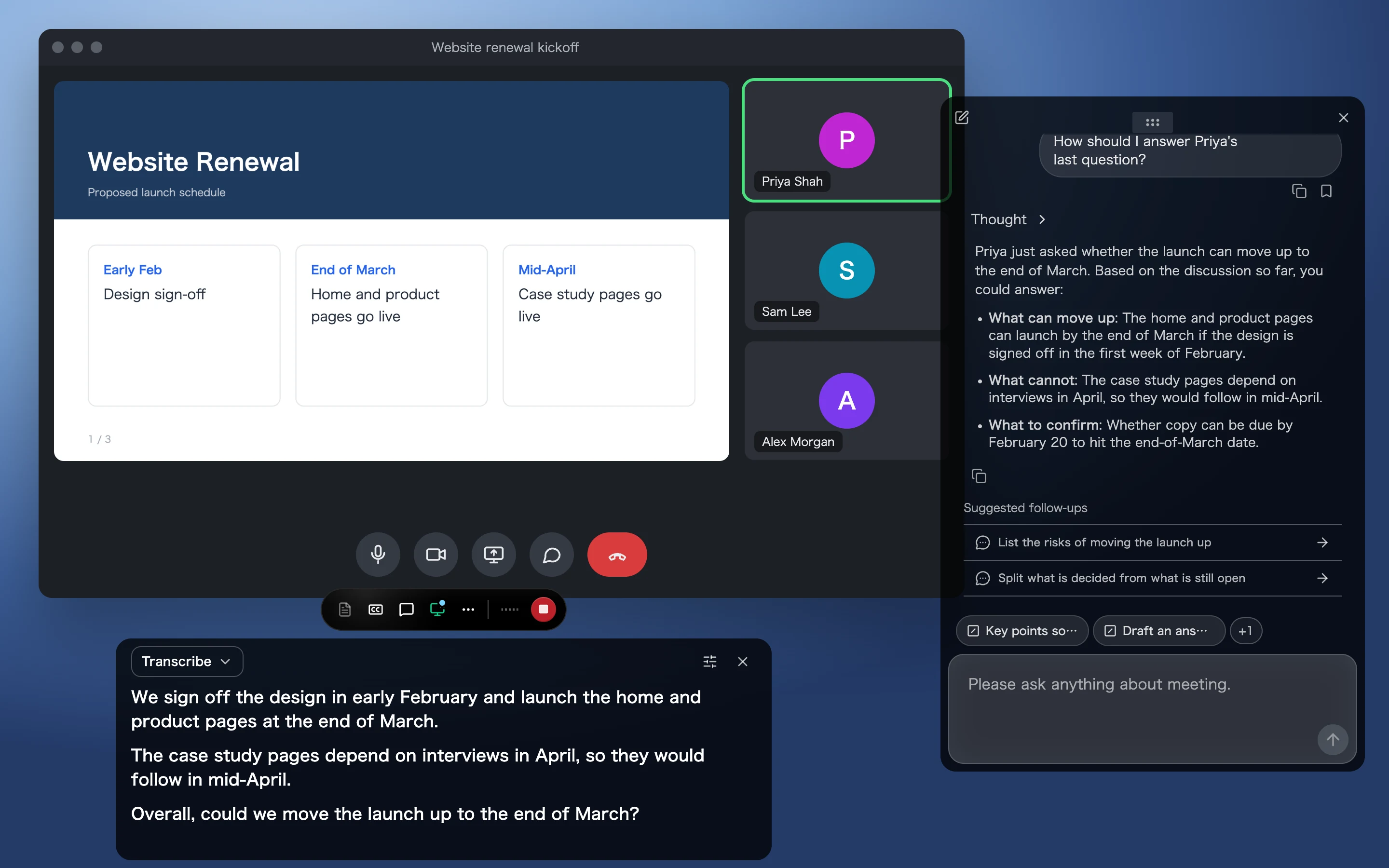
When needed, the chat also uses web search, so you can check terms and numbers that come up in the meeting on the spot.
- Only the person recording the meeting can use the in-meeting chat.
- If you have connected Slack, Notion, and Linear, you can use those apps from the in-meeting chat too. You cannot connect new apps during a meeting, so connect them beforehand in "Apps" under "Personalize". For details, see How to Automate Work with Slack, Notion, Linear, and MCP.
Turn requests you use often into skills
For a request you send every time, such as "Put this in meeting-minutes format," register it as a skill. Then you can send it by clicking the button shown above the chat input field.
Register skills with "Add skill" in the chat window, or in "Chat skills" under "Personalize". Skills for which you choose "During meeting" under "Made for" appear in the in-meeting chat. For details, see How to Search Across Meetings with Chat and Put the Results to Work.
2. Set the shape of the note created during the meeting

While you record, a note that organizes the content of the meeting is created automatically. After the meeting, you can review it in the "Note" tab of the meeting detail screen.
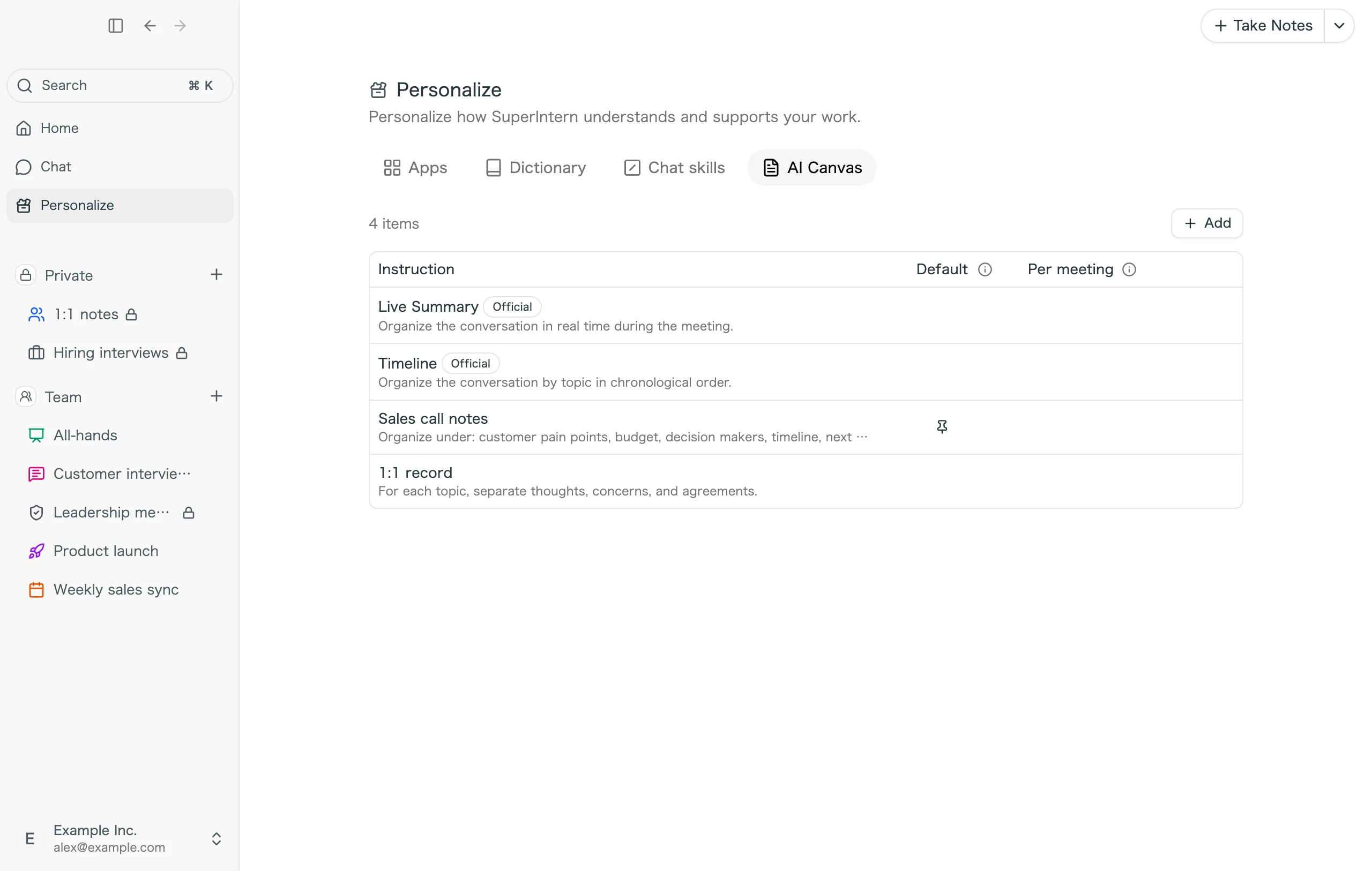
You can change the shape of the note by registering instructions on the "AI Canvas" tab under "Personalize".
- Official instructions are provided: "Live Summary," which organizes content in real time, and "Timeline," which organizes it by topic following the flow of the conversation.
- You can also write and add your own instructions.
- The instruction you set as "Default" is used for all meetings. You can also assign a different instruction to each recurring meeting on your calendar.
3. Review the summary after the meeting
When you finish recording, a summary is created automatically. You can review it in the "Summary" tab of the meeting detail screen.
- Choose the summary language with "AI Output" under "Language" in "Settings". With "Auto", the summary is created in the language spoken in the meeting.
- When you want to rebuild it with the latest information, for example after correcting a speaker's name, click "Regenerate".
- If a summary has not been created yet, you can create one with "Generate".
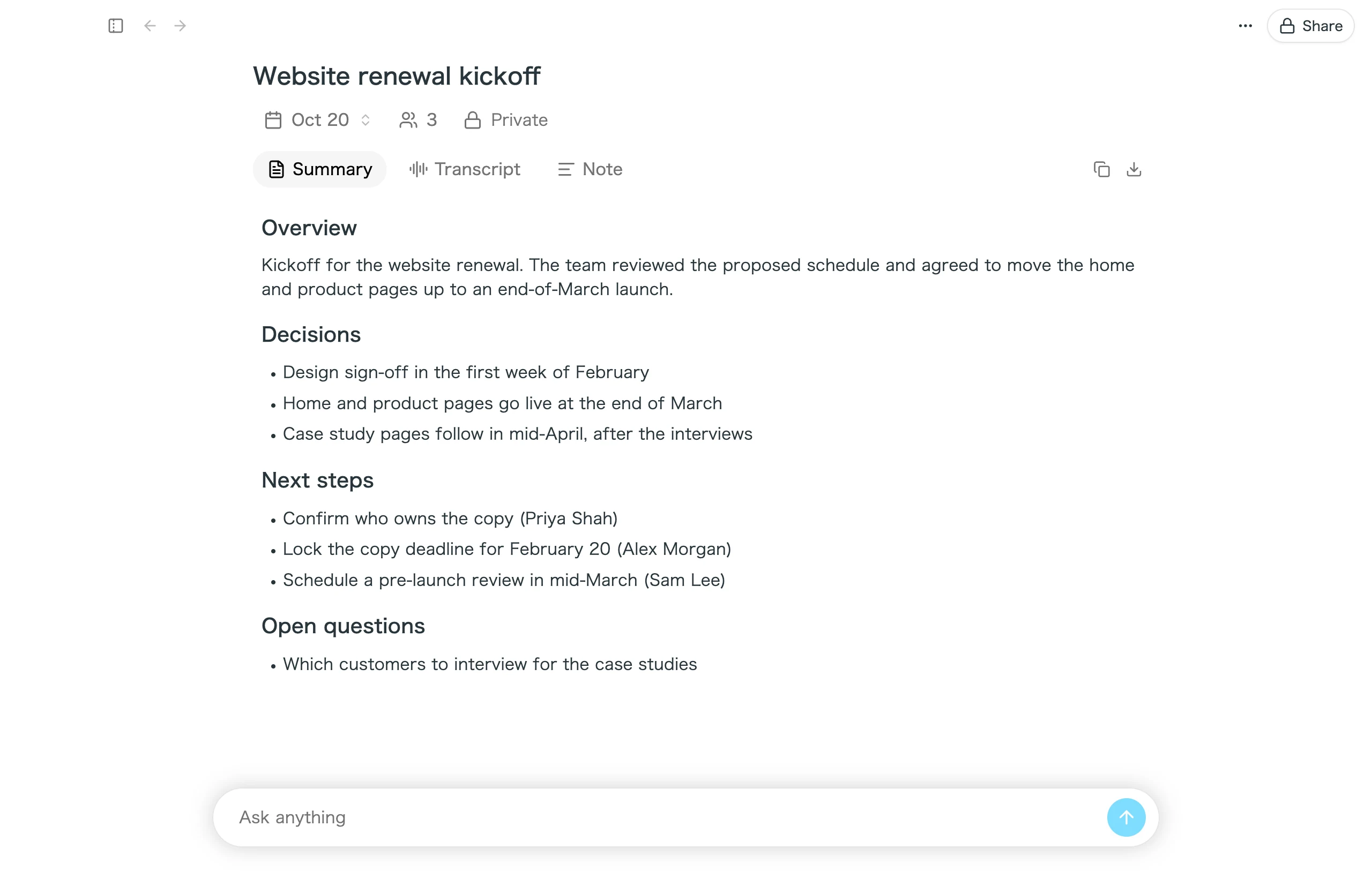
To research further or build documents from a summary or note, use the chat on the meeting detail screen or "Chat" in the sidebar. For details, see How to Search Across Meetings with Chat and Put the Results to Work.
FAQ
Can other participants see my in-meeting chat?
No. The chat is used only inside your own desktop app and is not shown to meeting participants. If you do not want it to appear while you share your screen, use Stealth mode.
Do AI Canvas instructions change the summary too?
No. AI Canvas instructions change only the shape of the note created during the meeting. The summary is created in the same format for every meeting.
For tips on getting your team started with SuperIntern, see Getting Started with SuperIntern as a Team.