
Turn Client Meeting Decisions into Backlog Issues: A Practical Guide to SuperIntern MCP and Backlog
After every client meeting, someone on the agency side opens Backlog with their notes, hunts for the issues that came up, adds comments, and files new issues for fresh requests. When that work slips to the next day, a spec change the client mentioned out loud never reaches the issue, and the team keeps building against old instructions.
Connect SuperIntern MCP and the Backlog MCP Server to your AI agent and it can take this over. The agent compares the meeting summary with your Backlog issues, shows you a table of which issues get which comment and what needs a new issue, and writes only what you approve.
The Backlog MCP Server runs on your own computer, and there is no official way to connect Backlog to ChatGPT. This guide walks through the setup in the Claude desktop app.
⚠️ This article was independently compiled based on publicly available information and user feedback as of November 2026.
Table of Contents
- What this workflow does: Before / After
- How it works: three roles
- Setup
- Demo 1: Right after the client meeting, sort requests into comments and new issues
- Demo 2: At the end of the week, fix due dates and assignees that drifted from meeting decisions
- Demo 3: During the meeting, check the status of an issue the moment it comes up
- Tips and caveats
- Going further: internal production meetings and maintenance calls
- FAQ
What this workflow does: Before / After
Before: After the meeting, you flip between the notes and the Backlog issue list, find each issue that came up, write a comment, file new requests, and pick assignees and due dates. A single client meeting can touch more than ten issues, and whatever you postpone resurfaces the following week as "wait, that never made it into an issue."
After: When the meeting ends, you ask your agent to "apply today's client meeting to Backlog." It reads the SuperIntern meeting summary and transcript, checks them against the issues in your Backlog project, and drafts the comments to add to existing issues and the new issues to file. Review the draft, approve it, and the comments and new issues are in place.
You record the meeting with SuperIntern, a desktop meeting assistant that produces transcripts and AI meeting notes without inviting a bot into the call. It works the same way for video calls with the client and for meetings at their office.
How it works: three roles
Three pieces split the work:
| Component | Role |
|---|---|
| SuperIntern MCP | Provides transcripts, live transcripts, AI meeting notes, and meeting notes, read-only |
| AI agent (Claude, ChatGPT) | Compares meeting data with your issues, drafts comments and issues, and writes to Backlog after you approve |
| Backlog MCP Server | Searches and reads issues, adds and updates issues, and adds comments on the agent's behalf |
MCP (Model Context Protocol) is an open standard for connecting AI assistants to external tools. SuperIntern MCP is read-only, so nothing in this setup can edit or delete your meeting data, and the agent can only read meetings you can already see in SuperIntern. See the MCP setup guide for details.
The Backlog MCP Server is published on GitHub by Nulab, the company behind Backlog. It exposes Backlog operations for issues, projects, wikis, Git repositories, and notifications as tools. Every write to Backlog goes through this server, made by the agent. SuperIntern never writes to Backlog itself.
Setup
You connect two things: SuperIntern MCP and the Backlog MCP Server. SuperIntern MCP works with both Claude and ChatGPT, but there is no official way to connect Backlog to ChatGPT, so in ChatGPT you can read meeting data and draft comment and issue text, then paste it into Backlog yourself. To let the agent write to Backlog, use a client that can run MCP servers locally, such as the Claude desktop app, Claude Code, or Cursor.
1. Connect SuperIntern MCP
SuperIntern is listed in both Claude's connector directory and ChatGPT's plugin directory, so you can find it by name.
- Claude: Open Settings, go to Customize in the lower left, then Connectors, and search for "SuperIntern." You can also open SuperIntern in Claude's connector directory directly. Adding connectors requires a paid Claude plan.
- ChatGPT: In the sidebar, open Plugins, search for "superintern," open SuperIntern, and click Install plugin. The SuperIntern plugin page takes you there directly. The Codex app works the same way.
Either way, sign in on the SuperIntern login screen and allow access. Personal workspaces need the Plus plan or higher, and Enterprise workspaces need an admin to enable MCP access. For full requirements and setup in Claude Code, Cursor, and other clients, see the MCP setup guide.
2. Issue a Backlog API key
The Backlog MCP Server authenticates with a Backlog API key, which each user issues from the API page in Backlog's personal settings. The key can do exactly what you can do in Backlog, and every comment or issue the agent writes is recorded under your name. Keep it out of chats and documents.
3. Add the Backlog MCP Server
The Backlog MCP Server is listed in Claude's connector directory as "Backlog." In the Claude desktop app, go to Settings > Customize > Connectors, search for "Backlog," and add it, or open Backlog in the connector directory. When you add it, enter your Backlog domain (something like your-space.backlog.com) and the API key from step 2.
In Claude Code or Cursor, use the npx or Docker configuration from the official README and pass the same domain and key as environment variables. The README's --enable-toolsets option lets you enable only the tools you need, for example just issues and projects.
4. Check the connection
Open a new chat and try:
Show me my 3 most recent SuperIntern meetings and the Backlog projects I belong to.
If both lists come back, you are ready. The prompts below use a Backlog project called "Acme Corporate Website" with the project key ACME. Swap in your own project name.
Demo 1: Right after the client meeting, sort requests into comments and new issues
The first use is applying a client meeting right after it ends. Most of what comes up continues an existing issue. If the agent files everything as new, you end up with duplicate issues and no one knows which one is current. So the agent searches the issue list first, adds comments to existing issues, and files only the genuinely new requests.
Get the AI meeting notes and transcript for today's "Acme weekly check-in" from SuperIntern.
Compare them with the open issues in the Backlog project "Acme Corporate Website" and show me
a draft table split into two parts:
1) Comments to add to existing issues (issue key, comment text, supporting quote)
2) New issues to file (summary, description, assignee, due date, supporting quote)
- Only fill in assignees and due dates that were decided in the meeting. Leave them blank otherwise.
- The client is a member of this project, so leave out internal remarks and anything about fees.
- Do not add numbers or commitments the client did not state.
Do not write anything to Backlog until I approve. After approval, add the comments, file the
issues, and return the list of issue keys you created.
The agent replies with something like:
From the November 20 weekly check-in, I drafted 3 comments on existing issues and 2 new issues.
1) Comments on existing issues
- ACME-18 "Finalize contact form fields": Make the phone number optional; keep the other fields as proposed. Quote: "Legal signed off, the phone number can be optional."
- ACME-21 "Homepage hero visual": Go with option B; bump the heading size one step on mobile. Quote: "Let's go with B. The heading looks a bit small on phones."
- ACME-25 "Launch schedule": Launch stays on December 12. Quote: "Please plan on the launch date staying put."
2) New issues
- "Add an 'applications open' banner to the careers page" Assignee: Tanaka, due November 28. Quote: "We'd like one banner added to the careers page, sometime next week."
- "Add category filters to the news list" Assignee: blank, due date: blank. Quote: "It would be nice to filter by category, but it's low priority."
I left out the remarks about the production estimate because they were internal. Shall I go ahead?
Reply "Set the category filter to low priority and assign it to Suzuki. Everything else is fine," and the agent adds the 3 comments, files the 2 issues, and reports the new issue keys.
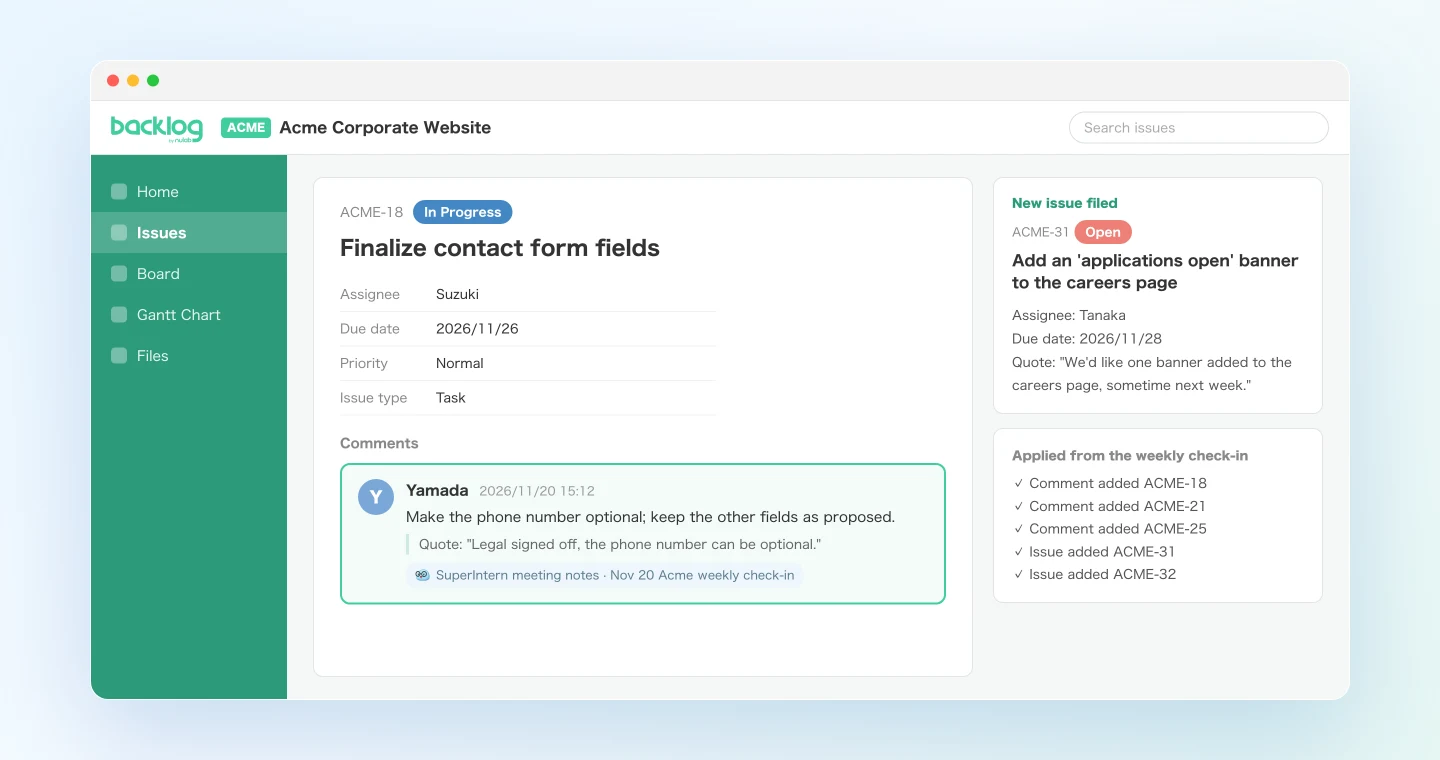
Each comment carries the quote it came from, so when someone later asks who said what and when, the answer is right there in the issue. Assignees get the usual Backlog notifications for comments and assignments.
Demo 2: At the end of the week, fix due dates and assignees that drifted from meeting decisions
Even if you apply every client meeting, deadline extensions and handoffs agreed in other meetings tend not to reach the issues. At the end of the week, have the agent line up the whole week's meetings against your Backlog issues and list only the mismatches.
Read the AI meeting notes and transcripts for this week's SuperIntern meetings (Monday through
today) that include "Acme" in the title, plus our internal production meeting.
Compare them with the open issues in the Backlog project "Acme Corporate Website" and list only
the issues whose due date, assignee, or status differs from what was agreed in a meeting.
Columns: issue key, summary, current value, agreed value, supporting quote (with meeting name and date).
Put anything that was not clearly agreed ("we'll think about it," "probably") in a separate section.
Update only the rows I approve, and leave a comment on each updated issue explaining the change.
Do not delete issues, and do not update the rows that were not clearly agreed.
I compared 4 meetings from this week with 17 open issues and found 4 mismatches.
Issue key Summary Current value Agreed value Source ACME-12 Replace "About us" page copy Due Nov 22 Due Nov 27 Nov 18, Acme copy review: "They'll send the copy on the 27th." ACME-16 Subpage design Assignee Sato Assignee Tanaka Nov 19, production meeting: "Tanaka is taking over the subpages." ACME-19 Replace logo files Status In Progress Status Resolved Nov 20, weekly check-in: "We've confirmed the new logo is live." ACME-23 Update sitemap Due date not set Due Nov 29 Nov 20, weekly check-in: "Sitemap by the 29th." Not clearly agreed
- ACME-27 "Add English pages": In the Nov 18 meeting someone said "maybe after New Year," but no decision was made.
Shall I update these 4 issues and leave a comment on each?
Approve it, and the agent updates the 4 due dates, assignees, and statuses and leaves a comment on each issue, such as "Assignee changed to Tanaka per the Nov 19 production meeting." The unresolved item becomes something to confirm at the next check-in.
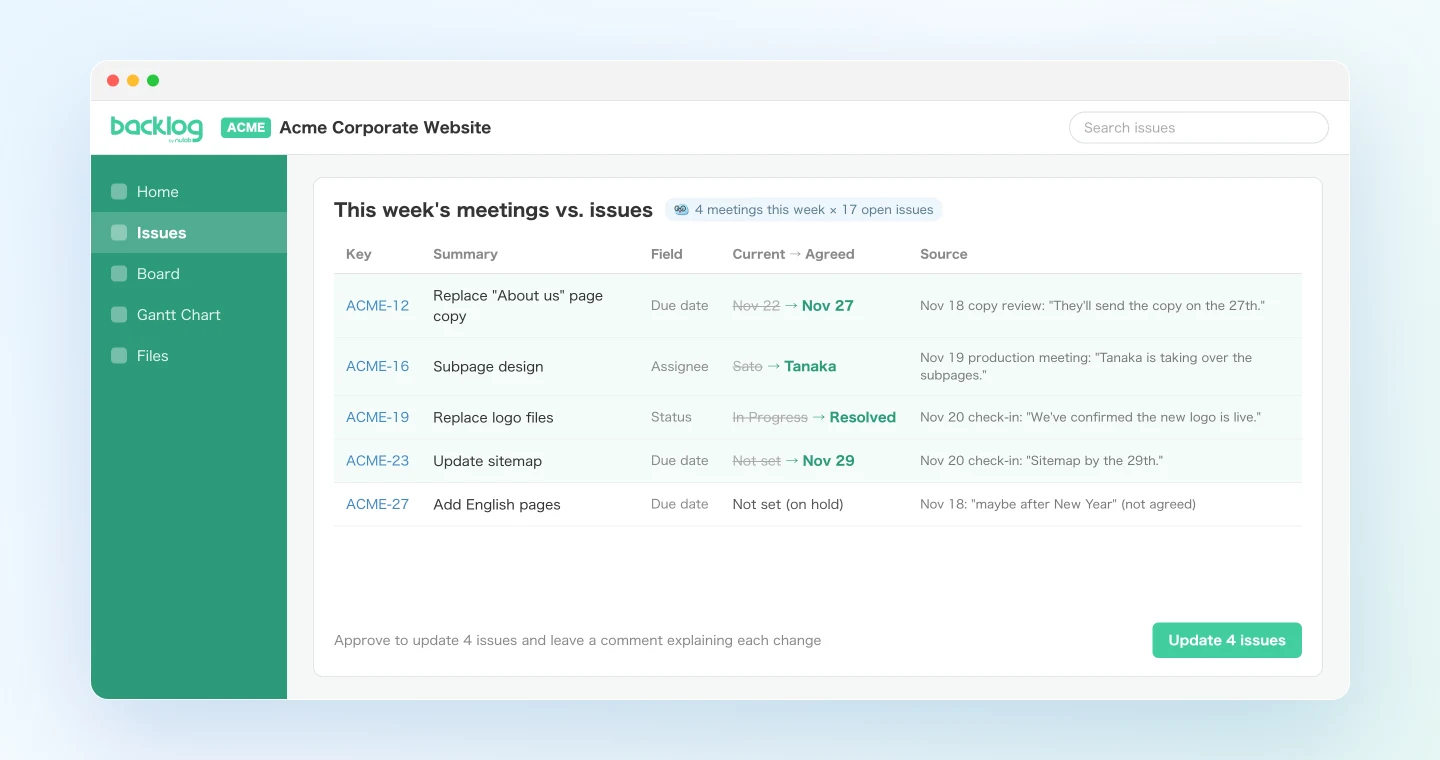
Demo 1 pushes meetings into issues. Demo 2 reviews the meetings from the issues' side. Running both makes it much harder for a verbal decision to stay outside Backlog.
Demo 3: During the meeting, check the status of an issue the moment it comes up
The third use writes nothing to Backlog. Mid-meeting, the client asks "by the way, where are we on the contact form?" and you start switching windows to find the issue. SuperIntern MCP can fetch the live transcript from where it last left off, so the agent can follow the conversation and look up issues as they come up.
Read the live transcript of the meeting I'm recording in SuperIntern, continuing from where you
last left off. When something comes up that relates to an issue in the Backlog project
"Acme Corporate Website," find that issue and tell me its key, status, assignee, due date, and
the gist of the latest comment in 3 lines or fewer.
If there is no matching issue, just say "No matching issue."
Do not write anything to Backlog.
Latest remark: "Can we already see the contact form on the staging site?"
ACME-18 "Finalize contact form fields." Status: In Progress, assignee: Suzuki, due November 26. Latest comment (Nov 20): "Phone number changed to optional. Going to staging on the 25th."
You can answer "it'll be on staging on the 25th" without leaving the call. When the meeting ends, move straight to the Demo 1 prompt.
Tips and caveats
Review the draft before you approve
Every prompt in this article that writes to Backlog ends with "do not write until I approve." Keep that line. Comments and assignments notify the assignee, and if the client is a project member they see changes right away. The instruction is a request to the agent, not a technical lock, so check the issue keys, text, assignees, and dates before approving, and look over the results afterward.
Assume the client can read it
Agencies often invite clients into their Backlog projects, in which case the client can read every comment. Meeting transcripts can include internal discussion after the client dropped off, or talk about estimates, so keep "leave out internal remarks and anything about fees" in your prompts. It is worth keeping even in projects the client has not joined.
The API key carries your full permissions
An agent using your API key can read and write every project you belong to. Always name the project in your prompts and start by limiting writes to one project. In Claude Code or Cursor, enable only the tools you need with --enable-toolsets to reduce room for unintended actions.
Match names and issue settings
Assignees are Backlog users, so the agent matches names from the transcript against project members. If two members share a surname, confirm the assignee in the draft. Filing an issue also requires an issue type and priority; add a line such as "default to issue type Task and priority Normal" so the agent does not ask every time. Registering frequent proper nouns in SuperIntern's custom dictionary also improves transcript accuracy.
Going further: internal production meetings and maintenance calls
Finding the issue, adding a comment, and filing only what is missing works well beyond client meetings:
- In internal production meetings, pick up issues that designers or engineers reported as done and draft status updates.
- In post-launch maintenance calls, check bug reports from the client against existing issues and file only the ones that are not duplicates.
- Before a monthly report to the client, have the agent read the month's meetings and issues and list what was completed and what carried over. This one only reads.
For related workflows, see the Linear guide for development teams tracking issues, and the Asana guide for project status updates.
FAQ
Q. Can I use SuperIntern MCP on the free plan?
A. Personal workspaces need the Plus plan or higher. Team plan workspaces can use it too. On Enterprise it is off by default, and an admin needs to enable MCP access.
Q. Does SuperIntern write to Backlog?
A. No, the agent does. SuperIntern MCP only provides meeting data, read-only. The agent adds comments and files or updates issues through the Backlog MCP Server, using the API key you issued.
Q. Does this work with ChatGPT?
A. SuperIntern MCP works as a ChatGPT plugin, so ChatGPT can read your meeting data and draft comments and issue text for Backlog. There is no official way to connect Backlog to ChatGPT, though, so you paste the text into Backlog yourself. To have the agent write to Backlog, use the Claude desktop app, Claude Code, or Cursor.
Q. Is the Backlog MCP Server officially supported by Nulab?
A. Nulab develops it and publishes it on GitHub under the MIT License, but states that it comes without official support or a guarantee that it works. Before rolling it out, review the README and your company's rules for handling API keys.
Q. Can I save meeting notes to the Backlog wiki?
A. The Backlog MCP Server has a tool for adding wiki pages. However, Backlog changed its wiki policy on July 14, 2026: new spaces cannot use the wiki, and in existing spaces the wiki starts out turned off for new projects. This guide records decisions in issues and comments, which work in any space.
Q. What if the agent writes something wrong?
A. Reviewing the draft catches most mistakes, but not all. Comments and issues the agent creates can be edited or deleted in Backlog like any others. Deleting has a bigger impact, so we recommend adding "do not delete anything" to your prompts and handling removals yourself.
Start with one client meeting and one project. Run the Demo 1 prompt after your next check-in and you will see how much time goes away from hunting for issues and copying notes into comments. Requests the client makes out loud will land in Backlog the same day.