
Draft Asana Project Status Updates from Your Meetings Automatically with SuperIntern MCP

It is Friday afternoon, the Asana status update field is open, and your cursor is blinking.
The problem is not that you have nothing to say. It is the opposite: Monday's sync, Wednesday's cross-team alignment call, Thursday's incident review. A week of material, scattered across your memory and half a dozen note files. You scroll back through your notes trying to remember how that vendor delay actually landed, debate whether the project is still green or quietly yellow, then type three safe sentences and hit post. Thirty minutes gone. If you run three projects, repeat three times.
Meanwhile, everything the update needs already exists. What moved, what slipped, who committed to what: it is all sitting in SuperIntern's transcripts and AI summaries, down to the exact quote. The only work left is shaping it into a status update. This guide shows you how to connect SuperIntern and Asana to an AI agent such as Claude or ChatGPT, so that drafting the status update from your meeting records becomes a single prompt.
⚠️ This article was independently compiled based on publicly available information and user feedback as of September 2026.
Table of Contents
- What we're building: Before / After
- How it works: three roles
- Setup
- Demo 1: The status update drafts itself right after your weekly sync
- Demo 2: Update every project at once on Friday afternoon
- Demo 3: Push meeting blockers onto the actual tasks
- Tips for daily use
- Beyond Asana: the same pattern with other tools
- FAQ
What we're building: Before / After
Before: Status updates run on the author's memory. You reconstruct the week from scattered notes, pick a color half on instinct, and spend 20 to 30 minutes per project. The busier the week, the thinner the update, and the risk that was clearly discussed in Tuesday's meeting is exactly what falls out of "no major issues this week."
After: When the weekly sync ends, you ask your agent to draft the status update from that meeting. The agent pulls the AI summary and transcript from SuperIntern, sorts out what moved, what is blocked, and what next week looks like, then shows you a draft with a suggested color (green, yellow, or red) and the quotes behind each claim. You review, adjust, say go, and the agent posts it to the Asana project. On Friday, you can batch the whole portfolio in one pass across every meeting of the week.
Meetings you want to reference need to be recorded with SuperIntern beforehand. SuperIntern is a desktop meeting assistant that works without inviting a bot to your meetings. Whether you meet on an online platform or in person, it automatically creates transcripts and AI summaries from the meetings you record, so material for your reports builds up through your daily meetings.

How it works: three roles
Three parties split the work, and each does only its part.
| Role | Player | What it does |
|---|---|---|
| Provide meeting data | SuperIntern MCP | Serves transcripts, live transcripts, AI summaries, and meeting notes, strictly read-only |
| Judge and write | AI agent (Claude, ChatGPT) | Reads the week's discussions, proposes a color, writes the update |
| Execute the action | Asana (MCP) | Posts status updates to projects and comments on tasks, inside your own Asana account |
MCP (Model Context Protocol) is an open standard for connecting AI assistants to external tools safely. SuperIntern's MCP hands meeting data to the AI agent read-only. On the other side, Asana's official MCP server provides tools to post status updates to projects and portfolios, to pull an aggregated status overview (recent updates, task summaries, flagged blockers) across projects, and to create, update, and comment on tasks.
So the thing writing to Asana is not SuperIntern: it is your AI agent. The AI cannot modify anything on the SuperIntern side, it can only read meetings you yourself can access, and every Asana action runs under your own account permissions. It cannot touch a project you cannot see.
Setup
You connect two services to your AI agent: SuperIntern and Asana. Both are listed in the official directories of Claude and ChatGPT, so there is no connection URL or API key to enter. Pick whichever agent your team already uses; the prompts in this guide work the same in both.
1. Connect SuperIntern
- Claude: Open Settings, go to Connectors under Customize, search for "SuperIntern", and select it. You can also open SuperIntern in Claude's connector directory directly. Adding connectors is available on Claude's paid plans.
- ChatGPT: Open Plugins in the sidebar, search for "superintern", open SuperIntern, and click Install plugin. The SuperIntern plugin page takes you there directly. The Codex app connects the same way.
In both cases a SuperIntern sign-in page opens; log in and grant access. SuperIntern-side requirements (personal workspaces need the Plus plan or above; Enterprise workspaces need an admin to enable MCP access) and setup steps for Claude Code, Cursor, and other clients are covered in our MCP setup guide.
2. Connect Asana
Asana publishes official integrations for both agents.
- Claude: In the same Connectors screen, search for "Asana", connect it, and approve the sign-in for your Asana account.
- ChatGPT: In Plugins, search for "Asana", connect it, and choose the Asana workspace you want to use.
In Claude Code and other MCP clients, register Asana's official MCP endpoint instead:
https://mcp.asana.com/v2/mcp
Sign-in is OAuth only, and every action runs within your own Asana permissions. See Asana's official documentation for supported clients and details.
To confirm both sides are live, ask your agent:
List my 3 most recent SuperIntern meetings and my Asana projects.
If both answers come back, you are ready.
Demo 1: The status update drafts itself right after your weekly sync
The clearest win is right after the weekly sync, while everyone still remembers the temperature of the discussion. Two habits make this work: write your color criteria into the prompt, and always review the draft before anything is posted.
Get the AI summary and transcript of the "Website Relaunch weekly sync"
that just ended. Draft a status update for the Asana project
"Website Relaunch":
- Suggest a color: green if on plan, yellow if risks were discussed,
  red if the deadline is confirmed slipping
- Up to 3 highlights (what moved), each with the quote behind it
- Blockers as bullets, with owners
- Outlook for next week in 2 sentences
Show me the draft first. Post only after I say OK.
The agent reads the summary and transcript, then comes back with a draft.
Here is the draft status update.
Suggested color: yellow (at risk). Reason: the checkout page shipped, but the vendor's homepage design delivery slipped a second time.
Highlights
- Checkout page implementation complete ("checkout went out fully in today's deploy")
- New FAQ copy finalized ("FAQ cleared review as of yesterday")
Blockers
- Homepage design delivery pushed to Oct 1 (owner: Sarah is coordinating with the vendor)
Next week: We expect 5 working days of implementation once the design lands. The Oct 9 launch date holds for now; if delivery slips again, we revisit.
Post this to Asana as is?
If something needs changing, you reply right there: "add the analytics migration to highlights." Say OK, and the agent posts the update to the Asana project.
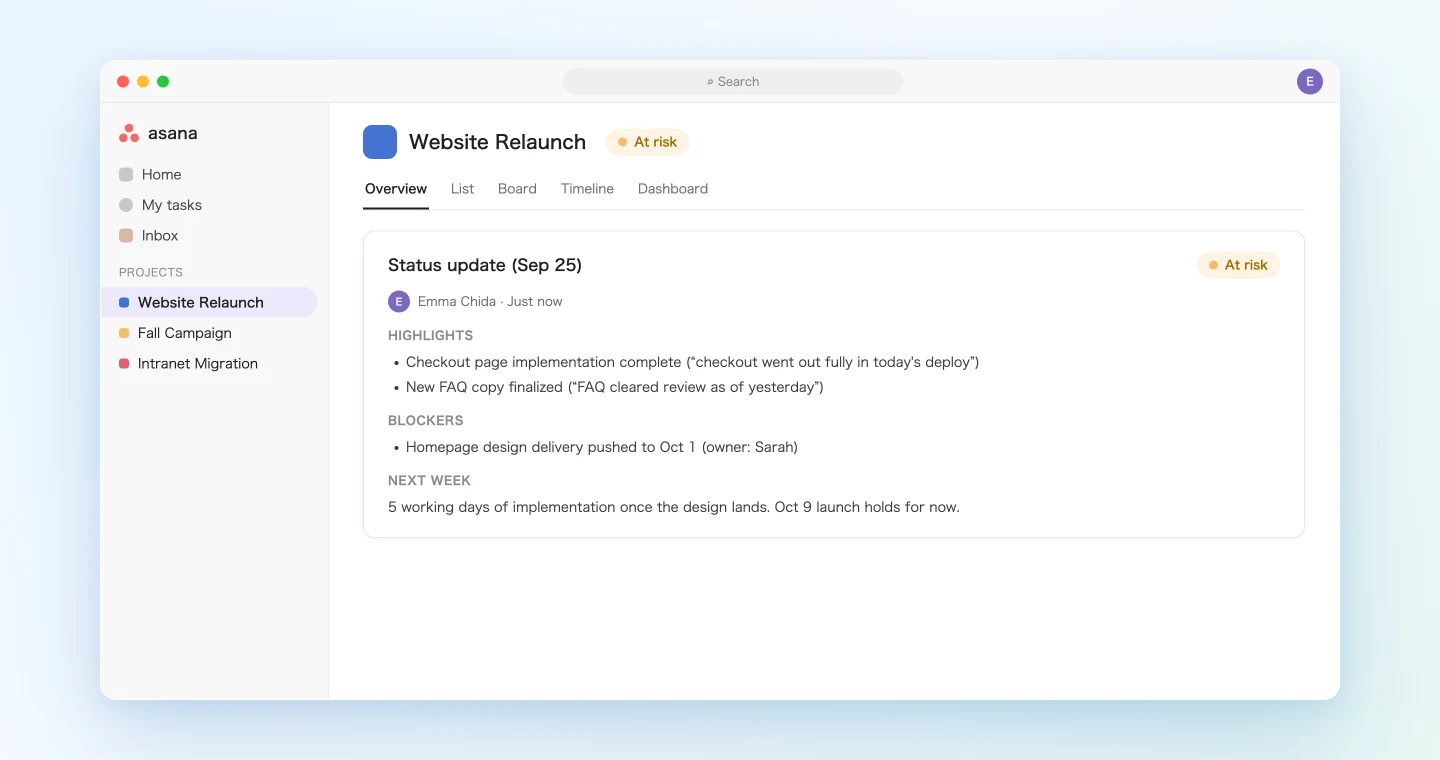
Notice that every highlight and blocker carries the quote behind it. A status update is only as trustworthy as your ability to check it. When the report is drafted from the primary record, anyone who asks "is that actually true?" can be walked back to the exact sentence in the meeting.
Demo 2: Update every project at once on Friday afternoon
The thing MCP makes uniquely easy is working across many meetings and many projects in one pass. Friday afternoon is the natural moment.
List this week's SuperIntern meetings and organize them by project.
On the Asana side, pull the current status overview for each of my
projects (latest status update and overdue tasks).
Show me a table per project: suggested color / what changed since
last week / blockers. Post status updates only for the projects
I approve.
The agent reads the week, checks it against what Asana currently shows, and returns the decision material as a table.
I organized this week's 6 meetings across your 3 projects.
Project Suggested color Changed since last week Blockers Website Relaunch Yellow Checkout shipped; design delivery slipped again Vendor delivery (Oct 1) Fall Campaign Green Creative locked, delivery configured None Intranet Migration Red Permissions bug found in migration test; owner out this week Staging environment permissions I have full drafts ready for each. Which one do you want to review first?
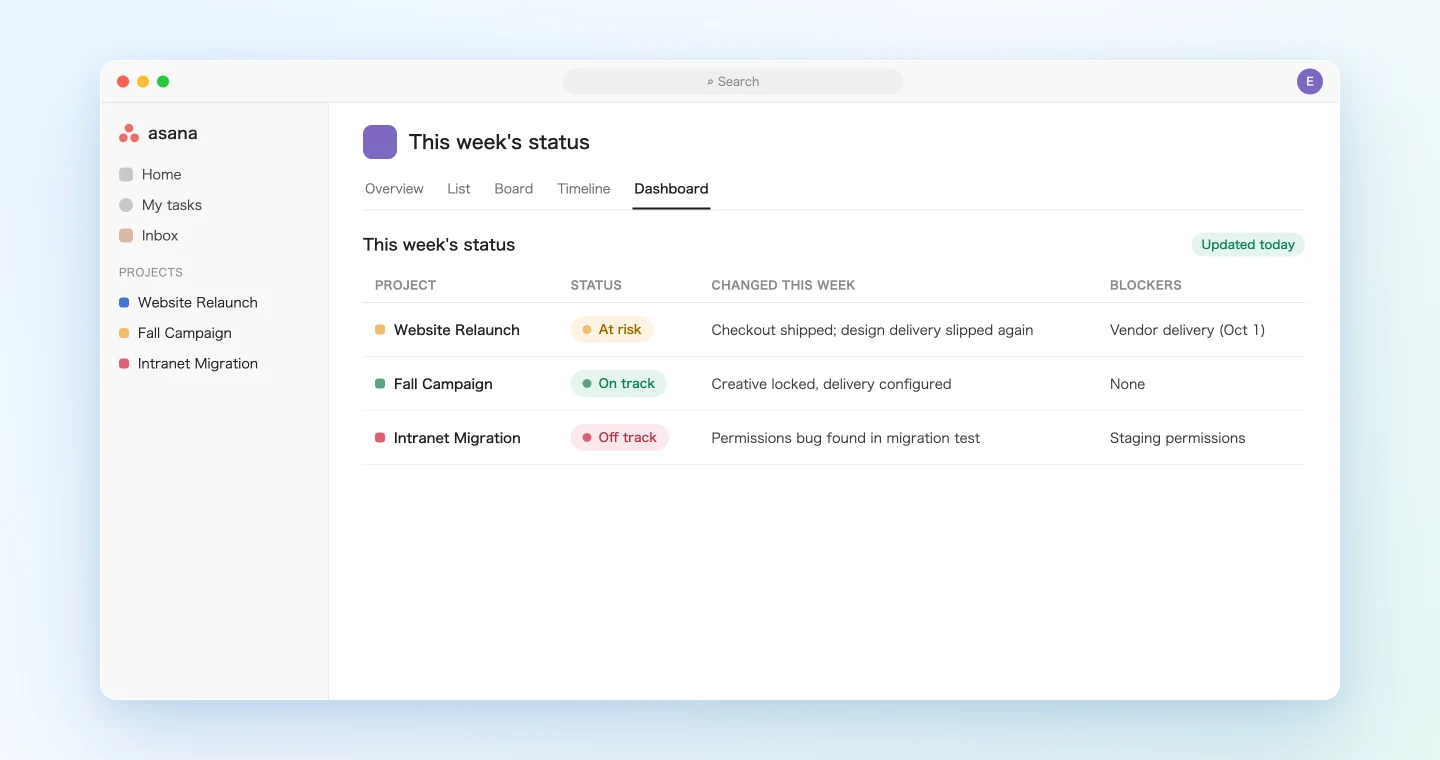
The value here is not just the saved time. Because the agent cross-checks Asana's overdue tasks against what was actually said in the room, it catches the project that looks fine on the board but sounded shaky in the meeting. It also works the other way: if tasks are behind but the meeting contained a perfectly good explanation, you can defensibly report yellow instead of red.
Demo 3: Push meeting blockers onto the actual tasks
A status update reports on the project as a whole, but some of what gets said in a meeting belongs on individual tasks. "That task is actually waiting on the client" is only useful if it ends up as a comment on that task.
Find everything discussed as a blocker or delay in today's
"Intranet Migration" meeting. Look up the matching tasks in Asana
and draft a comment on each, quoting the exact statement from the
meeting. If new work came up in the meeting, propose new tasks too.
Show me the full list before anything is applied.
The agent pulls the blocker statements from the transcript, matches them against Asana tasks, and shows you the comment drafts and proposed new tasks as one list. Approve it, and the comments land on the right tasks and the new tasks get created. In Claude and ChatGPT, task creation also supports a preview that lets you review the content before creating the task.
At the next sync, opening a task shows you what was said about it last time. Nobody goes digging for the meeting notes.
Tips for daily use
Write the color criteria in your own words. "Green if on track" is vague. "Yellow for risks that do not move the date, red once the date is confirmed slipping" reflects how your team actually reports, and it makes the suggestions consistent. Save your prompt as a reusable snippet.
Never drop the "draft first, post after approval" step. A status update is read by the whole team. Every prompt in this guide ends with "show me first" for a reason: you keep the judgment, the AI keeps the labor.
Make it quote its sources. Asking for the quote behind each highlight and blocker raises the quality of the report a full grade, especially when numbers or dates are involved.
Treat the draft as a first draft. The agent delivers a draft with all the material in place. Softening the phrasing for executives, cutting what should not leave the team: that final pass stays yours, before you post.
Everything stays inside your own permissions. SuperIntern MCP can only read meetings you can see. Asana actions run under your own account. And the AI cannot write anything back to SuperIntern.
Feed SuperIntern your vocabulary. The more precisely project names, internal terms, and people's names appear in the transcript, the better the drafts. Register recurring terms in SuperIntern's custom dictionary.
Beyond Asana: the same pattern with other tools
SuperIntern MCP provides the meeting data, the AI agent judges, and a third tool executes. Swap the third tool and the pattern holds.
- Linear: If what you want automated is creating action items as trackable issues rather than reporting, see the Linear guide
- Slack: For same-day sharing that moves faster than a status update, see the Slack guide
- Canva: To turn the weekly report into an executive-ready deck, see the Canva guide
A rhythm that works well: make Demo 2's Friday batch a weekly habit, and run the task-level pass (Demo 3) only after big meetings. Different reporting granularity, different amount of effort.
FAQ
Can I use SuperIntern MCP on the free plan?
No. Personal workspaces need the Plus plan or above. Team plan workspaces can use it as is. On Enterprise, an admin needs to enable "MCP access" in workspace settings first.
Does SuperIntern write to my Asana?
No. Posting status updates and commenting on tasks is done by your AI agent (Claude or ChatGPT), using Asana's integration. SuperIntern MCP only hands over meeting data, read-only. SuperIntern itself never writes to external tools.
Can the AI modify my meeting notes or transcripts?
No. Every SuperIntern MCP tool is read-only; create, edit, and delete capabilities simply do not exist. Writes happen only on the Asana side, and only within your own account permissions.
Are there requirements on the Asana side?
Asana's MCP server is generally available and uses OAuth login. Actions follow your own Asana permissions. Some tools, such as advanced search, assume higher Asana plans, and Enterprise-tier admins can control which MCP apps are allowed. See Asana's official documentation for details.
How is this different from the Linear article?
The Linear guide is about turning meeting decisions into trackable issues: task creation. This guide is about automating the reporting layer, the project status update. Different action, same pattern. If your team also manages tasks in Asana, Demo 3 shows how both can live in a single prompt.
Which AI agents does this work with?
Claude and ChatGPT both work, with SuperIntern and Asana each listed in their official directories. SuperIntern MCP also works with MCP-capable clients including Claude Code, Codex, and Cursor. Asana's MCP supports Claude, ChatGPT, Claude Code, Codex, Cursor, and VS Code, among others. The interactive preview before task creation is available in Claude and ChatGPT.
Start with one recurring meeting and try the workflow from drafting a status update to posting it. You can spend the time you used to devote to reconstructing the week on reviewing and refining the content.