
Draft Sales Follow-Up Emails from Meeting Notes Automatically with SuperIntern MCP and Gmail
A sales follow-up does the most good when it goes out soon after the call. It's also the task most likely to get pushed to the end of the day.
The call ends, the next meeting starts, and by 6 PM you're back in your notes trying to piece together the thank-you, what was agreed, what you owe the prospect, and when you'll talk next. By the time you send it, the call has gone cold. The meeting record sits in SuperIntern, the email sits in Gmail, and until now the only thing connecting the two was your memory.
This guide connects SuperIntern MCP and Gmail to an AI agent (Claude or ChatGPT) so that one prompt takes you from meeting notes to a follow-up draft ready for review. The draft lands in your Gmail drafts folder. You read it, change what you want, and send it yourself.
⚠️ This article was independently compiled based on publicly available information and user feedback as of July 2026.
Table of contents
- What we're building: before / after
- How it works: three roles
- Setup
- Demo 1: A thank-you and next-steps draft, minutes after the call
- Demo 2: Reply to a prospect's question, grounded in the transcript
- Demo 3: A Friday sweep for deals you never followed up on
- Tips and caveats
- Going further: the same pattern, other tools
- FAQ
What we're building: before / after
Before: After each call, you spend 30 minutes rereading notes and composing a recap email. In a busy week, the follow-up slips to the next day, and sometimes the prospect emails you first asking "any update on that?"
After: You ask your agent once ("draft a follow-up in Gmail from today's call notes") and minutes after the meeting ends, a draft with the decisions and next steps is sitting in your drafts folder. You review, adjust, send.
Two things make this safe enough for customer-facing email. SuperIntern is a botless desktop meeting assistant, so no bot joins your call, your prospect never sees a recording request, and transcripts and AI summaries build up on their own. And throughout this guide, the agent's job ends at saving a draft. Both Claude and ChatGPT can send Gmail on your behalf, so you hold that line by telling the agent to save a draft and not send it. Claude also asks for your approval before any send, reply, or forward by default, which gives you a second check. External email is where a mistake costs the most, and this setup keeps a person on the last step.

How it works: three roles
The integration is a combination of three players.
| Role | Player | What it does |
|---|---|---|
| Provide meeting data | SuperIntern MCP | Serves transcripts, AI summaries, and meeting notes, strictly read-only |
| Judge and write | AI agent (Claude, ChatGPT) | Reads the notes and the email thread, composes the message for the purpose at hand |
| Take action | Gmail (connector / app) | Searches mail, reads threads, saves drafts |
MCP (Model Context Protocol) is an open standard for connecting AI assistants to external tools. SuperIntern's MCP gives your agent read-only access to your meeting data. Gmail access comes from a separate integration, either Claude's Gmail connector or ChatGPT's Gmail app, which handles searching mail, reading threads, and saving drafts. So it's the agent that writes into Gmail, not SuperIntern. The AI can't change anything in SuperIntern, and it only sees meetings you already have access to.
Both Gmail integrations can send mail as well as draft it. This guide keeps the agent at the drafting stage with a plain instruction in the prompt: save it as a draft, don't send. In Claude, the connector also asks for your approval before each send, reply, or forward by default (Google Workspace connectors help). Treat that as a backup, not the main safeguard.
Setup
You connect two services to your agent, SuperIntern and Gmail. Use whichever agent your team already has. The prompts in this guide work the same in both, with one difference on the Gmail side: Claude asks for approval before sending by default, while in ChatGPT the draft-only instruction in your prompt is the safeguard to count on.
1. Connect SuperIntern
- Claude: Open Settings, go to Connectors under Customize, search for "SuperIntern", and select it. You can also open SuperIntern in Claude's connector directory directly. Adding connectors is available on Claude's paid plans.
- ChatGPT: Open Plugins in the sidebar, search for "superintern", open SuperIntern, and click Install plugin. The SuperIntern plugin page takes you there directly. The Codex app connects the same way.
Either way, a SuperIntern sign-in page opens. Log in and grant access. Plan requirements on the SuperIntern side (Plus or higher for personal workspaces, admin enablement on Enterprise) and setup for Claude Code, Cursor, and other clients are in our MCP setup guide.
2. Connect Gmail
Gmail has no official remote MCP endpoint, so each agent connects through its own Gmail integration rather than a shared connection URL.
- Claude: Add Gmail from Claude's connector list and sign in with your Google account. It's one of the Google Workspace connectors, available on Pro, Max, Team, and Enterprise plans (see Claude's Gmail connector page). The connector can search and read mail and create drafts, and it can also send, reply, and forward. By default Claude asks you to approve each send, reply, or forward before it happens, although Team and Enterprise owners can let those go through without asking. Details are in the official help article.
- ChatGPT: Open Plugins in the sidebar, search for "Gmail", and connect the Gmail app with your Google account. The app can draft and send mail.
Because both agents are able to send, the draft-only rule comes from you. Add a line like "Save it as a Gmail draft. Do not send." to any prompt that touches Gmail, and review every draft yourself before it goes out.
To check both connections, try:
List my 3 most recent SuperIntern meetings and the subjects of my 3 latest unread emails
If both come back, you're ready.
Demo 1: A thank-you and next-steps draft, minutes after the call
You'll use this one most, right after a call ends. The sooner the follow-up goes out, the better, so as soon as SuperIntern has generated the summary, ask:
Get the AI summary of today's "Acme discovery call" and draft a follow-up
email in Gmail to Jordan at Acme.
Structure: thank you, then what we agreed today (3 bullets max), then
our homework with deadlines, then a proposal for the next meeting.
Keep the tone warm but professional, and match the style of emails
I usually send.
The agent extracts the decisions and open items from the summary, and a draft like this appears in your Gmail drafts folder:
Subject: Great talking today - recap and next steps
Hi Jordan,
Thanks for the time today. Here's a quick recap of where we landed:
- Security: SSO support is a hard requirement for rollout
- Trial scope: we'll start with 10 seats on your CS team for 2 weeks
- Pricing: formal quote to follow before the trial starts
On our side, we'll return the completed security questionnaire by Wednesday, Aug 5. Would you have 30 minutes late next week for a trial kickoff?
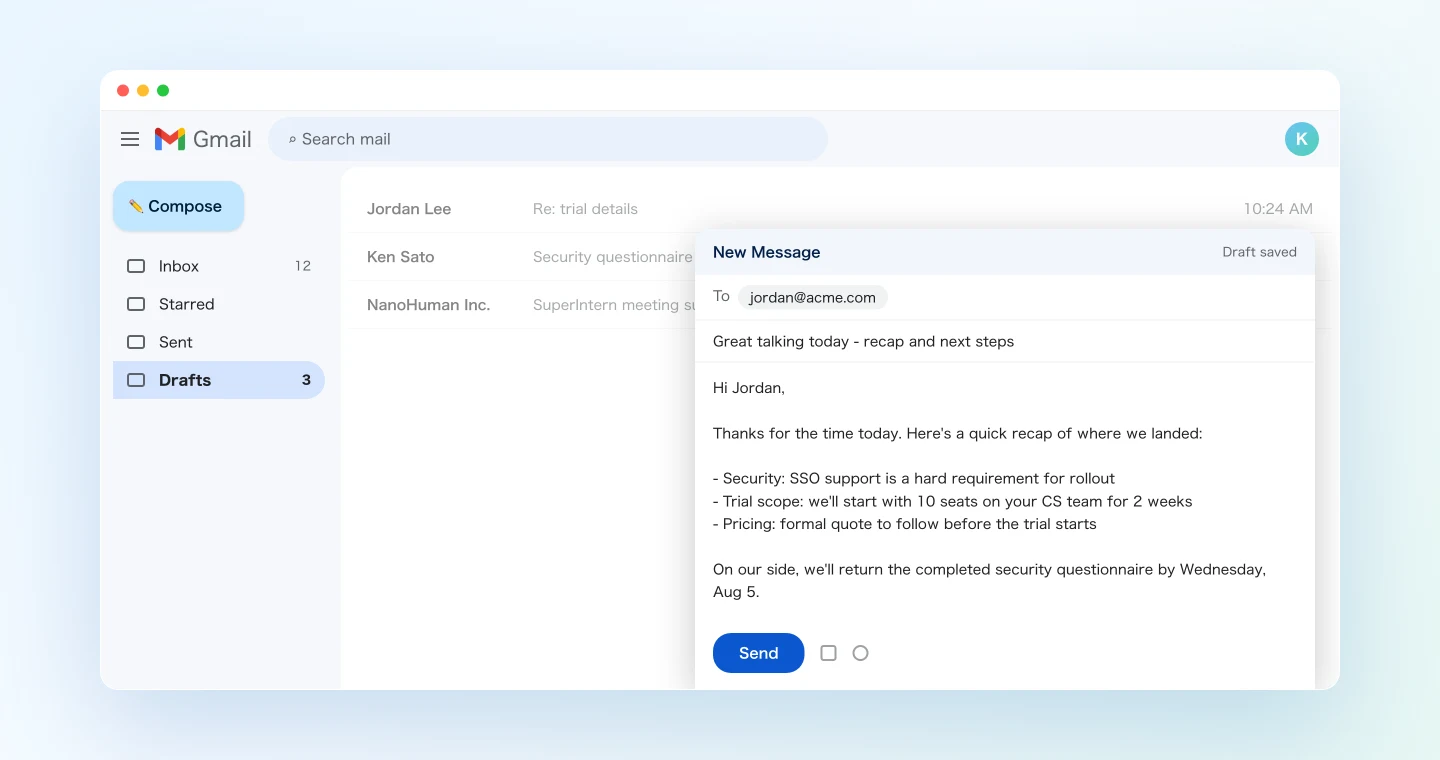
Because the draft shows up while you still remember the call, reviewing it takes a few minutes. And since the prompt says "match the style of emails I usually send," the agent can look at your sent mail and adjust the wording to sound like you.
Demo 2: Reply to a prospect's question, grounded in the transcript
The first thank-you note is the easy part. The harder emails come later. A few days after the call, the prospect writes, "Could you send more detail on the security setup you mentioned? I need it for an internal review."
Normally you'd open the thread and your notes side by side and try to line them up from memory. The agent can read both at once.
Read the latest email from Jordan and draft a reply.
Before answering, check the transcript of the "Acme discovery call"
for what exactly we discussed about security, and make sure the reply
doesn't contradict anything I committed to in the meeting.
For anything we didn't cover in the call, say honestly that we'll
confirm and follow up.
The last instruction matters most. Because the prompt rules out promises that aren't in the record, the draft keeps what was said in the meeting apart from what still needs checking. Sales teams worry about sending an answer that contradicts what someone said on the call, and using the transcript as the reference is how you avoid it.
Demo 3: A Friday sweep for deals you never followed up on
MCP also lets the agent work across several meetings at once, which is hard to do by hand. On Friday afternoon, run this:
List this week's meetings in the "Sales" project and identify the
external participants for each.
For each call, search my Gmail sent mail to check whether I sent a
follow-up after the meeting.
For the ones I haven't, draft a follow-up based on the meeting summary.
Finish with a table of sent vs. drafted.
The agent cross-references your meeting list with your sent mail, prepares drafts only where the follow-up is missing, and reports back:
Checked 5 sales calls this week.
- Acme (Mon): follow-up sent
- Brightline (Tue): follow-up sent
- Corely (Tue): not sent. Draft created
- Dover Labs (Wed): not sent. Draft created
- Everpeak (Fri): today's call, draft created
You no longer have to wonder whether a follow-up actually went out. You can also add "summarize the key points from my previous meetings with next week's prospects" to the same prompt, and the Friday check doubles as prep for the week ahead.
Tips and caveats
You press send, not the agent. Both Claude's Gmail connector and ChatGPT's Gmail app can send mail, so put "save as a draft, do not send" in every prompt that touches Gmail. In Claude, the approval request before each send, reply, or forward is an extra check if the instruction gets missed. Treat "the agent drafts, a person sends" as a fixed rule for customer email.
Spell out the structure in the prompt. Naming the sections (thank you, decisions, homework, next meeting) keeps the output consistent from call to call. Once a prompt works well, save it as a team snippet.
Rule out promises that aren't in the record. As in Demo 2, tell the agent to mark anything not discussed in the meeting as "to be confirmed." The transcript is the primary source, and pointing the agent at it keeps drafts from overstating what you agreed.
Check recipients and names yourself before sending. You can hand off the body, but a wrong recipient or a misspelled name costs trust. Keep your usual pre-send check.
Get the meeting data right at the source. Drafts are only as accurate as the transcription of company names, people, and product terms. Add the proper nouns you hear often to SuperIntern's custom dictionary.
Keep writes in Gmail drafts. SuperIntern data is never modified through MCP, and as long as your prompt says to draft and not send, the agent's only writes land in your drafts folder. If you don't like a draft, delete it in Gmail. A bad attempt costs you almost nothing.
Going further: the same pattern, other tools
The same setup works well beyond Gmail. SuperIntern MCP supplies the meeting data, the agent decides what to do with it, and another tool receives the result.
- Slack: share call highlights into your sales channel. We covered the Slack side in detail in the first article in this series
- Task tracking: file the homework items from calls as Linear issues with owners, covered in the second article in this series
- CRM: extract the prospect's concerns and interests from the transcript and update your deal notes
We'll cover more of these combinations in this series, one tool per article, with prompts you can copy.
FAQ
Can I use SuperIntern MCP on the free plan?
No. Personal workspaces require the Plus plan or higher. Team plan workspaces can use it as is, and on Enterprise it works once an admin turns on "MCP access" in workspace settings.
Can the AI send an email without me noticing?
Both Claude's Gmail connector and ChatGPT's Gmail app can send mail, so the main safeguard is the "save as a draft, do not send" instruction in your prompt. Claude adds a second layer: by default it asks for your approval before each send, reply, or forward, though Team and Enterprise owners can turn that off (official help article). Follow this guide's prompts and sending stays with you, in Gmail.
Does SuperIntern write the drafts into Gmail?
No. Your AI agent (Claude or ChatGPT) creates the drafts through its Gmail integration. SuperIntern MCP only provides meeting data, read-only, and SuperIntern itself never writes to external tools.
Can the AI modify my meeting notes or transcripts?
No. Every SuperIntern MCP tool is read-only, and there are no create, edit, or delete operations. With the draft-only instruction in place, the agent's only writes go to your Gmail drafts folder.
Is it okay to let the AI read my email?
Both agents can access only the mailbox of the Google account you connect, and you can revoke access at any time from your Google account's security settings. For how Claude handles the data, see Anthropic's official help article. In ChatGPT, check the Gmail app's permissions and how to disconnect it.
Which AI agents does this work with?
Claude and ChatGPT both work. SuperIntern is listed in both official directories, and Gmail connects through Claude's Google Workspace connector or ChatGPT's Gmail app. In both, the draft-only rule comes from your prompt, and Claude adds an approval step before sending by default. SuperIntern MCP also works with other MCP clients such as Claude Code, Codex, and Cursor. Gmail has no official remote MCP endpoint, and Gmail options vary by client, so check what the client you use supports.
SuperIntern already captures your sales calls for you. With MCP and Gmail connected, the agent can take it from there, right up to the moment you press send.