
Keep HubSpot Deal Notes Up to Date Automatically with SuperIntern MCP

Ask a sales team which part of the job they'd drop first, and most will say CRM data entry.
After every call you open HubSpot, find the deal, rebuild the conversation from memory, write a call note, add a follow-up task, and maybe move the stage. At ten minutes a call and three calls a day, that's half an hour. Put it off and the details fade, and by Friday you're looking at the pipeline trying to remember which calls ever got logged. Pipeline review then turns into your manager going deal by deal and asking for the latest.
The conversation itself is already sitting in SuperIntern. What's missing is someone to move the summary into the CRM. This guide connects SuperIntern's MCP and HubSpot's MCP to an AI agent such as Claude or ChatGPT, so that pulling the key points and next steps out of a sales call and logging them on the right HubSpot deal takes one prompt.
⚠️ This article was independently compiled based on publicly available information and user feedback as of August 2026.
Table of contents
- What we're building: before / after
- How it works: three roles
- Setup
- Demo 1: Log a call note on the deal right after the meeting
- Demo 2: Sweep the whole week before pipeline review
- Demo 3: Brief yourself in three minutes before the next call
- Tips and caveats
- Going further: the same pattern, other tools
- FAQ
What we're building: before / after
Before: After each call you type notes into HubSpot from memory. On busy days that slips to tomorrow, and the details that matter (budget conditions, the approval chain, what the customer is actually worried about) get lost. The night before pipeline review turns into a catch-up session.
After: When the call ends, you tell your agent to log it in HubSpot. The agent pulls budget, decision makers, needs, timeline, concerns, and next steps from the meeting summary, finds the matching deal, and adds a note. Follow-ups are created as tasks with due dates.
This only works because the call data already exists. SuperIntern is a botless desktop meeting assistant, so nothing joins your call, and transcripts and AI summaries are saved automatically on any meeting platform or in person. You don't touch anything during the conversation. Moving that record into the CRM was the one manual step left, and it's the step you're handing to the agent here.

How it works: three roles
Three pieces work together.
| Role | Player | What it does |
|---|---|---|
| Provide call data | SuperIntern MCP | Serves transcripts, live transcripts, AI summaries, and meeting notes, strictly read-only |
| Judge and write | AI agent (Claude, ChatGPT) | Reads the summary, extracts key points, finds the right deal, drafts the note |
| Take action | HubSpot (MCP) | Searches and updates deals, creates notes and tasks |
MCP (Model Context Protocol) is an open standard for connecting AI assistants to external tools. SuperIntern's MCP gives AI clients read-only access to your meeting data, and HubSpot's official remote MCP server handles searching and updating deals and creating notes and tasks (generally available since April 2026).
So the call note in HubSpot is written by your AI agent, not by SuperIntern. The agent can't change anything in SuperIntern, and it only sees meetings you already have access to there. All writes happen in HubSpot, which means there's no path for the agent to damage your meeting notes.
Setup
You connect two services to your AI agent, SuperIntern and HubSpot. Both are listed in the official Claude and ChatGPT directories, so you won't need to paste a connection URL or API key on the agent side. Use whichever agent your team already has. The prompts in this guide work in both, with one difference in ChatGPT: its HubSpot app asks you to confirm each write and handles at most 10 records per bulk request.
1. Connect SuperIntern
- Claude: Open Settings, go to Connectors under Customize, search for "SuperIntern", and select it. You can also open SuperIntern in Claude's connector directory directly. Adding connectors is available on Claude's paid plans.
- ChatGPT: Open Plugins in the sidebar, search for "superintern", open SuperIntern, and click Install plugin. The SuperIntern plugin page takes you there directly. The Codex app connects the same way.
Either way, a SuperIntern sign-in page opens where you log in and grant access. SuperIntern-side requirements (Plus plan or higher for personal workspaces, admin enablement on Enterprise) and setup steps for Claude Code, Cursor, and other clients are covered in our MCP setup guide.
2. Connect HubSpot
HubSpot offers an official integration for each agent.
- Claude: On the same Connectors screen, search for "HubSpot" and connect HubSpot's official connector, then approve the OAuth flow for your HubSpot account. It can create and update CRM records, notes, and tasks.
- ChatGPT: In Plugins, search for "HubSpot", open the HubSpot app, and click Install plugin. The app can also create and update CRM records, notes, and tasks. Unlike the Claude connector, it asks you to confirm before each write runs, and bulk operations are limited to 10 records per request.
In Claude Code and other MCP clients, register HubSpot's official remote MCP endpoint instead:
https://mcp.hubspot.com
Sign-in is OAuth, and what the AI can touch follows your own HubSpot user permissions. Per-client details and caveats are in HubSpot's official docs.
To check that both connections work, try this:
List my 3 most recent SuperIntern meetings and 3 HubSpot deals I own
If you get both lists back, you're set.
Demo 1: Log a call note on the deal right after the meeting
The most common case is logging one call as soon as it ends. Spell out the note format in the prompt so every note comes out the same. If your team already uses a qualification framework like BANT, put it in directly.
Get the AI summary of the meeting "Acme Corp discovery call" that just ended,
and log a call note on the Acme Corp deal in HubSpot.
Use this format: Budget / Decision process / Needs / Timeline / Concerns / Next steps.
Where the conversation was ambiguous, don't state conclusions as facts,
and attribute statements to who said them.
Finally, create the next steps as tasks with due dates.
The agent reads the summary, searches HubSpot, and comes back with something like this:
Logged a note on the Acme Corp deal.
- Budget: up to $15k/year fits the department budget; anything above goes to the October budget committee
- Decision process: final sign-off from the IT director; Dana is the internal champion
- Needs: stop depending on one person for meeting notes; real-time translation for calls with the EU team
- Timeline: wants a trial running in September
- Concerns: security review will ask where recording data is stored
- Next steps: return the security questionnaire by Aug 14
Also created "Return the security questionnaire" as a task due Aug 14.
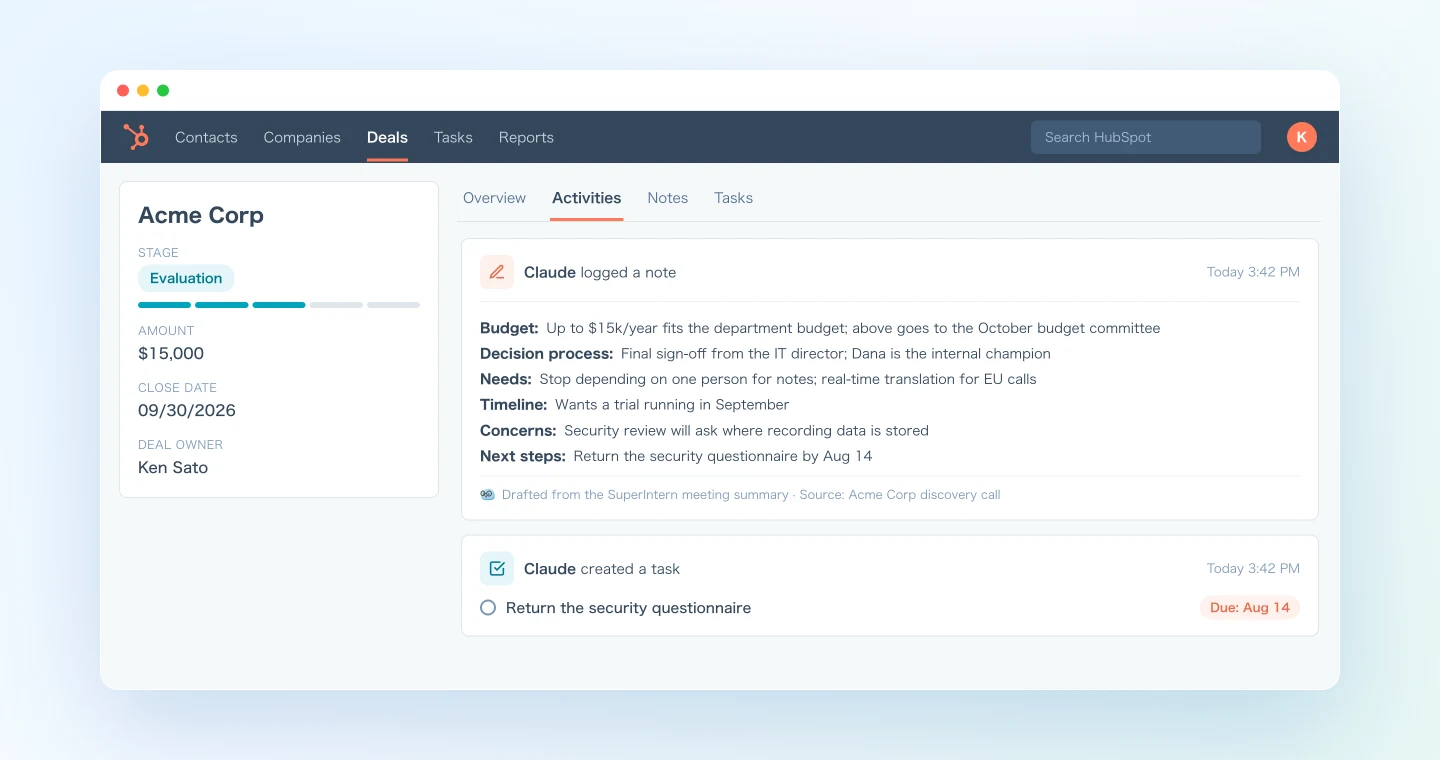
The note attributes each point to the person who said it. Notes written from memory tend to say things like "budget seemed fine." Notes built from the summary tie the budget conditions and the approval chain to what was actually said, and they sit right on the deal.
Demo 2: Sweep the whole week before pipeline review
Ideally every call gets logged the same day, but in practice they pile up. A weekly catch-up before pipeline review covers the gap, and because the agent can read many meetings in one request through MCP, it takes one prompt. In ChatGPT, keep the 10-record bulk limit in mind and split a busy week into smaller batches.
Get all of this week's meetings in the "Sales" project and identify the ones
that were sales calls. For each, find the matching deal in HubSpot, and for
calls that don't have a note logged yet, create one using the same six-part
format as before. If you can't find a matching deal for a call, don't create
anything, just list those calls for me.
The prompt tells the agent not to create deals itself when it can't find a match. Teams have their own rules for new deals (naming, which pipeline), so it's safer to get a list and decide yourself. If you reply "create deals for these two, named after the company," the agent handles the rest.
Run it every Friday afternoon, and Monday's pipeline review starts from a CRM that's already up to date instead of a round of verbal updates.
Demo 3: Brief yourself in three minutes before the next call
Once the CRM is current, you can use it in the other direction too. Right before the next call, have the agent combine the deal history with your past meetings. This prompt only reads from both tools, so it's safe to run at any time.
I have a call with Acme Corp at 2pm.
Cross-reference the Acme Corp deal history and open tasks in HubSpot with
the key points from my past SuperIntern meetings with Acme, and give me
three sections: what we've agreed so far, open items we owe them, and
the points to nail down today.
Even if it's been two weeks since you last spoke, you go in knowing every open thread. It's also a quick brief to send a manager who's joining the call.
Tips and caveats
Put the note format in the prompt. With a fixed template like "Budget / Decision process / Needs / Timeline / Concerns / Next steps," every rep's notes have the same level of detail. That consistency also makes it easier to analyze the whole pipeline with AI later.
Name the deal. Saying "the Acme Corp deal" is the most reliable way to land on the right record. If you have deals with similar names, add "show me the candidate deals first" for the first few runs so nothing gets logged in the wrong place.
Review the draft before it's written. For the first few runs, add "show me the note before creating it" to see how the agent picks out key points. In Claude this step is up to you; ChatGPT's HubSpot app asks for confirmation on every write anyway. Once you're happy with the output, save the prompt as a snippet and reuse it.
Writes happen only in HubSpot, and only within your permissions. MCP never modifies your SuperIntern data, and in HubSpot the agent can do only what your own user is allowed to do. If a note isn't right, edit or delete it in HubSpot. The original meeting record in SuperIntern stays as it was.
Improve transcription in SuperIntern. Deal matching and note quality depend on company names, product names, and people's names being transcribed correctly. Add your key accounts and product terms to SuperIntern's custom dictionary.
Going further: the same pattern, other tools
The same setup works outside HubSpot. SuperIntern MCP supplies the meeting data, the AI agent decides what to do with it, and another tool receives the result.
- Other CRMs like Attio: Attio also ships an official MCP server, and the call-summary-to-CRM-note flow runs on nearly the same prompt. For other CRMs, check whether they offer an MCP server or connector
- Follow-up drafts: add "also draft a thank-you email confirming next steps" to the same prompt, and all you do is review it before sending
- Task tracking and team sharing: turning meeting decisions into Linear issues is covered in the previous article, and sharing recaps into Slack channels in the first article of this series
We'll cover more of these pairings in this series, one tool at a time, with prompts you can copy.
FAQ
Can I use SuperIntern MCP on the free plan?
No. Personal workspaces require the Plus plan or higher. Team plan workspaces can use it as is, and on Enterprise it works once an admin turns on "MCP access" in workspace settings.
Does SuperIntern write to HubSpot?
No. Your AI agent (Claude or ChatGPT) creates the notes and tasks and updates deals through HubSpot's integration. SuperIntern MCP only provides meeting data, read-only, and SuperIntern never writes to external tools.
Can the AI modify my meeting notes or transcripts?
No. Every SuperIntern MCP tool is read-only, with no create, edit, or delete operations. Writes happen only in HubSpot.
What if it logs something wrong in HubSpot?
Ask to see the draft first, as described in the tips, and nothing is written until you approve it. In ChatGPT, the HubSpot app also asks for confirmation before each write. If a wrong note does get through, edit or delete it in HubSpot. The source data in SuperIntern isn't affected.
How do the calls get recorded in the first place?
SuperIntern is a botless desktop app that transcribes from your device's audio. It works on any meeting platform and for in-person conversations, and the customer never sees a bot in the call.
Does this work with Salesforce, Attio, or other CRMs?
The setup is the same. If your CRM has an MCP server or a connector for your AI client, logging call notes from meeting summaries works the same way. Attio has an official MCP server; for other CRMs, check current support for your CRM and AI client.
Which AI agents does this work with?
Both Claude and ChatGPT. In Claude you use HubSpot's official connector from the connector directory, and HubSpot's remote MCP server also works with other MCP clients such as Claude Code, Codex, and Cursor. In ChatGPT you install the HubSpot app from Plugins. It creates and updates deals, notes, and tasks too, but it asks for confirmation before each write and limits bulk operations to 10 records per request. SuperIntern MCP also works with Claude Code, Codex, and Cursor.
SuperIntern already handles the "capture" half of your sales calls automatically. Now automate the "keep the CRM current" half.