
Keep Your Kintone Apps in Sync with What Was Said in Meetings, Using SuperIntern MCP
Your team runs its deals, projects, or support cases in Kintone apps, but the conversations that move those deals happen in meetings. So after every weekly sales meeting, someone opens the deal management app, hunts down the right records, and retypes what was decided: the new status, the next action, the updated close date.
When nobody gets around to it, the app drifts away from reality. A record still says "Proposal sent" three days after the customer agreed on a call, and everyone who relies on the app is working from old information.
You can hand that transfer work to an AI agent. SuperIntern MCP gives the agent (Claude or ChatGPT) read access to your meetings, and the official Kintone MCP server lets it read and update your apps. The agent reads the meeting notes, finds the matching Kintone records, and shows you exactly what it wants to change; the prompts below tell it to wait for your approval before writing anything. One caveat up front: there is no official way to connect Kintone to ChatGPT. The Kintone MCP server runs locally, so the Kintone side of this guide uses the Claude desktop app.
⚠️ This article is an independent write-up based on public information and user feedback as of September 2026.
Table of Contents
- What changes with this setup
- How the pieces fit together
- Setup
- Demo 1: Update deal records right after the weekly meeting
- Demo 2: Log a new lead mentioned in a meeting, with a duplicate check
- Demo 3: Find stale records with a weekly cross-check
- Tips for running this safely
- Beyond sales: the same pattern for any Kintone app
- FAQ
What changes with this setup
Before: after each meeting, someone goes back through their notes, searches the Kintone app for each customer, and edits the fields one record at a time. In a busy week the updates land days late, or never.
After: a few minutes after the meeting ends, you ask the agent to reconcile it with the app. It pulls the AI meeting notes from SuperIntern, matches them to Kintone records, and proposes updates field by field. You review the plan, correct what needs correcting, and approve it. The new values and a comment explaining each change are in Kintone while everyone still remembers the discussion.
This only works for meetings recorded in SuperIntern. SuperIntern is a desktop meeting assistant that captures transcripts and AI meeting notes without sending a bot into the call, so it covers online meetings and in-person conversations alike.

How the pieces fit together
The work is split across three components, and each has a narrow job.
| Component | Role |
|---|---|
| SuperIntern MCP | Provides transcripts, live transcripts, AI meeting notes, and meeting notes, read-only |
| AI agent (Claude, ChatGPT) | Reads the meeting data, matches it to records, drafts the update plan, and carries it out after you approve |
| Kintone MCP server | Runs on your machine and lets the agent search apps, retrieve, create, and update records, and post record comments in your Kintone environment |
MCP (Model Context Protocol) is an open standard for connecting AI assistants to external tools. SuperIntern MCP is strictly read-only. Your AI agent can read meeting data through it, but nothing can edit or delete that data over this connection, and it only exposes meetings you can already see in SuperIntern.
The Kintone MCP server is open source and published by Cybozu, the company behind Kintone. It gives AI clients tools to list apps, get, add, and update records, post comments on records, and update process statuses. Every write to Kintone goes through this server and is made by the agent, never by SuperIntern.
Setup
There are two connections to make. Step 1 connects SuperIntern and works the same in Claude or ChatGPT. Step 2 connects Kintone, and because the official Kintone MCP server runs locally and has no official ChatGPT connection, that step and all three demos use the Claude desktop app (Claude Code, Cursor, or another local MCP client works too).
1. Connect SuperIntern
SuperIntern is listed in the official directories of both Claude and ChatGPT, so you don't need to enter a connection URL or API key.
- Claude: Open Settings, go to Connectors under Customize, search for "SuperIntern", and select it. You can also open SuperIntern in Claude's connector directory directly. Adding connectors is available on Claude's paid plans.
- ChatGPT: Open Plugins in the sidebar, search for "superintern", open SuperIntern, and click Install plugin. The SuperIntern plugin page takes you there directly. The Codex app connects the same way.
Either way, a SuperIntern sign-in page opens. Log in and grant access. The SuperIntern-side requirements (personal workspaces need the Plus plan or above, and Enterprise workspaces need an admin to enable MCP access) and the setup steps for Claude Code, Cursor, and other clients are in our MCP setup guide.
2. Connect the Kintone MCP server
Kintone isn't in Claude's or ChatGPT's connector directory, and there is no official way to connect it to ChatGPT (no ChatGPT app and no official remote MCP endpoint). The official Kintone MCP server runs locally instead, so it needs a local MCP client. The easiest option is the Claude desktop app: download the .mcpb file from the releases page and drag it into the extensions settings of the Claude desktop app. You can also run the server via npm (@kintone/mcp-server) or Docker (ghcr.io/kintone/mcp-server) and register it in Claude Code or Cursor; the README has the exact .mcp.json snippets.
For credentials, use an app-scoped API token rather than your username and password. In Kintone, open the settings of the app you want the agent to work with and generate an API token with only the permissions you need: view and edit records for Demo 1, plus add records for Demo 2. Set it as KINTONE_API_TOKEN along with KINTONE_BASE_URL (such as https://example.kintone.com). Your Kintone plan must include REST API access. In the Japanese lineup, the Standard and Wide courses include it and the Light course does not.
Next, open the target app in your browser and note the numeric app ID in the URL, such as 123 in /k/123/, and use your own ID in place of 123 in the prompts below. API-token authentication doesn't support listing apps by name, so always give the agent the app ID along with the app name.
3. Check the connection
Open a new chat and ask:
List my 3 most recent SuperIntern meetings, and show the fields
of the Kintone app "Deal Management" (app ID: 123).
If you get both answers back, you're ready.
Demo 1: Update deal records right after the weekly meeting
Deal statuses tend to change in the weekly sales meeting, so that's the best moment to update the app. Once the meeting ends, ask the agent to turn the discussion into record updates. The line that matters most is the one telling it to show you the plan before writing anything.
Get the AI meeting notes and transcript of today's "Weekly Sales Meeting"
from SuperIntern. For every customer discussed, find the matching record
in the Kintone app "Deal Management" (app ID: 123; match by company name).
For each record, propose:
- new Status (only if it changed in the meeting)
- Next Action and its due date
- a one-line "Latest Update" note
Show me the full plan as a table first, with the supporting quote from
the meeting for each change. Do not write anything to Kintone until I
approve. After I approve, also post a record comment summarizing the
meeting decision, with the meeting title and date.
A typical response looks like this:
I found 4 customers discussed in the meeting and matched 4 records in Deal Management.
- Northwind Retail: Status "Proposal sent" → "Verbal agreement". Next action: send the order form (due Sep 16). Quote: "They said yes on the call, we just need the paperwork."
- Acme Logistics: no status change. Next action: schedule the security review (due Sep 19). Quote: "Their IT team wants a security session before signing."
- Blue Field Foods: Status "Negotiation" → "On hold". Quote: "Budget is frozen until their new fiscal year."
- Contoso Manufacturing: no matching outcome in the meeting; the record's next action is overdue. Flagging for your attention, no change proposed.
Approve all, or tell me which lines to adjust?
You reply with any corrections, for example "change the Northwind due date to Sep 17, then go ahead," and the agent applies the updates and posts one comment per record citing the meeting.
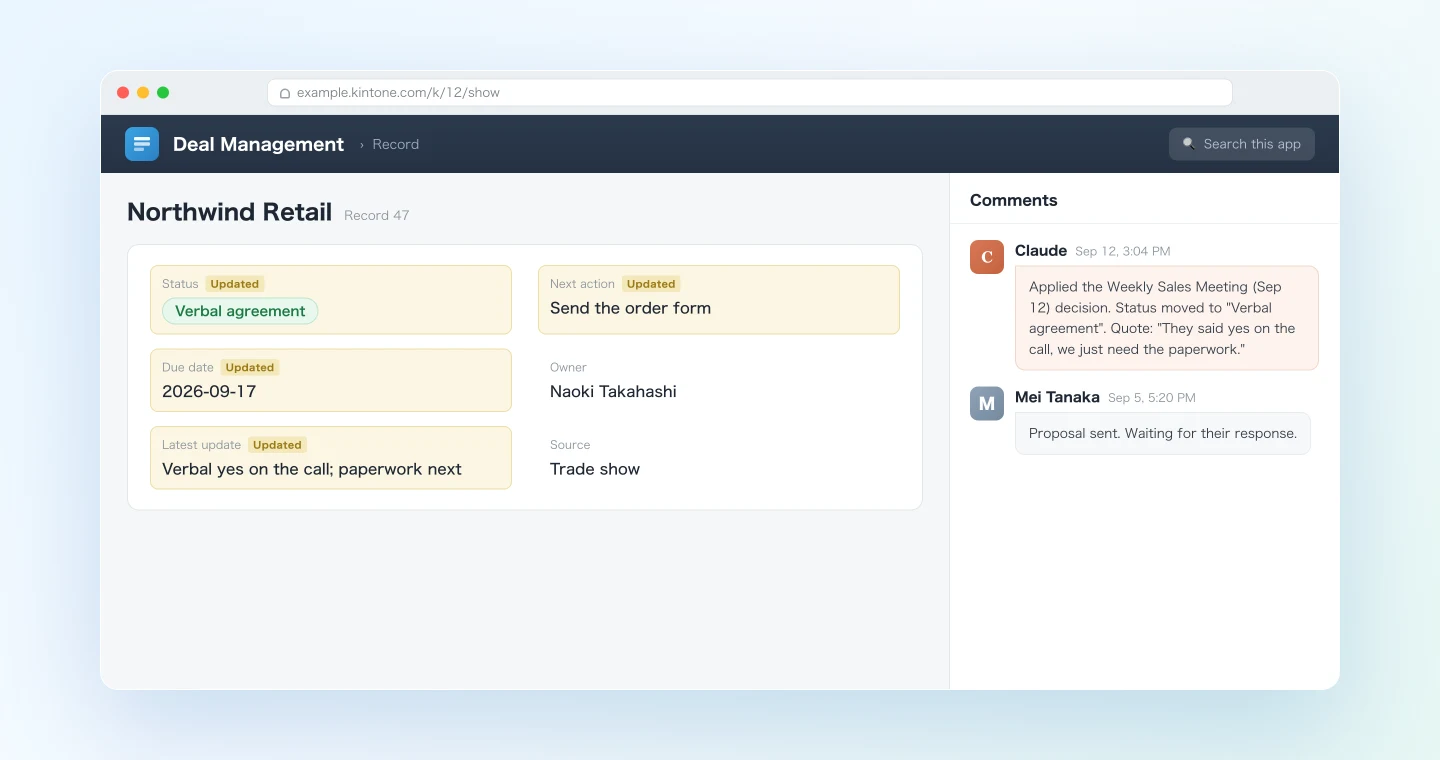
Those comments are worth as much as the field updates. When someone asks six weeks later why a deal went on hold, the answer is in the record itself, along with the title and date of the meeting where it was decided.
Demo 2: Log a new lead mentioned in a meeting, with a duplicate check
Plenty of new deals first show up as a passing remark in a meeting, something like "By the way, the Osaka branch of Fabrikam reached out." If nobody creates a record for it, the lead lives only in whoever happened to be listening.
From today's "Weekly Sales Meeting" notes in SuperIntern, list any
companies or deals that were mentioned but do NOT yet have a record
in the Kintone app "Deal Management" (app ID: 123). Search the app by company
name
first so we do not create duplicates. For each genuinely new one,
draft a record: Company, Contact (if mentioned), Source = "Meeting",
Status = "New", and a summary of what was said. Show me the drafts
and wait for my approval before adding records.
I checked 6 company names from the meeting against Deal Management.
- 4 already have records (no action).
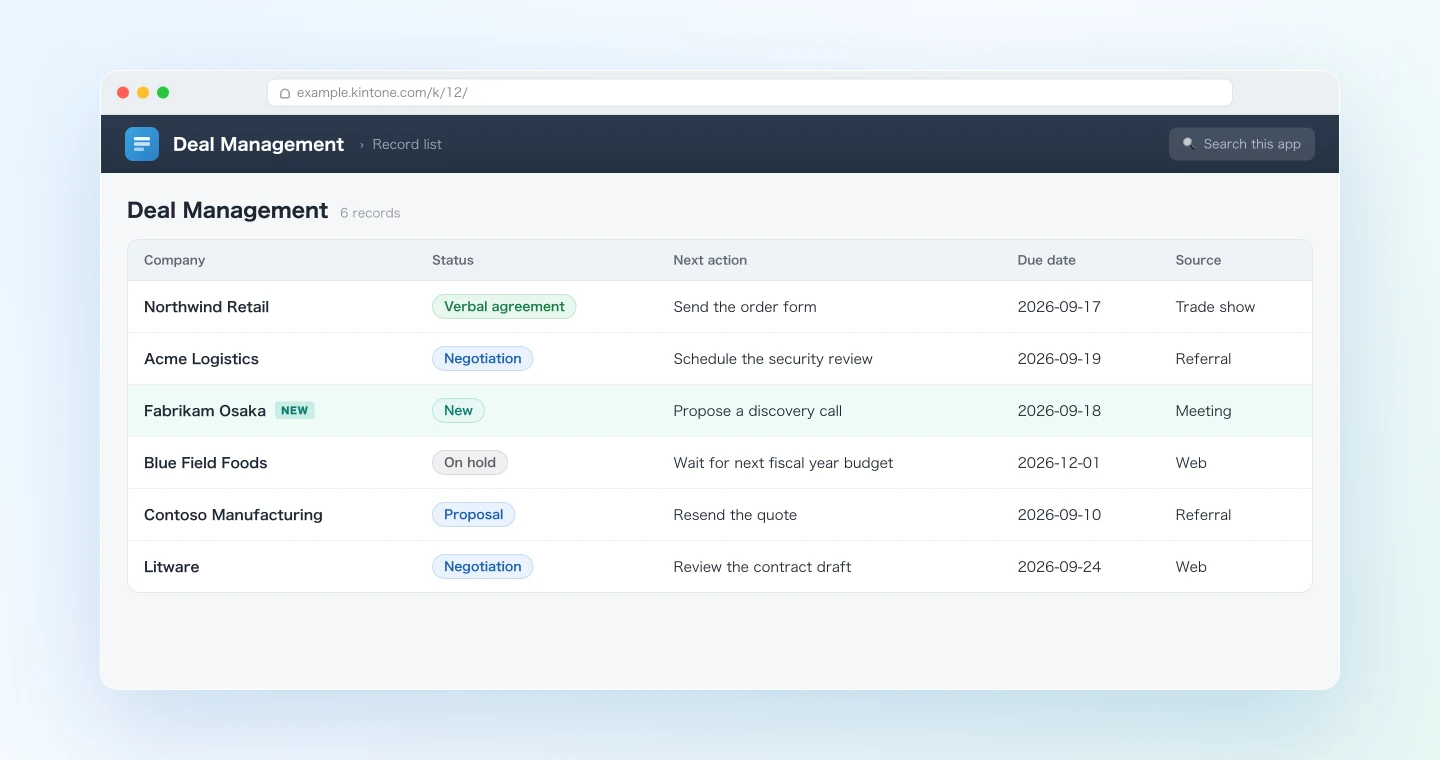
- Fabrikam Osaka has no record. Draft: Status "New", Source "Meeting", summary: "Inbound inquiry via the Osaka branch, interested in the annual plan, contact person not yet named."
- Litware appears once, but the existing record "Litware GmbH" may be the same company. I did not draft a new record; please confirm.
Add the Fabrikam Osaka record?
Near-duplicates like Litware are the cases where a person should decide. Even for leads the agent marks as new, glance at the existing matches before approving. The search step cuts down on duplicates, but it won't catch every spelling variation of a company name, and a colleague may add the same lead after your check.
Demo 3: Find stale records with a weekly cross-check
Some updates will slip even when the team has good habits. Once a week, run the check the other way around: start from the app and look for records that have fallen behind the meetings.
Take all my SuperIntern meetings from the past 3 weeks up to today and the
records in
the Kintone app "Deal Management" (app ID: 123) that are not closed. Cross-check
them and give me three lists:
1) Records where a meeting this week decided something newer than the record
   shows (with the quote and a proposed field update)
2) Records whose next action date has passed with no related meeting
   this week
3) Records that were not mentioned in any meeting for 3 weeks or more
Use this week for lists 1 and 2, and the full past 3 weeks for list 3.
If any meetings or periods cannot be retrieved, report the gap as unknown
rather than concluding that a record was not mentioned.
For list 1, wait for my approval, then apply the updates and post an
evidence comment on each record.
List 1 is your catch-up queue. Lists 2 and 3 give Monday's pipeline review a concrete starting point, so instead of scrolling through the app looking for problems, you open the meeting with five specific records and the reason each one needs attention.
Tips for running this safely
Propose first, write second. Every prompt in this article that writes to Kintone ends with some version of "show me the plan and wait for approval," and you should keep that habit in your own prompts. Keep in mind that the approval step is an instruction to the agent, not a technical control that blocks writes. Check the target records, the proposed values, and the supporting quotes before you approve, and look at the results afterward.
Scope the API token to one app. The Kintone MCP server accepts app-scoped API tokens, so the agent can only reach the apps you've explicitly granted. Start with one app and view and edit permissions for Demo 1, then add the add-records permission for Demo 2, since creating records requires record-add permission. The agent never needs delete rights. As the workflow grows, you can register more tokens.
Use Kintone's record history. Kintone keeps a change history on every record, so a wrong update is easy to spot and undo. Together with the comments the agent posts, it lets you trace any change back to the meeting it came from.
Match on stable keys. Company names in a transcript can be abbreviated or misheard. If your app has a customer code, have the agent match on that instead. Adding your most frequent customer names to SuperIntern's custom dictionary also makes the transcripts more accurate.
Handle attachments by hand. The Kintone MCP server can't currently set attachment fields when it adds or updates records, and it doesn't support guest spaces. Leave file uploads as a manual step.
Beyond sales: the same pattern for any Kintone app
Most teams use Kintone for far more than a CRM, and the same reconciliation approach works for their other apps.
- Support case app: after the weekly support review, update case statuses and record the agreed workarounds as comments.
- Project task app: after a project meeting, update any task owners and deadlines that changed during the discussion.
- Daily report app: at the end of the day, have the agent draft a report record from that day's meetings, then review and submit it yourself.
If your team tracks deals in a dedicated CRM instead, the same meeting-to-record workflow exists for HubSpot, and for team task trackers there is a Linear edition.
FAQ
Q. Is SuperIntern MCP available on the free plan?
A. Personal workspaces need the Plus plan or higher; Team plan workspaces can use it as well. On Enterprise, it is off by default until an admin enables MCP access.
Q. Does SuperIntern write to my Kintone apps?
A. No. SuperIntern MCP only provides meeting data, read-only. Every Kintone read and write is made by your AI agent through the Kintone MCP server, using the credentials you configured.
Q. Can my AI agent modify or delete my meeting notes through this setup?
A. No. SuperIntern MCP has no write or delete capability, so meeting data can't be changed through this connection.
Q. What do I need on the Kintone side?
A. A plan with REST API access (in the Japanese lineup, the Standard or Wide course; the Light course doesn't include the API), an API token, and the target app ID. The MCP server itself is free and open source, published by Cybozu. Note that it falls outside the scope of Kintone's API support desk.
Q. What if the agent writes something wrong?
A. Reviewing the proposed changes helps you catch mistakes, but it can't guarantee that a wrong update never gets through. If one does, Kintone's per-record change history shows exactly what changed, and you can fix it like any manual edit.
Q. Which AI agents does this work with?
A. SuperIntern MCP works with Claude, ChatGPT, and other MCP clients such as Claude Code, Codex, and Cursor. Kintone is different: there is no official way to connect it to ChatGPT. The official Kintone MCP server runs locally, so it needs a local MCP client, and the easiest is the Claude desktop app (Claude Code and Cursor also work through their MCP config). In practice, ChatGPT can read your meetings through SuperIntern, but the Kintone updates in this guide run in the Claude desktop app.
Q. We use HubSpot or Salesforce as our CRM. Is this article still relevant?
A. Use the HubSpot edition for a dedicated CRM. This edition is for teams whose system of record is a Kintone app, which often covers more than sales: support cases, projects, and daily reports follow the same pattern.
Start small, with one app and one meeting. Run Demo 1 after your next weekly meeting and see how much of the retyping goes away, and how much closer the app your team relies on stays to what was actually decided.