
Turn Merchandising Meeting Decisions into Shopify Products and Price Updates: A Practical Guide to SuperIntern MCP and Shopify

After every merchandising meeting, someone on the ecommerce team opens Shopify admin with their notes on the side and types in each new product's title, description, price, and variants by hand. When that work slips by a few days, a product goes live at last month's price, and the first person to notice is a customer.
Connect SuperIntern MCP and Shopify to your AI agent and you can hand that work off. The agent reads the meeting summary and transcript, lays out the products to create and the changes to make in a table, and applies only the rows you approve.
Shopify connects one store per conversation. If you run more than one store, use a separate conversation for each.
⚠️ This article was independently compiled based on publicly available information and user feedback as of November 2026.
Table of Contents
- What this workflow changes: before and after
- How it works: three roles
- Setup
- Demo 1: Create new products as drafts right after the merchandising meeting
- Demo 2: Apply the week's price changes and discontinued items in one pass
- Demo 3: Check stock and sales while the meeting is still running
- Tips and caveats
- Other ways to use it: supplier calls and sale planning
- FAQ
What this workflow changes: before and after
Before: After the meeting, you switch between your notes and Shopify admin, create each product, write the description, and set a price for every variant. In a week with price changes, you hunt down each affected product and edit it one at a time. If the decisions only live in someone's notes, just confirming which product ended up at which price takes a while.
After: When the meeting ends, you ask your agent to "apply today's merchandising meeting to Shopify." The agent reads the SuperIntern summary and transcript and builds a table of new products to create and existing products whose price or status should change, each with the line from the meeting that supports it. Review it, approve it, and the products are created and the prices updated on the spot.
Record the meeting with SuperIntern. SuperIntern is a desktop meeting assistant that produces transcripts and AI summaries without adding a bot to the call. The steps are the same for a video call with a supplier and for a quick huddle in the roastery or warehouse.

How it works: three roles
| Component | Role |
|---|---|
| SuperIntern MCP | Provides transcripts, live transcripts, AI summaries, and meeting notes, read-only |
| AI agent (Claude, ChatGPT) | Compares the meeting with the products in your store, drafts what to create and change, and writes to Shopify after you approve |
| Shopify | Creates and updates products, changes their status, and returns inventory and sales data when the agent asks |
MCP (Model Context Protocol) is an open standard for connecting AI assistants to external tools. SuperIntern MCP is read-only, so nothing on this connection can edit or delete your meeting data, and it only sees meetings that the connected user can already view in SuperIntern. The MCP setup guide covers the details.
Shopify provides an official connector for Claude and an official plugin for ChatGPT. According to Shopify's help center, they can create and update products, change product status in batches, set inventory quantities, and create collections, while orders and customers are read-only. Refunds, cancellations, and store settings are off limits. The agent is the one writing to Shopify; SuperIntern never writes there directly.
Setup
You connect two things: SuperIntern MCP and Shopify. Both are officially available in Claude and in ChatGPT, so pick the agent you already use. The prompts in this article work the same in either.
1. Connect SuperIntern MCP
SuperIntern is listed in both Claude's connector directory and ChatGPT's plugin directory, so you can find it by name.
- Claude: Open Settings, go to Customize in the lower left, then Connectors, and search for "SuperIntern." You can also open SuperIntern in Claude's connector directory directly. Adding connectors requires a paid Claude plan.
- ChatGPT: In the sidebar, open Plugins, search for "superintern," open SuperIntern, and click Install plugin. The SuperIntern plugin page takes you there directly. The Codex app works the same way.
Either way, sign in on the SuperIntern login screen and allow access. Personal workspaces need the Plus plan or higher, and Enterprise workspaces need an admin to enable MCP access. For full requirements and setup in Claude Code, Cursor, and other clients, see the MCP setup guide.
2. Connect Shopify
- Claude: On the same Connectors screen, search for "Shopify" and add it. You can also open Shopify in Claude's connector directory.
- ChatGPT: In Plugins, search for "Shopify" and install it, or open the Shopify plugin page. In ChatGPT, typing
@Shopifyin your message makes sure the reply uses your store.
In both cases you are sent to Shopify admin, where you choose and approve the level of data access the agent gets. The agent can only do what that access level and the permissions of the connected staff account allow. If you connect with a staff account that can't edit products, the agent can't edit them either. For Claude Code or Cursor, follow Shopify's developer AI Toolkit instructions.
3. Check the connection
Open a new chat and try this:
Show me my 3 most recent SuperIntern meetings and 5 products from my Shopify store.
If you get both meetings and products back, you're ready. The prompts below use a coffee store called "Ridgeline Coffee Co." and a SuperIntern project called "Merchandising," so swap in your own names.
Demo 1: Create new products as drafts right after the merchandising meeting
In a launch meeting, names and prices change several times before the team settles. Picking out only the final values is the slowest part of doing this by hand, so have the agent read the transcript as well and set aside anything that isn't settled.
Get the AI summary and transcript of today's "Winter launch meeting" from SuperIntern.
Draft a table of the new products we agreed to launch, before anything goes into Shopify.
Columns: product title, draft description, price, variants, supporting quote.
- Use only the final price and variants we agreed on in the meeting
- Write the description only from features mentioned in the meeting; don't add origins or claims nobody said
- Put products whose price or specs aren't settled in a separate list and don't create them
Don't write anything to Shopify until I approve. After I approve, create the products,
set each one to Draft right away, and send me the list of products you created.
The agent replies with something like this:
I drafted 2 products from the November 20 winter launch meeting.
Product Draft description Price Variants Supporting quote Winter Blend 12 oz A dark-roast Brazil with a touch of Ethiopia, a sweet blend for winter only. $18.50 Whole bean / Ground "I said $17.50 earlier, but let's go with $18.50." Winter Blend Drip Bags (10 pack) The Winter Blend in single-cup drip bags. $16.00 None "Drip bags, ten for sixteen dollars, same as last time." Not settled
- "Winter Gift Box": the box spec and price will be decided on next week's supplier call.
Should I create these 2 products and set them to Draft?
Reply "Add 'available through mid-December' to the Winter Blend description," and the agent edits the description, creates both products, sets them to Draft, and sends back the list.
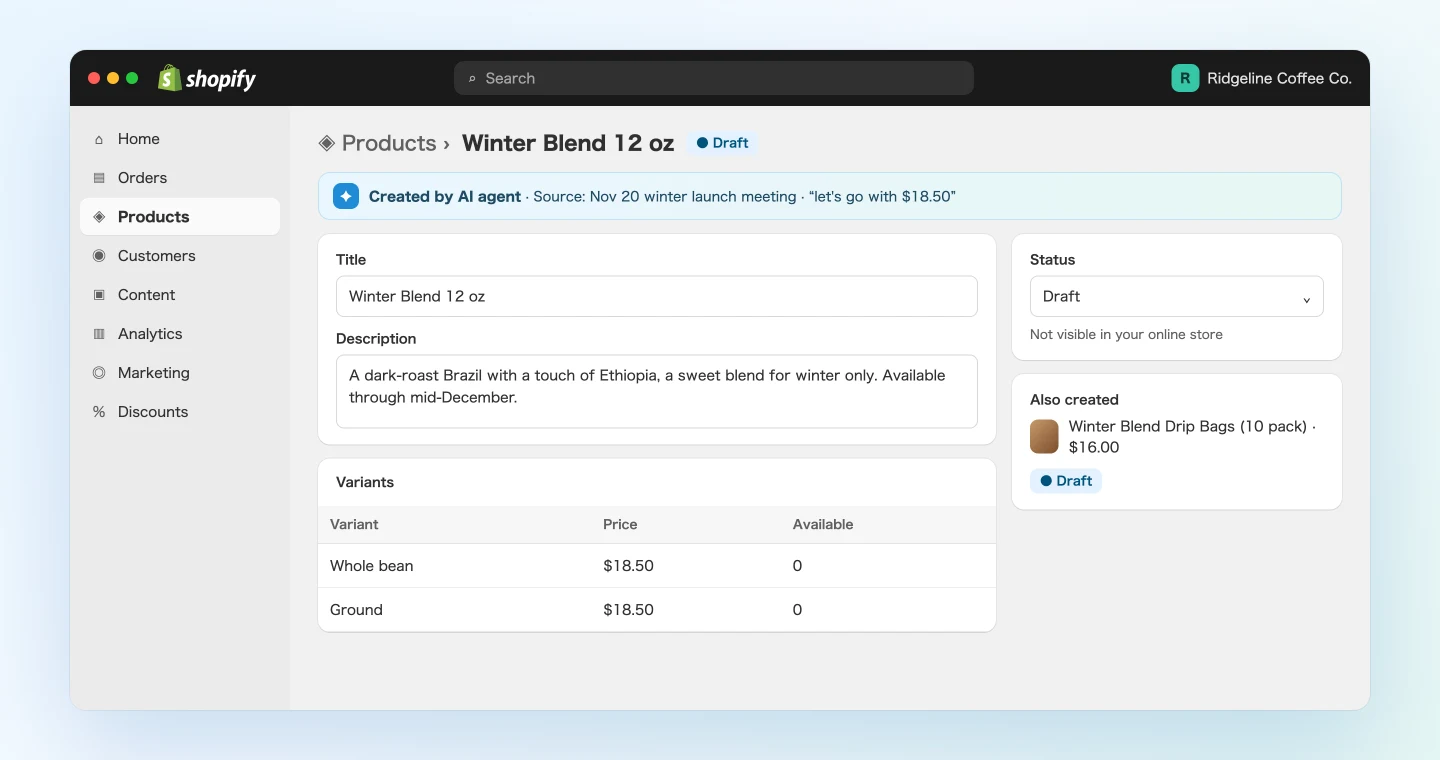
Draft products don't appear in your online store. Add photos, give them a final check in Shopify admin, and then switch them to Active. In ChatGPT, a Shopify panel opens beside the conversation when you create a product, so you can adjust the title, description, and price before saving.
Demo 2: Apply the week's price changes and discontinued items in one pass
Price decisions don't only come out of merchandising meetings; they also come out of supplier calls and team check-ins. At the end of the week, line up all of the week's meetings against your store and have the agent find only the places where the two disagree.
Read the summaries and transcripts of the meetings recorded this week (Monday through today)
in the SuperIntern project "Merchandising."
Compare them with the active products in my Shopify store and list only the products whose
price or status differs from what we decided in a meeting.
Columns: product, variant, current value, value decided in the meeting, supporting quote (with meeting name and date).
Put anything that wasn't fully decided, like "let's think about it" or "probably," in a separate list.
Update only the rows I approve. For products we decided to discontinue, archive them instead of deleting them.
Don't create discount codes, and don't update the rows that weren't fully decided.
I compared 3 meetings from this week with 24 active products and found 4 differences.
Product Variant Current Decided Supporting quote Ethiopia Yirgacheffe 12 oz Whole bean $19.00 $21.00 Nov 18 supplier call: "Green coffee is going up, so we'll raise it two dollars starting December." Ethiopia Yirgacheffe 12 oz Ground $19.00 $21.00 Same as above Autumn Blend 12 oz All Active Archived Nov 20 winter launch meeting: "Let's wrap up the Autumn Blend this week." Decaf Colombia 12 oz Whole bean $18.00 $17.00 Nov 21 ecommerce check-in: "Let's drop the decaf by a dollar and see what happens." Not fully decided
- "Brazil 2 lb": in the Nov 21 check-in someone said "maybe we include shipping," but there was no decision.
Should I update these 4 rows?
The Yirgacheffe increase starts in December, so you reply, "I'll update Yirgacheffe on the morning of December 1, so leave it out and update the other two." The agent archives the Autumn Blend, changes the decaf price, and reports the before and after values.
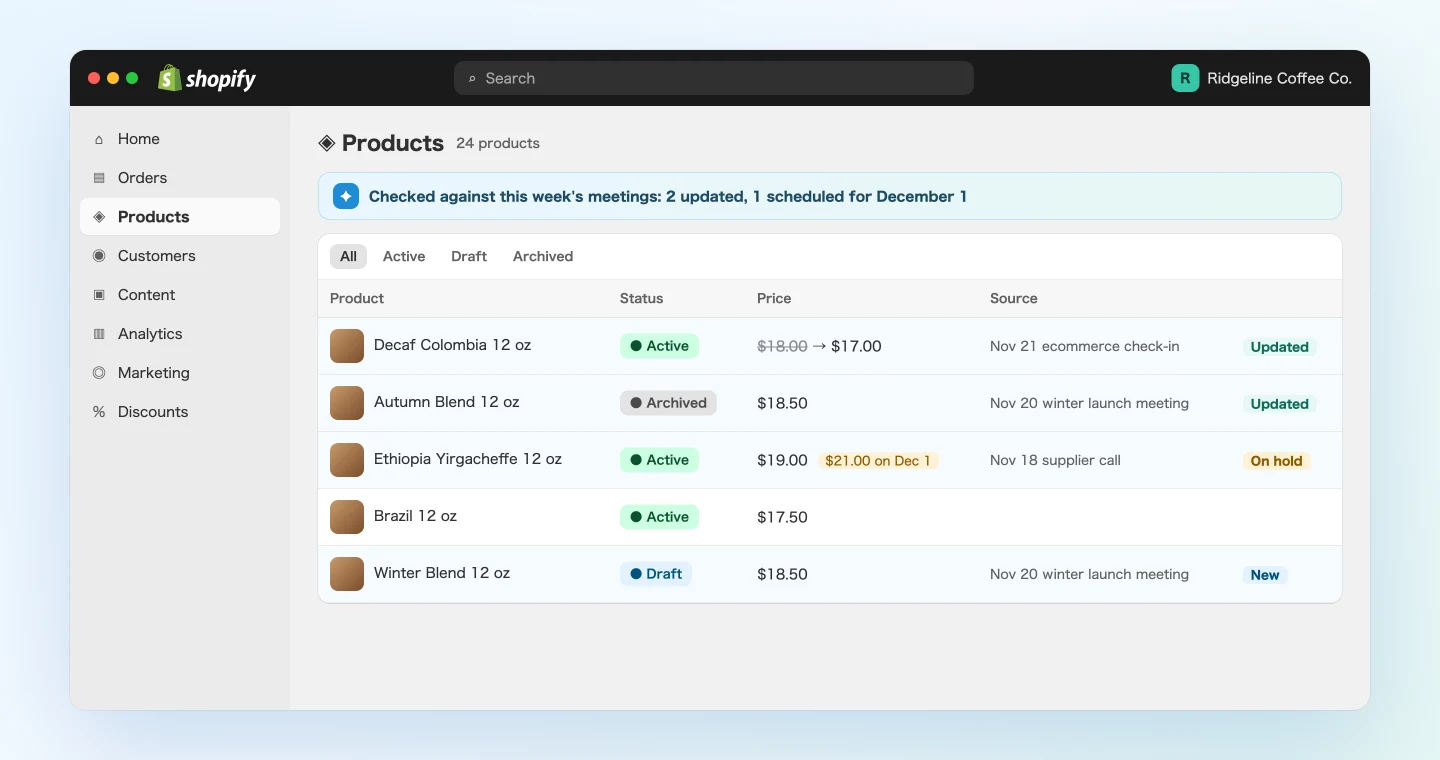
Archived products disappear from your store, but their data stays, so you can bring the same product back next fall without rebuilding it.
Demo 3: Check stock and sales while the meeting is still running
The third use doesn't write anything to Shopify. Mid-meeting, someone asks "how many drip bags do we have left?" or "how did they sell last month?" and you end up digging through Shopify admin. SuperIntern MCP can read a live transcript from where it last left off, so the agent can follow the conversation and look up the numbers for any product that comes up.
Read the live transcript of the meeting I'm recording in SuperIntern right now, starting from where you last left off.
When a product from my Shopify store comes up, look up its current inventory and last month's units sold and revenue,
and tell me in 3 lines or fewer.
If you can't find a matching product, just say "No matching product."
Don't write anything to Shopify.
Latest line: "Should we make another batch of drip bags before the holidays?"
Autumn Blend Drip Bags (10 pack) has 38 units left. Last month you sold 142 units for $2,272 in revenue. At roughly 35 a week, current stock will run out in about a week.
With the numbers in front of everyone, the team can decide on another batch now instead of pushing it to the next meeting. When the meeting ends, you can apply what was decided with the prompts from Demo 1 or Demo 2.
Tips and caveats
Review the draft before you approve
Every prompt in this article that writes to Shopify ends with "don't write anything until I approve." Keep that line. Price and status changes are visible to shoppers immediately. A prompt instruction can't technically block a write, though, so check product names, variants, and prices before approving, and look over the result in Shopify admin afterward.
Have new products created as drafts
Shopify's help center doesn't say what status a product created in a connected store starts with. The Demo 1 prompt tells the agent to set new products to Draft right away, but a product could still be visible for the moment between creation and the status change. Try new product creation during quiet hours, and confirm in the product list that the status is Draft.
Limit what the connected account can do
The agent can only work within the data access you approved and the permissions of the staff account you connected. Starting with a staff account that can only edit products makes unintended changes less likely. To narrow the access later, Shopify's help center says to remove the connector or plugin and connect it again.
Split large batches
Shopify's help center notes that product changes are applied one at a time, so a large batch can stop partway, and batch status changes are capped at 50 products. If you're repricing dozens of products before a sale, ask by collection or brand and check each result before moving on. Adding product names and origins you use often to SuperIntern's custom dictionary also improves transcript accuracy, which keeps product names consistent.
Other ways to use it: supplier calls and sale planning
Turning meeting decisions into a table and applying only the approved rows works beyond merchandising meetings.
- After a supplier call, have the agent turn the quantities you agreed to receive into proposed inventory updates. Shopify inventory updates are applied one location at a time, with a reason such as received or correction.
- After a sale planning meeting, have the agent group the products you picked into a collection. Discount codes are better created by you after you've checked the terms yourself.
- Before a monthly review, have the agent read the month's meetings and sales data and build a table of the initiatives you discussed and how those products sold. This one is read-only.
Related guides: if your product data lives in spreadsheets, see the Google Sheets guide, and if you want to turn meeting results into design assets, see the Canva guide.
FAQ
Q. Can I use SuperIntern MCP on the free plan?
A. Personal workspaces need the Plus plan or higher. Team plan workspaces can use it too. On Enterprise it is off by default, and an admin needs to enable MCP access.
Q. Does SuperIntern write to Shopify?
A. No, the agent does. SuperIntern MCP only provides meeting data, read-only. Creating products and changing prices is done by the agent through Shopify's connector or plugin.
Q. Does this work the same way in ChatGPT?
A. Yes. Shopify offers an official ChatGPT plugin, and creating and updating products and checking inventory and sales work the same way as in Claude. In ChatGPT, typing @Shopify in your message makes sure the reply uses your store.
Q. Can the agent process orders or issue refunds?
A. No. According to Shopify's help center, orders and customers are read-only, and refunds, cancellations, returns, and gift cards are blocked even if you approve write access. Store plan, payment, tax, and domain settings can't be changed either.
Q. I run several stores. Can I update them all at once?
A. Shopify connects one store at a time, even if your stores are in the same organization. To work on another store, ask the agent to connect to it and start a new conversation. An existing conversation may stay connected to the previous store.
Q. What happens if the agent enters the wrong price?
A. You'll usually catch it in the table before approving, but that isn't guaranteed. A wrong price or description can be fixed in Shopify admin like any manual edit. Ask the agent to always report the previous values so you have what you need to roll back.
Start with your next merchandising meeting. Run the Demo 1 prompt afterward and you'll see right away how much time you used to spend typing products into Shopify admin.