
Turn Meeting Notes into a Client-Ready Recap Deck with SuperIntern MCP and Canva
The call went well, and just before everyone drops off, the client asks if you can send over a summary deck.
That usually means an hour blocked out in the evening, a blank presentation, and a slow reconstruction of the conversation. What did we say about pricing? Who owns the security review? You scroll back through your notes, paste fragments onto slides, wrestle with the layout, and send something at 9pm that still looks rushed. Preparing decks after every discovery call, kickoff, and QBR can take up a substantial part of your workweek.
Most of what the deck needs is already written down. The decisions, the numbers, and the next steps are sitting in your SuperIntern meeting notes; someone just has to move them onto slides. This guide shows how to connect SuperIntern's MCP and Canva's MCP to an AI agent such as Claude or ChatGPT so that a single prompt turns a meeting into a first-draft recap deck in Canva.
⚠️ This article was independently compiled based on publicly available information and user feedback as of August 2026.
Table of contents
- What we're building: before / after
- How it works: three roles
- Setup
- Demo 1: A client recap deck right after the sales call
- Demo 2: A kickoff summary deck for stakeholders who weren't in the room
- Demo 3: A weekly leadership update from all your meetings
- Tips and caveats
- Going further: the same pattern, other tools
- FAQ
What we're building: before / after
Before: After a client call, you rebuild the conversation from memory and turn it into slides. Each deck takes 45 to 60 minutes, it gets pushed to tomorrow whenever the day is busy, and the version you finally send is only as accurate as what you happened to remember.
After: When the call ends, you ask your agent to make the recap deck. It pulls the AI summary from SuperIntern, picks out the agreements, open questions, and next steps, and builds a structured deck in your Canva account. You spend about ten minutes in Canva tightening the wording and visuals, then send it the same afternoon.
The source material is there every time because SuperIntern is a botless desktop meeting assistant. Nothing joins your call as a participant, and transcripts and AI summaries build up automatically on any meeting platform, in-person meetings included. The conversation gets captured whether or not you planned to make a deck, so the only manual work left was the slides, and that's what the agent now handles.

How it works: three roles
Three pieces work together here.
| Role | Player | What it does |
|---|---|---|
| Provide meeting data | SuperIntern MCP | Serves transcripts, live transcripts, AI summaries, and meeting notes, strictly read-only |
| Judge and draft | AI agent (Claude, ChatGPT) | Reads the summary, decides what belongs on slides, writes the deck outline and content |
| Take action | Canva (MCP) | Generates the design, hosts it in your account for editing, exports to PDF or PPTX |
MCP (Model Context Protocol) is an open standard for connecting AI assistants to external tools safely. SuperIntern's MCP gives AI agents read-only access to your meeting data, and Canva's official MCP server handles design generation, editing, search, and export inside your Canva account.
So the deck in Canva is created by your AI agent, not by SuperIntern. The AI can't change anything in SuperIntern, and it only sees meetings you already have access to. Nothing goes to your client on its own either. The deck lands in your Canva account as a draft, and you decide when and whether to share it.
Setup
You'll connect two services to your AI agent, SuperIntern and Canva. Both are listed in Claude's and ChatGPT's official directories, so you won't need a connection URL or an API key. Use whichever agent your team already works in; the prompts in this guide work the same in both.
1. Connect SuperIntern
- Claude: Open Settings, go to Connectors under Customize, search for "SuperIntern", and select it. You can also open SuperIntern in Claude's connector directory directly. Adding connectors is available on Claude's paid plans.
- ChatGPT: Open Plugins in the sidebar, search for "superintern", open SuperIntern, and click Install plugin. The SuperIntern plugin page takes you there directly. The Codex app connects the same way.
Either way, a SuperIntern sign-in page opens where you log in and grant access. Our MCP setup guide covers the SuperIntern-side requirements (personal workspaces need the Plus plan or above, and Enterprise workspaces need an admin to enable MCP access) along with setup for Claude Code, Cursor, and other clients.
2. Connect Canva
Canva publishes an official app for both agents.
- Claude: In the same Connectors screen, search for "Canva", connect it, and approve the sign-in for your Canva account.
- ChatGPT: In Plugins, search for "Canva", open the official app, and click Install plugin. Canva's app can create and edit designs and presentations directly in your account.
If you work in Claude Code or another MCP client, register Canva's official remote MCP endpoint instead:
https://mcp.canva.com/mcp
Design generation, editing, search, and export work on every Canva plan. Template autofill with brand kits requires Canva Enterprise, and design resizing requires Canva Pro or higher. Canva's official docs have the current breakdown.
To check that both connections work, ask your agent:
List my 3 most recent SuperIntern meetings and my 3 most recent Canva designs
If you get results from both, you're set.
Demo 1: A client recap deck right after the sales call
A recap is worth the most right after a discovery or proposal call, while the client is still paying attention. Put the deck structure in the prompt itself, so every recap your team sends follows the same layout.
Get the AI summary of the meeting "Acme Corp discovery call" that just ended,
and create a recap deck in Canva with this structure:
1) Title slide: "Acme Corp x Our Company: Recap and Next Steps" with today's date
2) What we heard: Acme's goals and pain points, in their words
3) What we agreed: decisions made on the call
4) Open questions: anything left unresolved, with the owner
5) Next steps: actions, owners, and dates
Keep each slide to 4 bullets or fewer. Where the conversation was ambiguous,
mark the point as "to confirm" instead of stating it as agreed.
The agent reads the summary, drafts each slide, and generates the deck in Canva.
Created "Acme Corp x Our Company: Recap and Next Steps" in your Canva account.
- What we heard: meeting notes depend on one person today; EU calls need real-time translation; security review is strict
- What we agreed: 2-week trial with the CS team (10 people) starting September; SSO is a precondition for rollout
- Open questions: where recording data is stored (to confirm, owner: us); October budget committee threshold (to confirm, owner: Dana)
- Next steps: security questionnaire returned by Aug 28 (us); trial kickoff scheduled by Sep 4 (Dana)
Open it in Canva to adjust wording and styling before sharing.
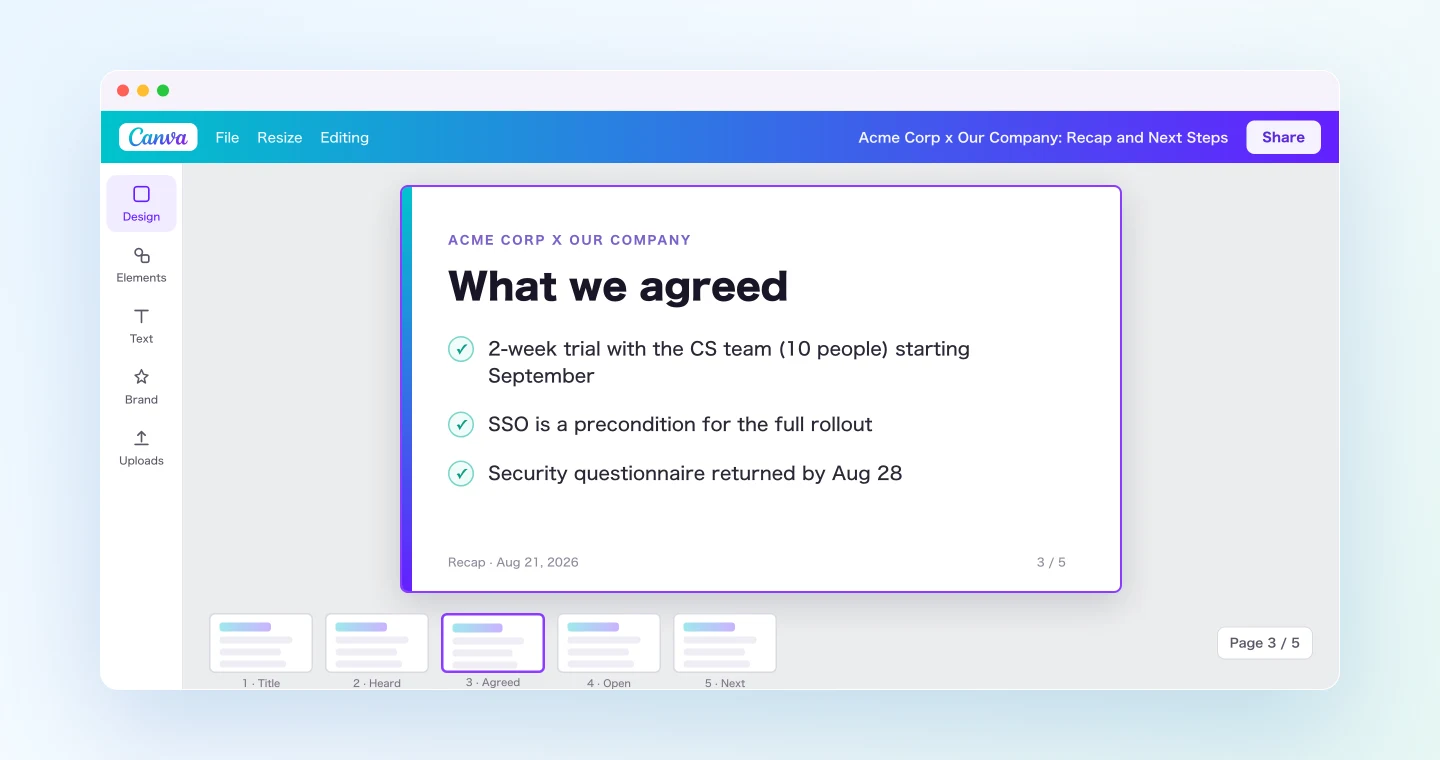
Compared with a deck built from memory, the "What we heard" slide uses the client's own framing, and anything that wasn't settled is marked "to confirm" rather than quietly written up as agreed. Because every point comes from the meeting record, the client is less likely to spot something they don't remember saying.
Demo 2: A kickoff summary deck for stakeholders who weren't in the room
The second use is internal. After a project kickoff, many of the people who need the context weren't there: leadership, neighboring teams, the engineer who joins next sprint. A five-slide briefing gets read far more often than a forwarded wall of summary text.
Get the AI summary and the meeting note of today's "Project Atlas kickoff".
Create a Canva deck for internal stakeholders who missed the meeting:
1) Why this project exists, in one slide
2) Scope: what's in, what's explicitly out
3) Team and owners
4) Milestones with dates
5) Risks and open decisions
Audience is leadership, so lead each slide with the conclusion.
SuperIntern stores both the AI summary and the meeting note, so the agent can take the milestone table from the note and the context behind each decision from the summary. You end up with a short briefing you can post in any channel, in a format busy stakeholders will actually open.
Demo 3: A weekly leadership update from all your meetings
MCP also makes it easy to work across several meetings at once. On Friday afternoon, you can turn the whole week into a leadership update.
List my meetings from this week in the "Customer Success" project and get
each AI summary. Create a Canva deck titled "CS Weekly Update":
1) One slide of highlights: wins and risks across all accounts
2) One slide per account with status, key developments, and next steps
3) A final slide: decisions I need from leadership
Then export the finished deck as PPTX.
The agent pulls the week together, writes the narrative, and generates the deck, and the PPTX export is ready for teams that still standardize on PowerPoint. Instead of spending Friday evening scrolling through five sets of notes, you review and adjust a draft that already has its structure.
Tips and caveats
Put the slide structure in the prompt. With a fixed outline such as heard, agreed, open, and next steps, every recap from your team looks the same, and the agent pulls out the right points more reliably. Save the prompt as a snippet so anyone on the team can reuse it.
Treat the generated deck as a first draft. The agent gets the structure and the facts onto the slides. The ten minutes you spend in Canva adjusting tone and visuals is what makes it ready for a client, and you're starting that work from a mostly finished draft.
Check sensitive numbers against the transcript. For pricing or commitments, add "quote the exact statement from the transcript for each item on the 'what we agreed' slide" to your prompt. Those are the slides where a misremembered figure causes the most trouble.
Do brand polish in Canva. On Canva Enterprise, template autofill with brand kits can place the generated content into your official template. On other plans, apply your brand styling while you polish the draft.
Nothing reaches the client automatically. The deck is created in your Canva account, and sharing or sending it is always a manual step. For customer-facing material, that's the right default.
Improve accuracy on the SuperIntern side. The more accurately company names, product names, and people's names are transcribed, the better the deck content. Add your key accounts and product terms to SuperIntern's custom dictionary.
Going further: the same pattern, other tools
Canva is one example of a broader setup: SuperIntern MCP supplies the data, the AI agent decides what to do with it, and another tool carries out the action.
- Gmail: draft the follow-up email that the recap deck attaches to, from the same meeting summary. Covered in the Gmail article
- HubSpot: log the same call as structured deal notes in your CRM. Covered in the HubSpot article
- Google Calendar: turn "let's meet next week" into a real invite with an agenda. Covered in the Google Calendar article
These combine well. A single prompt can build the recap deck from this article and draft the cover email from the Gmail article, both from the same meeting, leaving you with the full follow-up package to review in one pass.
FAQ
Can I use SuperIntern MCP on the free plan?
No. Personal workspaces require the Plus plan or higher. Team plan workspaces can use it as is, and on Enterprise it works once an admin turns on "MCP access" in workspace settings.
Does SuperIntern create the deck in Canva?
No. Your AI agent (Claude or ChatGPT) creates the deck through Canva's MCP integration. SuperIntern MCP only provides meeting data, read-only, and SuperIntern itself never writes to external tools.
Can the AI modify my meeting notes or transcripts?
No. Every SuperIntern MCP tool is read-only, with no create, edit, or delete operations. The only writes happen in Canva, inside your own account.
Which Canva plan do I need?
Design generation, editing, search, and export via MCP work on every Canva plan, including free. Template autofill with brand kits requires Canva Enterprise, and design resizing requires Canva Pro or higher. See Canva's docs for the current breakdown.
Could the deck get sent to my client without my approval?
No. The deck is created as a design in your Canva account. Sharing it, exporting it for a specific recipient, and sending it are all things you do yourself.
Which AI agents does this work with?
Claude and ChatGPT both work, and SuperIntern and Canva are each listed in their official directories. SuperIntern MCP also works with other MCP-capable clients, including Claude Code, Codex, and Cursor. Canva's MCP also supports multiple clients; check Canva's docs for the current list and setup per client.
SuperIntern already keeps a record of every meeting. With Canva connected, that record can become your next recap deck.