
Turn Every Vendor Demo into a Comparison Sheet: Software Evaluations with SuperIntern MCP and Google Sheets

You sat through three help desk demos this week, and on Friday your VP asks which one you'd pick. You open your notes and cannot remember which vendor said SSO costs extra, or whether anyone answered the question about EU data residency.
Connect SuperIntern MCP and Google Sheets to an AI agent such as Claude or ChatGPT, and the agent reads all three demos, proposes a comparison table where every cell carries the quote behind it, and creates the Google Sheet once you approve.
Claude's Google Sheets connector is a beta released in October 2026; in ChatGPT, the Google Drive app does the same job, with Shared Drives not yet supported.
⚠️ This article was independently compiled based on publicly available information and user feedback as of October 2026.
Table of Contents
- What we're building: Before / After
- How it works: three roles
- Setup
- Demo 1: Build the comparison sheet after the last vendor demo
- Demo 2: Catch unanswered questions while the demo is still running
- Demo 3: Update the sheet when follow-up calls change the terms
- Tips for daily use
- Beyond Google Sheets: the same pattern with other tools
- FAQ
What we're building: Before / After
Before: You take notes during each demo, then after the last one you scrub through recordings to fill in a comparison spreadsheet. Questions nobody answered stay blank, and two weeks later no one can say who quoted which number. Three vendors cost you two to three hours, and the sheet still has holes.
After: When the last demo ends, you ask your agent for the comparison. It reads SuperIntern's transcripts and AI summaries, lines up each vendor's answer per criterion with the sentence it came from, and marks anything the demos never covered as "Not confirmed." On your OK, it creates a Google Sheet with three tabs: Comparison, Evidence, and Open questions.
Meetings you want to reference need to be recorded with SuperIntern beforehand. SuperIntern is a desktop meeting assistant that works without inviting a bot to your meetings. Whether the demo happens on Zoom, Google Meet, Teams, or in a conference room, it automatically creates transcripts and AI summaries.

How it works: three roles
Three parties split the work.
| Role | Player | What it does |
|---|---|---|
| Provide meeting data | SuperIntern MCP | Serves transcripts, live transcripts, AI summaries, and meeting notes, strictly read-only |
| Judge and draft | AI agent (Claude, ChatGPT) | Reads the demos, sorts answers by criterion, drafts the table |
| Execute the action | Google Sheets (Claude's Google Sheets connector / ChatGPT's Google Drive app) | Creates and updates spreadsheets inside your own Google account |
MCP (Model Context Protocol) is an open standard for connecting AI assistants to external tools safely. SuperIntern's MCP hands meeting data to the AI agent read-only. Our MCP setup guide covers it in depth.
On the Google side, Claude uses its Google Sheets connector (public beta since October 2026), which can write formulas, build charts, and add tabs. In ChatGPT, the Google Drive app creates and edits Docs, Sheets, and Slides.
The thing writing to your spreadsheet is the agent, not SuperIntern. The agent cannot change anything on the SuperIntern side, it can only read meetings you yourself can access, and every Sheets action follows your existing Google sharing permissions.
Setup
You connect two services to your AI agent: SuperIntern and Google Sheets. Pick whichever agent you already use. SuperIntern is listed in the official directories of Claude and ChatGPT, and both agents ship their own Google integration, so there is no connection URL or API key to enter. The prompts in this guide work in both, with one difference: ChatGPT's Google Drive app does not yet handle files in Shared Drives and lacks some editing features. This guide covers Claude on the web or desktop and ChatGPT on the web.
1. Connect SuperIntern
- Claude: Open Settings, go to Connectors under Customize, search for "SuperIntern", and select it. You can also open SuperIntern in Claude's connector directory directly. Adding connectors is available on Claude's paid plans.
- ChatGPT: Open Plugins in the sidebar, search for "superintern", open SuperIntern, and click Install plugin. The SuperIntern plugin page takes you there directly. The Codex app connects the same way.
In both cases a SuperIntern sign-in page opens; log in and grant access. SuperIntern-side requirements (personal workspaces need the Plus plan or above; Enterprise workspaces need an admin to enable MCP access) and setup steps for Claude Code, Cursor, and other clients are covered in our MCP setup guide.
2. Connect Google Sheets
- Claude: Click the + button in the chat box, hover over Connectors, and switch on Google Sheets. The first time, sign in with your Google account and grant access. You can also manage it under Settings > Customize > Connectors. On Team and Enterprise plans, an owner or primary owner has to enable the connector before members can use it. Editing a sheet live in the pane beside the chat works on Claude on the web in Chrome and in Claude Desktop with the built-in browser turned on; elsewhere, use Open in Google on the file card. Current limitations are listed in the official help article.
- ChatGPT: In Plugins, search for "Google Drive", open the app, and connect your Google account. Spreadsheet creation and editing live inside this app. It is available to Plus, Pro, Business, and Enterprise users on the web; on Enterprise and Edu, a workspace admin has to enable it. For a file in a Shared Drive, use Claude or move the file to My Drive.
To confirm both sides are live, ask your agent:
List my SuperIntern meetings from this week with "demo" in the title,
and the Google Sheets I edited this week.
If both answers come back, you are ready.
Demo 1: Build the comparison sheet after the last vendor demo
The biggest payoff comes right after the final demo. Two things matter in the prompt: say "Google Sheet" explicitly, and hand over your evaluation criteria up front. Without criteria, the agent organizes the table around whatever each vendor chose to talk about. (Vendor names below are fictional.)
Read the transcripts and AI summaries of this week's "Northdesk demo",
"Relayly demo", and "Brightqueue demo", and build a comparison
of these help desk platforms.
Criteria:
- Quoted price (per agent per month, contract length)
- SSO (SAML) support and any extra cost
- Salesforce integration
- EU data residency
- Implementation time
- Concerns
If a demo did not cover a criterion, write "Not confirmed". Do not guess.
Put the quote and meeting name behind each cell in a separate
"Evidence" tab.
Show me the table first. Create the Google Sheet only after I say OK.
The agent reads the three meetings and returns a draft.
Here is the draft comparison.
Criterion Northdesk Relayly Brightqueue Quoted price $79/agent/mo, annual, 25-seat minimum $65/agent/mo, monthly available $72/agent/mo, annual (2-year discount mentioned) SSO (SAML) Enterprise tier only, +$15/agent/mo Included on all plans Included Salesforce Native Marketplace add-on (paid) Native EU data residency Yes (Frankfurt) Yes (Dublin) Not confirmed ("on the roadmap for the first half of next year") Implementation 6 to 8 weeks via partner 3 weeks, self-serve Not confirmed Concerns High seat minimum Integration priced separately EU timing unclear Example evidence: "SSO starts at our Enterprise tier, and it adds fifteen dollars per agent" (Northdesk demo)
Two items are not confirmed. Create the sheet?
Say OK, and you get a spreadsheet with Comparison, Evidence, and Open questions tabs. In Claude it opens in the pane beside the chat, and in the default mode every write shows up as an approval card first.
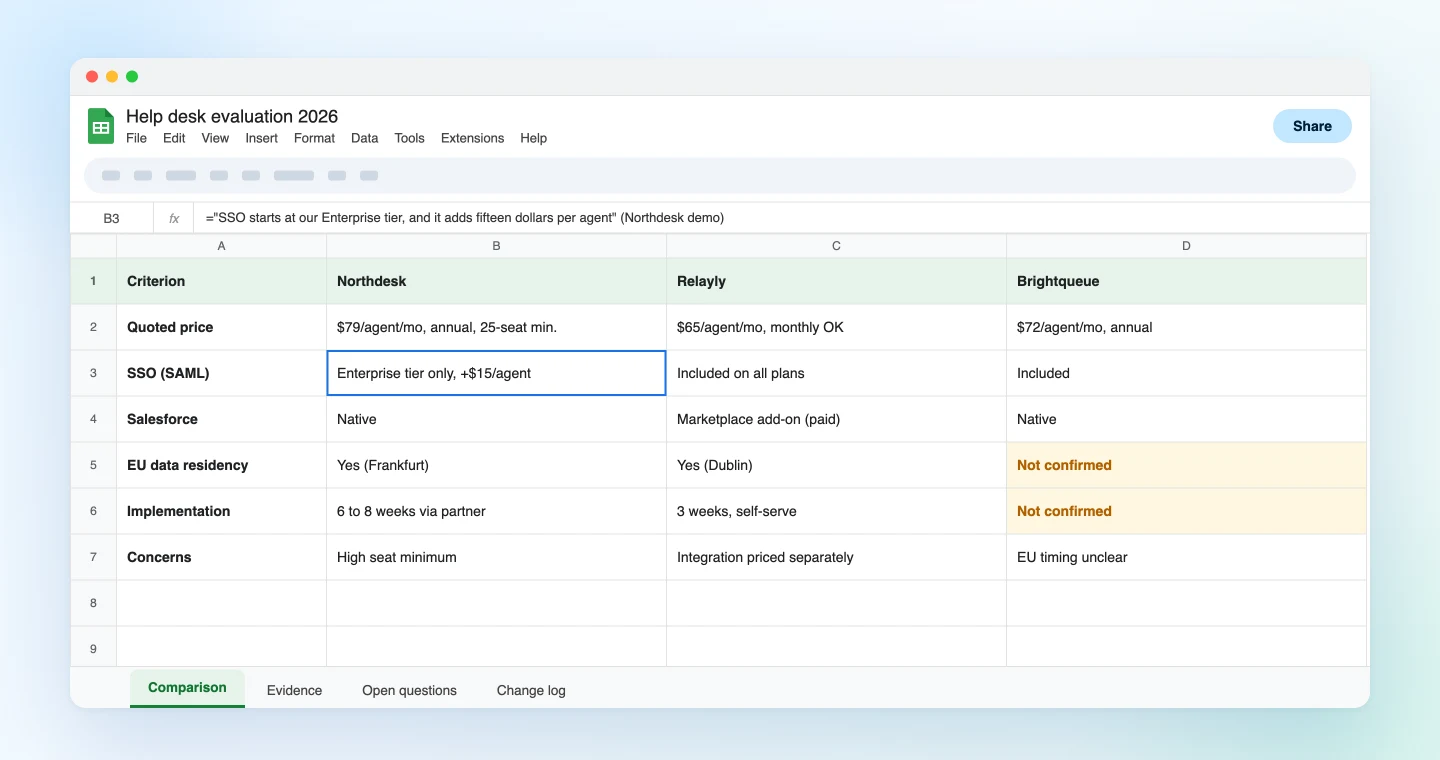
The part you will lean on is the Evidence tab, not the numbers. When someone asks "didn't they say SSO was included?", you can point to who said what, in which meeting. And because gaps are labeled instead of left blank, the next round of questions writes itself.
Demo 2: Catch unanswered questions while the demo is still running
SuperIntern's MCP can also serve the live transcript of a meeting in progress, including only the part that is new since the last fetch. That lets you check coverage while the vendor is still on the call.
Ten minutes before the demo ends, ask:
Read the live transcript of the ongoing "Brightqueue demo"
(only the new part since my last request is fine).
List the criteria from our comparison that have not been answered yet,
and write one question per line I can ask in the time left.
Fill the criteria that were answered into the Brightqueue column
as a draft.
The agent checks the conversation against your criteria and returns a short list.
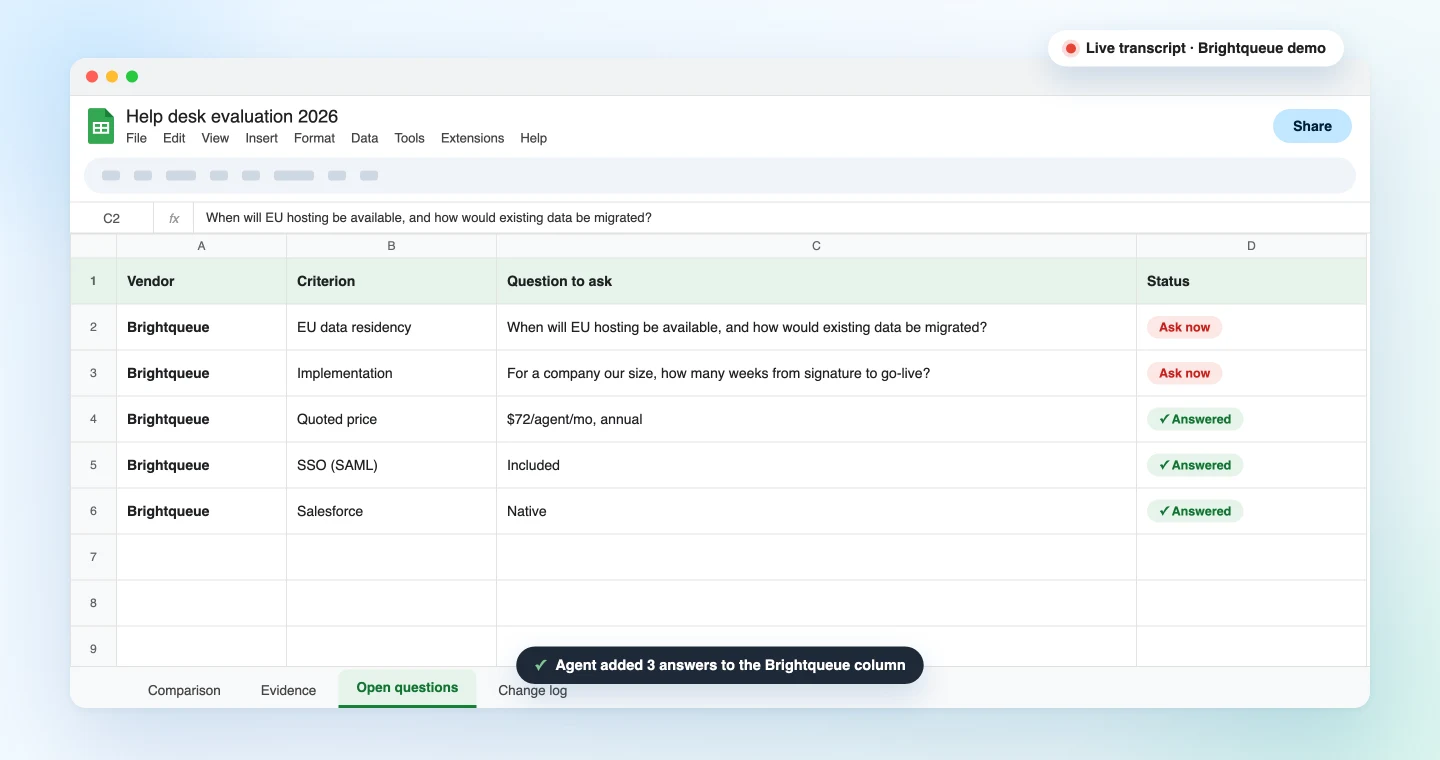
Two criteria have no answer yet:
- EU data residency: "When will EU hosting be available, and how would existing data be migrated?"
- Implementation: "For a company our size, how many weeks from signature to go-live?"
Price, SSO, and Salesforce are answered, and I added them to the Brightqueue column.
Ask those two before the call ends, and the column is nearly complete when you hang up. The same questions stay on the Open questions tab, so anything you miss becomes the follow-up email.
No bot joins the call, so the vendor never sees a recorder in the participant list. If you record or transcribe, follow your company's policy and let the vendor know at the start.
Demo 3: Update the sheet when follow-up calls change the terms
Once you are down to two vendors, the follow-up calls start: revised quotes, reference customers, security reviews. The terms move with every call, and the sheet goes stale fast.
Open the Google Sheet "Help desk evaluation 2026" and compare it with
this week's "Relayly pricing call" and "Brightqueue reference call".
Show me what changed as: criterion / current value / new value / quote.
Update only the cells I approve, highlight them in yellow, and add
one row per change to a "Change log" tab: date / meeting / criterion.
The agent proposes the changes before writing anything.
Three cells need an update.
Criterion Current New Quote Relayly: price $65/agent/mo $59/agent/mo on an annual contract "If you can commit to annual, we can do fifty-nine" Relayly: Salesforce Paid add-on Add-on free for year one "We'll cover the integration for the first year" Brightqueue: implementation Not confirmed 4 to 5 weeks "Our customers your size went live in four to five weeks" Update all three?
Approve, and the three cells turn yellow with three rows added to the change log. When the decision meeting comes and someone asks which call brought the price down, the log and the quote answer it.
Tips for daily use
Name the Google product. In Claude, asking for "a table" without saying Google Sheets can give you a table in the chat or a local file instead.
Keep your criteria as a template. If you rebuild the criteria for every evaluation, vendors get judged on shifting ground. Save the criteria block from Demo 1 and adjust it per project.
Treat demo statements as claims. The sheet records what a vendor said out loud. For price and contract terms, turn the Open questions tab into a written request and confirm in writing before you sign.
Keep "show me first, write after my OK" in every prompt. Every prompt in this guide ends with an approval step. In Claude, the default "Ask before edits" mode adds a second safety net, since each write appears as a card you accept or dismiss.
Share it yourself. Creating a sheet does not change its sharing. Share it with the evaluation team as you do today.
Everything stays inside your own permissions. SuperIntern MCP can only read meetings you can see, the agent can only open Google files your account can access, and nothing gets written back to SuperIntern.
Add vendor names to your dictionary. Product and feature names transcribed correctly make a cleaner sheet. Register them in SuperIntern's custom dictionary.
Beyond Google Sheets: the same pattern with other tools
SuperIntern MCP provides the meeting data, the AI agent judges, and a third tool executes. Swap the third tool and the pattern holds.
- Gmail: To turn the Open questions tab into email drafts to each vendor, see the Gmail guide
- Google Docs: To write the recommendation memo for approval from the sheet, see the Google Docs guide
- Canva: To present the shortlist to leadership as a deck, see the Canva guide
- Asana: To report progress on the evaluation project itself, see the Asana guide
A rhythm that works: Demo 1 once all first-round demos are done, Demo 2 during each demo, and Demo 3 once negotiation starts.
FAQ
Can I use SuperIntern MCP on the free plan?
No. Personal workspaces need the Plus plan or above. Team plan workspaces can use it as is. On Enterprise, an admin needs to enable "MCP access" in workspace settings first.
Does SuperIntern write to my spreadsheet?
No. Creating and updating sheets is done by your AI agent, through Claude's Google Sheets connector or ChatGPT's Google Drive app. SuperIntern MCP only hands over meeting data, read-only, and SuperIntern itself never writes to external tools.
Can the AI modify my meeting notes or transcripts?
No. Every SuperIntern MCP tool is read-only; create, edit, and delete capabilities do not exist. Writes happen only on the Google Sheets side, and only after you approve.
Is it OK to record vendor demos?
SuperIntern does not send a bot into the meeting, so the vendor will not see a recorder join. That is exactly why you should follow your company's policy and tell the vendor at the start if you are recording or transcribing.
What do I need on the Claude and ChatGPT side?
In Claude, a paid plan with the Google Sheets connector switched on (public beta as of October 2026); on Team and Enterprise, an owner must enable it first. In ChatGPT, the Google Drive app on the web with Plus, Pro, Business, or Enterprise. Shared Drives are not supported in ChatGPT yet, so for those files use Claude or move the file to My Drive.
How is this different from the Google Docs article?
The Google Docs guide keeps one meeting's outcome current in documents such as client minutes and requirements. This guide lines up what you heard across several meetings against the same criteria so you can compare them. Many teams decide in the sheet and write the recommendation memo in Docs.
Pick the next vendor demo on your calendar, write down your criteria, and record it with SuperIntern. By the time the last demo ends, you start the decision from a sheet that is mostly filled in.