
How to Move Meetings from Your Personal Workspace to a Team Workspace
This guide explains how to move the meetings saved in your SuperIntern Personal Workspace to a Team Workspace (a workspace on the Team or Enterprise plan).
Use it when you have been recording meetings on a personal plan (Free or Plus) and want to bring them into the workspace your team now uses. The move is done from Account settings in the web app. It is not available in the desktop app, so open the web app in your browser.
⚠️ This article reflects SuperIntern's behavior as of October 2026. Screens and specifications may change.
Table of Contents
Requirements
You can move meetings only when all three of the following are true.
1. The destination Team Workspace already exists
The destination must be a Team Workspace created on the Team or Enterprise plan. If your team does not have one yet, an admin needs to create it first. See the Team plan signup guide for how to do that.
A Team Workspace that is not active, for example because its subscription was canceled, cannot be chosen as the destination.
2. You joined the Team Workspace with the same account
Meetings can be moved only between the Personal Workspace and a Team Workspace that belong to the same SuperIntern account. In other words, you must have joined the Team Workspace with the same email address you use for your Personal Workspace.
- Ask your admin to send the invitation to the email address you use for your Personal Workspace.
- After you receive the invitation, open the link in the email and finish joining. A pending invitation does not show up as a destination. See Members: how to join from an invitation for the steps.
- Both admins and members can move meetings.
If you joined with a different email address
An account you have been recording with under a personal email address and an account that joined the Team Workspace with a work email address are two separate SuperIntern accounts. In that case, the steps in this guide cannot move your meetings. Ask your admin to invite the email address of the account that holds your meetings.
3. Your Personal Workspace is open
The move option appears only while your Personal Workspace (the source) is open. If you have a Team Workspace open, switch in Step 1 of How to move your meetings.
Which meetings are moved
You do not pick meetings one by one. All eligible meetings are moved together.
| Moved | Stays in your Personal Workspace |
|---|---|
| Completed meetings you recorded or uploaded yourself | Meetings that are still recording, and upcoming meetings |
| Their transcripts, summaries, notes, and the AI chats tied to them | Meetings whose uploaded audio is still being transcribed, or whose speaker identification is still running |
Once processing finishes, run the move again to bring those meetings over. Meetings you record in your Personal Workspace later can also be moved at any time with the same steps.
How to move your meetings
Step 1: Switch to your Personal Workspace
- Sign in to the web app.
- Click the workspace name in the top-left corner to open the workspace switcher.
- Under Workspaces, choose Personal.
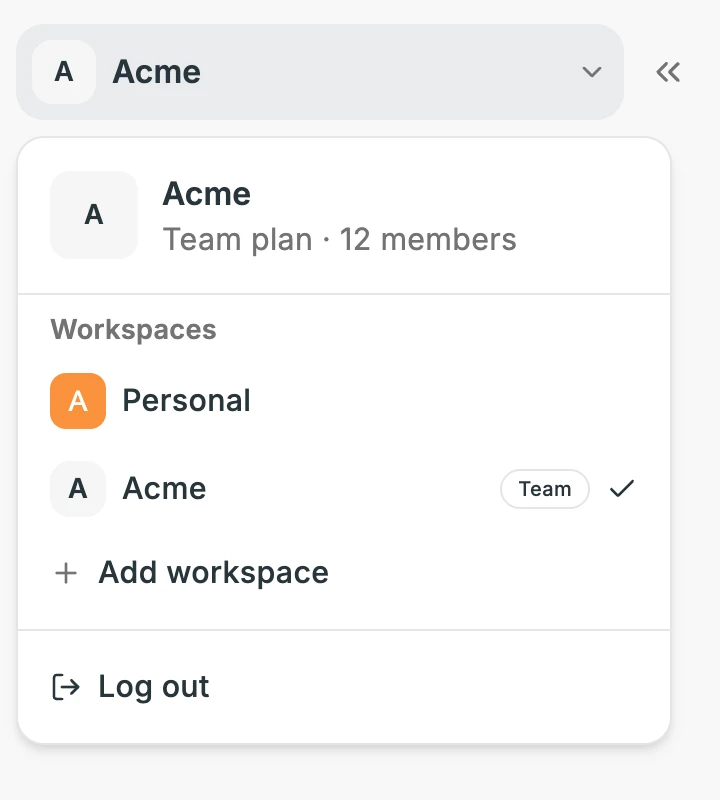
If Personal already has a check mark, go to the next step.
Step 2: Open the Danger zone in Account settings
- Click Account settings in the left sidebar.
- On the General tab, scroll to the bottom. Under Danger zone, find Move meetings to a Team Workspace and click Move meetings.
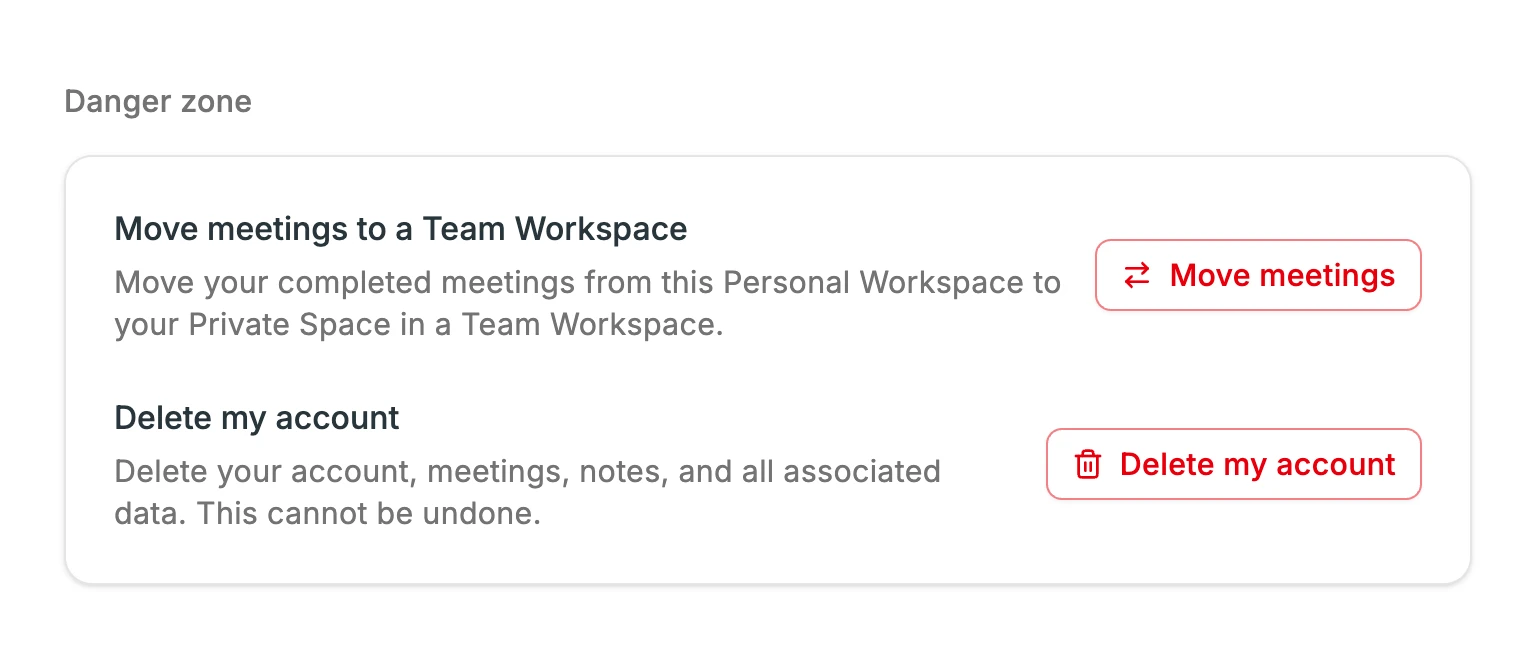
If you do not see Move meetings to a Team Workspace, check the requirements.
Step 3: Choose the destination Team Workspace
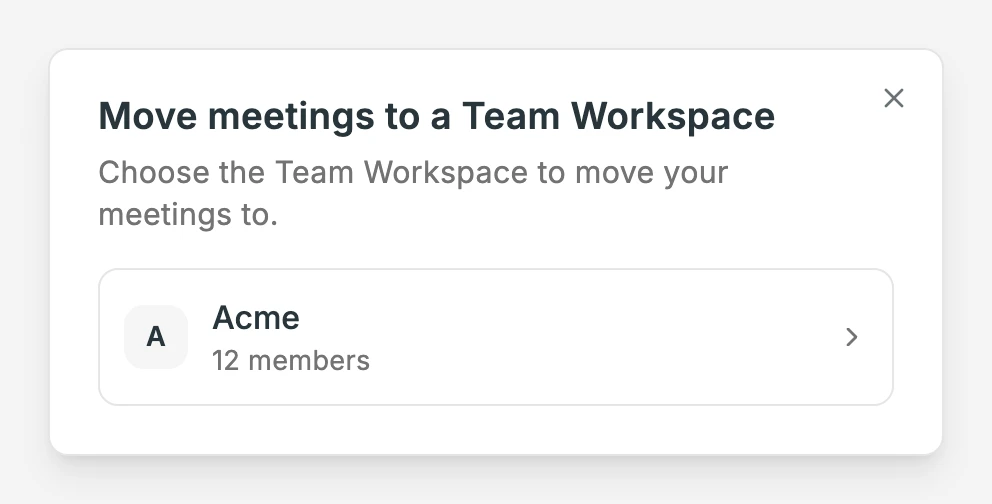
A list of the Team Workspaces you belong to appears. Click the one you want to move your meetings to.
Step 4: Review and start the move
The confirmation screen shows how many meetings will be moved and what will change. Read it, then click Move N meetings.
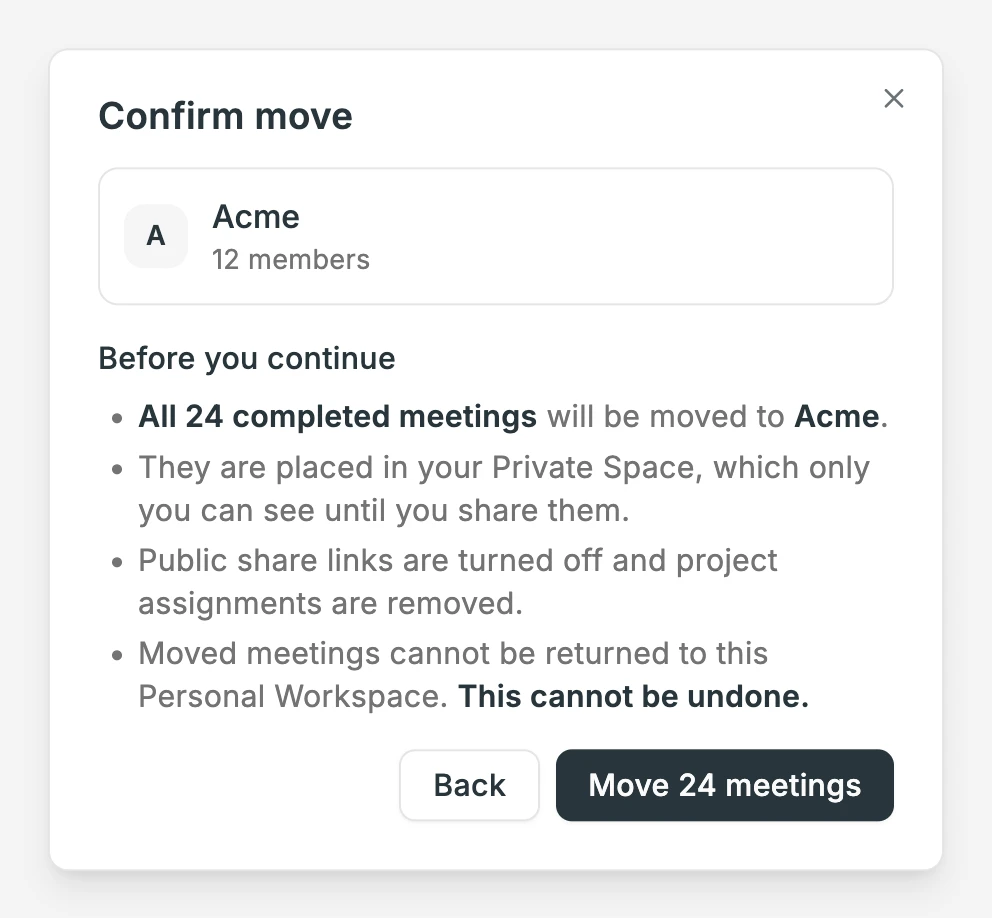
As the screen says, moved meetings cannot be returned to your Personal Workspace. Make sure you picked the right destination. To choose a different one, click Back.
Step 5: Wait for the move to finish
Once the move starts, the progress is shown as "Moved X of Y meetings". It can take a while if you have many meetings.
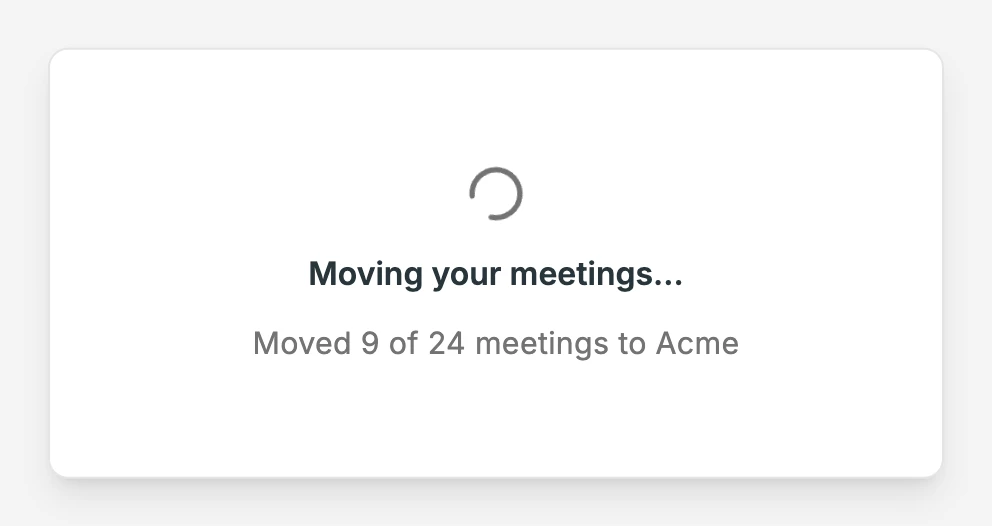
The move runs on the server, so closing the page does not stop it. Click Move meetings again to see the progress.
When every meeting has been moved, a notification appears in the top-right corner. Click Switch to workspace to open the meeting list of the destination Team Workspace.
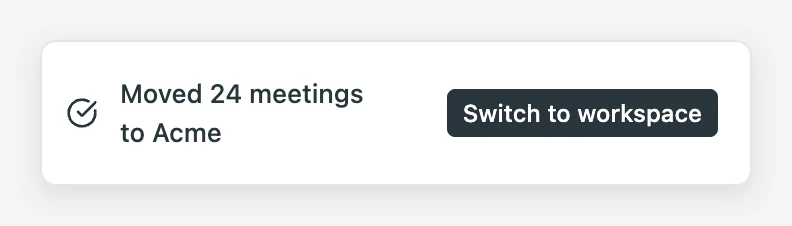
If some meetings could not be moved, you will see "Moved X of Y meetings to ... The rest stayed in this workspace." Those meetings are still in your Personal Workspace. Run the move again from Step 2 and only the remaining meetings will be moved.
What changes after the move
- Moved meetings go to your Private space in the Team Workspace. Other members and admins cannot see them. To show a meeting to your team, share it to the Team space as described in the Team plan usage guide.
- Public share links are turned off. If you had shared a public link with someone outside your team, share the meeting again after the move if needed.
- Project assignments are removed. Projects in your Personal Workspace are not moved, so add the meetings to projects again in the destination workspace.
- The move cannot be undone. There is no way to return moved meetings to your Personal Workspace.
FAQ
I don't see "Move meetings to a Team Workspace"
Check the following:
- Is Personal selected in the workspace switcher in the top-left corner?
- Did you join the Team Workspace with the same email address as your Personal Workspace?
- Did you finish joining, or is your invitation still pending?
Can I choose which meetings to move?
No. All eligible meetings (completed meetings you recorded or uploaded yourself) are moved together.
Can I move meetings from the desktop app?
No. Open the web app in your browser. After the move, switch to the Team Workspace in the desktop app to see the moved meetings.
Can I move meetings from an account with a different email address?
Not with this feature. If there are meetings you need to bring over, download their audio files from the source account, then upload the audio files from the account that belongs to the Team Workspace. How to download audio files is explained in How to change your email address or delete your account.
What happens to my Plus subscription?
Moving meetings does not affect your subscription. If you have a Plus subscription on your Personal Workspace, it continues after the move. To review or cancel it, open your Personal Workspace and go to the Billing and Usage tab in Account settings.
The move failed partway through
The meetings that were not moved are still in your Personal Workspace. Click Move meetings again and only the remaining meetings will be moved. If it keeps failing, contact us through the feedback form in the app.
If these steps don't solve your issue, contact us through the feedback form in the app.