
Answer "What Do the Numbers Say?" Before the Meeting Ends with SuperIntern MCP and Amplitude
Every product review has the moment. Someone asks, "Did the new onboarding actually lift week-one activation?" or "Are teams that use invites really retaining better?" Nobody has the chart open, so the answer becomes homework: "I'll pull the numbers by next week." By next week, the exact framing of the question has faded, the analyst builds a slightly different chart, and the discussion starts over.
Most of these questions take a few minutes to answer in Amplitude. They turn into homework only because nobody wants to stop the meeting to build a chart. Connect SuperIntern MCP and Amplitude's MCP server to an AI agent (Claude or ChatGPT), and your agent can pick up the question from the conversation, run the query in Amplitude, and hand you the number while everyone is still in the room.
This guide covers the setup and three workflows: answering questions live during the meeting, saving the questions and answers to an Amplitude notebook afterward, and sweeping a week of meetings for "let's check the data later" items that nobody checked.
⚠️ This article was independently compiled based on publicly available information and user feedback as of October 2026.
Table of Contents
- What we're building: Before / After
- How it works: three roles
- Setup
- Demo 1: Answer data questions while the meeting is still running
- Demo 2: Save the questions and answers to an Amplitude notebook
- Demo 3: Sweep the week for "let's check the data later"
- Tips for keeping the numbers trustworthy
- Where else this pattern works
- FAQ
What we're building: Before / After
Before: A question comes up in the meeting. Someone writes it down, opens Amplitude after the call, builds a chart from memory, and posts the result in Slack a day or a week later. If they misremember what the question really was, the chart answers the wrong thing.
After: Your agent reads the live transcript, pulls out the data questions, finds the right events in Amplitude, and returns each answer with the exact query conditions and the quote that prompted it. After the meeting, the agent can turn the questions and answers into an Amplitude notebook, after you approve the outline.
The flow looks like this:
- Tell your agent which meeting to look at, whether it is still running or already over.
- The agent reads the SuperIntern transcript and extracts every "can we check the data on that?" moment as a question.
- The agent searches Amplitude for the matching events and charts, runs the queries, and replies with results plus the quotes behind each question.
- When you want a record, the agent drafts a notebook or a dashboard change, and creates it only after you approve.
The meetings need to be recorded in SuperIntern first. SuperIntern is a desktop meeting assistant that works without inviting a bot to the call. It transcribes on any meeting platform and in person, and the live transcript is available while the meeting is still going.

How it works: three roles
| Role | Who | What it does |
|---|---|---|
| Meeting data | SuperIntern MCP | Provides transcripts, live transcripts, AI summaries, and meeting notes, read-only |
| Judgment and instructions | AI agent (Claude, ChatGPT) | Extracts the data questions, decides which events and conditions to query, and interprets the results |
| Querying and saving | Amplitude (MCP) | Runs queries, renders charts, and creates or edits notebooks and dashboards with your own Amplitude permissions |
MCP (Model Context Protocol) is an open standard for connecting AI assistants to external tools. SuperIntern MCP gives your AI client read-only access to meeting data, limited to meetings you can already see in SuperIntern. For meetings in progress, it can fetch the live transcript incrementally, returning only what was said since the last fetch.
Amplitude's official MCP server exposes tools for searching charts and dashboards, running event segmentation, funnel, and retention queries, rendering charts, and creating or editing notebooks and dashboards.
So the one querying Amplitude and building notebooks is your agent, not SuperIntern. SuperIntern MCP has no create, edit, or delete capability, so nothing in this setup can modify your meeting data. On the Amplitude side, every action runs within the permissions of the person who signed in.
Setup
You connect two services to your AI agent: SuperIntern and Amplitude. Pick whichever agent your team already uses, with one caveat. According to Amplitude's documentation, ChatGPT receives a curated subset of about 25 tools, and Amplitude recommends Claude or Cursor for the full tool catalog. Demo 1 (answering questions with queries) works in either agent, but for Demo 2 and Demo 3, which create notebooks and edit dashboards, Claude is the reliable choice. Both connections use sign-in, so there is no API key to generate.
1. Connect SuperIntern
- Claude: Open Settings, go to Connectors under Customize, search for "SuperIntern", and select it. You can also open SuperIntern in Claude's connector directory directly. Adding connectors is available on Claude's paid plans.
- ChatGPT: Open Plugins in the sidebar, search for "superintern", open SuperIntern, and click Install plugin. The SuperIntern plugin page takes you there directly. The Codex app connects the same way.
In both cases a SuperIntern sign-in page opens; log in and grant access. SuperIntern-side requirements (personal workspaces need the Plus plan or above; Enterprise workspaces need an admin to enable MCP access) and setup steps for Claude Code, Cursor, and other clients are covered in our MCP setup guide.
2. Connect Amplitude
Amplitude publishes official integrations for both agents.
- Claude: In the same Connectors screen, search for "Amplitude", connect it, and approve the sign-in for your Amplitude account.
- ChatGPT: In Plugins, search for "Amplitude", add it, and approve the sign-in. If your data lives in Amplitude's EU region, choose "Amplitude EU" instead. Call it in chat by typing "@Amplitude".
In Claude Code and other MCP clients, register Amplitude's official MCP endpoint instead. EU customers use https://mcp.eu.amplitude.com/mcp.
https://mcp.amplitude.com/mcp
Any existing Amplitude customer can use the MCP server, regardless of plan. Sign-in is OAuth, and every action runs within your own Amplitude permissions.
To confirm both sides are live, ask your agent:
List my 3 most recent SuperIntern meetings and the Amplitude projects I can access.
If both answers come back, you are ready.
Demo 1: Answer data questions while the meeting is still running
Start with a meeting in progress. SuperIntern's live transcript can be fetched incrementally, so you can ask several times during the meeting and the agent only processes the new questions each time.
Get the live transcript of the "Growth weekly" meeting that's running now.
Pull out every moment where someone asks what the numbers say or wants
to check something in the data, and answer each one with Amplitude.
- For each question, state the events, date range, and comparison you used
- If a question is ambiguous, ask me before running the query
- Show the results as charts
When I say "continue", look only at what was said since your last check
and do the same.
The agent picks the questions out of the live transcript, runs the queries, and replies:
I found two data questions in the meeting so far.
Question 1: Did the new onboarding lift week-one activation? Quote: "The new onboarding we shipped in September, is week-one activation actually up?" (Sarah) Conditions: share of users who triggered
Project Createdwithin 7 days ofSign Up Completed. Two weeks before launch (Aug 25 to Sep 7) vs. two weeks after (Sep 8 to Sep 21) Result: 31.8% → 36.4% (+4.6 points)Question 2: Are teams that use invites retaining better? "Teams" is ambiguous here. Should I measure at the Amplitude group level (one group per workspace)?
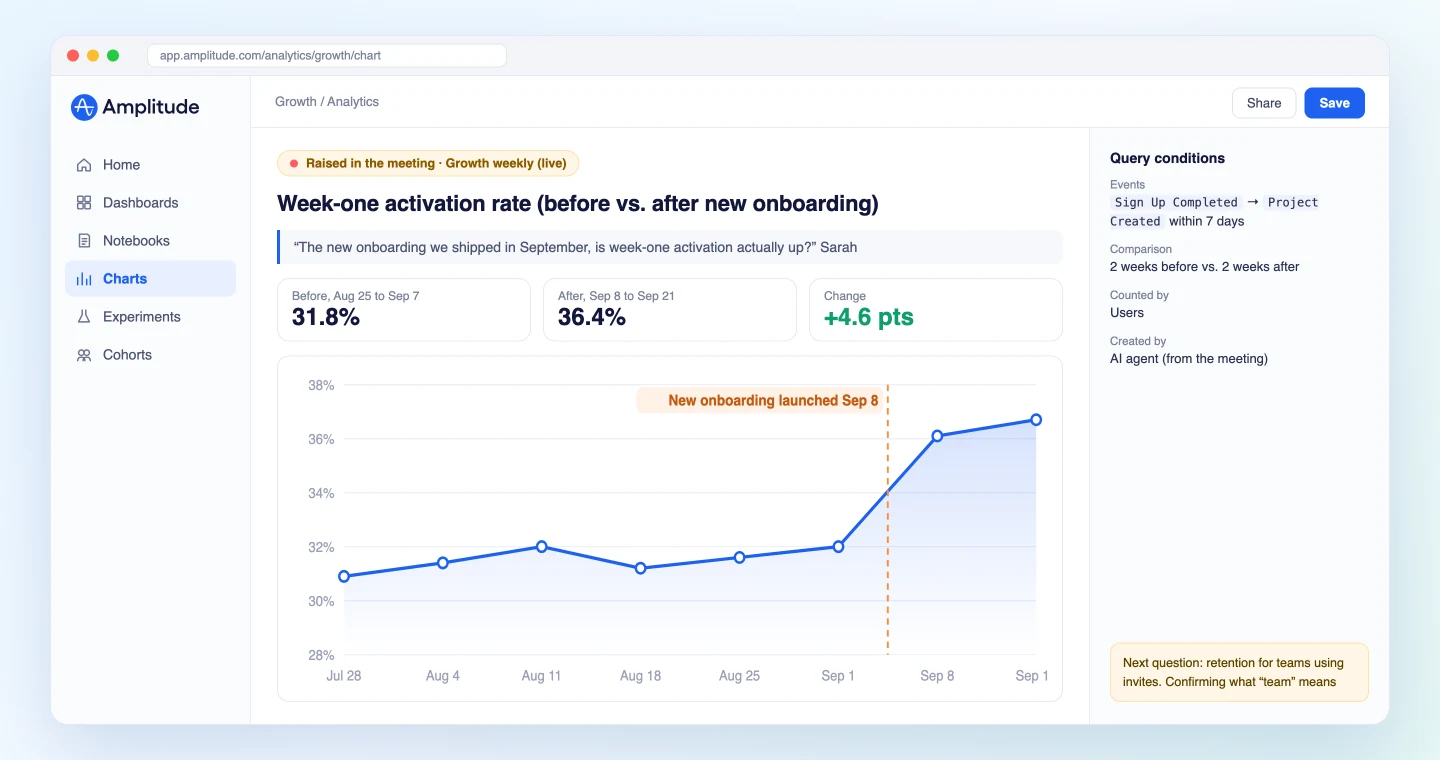
The key is making the agent spell out the conditions every time. People in the meeting can immediately say "that comparison window works" or "that's the wrong metric," and the misunderstanding gets fixed on the spot. Asking the agent to confirm ambiguous questions first, as with Question 2, keeps a number with the wrong definition from taking on a life of its own.
Demo 2: Save the questions and answers to an Amplitude notebook
Once a question has an answer, it is worth keeping. The next review, or another team asking the same thing, can reuse it. Amplitude notebooks combine charts and text on one page, so ask the agent to organize the meeting's questions into a notebook right after the call.
Get the transcript of today's "Growth weekly" meeting and list every
data question raised. Answer each with Amplitude and propose one notebook:
- Title: "Growth weekly Oct 2: questions we checked with data"
- For each question: question / quote / chart / what it tells us
- At the end, list questions the data couldn't answer, with the reason
Show me the outline first. Create the notebook only after I say OK.
The agent shows the outline and creates the notebook once you approve:
Here's the proposed notebook outline.
- Did the new onboarding lift week-one activation? (line chart, launch date annotated)
- 8-week retention for workspaces that used invites (retention chart: 62% with invites, 41% without)
- Is pricing-page drop-off concentrated on mobile? (drop-off by device: mobile 71%, desktop 48%)
Questions the data couldn't answer
- "Are sales-led customers getting lost in onboarding?": the current events don't carry a property that identifies the acquisition channel.
Shall I create the notebook with this content?
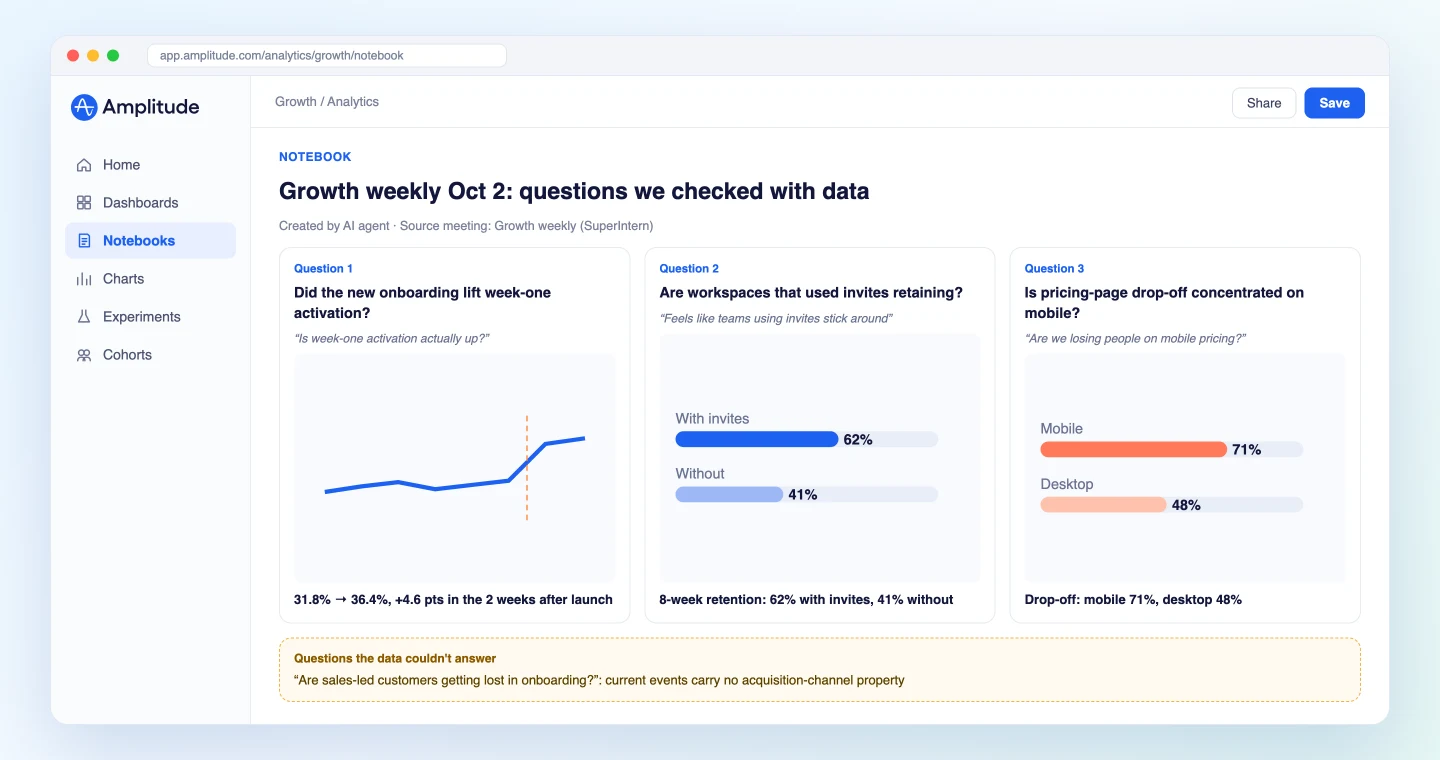
The "couldn't answer" list doubles as a tracking gap report. When you know exactly which event or property is missing, you have a concrete reason to ask engineering for new instrumentation.
Demo 3: Sweep the week for "let's check the data later"
"Let's check the data later" is one of the most common ways a meeting ends a topic, and one of the least followed up. On Friday, sweep the week's meetings for those questions.
List this week's SuperIntern meetings and find every question where
someone said "let's check the numbers later" or "let's decide after we
see the data", with the meeting name and who said it. Answer the ones
Amplitude can answer and put everything in a table. If the same
question keeps coming up, propose adding it as a chart to our
"Growth Weekly" dashboard. Only edit the dashboard after I approve.
The agent lists the open questions, answers what it can, and proposes dashboard additions. Once you approve, it adds the charts:
I found 4 open data questions across this week's 5 meetings.
Question Raised in Status Week-one activation for new users Growth weekly, Leadership sync Answered. Raised in two meetings, so I suggest adding it to the dashboard Days from signup to paid conversion Sales and CS sync Answered (median 18 days) Pricing-page drop-off on mobile Growth weekly Answered Breakdown of churn reasons CS weekly Not answerable with Amplitude data (churn reasons live in the survey tool)
When the same question keeps coming back, it usually means there is no standing place to see that number. Put it on the dashboard and the next meeting starts with the answer instead of the homework.
Tips for keeping the numbers trustworthy
Map meeting language to event names
People say "signed up" and "created a project" in meetings, while your Amplitude events might be called Sign Up Completed and Project Created. For the metrics you discuss most, include a short mapping in your prompt. It makes the queries noticeably more accurate.
Always require stated conditions and confirmation
The same "activation rate" can produce very different numbers depending on the window and the denominator. That is why every prompt in this guide asks the agent to state the events, date range, and comparison, and to check ambiguous questions with you first. Confirm the conditions match the intent of the discussion before you share a number in the room.
Limit writes to notebooks and dashboards
Amplitude's MCP server also includes tools that change your tracking plan, such as event and property definitions. For this workflow, keep the writes you ask for to creating and editing notebooks and dashboards. On the Amplitude side, admins can also decide per role whether MCP read and MCP write are allowed.
Know the permission boundaries
SuperIntern MCP only sees meetings you can access, and Amplitude actions run within your own permissions. Your agent cannot change anything in SuperIntern.
Keep names accurate in the transcript
The more accurately feature names, metric names, and internal terms appear in the transcript, the better the question extraction. Add frequent terms to SuperIntern's custom dictionary.
Where else this pattern works
The same split, SuperIntern MCP supplying meeting data, the agent making the calls, another tool doing the work, carries over to other destinations.
- Slack: To share the answers with people who missed the meeting the same day, combine this with the Slack guide.
- Asana: To back your weekly project status with the numbers you checked in meetings, see the Asana guide.
- Notion: To keep questions and answers as a product decision log, the structure in the Notion guide works well.
A practical rhythm: use live answers (Demo 1) only in reviews where a real decision is on the table, and make the Friday sweep (Demo 3) a weekly habit.
FAQ
Q. Can I use SuperIntern MCP on the free plan?
A. Personal workspaces need the Plus plan or above. Team plan workspaces can use it as-is. On Enterprise, an admin must enable "MCP access" in the workspace settings.
Q. Does SuperIntern operate my Amplitude account?
A. No. The AI agent (Claude or ChatGPT) runs queries and creates notebooks through the Amplitude integration. SuperIntern MCP only provides meeting data, read-only, and SuperIntern itself never operates other tools.
Q. Can the AI change my meeting notes or transcripts?
A. No. Every SuperIntern MCP tool is read-only, with no create, edit, or delete capability. Writes only happen on the Amplitude side, and only within the signed-in user's permissions.
Q. What do I need on the Amplitude side?
A. Any existing Amplitude customer can use Amplitude's MCP server, on any plan. Sign-in is OAuth and follows your Amplitude permissions. Admins can control MCP read and write access per role. If your data is in the EU region, use the EU endpoint. See Amplitude's documentation for details.
Q. How much of this works in ChatGPT?
A. In ChatGPT, you add the Amplitude plugin from the plugin search, with no developer mode required. It exposes a curated set of about 25 tools. Amplitude's documentation does not say whether notebook or dashboard creation is included and recommends Claude or Cursor for the full catalog. Start with live question answering in ChatGPT, and use Claude when you want to save notebooks.
Q. How fast can it answer questions during a meeting?
A. SuperIntern's live transcript is available in real time while the meeting runs, and the agent can fetch only what was said since its last check. Say "continue" at a natural break and the agent will query everything raised up to that point. Query time depends on the complexity of the question and Amplitude's processing.
In your next product review, try handing just one data question to your agent. A discussion that used to end with "I'll pull the numbers by next week" can be settled with data the same day.