
Turn Meeting Notes into a Self-Maintaining Notion Database with SuperIntern MCP
Most teams have a meeting database in Notion that started out well. For the first couple of weeks every meeting got a page. Then a busy sprint came along, nobody had time to copy notes over, and the table has been half empty ever since.
The database design is usually fine. What breaks is the handoff. Meeting records live in SuperIntern, team docs live in Notion, and someone has to move each summary across by hand, tidy the formatting, and type in the date and attendees. That takes about ten minutes per meeting and adds nothing that wasn't already written down.
This guide walks through connecting SuperIntern MCP and Notion to an AI agent (Claude, ChatGPT) so that one prompt files a meeting summary into your Notion database as a page with its properties filled in. When filing takes one prompt, the database keeps itself current and nobody has to chase it.
⚠️ This article was independently compiled based on publicly available information and user feedback as of August 2026.
Table of contents
- What we're building: before / after
- How it works: three roles
- Setup
- Demo 1: File the meeting into your database, right after it ends
- Demo 2: A decision-history page built from multiple meetings
- Demo 3: A weekly backfill plus a week-in-review page
- Tips and caveats
- Going further: the same pattern, other tools
- FAQ
What we're building: before / after
Before: After each meeting, someone pastes the summary into Notion, fixes the headings, and fills in the properties by hand. At ten minutes a meeting, a ten-meeting week costs well over an hour and a half, and the backlog grows fastest in the weeks when you're busiest.
After: You ask your agent to "file today's meeting into the meeting database," and a page shows up in Notion with the date, attendees, project, and a well-organized summary. All that's left for you is a quick read-through.
Two things keep this low-risk. SuperIntern is a botless desktop meeting assistant, so nothing joins your call and transcripts and AI summaries pile up on their own. The source material is always there. And the write access sits in one place only. Your AI agent writes to Notion, and SuperIntern's data stays read-only the whole time, so the agent can file meetings for you but can't change the records themselves.

How it works: three roles
Three pieces work together here.
| Role | Player | What it does |
|---|---|---|
| Provide meeting data | SuperIntern MCP | Serves transcripts, AI summaries, and meeting notes, strictly read-only |
| Judge and format | AI agent (Claude, ChatGPT) | Reads the summary, shapes it to match your database schema |
| Take action | Notion (official MCP) | Creates pages and adds entries to your databases |
MCP (Model Context Protocol) is an open standard for connecting AI assistants to outside tools in a controlled way. SuperIntern MCP gives AI clients read-only access to your meeting data, and Notion's official hosted MCP server handles creating and updating pages. So the agent does the writing in Notion; SuperIntern never does. The agent can't modify anything in SuperIntern, and it only sees meetings that you can already open there yourself.
Setup
You need two connections and a database for the pages to land in. Use whichever agent your team already has. The prompts in this guide work in both Claude and ChatGPT, but writing to Notion from ChatGPT requires the developer-mode setup described in step 2.
1. Connect SuperIntern
- Claude: Open Settings, go to Connectors under Customize, search for "SuperIntern", and select it. You can also open SuperIntern in Claude's connector directory directly. Adding connectors is available on Claude's paid plans.
- ChatGPT: Open Plugins in the sidebar, search for "superintern", open SuperIntern, and click Install plugin. The SuperIntern plugin page takes you there directly. The Codex app connects the same way.
Either way, a SuperIntern sign-in page opens. Log in and grant access. SuperIntern-side requirements (personal workspaces need the Plus plan or above; Enterprise workspaces need an admin to enable MCP access) and setup steps for Claude Code, Cursor, and other clients are covered in our MCP setup guide.
2. Connect Notion
The two agents differ here. Claude's Notion connector can create and update pages and databases as soon as you connect it. ChatGPT's Notion app is read-only, so ChatGPT can reference your Notion content but can't write to it. To write from ChatGPT, you turn on developer mode and add Notion's official MCP server (https://mcp.notion.com/mcp).
- Claude: In the same Connectors screen, search for "Notion", connect it, and approve access to your Notion workspace.
- ChatGPT: The Notion app in Plugins only reads. To let ChatGPT create and update pages and database entries, turn on developer mode (Plus, Pro, Business, Enterprise, or Edu, on web) and add Notion's official MCP server,
https://mcp.notion.com/mcp, as a connector. ChatGPT then asks you to confirm each write before it happens.
In Claude Code and other MCP clients, register Notion's official MCP endpoint directly:
https://mcp.notion.com/mcp
Notion's OAuth screen opens. Choose the workspace and approve. Notion's official documentation lists supported clients and other details.
3. Prepare the receiving database
Create a Notion database called "Meetings" with a few properties to start with, such as date, attendees, project, and type. If your team already has a meeting database, use it as it is.
To check that everything is connected, start with this prompt.
List my 3 most recent SuperIntern meetings, and show me the properties of my Notion "Meetings" database
If you get both back, you're set.
Demo 1: File the meeting into your database, right after it ends
This is the one you'll run most often. When the meeting ends and SuperIntern has produced the summary, send this.
Get the AI summary of today's "Acme onboarding review" from SuperIntern
and add it as a new page in my Notion "Meetings" database.
Properties: date, attendees, project = Acme rollout, type = customer call.
Body structure: decisions, then action items with owners and due dates,
then next meeting. If a page for this meeting already exists,
don't create one; just tell me.
The agent picks out what matters from the summary and adds a page with the properties already set.
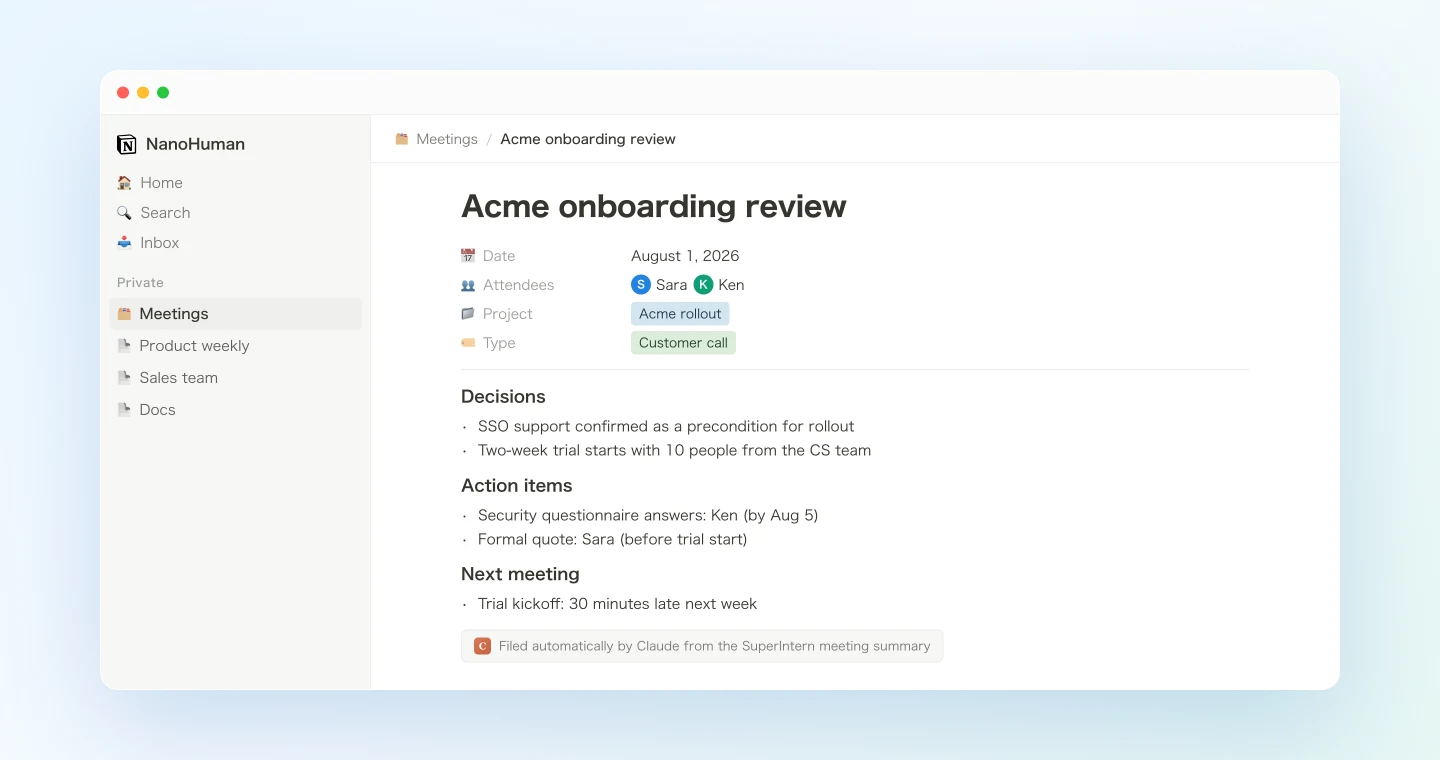
Acme onboarding review
Date: Aug 1, 2026 · Attendees: Sara, Ken · Project: Acme rollout · Type: customer call
Decisions · SSO support confirmed as a precondition for rollout · Two-week trial starts with 10 people from the CS team
Action items · Security questionnaire answers: Ken (by Aug 5) · Formal quote: Sara (before trial start)
Keep the last line of that prompt. The duplicate check stops the same meeting from being filed twice. And since the page structure is spelled out in the prompt, every page comes out in the same format regardless of who runs it.
Demo 2: A decision-history page built from multiple meetings
Automatic filing is useful on its own. MCP also lets the agent read across meetings, which is where it starts doing work a person wouldn't have time for.
Say your team argued about a pricing change over several meetings. A new hire asks why you settled on the current price, and someone spends half an hour piecing the story together from memory. You can have the agent write that story up as a page.
From the "Product weekly" project, check the transcripts of the past month's
meetings for every discussion of the pricing change, and create a Notion page
called "Pricing change: how we got here".
Structure: chronological summary of the discussion, then the reasons behind
the final decision, then open questions.
For each point, note which meeting it came from, with the date.
The agent narrows the meeting list by project and date range, pulls the relevant passages from each transcript, and writes the history up in a single page. It works from what was actually said, so nobody has to rely on "I think we agreed that." The next time the question comes up, you share the link.
Demo 3: A weekly backfill plus a week-in-review page
Meeting databases that depend on manual entry usually die slowly, one missed meeting at a time. Run this once a week to catch the gaps.
Get this week's meeting list from SuperIntern and check it against
my Notion "Meetings" database. For meetings that aren't filed yet,
create pages from their AI summaries. Then create a "Week in review"
page with a 3-line summary of every meeting this week,
linking to each meeting's page.
The agent compares the meeting list with the database, adds only the missing pages, and then writes the weekly digest.
Checked 7 meetings this week. 5 were already filed, 2 were missing.
· Product weekly (Aug 10): page created · Acme sync (Aug 12): page created
Created the "Week in review" page with links to all 7 meeting pages.
If you run it every Friday afternoon, gaps never last more than a week. The week-in-review page also works as a first draft of your weekly report.
Tips and caveats
Settle the database schema first. If the columns keep changing, the agent's output will be inconsistent too. Pick a small set of properties and name each one in the prompt.
Keep the prompt in Notion. Save the Demo 1 prompt on a Notion page as a team template. That way anyone on the team can file a meeting and get the same result.
Don't drop the duplicate check. A single line ("if a page already exists, don't create one") prevents almost all double entries.
Mistakes stay in Notion. Nothing in SuperIntern changes through MCP. If a page comes out wrong, delete it in Notion and try again; a bad run costs you very little.
Get the transcript right. Pages are only as accurate as the transcript behind them, especially for company, people, and product names. Add names that come up often to SuperIntern's custom dictionary.
Handle sharing in Notion as you normally would. SuperIntern MCP only returns meetings you already have access to. Who can see the new pages depends on your usual Notion sharing settings.
Going further: the same pattern, other tools
The same setup works with tools other than Notion. SuperIntern MCP supplies the meeting data, the agent decides what to do with it, and a second tool takes the action.
- Slack: post meeting recaps to the right channels. Covered in part 1 of this series
- Task management: turn meeting action items into Linear issues with owners. Covered in part 2
- Email: draft sales follow-ups from meeting notes in Gmail. Covered in part 3
Back in Notion, the cross-meeting queries from Demo 2 get more useful as the database grows. After a few months you have a searchable record of what the team discussed and decided, instead of notes that were read once and forgotten.
FAQ
Is SuperIntern MCP available on the free plan?
No. Personal workspaces need Plus or higher. Team plan workspaces have it available, and on Enterprise an admin needs to enable "MCP access" in workspace settings.
Does SuperIntern write into Notion directly?
No. Your AI agent (Claude or ChatGPT) creates the pages through its Notion connection. SuperIntern MCP only provides meeting data, read-only, and SuperIntern never writes to external tools.
Can the AI modify my meeting notes or transcripts?
No. Every SuperIntern MCP tool is read-only, with no create, edit, or delete operations. All writes happen in Notion.
What does the Notion side of the integration use?
Notion's official hosted MCP server (https://mcp.notion.com/mcp). You sign in with your Notion account through OAuth, so there are no API keys to manage. See Notion's official documentation for details.
Which AI agents does this work with?
Claude and ChatGPT. SuperIntern is listed in both Claude's connector directory and ChatGPT's Plugins. In Claude, the Notion connector can create and update pages and databases right away. In ChatGPT, the Notion app is read-only, so writing pages needs developer mode with Notion's official MCP server (https://mcp.notion.com/mcp) added as a connector, and ChatGPT asks you to confirm each write. SuperIntern MCP also works with other MCP clients such as Claude Code, Codex, and Cursor, so you can file meetings from your editor as well.
Do I need a specific database structure?
No. Any existing database works. Name its properties in your prompt and the agent will fill them in.
SuperIntern already records and summarizes your meetings on its own. With MCP and Notion connected, filing and organizing them takes one prompt too.