
Turn "Let's Meet Next Week" into a Real Calendar Invite with SuperIntern MCP and Google Calendar
Most meetings end with some version of "Good discussion, let's pick this up next week." Everyone agrees, and then nobody sends the invite.
A few days later someone asks in Slack whether the follow-up ever got scheduled. By then you're rereading your notes to work out what the next session was meant to cover, hunting for a time that suits everyone, and writing the agenda from memory. None of that information is actually missing. The decisions, the open items and who owns them are already in your meeting notes; they just never made it into a calendar event.
This article closes that gap. We connect SuperIntern's MCP and Google Calendar to an AI agent (Claude, ChatGPT) and turn "let's meet next week" into a scheduled event with a proper agenda, using a single prompt. The steps that create events, the follow-up invite and the focus blocks, are shown with Claude, because creating events from ChatGPT's Google Calendar app is not officially confirmed. The pre-meeting briefing in Demo 2 only reads your calendar and meeting history, so it works in ChatGPT as well.
⚠️ This article was independently compiled based on publicly available information and user feedback as of August 2026.
Table of contents
- What we're building: before / after
- How it works: three roles
- Setup
- Demo 1: the follow-up invite, minutes after the meeting
- Demo 2: a briefing before tomorrow's meetings
- Demo 3: a Friday sweep that blocks focus time for next week
- Tips and caveats
- Going further: the same pattern, other tools
- FAQ
What we're building: before / after
Before: Scheduling a follow-up means rereading the notes, deciding what the next session should cover, finding a slot and writing an agenda. Each step is small, but together they're easy to put off, so the follow-up lands late, arrives without an agenda, or never happens.
After: You tell Claude, "We agreed to meet again next week. Draft the invite." Claude pulls the meeting summary through SuperIntern MCP, picks out the decisions and open items, looks for openings on your calendar, and shows you a full event draft with title, attendees, time, and a description that serves as the agenda. You check it, reply "go", and the invite goes out.
Two things make this safe to rely on. SuperIntern records meetings botless, from a desktop app, so there are notes for every meeting, including external calls where a recording bot would never be allowed in. And nothing is written to your calendar until you approve the draft. A calendar invite notifies real people, so we deliberately keep you in the loop before it's sent.

How it works: three roles
| Role | Player | What it does |
|---|---|---|
| Meeting data | SuperIntern MCP | Serves transcripts, AI summaries, and meeting notes, read-only |
| Judgment and drafting | AI agent (Claude, ChatGPT) | Extracts decisions and open items, checks availability, drafts the event |
| Action target | Google Calendar (connector) | Creates and updates calendar events, manages invites |
MCP (Model Context Protocol) is an open standard for connecting AI assistants to external tools. SuperIntern's MCP gives the agent your meeting data on a read-only basis. On the calendar side, Claude's official Google Calendar connector can check availability, create and update events, and RSVP. ChatGPT has a Google Calendar app too. It can read your schedule, which is all Demo 2 needs, but creating events from it is not officially confirmed, so Demos 1 and 3 use Claude for the step that writes to the calendar.
To be clear about responsibilities: Claude creates the event through the Google Calendar connector. SuperIntern never writes to your calendar, and nothing can write back into SuperIntern, because the MCP has no write operations. The agent can only read meetings you already have access to in SuperIntern.
Setup
You need two connections and no API keys. Use whichever agent your team already has. The prompts in this guide work the same in both, with one exception: creating events (Demos 1 and 3) is shown with Claude, since creating events from ChatGPT's Google Calendar app is not officially confirmed. The Demo 2 briefing only reads your calendar and works in either agent.
1. Connect SuperIntern
- Claude: Open Settings, go to Connectors under Customize, search for "SuperIntern", and select it. You can also go straight to SuperIntern in Claude's connector directory. Adding connectors requires a paid Claude plan.
- ChatGPT: Open Plugins in the sidebar, search for "superintern", open SuperIntern, and click Install plugin. The SuperIntern plugin page links there directly. The Codex app connects the same way.
Either way, a SuperIntern sign-in page opens. Log in and grant access. Our MCP setup guide covers the SuperIntern-side requirements (the Plus plan or above for personal workspaces; admin enablement for Enterprise workspaces) and setup for Claude Code, Cursor, and other clients.
2. Connect Google Calendar
- Claude: Add the Google Calendar connector from Claude's connector settings (Settings > Connectors) and sign in with your Google account. The official help article has current availability and plan details. This connector can check availability, create and update events, and RSVP, which covers everything Demos 1 and 3 need.
- ChatGPT: In Plugins, search for "Google Calendar", open the app, and connect your Google account. The app can read your schedule, which is enough for the Demo 2 briefing. Creating events from ChatGPT's Google Calendar app is not officially confirmed as of this writing, so use Claude for Demos 1 and 3.
To check that both connections work, ask:
List my 3 most recent SuperIntern meetings,
and my calendar events for tomorrow
If you get both lists back, you're set.
Demo 1: the follow-up invite, minutes after the meeting
This pays off most right after a meeting where someone said "let's do this again next week." While the summary is still fresh in SuperIntern, ask Claude:
Get the AI summary of today's "Acme rollout planning" meeting.
We agreed to meet again next week. Find a free 45-minute slot
on my calendar next Tue-Thu afternoon and draft a follow-up event:
same attendees as today, and a description with three sections:
1) what we decided today, 2) open items with owners and due dates,
3) proposed agenda for the follow-up.
Show me the draft first. Only create it after I say go.
Claude reads the summary, finds a slot, and replies with something like this:
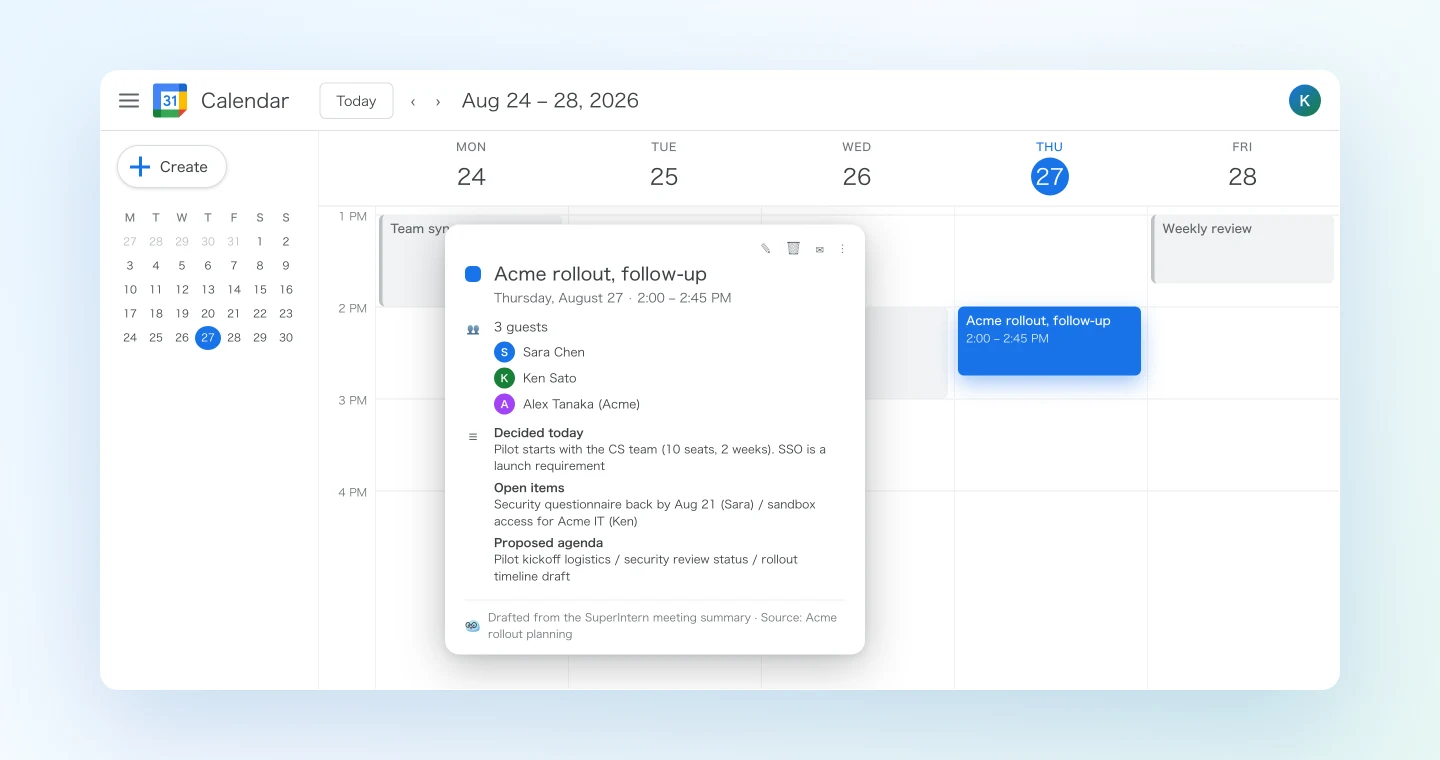
Draft: Acme rollout, follow-up Thu, Aug 27, 2:00 to 2:45 PM, with sara@, ken@, tanaka@acme.com
Decided today: pilot starts with the CS team (10 seats, 2 weeks); SSO is a launch requirement. Open items: security questionnaire back to Acme by Aug 21 (Sara); sandbox access for Acme IT (Ken). Proposed agenda: pilot kickoff logistics, security review status, rollout timeline draft.
Reply "go" and I will create the event and send the invites.
Reply "go" and the event, agenda included, appears on everyone's calendar.
You do save a few minutes over writing it by hand, but the bigger gain is accuracy. Because the agenda comes from the actual summary, the next meeting picks up from what the group decided rather than from what the organizer remembers a week later.
Demo 2: a briefing before tomorrow's meetings
The same setup also works in reverse. Here the calendar tells your agent which meetings you need to prepare for, and SuperIntern supplies the history. This demo only reads data, so it runs in Claude or ChatGPT. The night before, or first thing in the morning, ask:
Look at my calendar for tomorrow. For each external meeting,
search my SuperIntern meetings for past conversations
with the same people, and brief me: key points from the last
conversation, anything we promised them, open items still pending.
Flag any promise that looks overdue.
The agent matches tomorrow's attendees against your past meetings and returns a briefing:
10:00 Acme, pilot check-in (last met Aug 13) You promised the security questionnaire by Aug 21: due in 4 days, in progress. Acme's IT lead asked about SAML certificate rotation; Ken took it as homework. No answer recorded yet.
2:00 Northwind, intro call (first meeting, no history) No prior conversations found. Sara met their VP Ops at the June webinar per the "Partner outreach" notes.
Account managers already do this by scrolling through old notes before each call. With one prompt it takes seconds, and since the agent works from your calendar, no meeting gets skipped.
Demo 3: a Friday sweep that blocks focus time for next week
Action items often get lost between being assigned in a meeting and being given actual time on someone's calendar. On Friday afternoon, you can schedule the whole week's worth at once:
List this week's meetings and pull each AI summary.
Collect every action item assigned to me, with due dates.
Then find free slots on my calendar next week and propose
focus blocks to get them done, one block per theme,
scheduled before each deadline. Show me the plan;
create the blocks I approve as private events,
with the task list in the description.
Claude gathers your action items from every meeting that week and proposes specific blocks:
Found 7 action items assigned to you across 5 meetings.
- Mon 9:00 to 10:30, "Security questionnaire" (due Wed): from Acme pilot check-in
- Tue 2:00 to 3:00, "Q3 pricing draft" (due Thu): from pricing sync, includes the two open questions from the transcript
- Thu 9:00 to 9:45, "Interview feedback" (due Fri): from the two candidate debriefs
Approve all three?
These are private events with no attendees, so nobody else gets notified and it's safe to run every week. Over time, the commitments you make in meetings end up as scheduled work instead of being forgotten.
Tips and caveats
Keep the confirm-before-create step. An email draft can sit in a folder without bothering anyone. A calendar event with attendees sends notifications the moment it's created. Ending each scheduling prompt with "show me the draft first, create only after I say go" is the habit that makes this safe to use every day. For solo focus blocks like Demo 3, you can skip it.
Check external attendees before you approve. The agent takes attendees from the meeting record, so glance at the list before saying go. Inviting the wrong person doesn't happen often, but it's awkward to undo when it does.
Specify the description format in your prompt. Asking for three labeled sections (decided, open items, agenda) keeps every invite consistent and the output predictable. Once a prompt works well, save it as a team snippet.
Ask for quotes when a decision is disputed. If people might remember a topic differently, have your agent quote the transcript for each "decided" item. That way the agenda reflects what was actually said, which is the reason for building it from the recording in the first place.
Give SuperIntern clean names to work with. Clear meeting titles and consistent spelling of attendee and product names make the matching in Demos 2 and 3 more reliable. Adding frequently used proper nouns to SuperIntern's custom dictionary helps.
Only your calendar changes. The MCP can't modify SuperIntern data. If a draft is wrong, discard it or delete the event; your meeting record stays as it was.
Going further: the same pattern, other tools
The same split, where SuperIntern MCP supplies the data, the AI agent decides, and another tool carries out the action, works well beyond scheduling:
- Gmail: draft the follow-up email from the same meeting notes. We covered it in the Gmail edition of this series
- CRM: log the meeting outcome to the deal record. See the HubSpot edition
- Slack: post the recap to the team channel while the meeting is still running. See the Slack edition
A useful combination is a single prompt that schedules the follow-up (this article) and drafts the recap email (Gmail edition) from the same summary.
FAQ
Is SuperIntern MCP available on the free plan?
No. Personal workspaces need the Plus plan or higher. Team plan workspaces can use it without extra setup. On Enterprise, an admin needs to enable MCP access in workspace settings first.
Can Claude send calendar invites without my approval?
The Google Calendar connector can create events, and attendees are notified when it does. That's why every prompt in this article ends with "show me the draft first, create only after I say go." As long as that line stays in your prompts, you decide when invites go out.
Does SuperIntern write to my Google Calendar?
No. Claude creates events through its Google Calendar connector. SuperIntern MCP only provides meeting data, read-only, and SuperIntern itself never touches your calendar.
Can the AI modify or delete my meeting notes?
No. SuperIntern's MCP has no write operations. The only thing these workflows change is your Google Calendar, and only after you approve.
Whose meetings can the agent see?
Only meetings your own SuperIntern account can view. Access follows your existing permissions, and you can revoke the OAuth grant at any time.
Which AI agents does this work with?
Claude and ChatGPT both connect to SuperIntern through their official directories. On the Google Calendar side, creating events (Demos 1 and 3) is shown with Claude's Google Calendar connector. ChatGPT's Google Calendar app can read your schedule, which covers the Demo 2 briefing, but creating events from ChatGPT's Google Calendar app is not officially confirmed. SuperIntern MCP also works with other MCP-capable clients such as Claude Code, Codex, and Cursor; Google Calendar support in those clients varies, so check each client's connector or MCP options.
SuperIntern already remembers what your meetings decided. This workflow makes your calendar act on it.