
Post Meeting Decisions to Chatwork and Assign the Tasks Automatically with SuperIntern MCP
Chatwork is where many teams in Japan, and the partners who work with them, run their day-to-day. So after every weekly, someone types the decisions into the group chat and creates the tasks one by one, picking an assignee and a due date each time. When that slips, the people who missed the meeting work from the old plan, and what was agreed out loud never reaches a task list.
Connect SuperIntern MCP and the official Chatwork MCP server to an AI agent, and that write-up becomes its job. The agent drafts the decisions post and the task list from the meeting notes, then posts and registers them once you approve.
One caveat: there is no official way to connect Chatwork to ChatGPT. The Chatwork MCP server runs locally, so this guide uses the Claude desktop app (Claude Code and Cursor work too).
⚠️ This article is an independent write-up based on public information and user feedback as of October 2026.
Table of Contents
- What changes with this setup
- How the pieces fit together
- Setup
- Demo 1: Post the decisions and register the tasks right after the weekly
- Demo 2: Reconcile your Chatwork tasks with the week's meetings
- Demo 3: Check mid-meeting whether something was already answered in Chatwork
- Tips for running this safely
- Beyond the weekly: client chats, standups, and daily notes
- FAQ
What changes with this setup
Before: after each meeting, someone writes the decisions into the group chat from memory and their notes, then creates each task by hand, choosing the assignee and the due date one at a time. On a busy day the post lands late in the afternoon, or the tasks never get created at all.
After: a few minutes after the meeting ends, you ask the agent to push today's weekly to Chatwork. It reads the AI meeting notes from SuperIntern and shows you a draft of the post and the list of tasks. You check it, fix what needs fixing, and approve. The decisions post and the tasks, each with an owner and a due date, are in the chat before anyone has left the room.
This only works for meetings recorded in SuperIntern. SuperIntern is a desktop meeting assistant that captures transcripts and AI meeting notes without sending a bot into the call, so it covers online meetings and in-person conversations alike.

How the pieces fit together
Three parts, three jobs:
| Component | Role |
|---|---|
| SuperIntern MCP | Provides transcripts, live transcripts, AI meeting notes, and meeting notes, read-only |
| AI agent (the Claude desktop app in this guide) | Reads the meeting data, drafts the post and the task list, and writes to Chatwork after you approve |
| Chatwork MCP server | Executes the agent's requests: list chats and members, post messages, create and complete tasks, read recent messages |
MCP (Model Context Protocol) is an open standard that connects AI assistants to external tools. SuperIntern MCP is read-only, so nothing in this setup can edit or delete your meeting data, and the agent can only see the meetings you can see in SuperIntern.
The Chatwork MCP server is the official server published by the company behind Chatwork. It exposes the Chatwork API v2 as 31 tools, including listing chats and their members, posting and reading messages, creating, listing, and completing tasks, and listing your own tasks. Every write to Chatwork goes through the agent and this server. SuperIntern never writes to Chatwork.
Setup
There are two connections to make. Step 1 connects SuperIntern and works the same in Claude or ChatGPT, and the prompts that only read meeting data work in both. Step 2 and 3 connect Chatwork, and because the official Chatwork MCP server runs locally and has no official ChatGPT connection, those steps and all three demos use the Claude desktop app (Claude Code, Cursor, or another local MCP client works too).
1. Connect SuperIntern
SuperIntern is listed in the official directories of both Claude and ChatGPT, so you don't need to enter a connection URL or API key.
- Claude: Open Settings, go to Connectors under Customize, search for "SuperIntern", and select it. You can also open SuperIntern in Claude's connector directory directly. Adding connectors is available on Claude's paid plans.
- ChatGPT: Open Plugins in the sidebar, search for "superintern", open SuperIntern, and click Install plugin. The SuperIntern plugin page takes you there directly. The Codex app connects the same way.
Either way, a SuperIntern sign-in page opens. Log in and grant access. The SuperIntern-side requirements (personal workspaces need the Plus plan or above, and Enterprise workspaces need an admin to enable MCP access) and the setup steps for Claude Code, Cursor, and other clients are in our MCP setup guide.
2. Issue a Chatwork API token
The Chatwork MCP server authenticates with a Chatwork API token. In Chatwork, click your name in the top-right corner, open Service integrations, and choose API Token in the left menu. You'll be asked to re-enter your password, and the token appears.
If your company is on an organization plan such as Business or Enterprise, an organization admin has to approve your API request before you can issue a token; the request form is linked from the Getting Started page of the Chatwork API docs. The token carries all of your own permissions in Chatwork, so store it like a password and never paste it into a chat or a document.
3. Connect the Chatwork MCP server
The server is distributed on npm and needs Node.js 22 or later; nothing else to install. In the Claude desktop app, open Settings, go to the Developer tab, click Edit Config, and add the following to the config file that opens. Replace YOUR_CHATWORK_API_TOKEN with the token from step 2.
{
  "mcpServers": {
    "chatwork": {
      "command": "npx",
      "args": ["-y", "@chatwork/mcp-server"],
      "env": {
        "CHATWORK_API_TOKEN": "YOUR_CHATWORK_API_TOKEN"
      }
    }
  }
}
Save, restart the Claude desktop app, and the Chatwork tools are available. For Claude Code, the official README gives a one-liner: claude mcp add chatwork -e CHATWORK_API_TOKEN=YOUR_CHATWORK_API_TOKEN -- npx -y @chatwork/mcp-server. Cursor and other MCP clients take the same npx command and environment variable.
4. Check the connection
Open a new chat and ask:
List my 3 most recent SuperIntern meetings, and list the Chatwork group chats I'm a member of.
If both lists come back, you're ready. The prompts below use a group chat called "Website Redesign" as the destination; swap in your own chat name.
Demo 1: Post the decisions and register the tasks right after the weekly
The first use is the one that saves the most time: right after the weekly, ask for the decisions post and the task registration in a single request. Chatwork tasks need an assignee chosen from the chat's members and a due date, so the agent pulls the member list and matches the names in the notes against it. Always keep the "show me a draft before writing" instruction in the prompt.
Get today's "Production weekly" AI meeting notes and transcript from SuperIntern.
Draft two things for the Chatwork group chat "Website Redesign": a decisions post,
and the list of tasks to register in the same chat. Show me the drafts first.
- Format the post with [info][title] and three sections: Decided / Pending / Next meeting.
  Add one line of supporting quote under each item.
- Only make a task when who, what, and by when are all settled. Match assignees against
  the chat's member list and set due dates as dates. Anything missing an owner or a date
  goes under Pending instead of becoming a task.
Don't post or register anything in Chatwork until I approve. After approval, post the
summary, register the tasks, and give me the list of tasks you created.
The agent comes back with something like this:
From the Production weekly (Oct 9) I drafted the post and 3 tasks.
Post draft
[Oct 9 Production weekly] Decisions and tasks
- Homepage hero: going with option B. Quote: "Tough call, but B. It sits better on mobile."
- Launch date stays Oct 31. Quote: "Launch stays end of month. Anything that doesn't make it ships after launch."
- Pending: contact form fields, waiting on the client's legal review
- Next meeting: Thu Oct 16, 11:00
Tasks to register
- Sara: share the revised option B homepage. Due Wed Oct 15
- Ken: resubmit the quote. Due Tue Oct 14
- Mia: list the features that ship after launch. Due Fri Oct 17
The form-field review had no owner yet, so I put it under Pending. Shall I post and register these?
Reply "move Ken's due date to Wednesday and go ahead," and the agent posts the summary, registers the three tasks with their owners and due dates, and reports back with the created tasks.
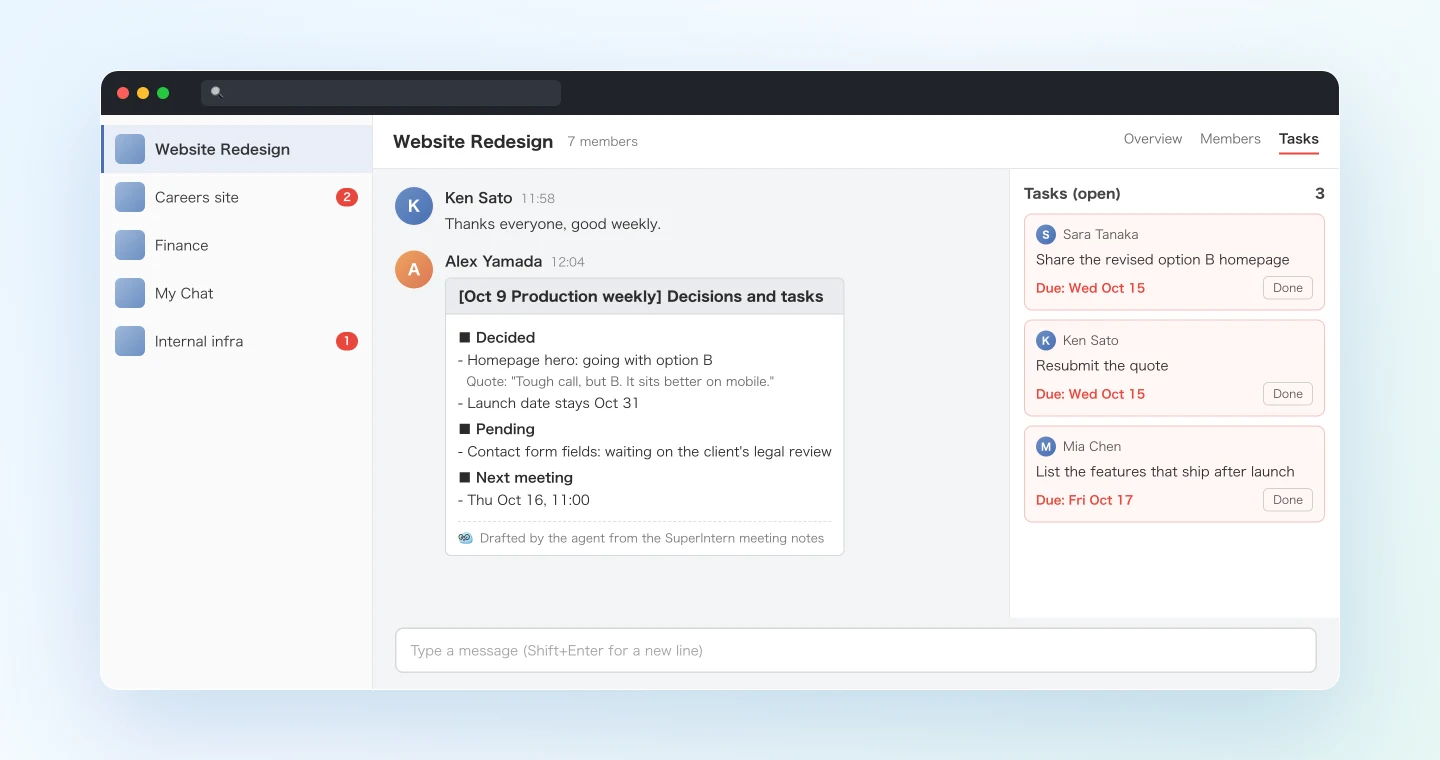
The [info][title] framing makes the post stand out as "the weekly's summary" even in a busy chat. The tasks show up in the chat's task panel, and each assignee gets the same notification as any other task request. Anyone who missed the meeting opens the chat and sees both what was decided and what they now own.
Demo 2: Reconcile your Chatwork tasks with the week's meetings
Even with the habit in place, things drift: a task you reported as done in a meeting is still open, or something you agreed to out loud never became a task. So at the end of the week, start from your own task list and check it against the week's meetings.
Get all of my open tasks in Chatwork, and compare them with the notes and transcripts of
every meeting I recorded in SuperIntern this week (Monday through today). Sort the result
into three lists:
1) Tasks that were reported as done or handled in a meeting and look ready to complete
   (with the supporting quote)
2) Things I agreed to in a meeting that have no Chatwork task yet
   (with a suggested chat and due date)
3) Overdue tasks that didn't come up in any meeting this week
Complete the tasks in list 1 only after I approve, and register list 2 only after I approve.
List 3 is for reading only: don't complete or delete anything there.
I compared 14 open tasks with 5 meetings this week.
1) Ready to complete (3)
- "Send the logo files to the client" (Website Redesign, due Oct 7). Quote, Wednesday's Production weekly: "The logo went out on Monday."
- "Confirm the invoice addressee" (Finance, due Oct 8). Quote, Thursday's finance sync: "Addressee is final, with the department name."
- "Return the careers page copy" (Careers site, due Oct 9). Quote, Friday's recruiting weekly: "Copy is back with them, we're waiting on photos."
2) Promised but not yet a task (2)
- "Check the analytics setup." You took this in Friday's Production weekly. Suggested: Website Redesign, due Tue Oct 14
- "Send the maintenance quote for next year." Taken in Thursday's finance sync. Suggested: Finance, due Fri Oct 17
3) Overdue and not discussed this week (2)
- "Write the SSL certificate renewal steps" (Internal infra, due Oct 3)
- "Review the NDA template for subcontractors" (Legal, due Oct 6)
Complete the 3 in list 1 and register the 2 in list 2?
Approve, and the agent completes the three and registers the two with due dates. List 3 is your Monday-morning reading: follow up yourself or ask the people involved.
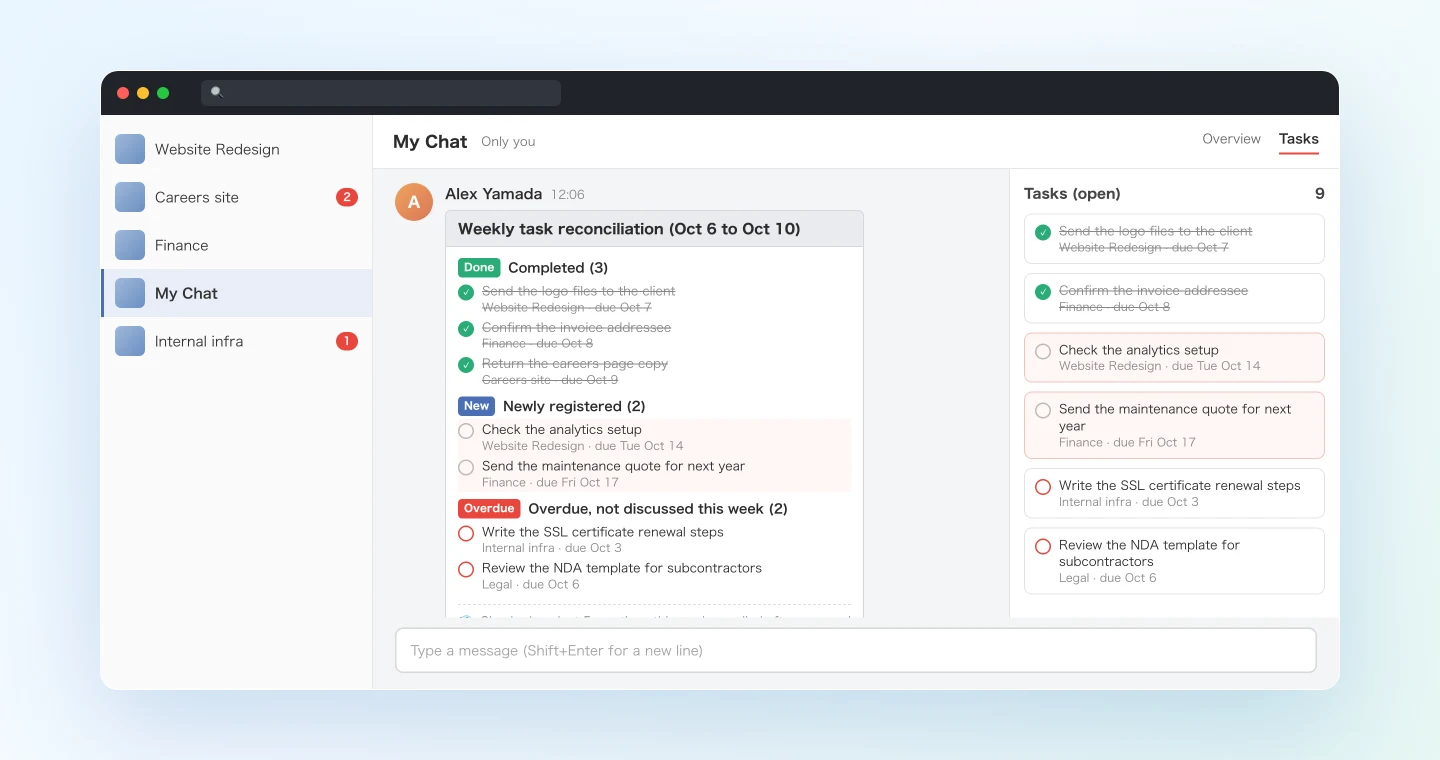
What makes this work is the direction: Demo 1 starts from the meeting, Demo 2 starts from the task list. Run both and a promise has to slip through two nets to get lost.
Demo 3: Check mid-meeting whether something was already answered in Chatwork
The third use writes nothing. Meetings regularly stall on "didn't the client reply to that in Chatwork?" SuperIntern MCP can return the live transcript of a meeting in progress as deltas, so the agent can follow the discussion and look up the chat's recent messages when a question like that comes up.
Read the live transcript of the meeting currently being recorded in SuperIntern,
continuing from where you last fetched. Whenever someone wants to confirm something
that happened in Chatwork ("did they reply?", "did anyone share that?"), check the
recent messages in the group chat "Website Redesign" and give me what you find in
three lines or fewer, with the sender and timestamp.
If nothing matches, just say "Nothing in the recent messages."
Do not post or register anything in Chatwork.
Latest line: "Did the client's legal team ever get back to us about the form fields?"
I checked the recent messages in Website Redesign. On Oct 8 at 17:42, Yamamoto (client side) wrote: "Legal review is done. Please make the phone number optional; the other fields are fine as they are." That looks like it resolves the item that was still pending in the meeting.
The Chatwork API returns at most the 100 most recent messages per chat, so older threads may not be found. In that case the agent just says so, and nothing in Chatwork changes. When the meeting ends, move straight on to the Demo 1 prompt for the summary post.
Tips for running this safely
Keep "draft first, write after approval" in every prompt
Every writing prompt in this guide ends with "show me the draft and wait for my approval." Keep it that way. A post is visible to everyone in the chat and a task notifies its assignee, so fixing a draft is far cheaper than fixing a message that's already out. Remember that the instruction isn't a technical lock: check the destination chat, the assignees and due dates, and the wording before you approve, and look at the result afterwards.
The token is your own permissions, all of them
Chatwork API tokens have no scoping. The agent can read and write in every chat you're a member of, including chats shared with clients and partners, and everything it posts appears under your own name, because the token is yours. Start with one internal group chat as the destination, name it explicitly in the prompt, and use your personal "My Chat" as the destination while you're still experimenting.
Watch how names are matched
Chatwork tasks take assignees as accounts, so the agent matches names from the notes against the chat's member list. Transcripts spell names inconsistently (first name only, with a title, misheard), so in a chat with two people who share a surname, check the assignee in the draft. Adding frequent names to SuperIntern's custom dictionary also improves transcription accuracy.
Don't batch dozens of writes at once
The Chatwork API allows 10 message posts and task creations per chat per 10 seconds, and 300 requests per 5 minutes overall. A single meeting produces a handful of tasks, which is fine. If a weekly batch runs past a dozen or so, tell the agent to work chat by chat and pace itself.
Decide your mention policy
Adding [To:] mentions to the summary guarantees attention but floods the chat if you mention everyone. Since registering a task already notifies its assignee, a good default is: no mentions in the summary post, let the task notifications do the work. Adjust to your team's culture with one line in the prompt.
Beyond the weekly: client chats, standups, and daily notes
Chatwork is used as much with clients and partners as it is internally, and the same pattern carries over.
- In a chat shared with a client, have the agent draft a client-safe summary that leaves out internal remarks and cost discussions, review it, then post. Tasks you want to assign to the client's side can be drafted and worded carefully the same way.
- For standups, register what each person said they'd do today as tasks, and reconcile completion the next morning before the standup starts.
- Use your My Chat as the destination to keep a personal daily log of meeting highlights and your own to-dos.
Related guides with the same approach: the Slack edition for teams on Slack, the Todoist edition for personal task management, and the Linear edition for engineering issue tracking.
FAQ
Q. Is SuperIntern MCP available on the free plan?
A. Personal workspaces need the Plus plan or higher; Team plan workspaces can use it as well. On Enterprise, it is off by default until an admin enables MCP access.
Q. Does SuperIntern post to Chatwork?
A. No. The agent does. SuperIntern MCP only provides meeting data, read-only. Every post and every task in Chatwork is created by your AI agent through the Chatwork MCP server, using the API token you issued.
Q. Can my AI agent modify or delete my meeting notes through this setup?
A. No. SuperIntern MCP has no write or delete capability, so meeting data can't be changed through this connection.
Q. What do I need on the Chatwork side?
A. A Chatwork account, an API token, and Node.js 22 or later to run the MCP server. On organization plans such as Business and Enterprise, an organization admin has to approve your API request before you can issue a token. The Chatwork MCP server itself is free, open source under the MIT license, and published by the company behind Chatwork.
Q. What if the agent posts something wrong?
A. Reviewing the draft catches most mistakes, but not all. A wrong post or task can be edited or deleted in Chatwork like anything you typed yourself. You can ask the agent to correct it, but since deletions have a wide blast radius, keep "do not delete anything" in your prompts and handle any removals by hand.
Q. We use Slack. Is this article still relevant?
A. For Slack, use the Slack edition, which connects through official connectors in both Claude and ChatGPT. This edition is for teams on Chatwork who use its built-in tasks and want decisions and task assignments to land in the same place.
Q. Which AI agents does this work with?
A. SuperIntern MCP works with Claude, ChatGPT, and other MCP clients such as Claude Code, Codex, and Cursor. Chatwork is different: there is no official way to connect it to ChatGPT. The official Chatwork MCP server runs locally, so it needs a local MCP client, and the easiest is the Claude desktop app (Claude Code and Cursor also work through their MCP config). In practice, ChatGPT can read your meetings through SuperIntern, but the Chatwork steps in this guide run in the Claude desktop app.
Start with one internal group chat and one meeting. Run Demo 1 after your next weekly and see how much of the retyping and the one-by-one task creation disappears. The people who weren't in the room get the decisions and their own tasks in the same chat, at the same time.