
Auto-Generate Slides from Your Meetings with SuperIntern MCP and the Claude Code pptx Skill

Most meetings are over when you close the call window. Client meetings usually run another hour, because someone still has to write the internal report deck.
The conversation is fresh in your head, but turning it into slides is slow work. You go back through your notes to pin down the client's real pain point and exactly what your side promised, then rebuild it in PowerPoint one slide at a time. How polished the result is depends on how busy the rest of your day is. Interview debriefs work the same way, and they always take longer than planned.
If you already use Claude Code, you can hand most of that work to your terminal. This guide combines SuperIntern MCP, which supplies your meeting data, with Anthropic's official pptx skill, which generates PowerPoint files. Once both are set up, one prompt turns a meeting into a report deck, and the result is an actual .pptx file in your working folder.
⚠️ This article was independently compiled based on publicly available information and user feedback as of August 2026.
Table of contents
- What we're building: before / after
- How it works: three roles
- Setup
- Demo 1: An internal report deck right after a client meeting
- Demo 2: An interview scorecard deck with evidence from the transcript
- Demo 3: One weekly deck from all your meetings
- Tips and caveats
- Going further: the same pattern, other tools
- FAQ
What we're building: before / after
Before: After each client meeting or interview, you rebuild the conversation into slides from memory. That takes 30 to 60 minutes and competes with everything else on your list. It gets pushed back, and by the time your team sees the deck, half the detail from the meeting is gone.
After: When the meeting ends, you ask Claude Code in your terminal to make the report deck from it. Claude Code pulls the AI summary through SuperIntern MCP and decides what goes on each slide, then the pptx skill writes a structured .pptx file to your folder. You open it, fix a few words, and send it.
The source material is always available because SuperIntern is a botless desktop meeting assistant. No bot joins your call, and transcripts and AI summaries build up automatically on any meeting platform, including in-person meetings. The output is an ordinary PowerPoint file on your machine, so it opens in PowerPoint, Keynote, or Google Slides, and it stays on your computer until you decide to send it.

How it works: three roles
| Role | Player | What it does |
|---|---|---|
| Provide meeting data | SuperIntern MCP | Serves transcripts, live transcripts, AI summaries, and meeting notes, strictly read-only |
| Judge and draft | Claude Code (the AI agent) | Reads the summary, decides the slide structure, writes the content |
| Take action | pptx skill (Agent Skill) | Generates and edits the .pptx file on your machine |
MCP (Model Context Protocol) is an open standard for connecting AI agents to external tools safely. SuperIntern's MCP server gives an agent read-only access to your meeting data. Agent Skills cover the other side of the job. A skill is a folder of instructions and scripts that teaches Claude how to do a specific task the same way every time. Anthropic's official skills repository contains the skills that power Claude's document features, including the pptx skill for creating and editing PowerPoint files.
Put together, SuperIntern holds the record, Claude Code decides what matters, and the pptx skill builds the file. The agent can't change anything in SuperIntern, because the MCP server has no write operations. The only new thing on your machine is the deck in your working directory.
Setup
1. Connect SuperIntern MCP to Claude Code
Run this in your terminal:
claude mcp add --transport http superintern https://mcp.app.super-intern.com/mcp
Then run /mcp inside Claude Code, select superintern, and authenticate. A browser window opens where you sign in with your SuperIntern account and grant access. You don't need an API key. SuperIntern-side requirements (Plus plan or higher for personal workspaces, admin enablement on Enterprise) are covered in our MCP setup guide.
2. Add the pptx skill
Anthropic publishes its document skills in the anthropics/skills repository. In Claude Code, add the repository as a plugin marketplace and install the document skills.
/plugin marketplace add anthropics/skills
/plugin install document-skills@anthropic-agent-skills
Claude Code loads a skill automatically when a task calls for it, so asking for a pptx in your prompt is enough for it to use the pptx skill. Run /skills at any time to see what's installed.
To check that everything is connected, try this prompt.
List my 3 most recent SuperIntern meetings
If you get back meeting titles and dates, the setup is done.
Demo 1: An internal report deck right after a client meeting
This is the most common case. A client or prospect meeting ends and your team needs an internal readout. If you spell out the slide structure in the prompt, every readout comes out in the same format.
Get the AI summary of the meeting "Acme Corp intro meeting" that just ended,
and create an internal report deck as acme-readout.pptx with 5 slides:
1) Title: meeting name, attendees, today's date
2) Their situation: context and what prompted the meeting
3) Their pain points, quoting their actual words where possible
4) What we proposed and how they reacted
5) Next actions with owners and dates
Keep each slide to 4 bullets or fewer. Mark anything ambiguous
as "to confirm" instead of presenting it as settled.
Claude Code fetches the summary and drafts the slide content, and the pptx skill writes the file.
Created acme-readout.pptx (5 slides).
- Their situation: meeting notes currently depend on one person; evaluating tools ahead of the EU team expansion
- Pain points: "the notes bottleneck is one person", "security review is strict about recording data"
- Our proposal: 2-week trial with the CS team; SSO confirmed as a rollout precondition
- Next actions: security questionnaire by Aug 28 (us), trial start decision by Sep 4 (their side)
Anything marked "to confirm" is on slide 4. Open the file to adjust wording before sharing.
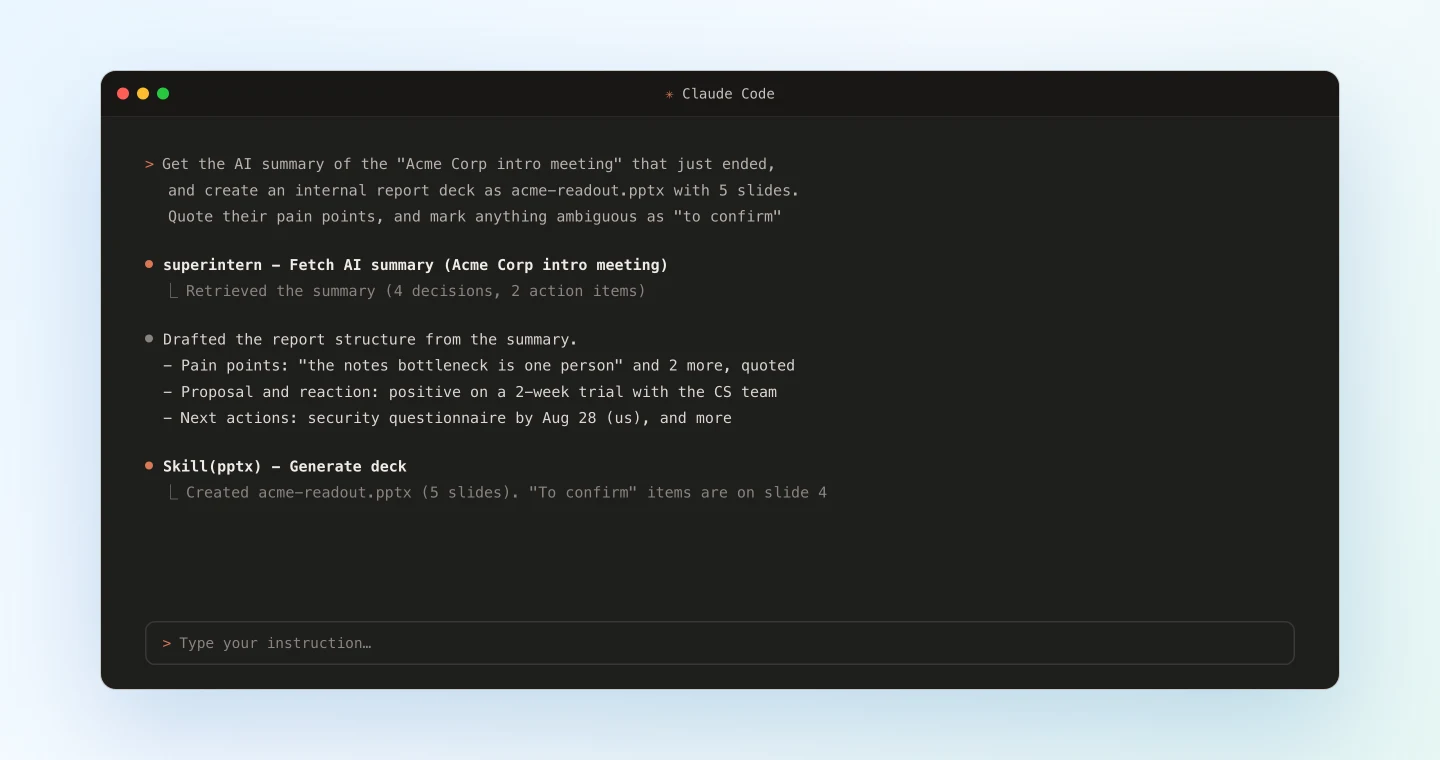
The readout file exists about thirty seconds after the call ends. Compared with a deck built from memory, the pain-point slide is the clearest improvement, since it quotes what the client actually said in the meeting.
Demo 2: An interview scorecard deck with evidence from the transcript
In hiring debriefs, memory is at its least reliable and evidence counts the most. For interviews, point Claude Code at the full transcript instead of the summary, and ask for a scorecard deck in which every rating is backed by something the candidate said.
Get the transcript of today's interview "Backend engineer - candidate Alex".
Create scorecard-alex.pptx for the hiring debrief:
1) One slide per evaluation axis: technical depth, system design,
   communication, ownership
2) On each slide: a 1-5 rating suggestion, 2-3 supporting quotes
   from the transcript, and any red or yellow flags
3) Final slide: points the next interviewer should probe
Do not invent quotes. If an axis wasn't covered, say "not assessed"
instead of guessing.
Keep the "not assessed" instruction. A clearly marked gap tells the next interviewer what to cover, which is more useful than a guessed score. Since the deck comes from the transcript, the debrief moves from "I felt they were strong" to "here's what they said," and the panel discusses quotes rather than impressions.
Demo 3: One weekly deck from all your meetings
MCP is especially useful when a task spans several meetings. On Friday, you can roll the whole week into one reporting deck.
List my meetings from this week in the "Sales" project and get each
AI summary. Create weekly-report.pptx:
1) One overview slide: pipeline highlights and risks this week
2) One slide per account: status, what moved, next step
3) Final slide: where I need help from the team
Same format as last week's file if it exists in this folder.
The last line relies on Claude Code working in your local folder. It can open last week's file and match its format. If you run the same prompt every Friday, the weekly report becomes something you review and send rather than something you write from scratch in the evening. Once you're reusing the prompt regularly, save it as a personal skill (a SKILL.md in ~/.claude/skills/) and you can call it with a single command.
Tips and caveats
Put the slide structure in the prompt. A fixed outline such as situation, pain points, proposal, and next actions keeps your decks consistent and makes the agent's extraction more reliable. When the prompt works well, turn it into a personal skill so the whole workflow runs as /meeting-report.
Pick the summary or the transcript on purpose. The AI summary works well for readouts and weekly reports. Use the transcript when you need evidence, for example in interview scorecards or when a decision is disputed. You can also ask for both, which only costs more tokens.
Treat the deck as a first draft. The pptx skill gives you a clean, well-structured file, and a few minutes of editing the wording and emphasis makes it read like your own work. You still save most of the time, because you start from a nearly finished deck.
The file stays on your machine until you share it. The deck is saved to your working directory. Nothing is uploaded and no external design service is involved, which matters for sensitive meetings like interviews.
Improve transcription accuracy in SuperIntern. Add names, product terms, and technical vocabulary to SuperIntern's custom dictionary. They'll be transcribed more accurately, and the decks built from those transcripts will be too.
Going further: the same pattern, other tools
- Cloud design tools: the Canva article runs the same workflow with Canva as the output and creates an editable deck in your Canva account. Use the pptx skill when you want a local file and full control, and Canva when visual polish and sharing matter more
- Claude Code for implementation: the spec-to-code article shows how to turn spec meetings directly into code
- Follow-up emails: the Gmail article drafts the email that goes out with your deck, using the same meeting data
FAQ
Can I use SuperIntern MCP on the free plan?
No. Personal workspaces require the Plus plan or higher. Team plan workspaces can use it as is, and on Enterprise it works once an admin turns on "MCP access" in workspace settings.
Do I need PowerPoint installed?
No. The pptx skill creates a standard .pptx file, which you can open in PowerPoint, Keynote, Google Slides, or any other compatible app.
Can the AI modify my meeting notes or transcripts?
No. Every SuperIntern MCP tool is read-only, and there are no create, edit, or delete operations. The only file written is the deck in your local folder.
Where does my meeting data go?
Claude Code reads it through SuperIntern MCP using your own login, and the deck it generates is a local file. This workflow doesn't involve any design SaaS or third-party storage.
Which AI agents does this work with?
SuperIntern MCP works with MCP-capable clients such as Claude Code, Codex, and Cursor. SuperIntern also connects to ChatGPT (open Plugins in the sidebar and search "superintern") and to the Claude app through the connector directory, so you can read and summarize your meetings there as well. In this guide, though, generating a .pptx file with the pptx skill is a Claude Code workflow. The pptx skill is an Agent Skill from the anthropics/skills repository, so on other clients, check whether they currently support skills, or create documents with the tools they offer. Setup steps for each client are in the MCP setup guide.
What's the difference from the Canva integration?
The pipeline is the same, with SuperIntern MCP supplying the data and the agent deciding what goes in. Only the output differs. The pptx skill writes a local file without any external service, while Canva's MCP creates a design in your Canva account that you can edit visually. You can choose one or the other for each deck.
SuperIntern already records every meeting, and with this setup, Claude Code can turn that record into the deck your team needs.