
Turn Support Meeting Decisions into Help Center Drafts with SuperIntern MCP and Intercom
Sooner or later, every support sync produces the same line: "We got this question again this week. We should really write a help article for it."
Then nothing happens. The article becomes someone's side task, the ticket queue wins, and a week later someone in the same meeting asks what happened to it. In the meantime your frontline keeps answering the question by hand, one conversation at a time. Two weeks from "let's document this" to a published article is typical, and a month isn't unusual. If you count the tickets that come in during that window, the gap starts to look expensive.
Most of the raw material already exists. The questions raised in the meeting, often in the exact words customers used, are sitting in your SuperIntern transcripts and summaries. This guide shows how to connect SuperIntern's MCP and Intercom's MCP to an AI agent such as Claude or ChatGPT, so that one prompt after the support meeting leaves unpublished article drafts waiting in your Intercom help center. Every prompt we use is included.
⚠️ This article was independently compiled based on publicly available information and user feedback as of August 2026.
Table of Contents
- Today's Goal: Before / After
- How It Works: Three Roles
- Setup
- Demo 1: Batch-Create Article Drafts Right After the Support Meeting
- Demo 2: Fix Confusing Articles Using Customer Call Transcripts
- Demo 3: A Weekly Audit of Your Help Center's Blind Spots
- Tips for Day-to-Day Use
- Beyond Intercom: The Same Pattern Elsewhere
- FAQ
Today's Goal: Before / After
Before: The weekly support sync does a good job of surfacing the top questions, and the team even agrees to write them up. Then the drafting goes into a backlog. Whoever picks it up days later has to piece the answer together from notes and memory, and guess at how customers actually worded the question. Until the article ships, everyone keeps pasting the same reply.
After: When the meeting ends, you send your AI agent one request. The questions the team chose to document show up in your Intercom help center as unpublished drafts, built from the answers given in the meeting and titled the way customers asked. What's left for a person is reading the drafts and clicking publish.
A bit of background on SuperIntern: it's a botless desktop app. Nothing joins your calls. It transcribes and summarizes meetings on its own, on any video platform or in person, so your support syncs and customer calls are already being recorded without anyone doing anything. The step that stayed manual was turning what the team learned into help articles, and that's the step this guide hands to the agent.

How It Works: Three Roles
The workflow has three parts.
| Role | Player | What it does |
|---|---|---|
| Meeting data | SuperIntern MCP | Serves transcripts, live transcripts, AI summaries, and meeting notes, read-only |
| Judgment and drafting | AI agent (Claude, ChatGPT) | Picks what to document, checks for duplicate articles, writes the drafts |
| Action target | Intercom (MCP) | Searches help center articles, creates and updates drafts, searches conversations |
MCP (Model Context Protocol) is an open standard that lets AI assistants work with external tools in a controlled way. SuperIntern's MCP gives your agent read-only access to meeting data. On the other side, Intercom's official remote MCP server covers the help center: searching articles (search_articles), creating them (create_article), updating them (update_article), and searching past customer conversations.
So the agent is what writes to Intercom. SuperIntern never does. Nothing in SuperIntern can be changed through MCP, and the agent only sees meetings you already have access to. All writes land in Intercom, and in this workflow every article is created as an unpublished draft, which means a person always reviews it before a customer sees it.
Setup
You'll connect two services to your AI agent, SuperIntern and Intercom, so pick whichever agent your team already uses. The prompts below behave the same in both, with one exception for ChatGPT: its Intercom app in Plugins is reference-only, so to create or update help center articles from ChatGPT you need developer mode and Intercom's official MCP server (details below).
1. Connect SuperIntern
- Claude: Open Settings, go to Connectors under Customize, search for "SuperIntern", and select it. You can also open SuperIntern in Claude's connector directory directly. Adding connectors is available on Claude's paid plans.
- ChatGPT: Open Plugins in the sidebar, search for "superintern", open SuperIntern, and click Install plugin. The SuperIntern plugin page takes you there directly. The Codex app connects the same way.
Either way, a SuperIntern sign-in page opens. Log in and grant access. SuperIntern-side requirements (the Plus plan or above for personal workspaces, and admin-enabled MCP access for Enterprise workspaces) and instructions for Claude Code, Cursor, and other clients are in our MCP setup guide.
2. Connect Intercom
Intercom has an official connector, but what it can do depends on the agent.
- Claude: In the same Connectors screen, search for "Intercom", connect it, and sign in with your Intercom account. Claude's Intercom connector can search, create, and update help center articles.
- ChatGPT: The Intercom app in Plugins is reference-only. It can search and read conversations and help center content, but it can't create or update help center articles. For that, turn on developer mode (Plus, Pro, Business, Enterprise, and Edu plans, on the web) and add Intercom's official MCP server as a connector.
For ChatGPT's developer mode, Claude Code, and other MCP clients, register Intercom's official MCP endpoint:
https://mcp.intercom.com/mcp
If your Intercom workspace is hosted in the EU, use https://mcp.eu.intercom.com/mcp. The agent can only do what your own Intercom account is allowed to do. Client-specific instructions are in the Intercom documentation.
To confirm both connections work, start with this:
List my 3 most recent SuperIntern meetings and 3 articles from our Intercom help center
If you get results from both, you're set.
Demo 1: Batch-Create Article Drafts Right After the Support Meeting
This is the prompt you'll run most often. Two rules carry most of the weight: check existing articles for duplicates before writing, and create everything as an unpublished draft.
Get the AI summary and transcript of the "Support Weekly Sync" that just ended.
List every question we decided to turn into a help article.
For each one, search our Intercom help center and drop the ones already covered.
For the rest, draft the article body based on the answers shared in the meeting,
and create them in Intercom as unpublished drafts.
Title each article the way a customer would phrase the search,
and match the tone of our existing published articles.
The agent reads the meeting, searches your help center, and replies with something like this:
The meeting flagged 4 questions for documentation. One (password reset) already has an article, so I skipped it and created 3 drafts:
- "How to change the name and address on your invoices": 4-step walkthrough plus a note on when changes take effect
- "Fixing garbled characters in CSV exports": includes the Excel import steps explained in the meeting
- "What happens to data when you remove a member": structured from the walkthrough Sara gave in the sync All three are unpublished drafts. Review and publish them from your Intercom article list.
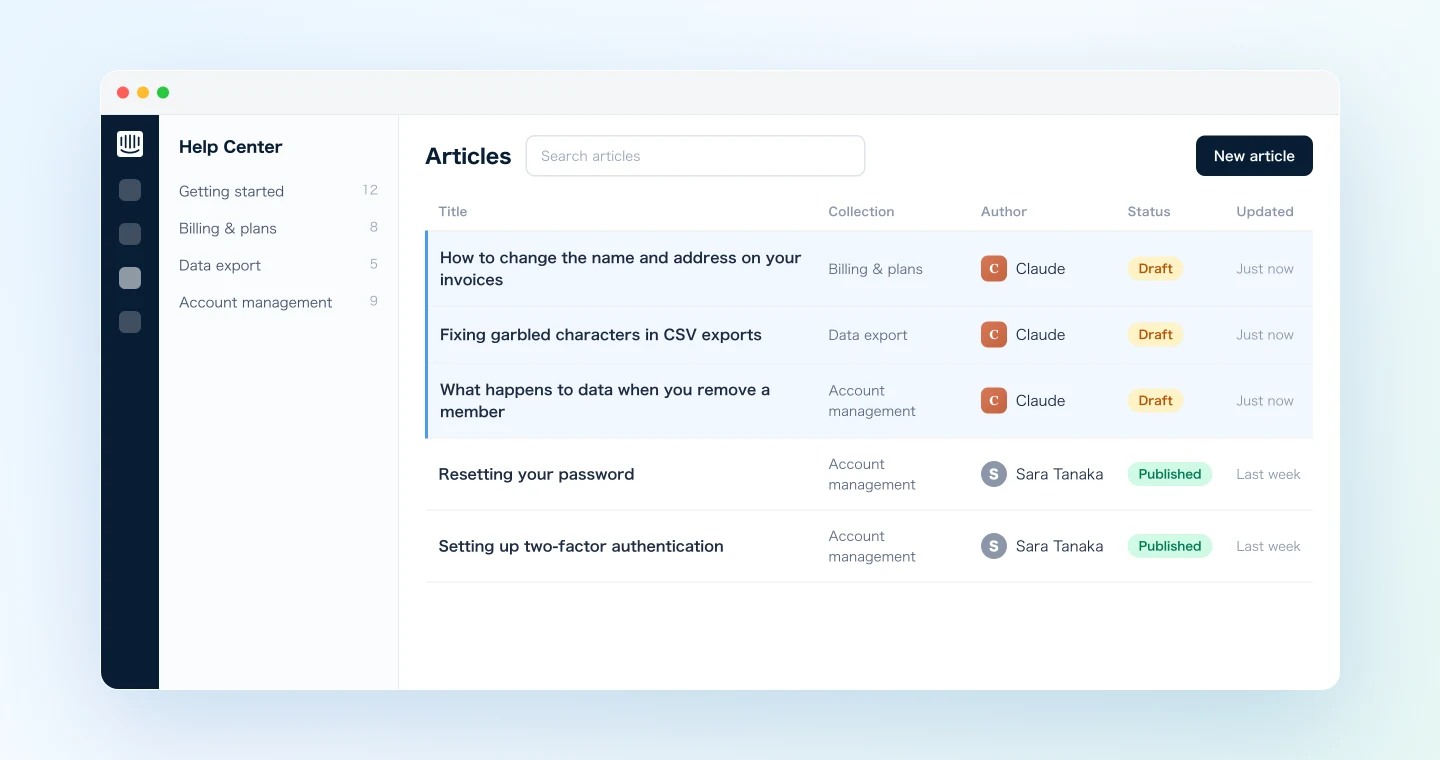
The drafts come from the transcript, not from anyone's notes, and that matters. In most support syncs the best answer is something a senior teammate says out loud in passing, and it rarely makes it into the notes intact. Working from the transcript keeps that explanation at the center of the article, and nobody has to rebuild it from memory three days later.
Demo 2: Fix Confusing Articles Using Customer Call Transcripts
The same approach works on articles you already have. During onboarding and discovery calls, customers often say they read the help docs and still couldn't work it out. That remark tells you exactly which article needs attention.
From today's "Acme onboarding call" transcript, pull out every place
the customer got stuck on our docs or setup steps.
For each one, search Intercom for the matching article and point out
where the article diverges from the actual screens or from where the customer struggled.
Show me your proposed edits first. Once I approve, update the article.
Note that this prompt asks for a proposal before any update. Editing an existing article changes content customers are reading right now, unlike a new draft, so write "propose, wait for approval, then update" into the prompt. Once you approve, the agent makes the edit through Intercom MCP.
A call transcript captures both the customer's confusion in their own words and the explanation your teammate gave to clear it up. With both in hand, the agent can suggest specific changes, such as adding the screen the customer was actually looking at between steps 2 and 3, instead of a vague note to make the article clearer.
Demo 3: A Weekly Audit of Your Help Center's Blind Spots
Some things will slip through meeting by meeting. A weekly pass across all of them picks up what was missed, and reading many meetings at once is something MCP handles well.
Get all meetings from the "Customer Support" project this week and
pull out every customer question, sticking point, and request across them.
Rank the themes by how often they recurred, then search our Intercom
help center for a matching article for each theme.
Themes with no article go in a "new draft candidates" list;
themes where the article exists but contradicts what we said in meetings
go in an "update candidates" list.
For the top 3 new draft candidates, go ahead and create unpublished drafts.
The result also works as next week's agenda. If the sync opens with what spiked this week, where the help center falls short, and three drafts that are already written, the team spends the meeting reviewing and deciding instead of brainstorming.
Because Intercom MCP can search past customer conversations, you can also ask your agent to check a theme against real ticket volume and tell you how often it actually comes up. Backing the team's instincts with conversation counts makes the priority list easier to defend.
Tips for Day-to-Day Use
Always create unpublished drafts. Keep "create as an unpublished draft" as a fixed line in every prompt. Deciding when to publish, and pressing the button, stays with a person. That single line is what makes it comfortable to hand off the drafting.
Check for duplicates before writing. Two articles on the same topic confuse customers and dilute search results. Include "search existing articles first and skip anything already covered" in the prompt, as Demo 1 does.
Put your style guide in the prompt. Rules like titling articles as questions, putting the answer first with steps and caveats after, and matching your published tone give you consistent drafts when you repeat them every time. When a prompt produces drafts you like, save it as a snippet.
The agent writes only to Intercom, within your permissions. MCP can't change anything in SuperIntern, and in Intercom the agent can only do what your account can do. If a draft is off, edit or delete it in Intercom. The meeting data it came from is untouched, so you can always run the prompt again.
Better transcripts make better drafts. Add feature names, screen names, and plan names to SuperIntern's custom dictionary so your product terms are transcribed correctly.
Beyond Intercom: The Same Pattern Elsewhere
The structure here (SuperIntern MCP supplies the data, the AI agent decides, another tool takes the action) applies well beyond help articles.
- Internal knowledge bases: for support know-how aimed at your own team rather than customers, see the Notion meeting database article
- Product feedback loops: sending feature requests from calls to GitHub issues works much like the bug triage article
- Instant team sharing: to post call highlights to Slack right away instead of waiting for an article, see the original Slack article
We'll keep covering these combinations one tool at a time, with prompts you can copy.
FAQ
Is SuperIntern MCP available on the free plan?
No. Personal workspaces need the Plus plan or above. Team plan workspaces can use it as is, and on Enterprise it works once an admin turns on "MCP access" in workspace settings.
Does SuperIntern write the articles to Intercom directly?
No. Your AI agent (Claude or ChatGPT) creates and updates the drafts through Intercom's MCP. SuperIntern MCP only provides meeting data, read-only, and SuperIntern never writes to external tools.
Could the AI publish an article without review?
Every prompt in this guide says "create as an unpublished draft," so publishing remains something a person does in Intercom. For changes to existing articles, we also recommend writing "propose first, update after approval" into the prompt.
Can the AI modify my meeting data?
No. Every SuperIntern MCP tool is read-only, and there are no create, edit, or delete operations. Writes happen only in Intercom.
How does the meeting recording work?
SuperIntern is a botless desktop app that transcribes from your device's audio. It works on any video platform and in person, and no bot ever shows up in the call, so customers never see an extra participant.
Does this work with Zendesk or other support tools?
The approach is the same. If your tool has an MCP server or an AI client connector that can create and update help articles, the meeting-to-draft workflow carries over. Check what your tool and your AI client currently support.
Which AI agents does this work with?
In Claude, Intercom's connector can search, create, and update help center articles, so the full workflow runs as described. In ChatGPT, the Intercom app in Plugins is reference-only: it can search and read conversations and help center content, but it can't create or update articles. To create or update articles from ChatGPT, turn on developer mode (Plus, Pro, Business, Enterprise, and Edu, on the web) and add Intercom's official MCP server, https://mcp.intercom.com/mcp (EU: https://mcp.eu.intercom.com/mcp). SuperIntern MCP also works with other MCP clients, including Claude Code, Codex, and Cursor.
SuperIntern already takes care of hearing the question, answering it, and keeping the record. The next step is getting what your team learns back into the help center.