
Turn Meeting Discussions into Miro Diagrams and Boards Automatically with SuperIntern MCP
Someone always draws it twice.
Your team spends half an hour talking through the new approval flow. Who submits, who reviews, what happens when legal pushes back. Everyone leaves with the same picture in their head, and none of it is written down. A day later somebody opens Miro, drags out boxes and arrows, and tries to rebuild from memory a flow that seemed obvious when people were saying it out loud. Often the diagram never gets made at all, and the next meeting opens with "wait, what did we decide about the rejection path?"
The discussion itself wasn't lost, though. Every step, every branch, and every "let's check that with legal" is in your SuperIntern transcript and AI summary. What's missing is someone to redraw it. This guide shows how to connect SuperIntern's MCP and Miro's MCP to an AI agent such as Claude or ChatGPT so that turning a meeting's discussion into a diagram on a Miro board takes one prompt.
⚠️ This article was independently compiled based on publicly available information and user feedback as of August 2026.
Table of contents
- What we're building: before / after
- How it works: three roles
- Setup
- Demo 1: The flow you discussed, as a diagram, minutes after the meeting
- Demo 2: A retro board that fills itself in
- Demo 3: A weekly project board from all your meetings
- Tips and caveats
- Going further: the same pattern, other tools
- FAQ
What we're building: before / after
Before: A process discussion ends and the diagram exists only in people's heads. Someone spends 30 to 60 minutes rebuilding it in Miro from notes and memory, usually a day late and sometimes never. Retros and workshops produce plenty of talk and very few structured artifacts.
After: When the meeting ends, you ask your agent to diagram what was agreed. It pulls the AI summary and transcript from SuperIntern, picks out the steps, owners, and decision branches, and creates the flowchart on your Miro board. Anything left ambiguous appears as a "to confirm" node rather than an arrow the AI guessed at. You open Miro, move a few boxes, and share the link.
The raw material is always there because SuperIntern is a botless desktop meeting assistant. No bot joins your call, and transcripts and AI summaries build up automatically on any meeting platform, including in-person meetings. The conversation gets captured whether or not anyone planned to diagram it, which leaves the redrawing as the only manual step. That's the step this guide hands to AI.

How it works: three roles
Three pieces work together.
| Role | Player | What it does |
|---|---|---|
| Provide meeting data | SuperIntern MCP | Serves transcripts, live transcripts, AI summaries, and meeting notes, strictly read-only |
| Judge and structure | AI agent (Claude, ChatGPT) | Reads the discussion, decides what the steps and branches are, writes the diagram definition |
| Take action | Miro (MCP) | Creates the diagram, table, or document on a board in your Miro account |
MCP (Model Context Protocol) is an open standard for safely connecting AI assistants to external tools. SuperIntern's MCP exposes your meeting data to AI clients read-only, while Miro's official MCP server provides tools to create Mermaid diagrams, tables, and structured documents on your boards, and to read and search board content.
So the drawing on the Miro board is done by your AI agent, not by SuperIntern. The AI can't modify your SuperIntern data, and it only sees meetings you already have access to. On the Miro side, everything is created on boards in your own account, and sharing a board with your team is still up to you.
Setup
You connect two services to your AI agent, SuperIntern and Miro. SuperIntern is listed in both Claude's and ChatGPT's official directories, so there's no connection URL or API key to enter. Miro is in Claude's connector directory as well. Use whichever agent your team already works in. The prompts in this guide work the same in both, except that ChatGPT has no Miro app in its plugin directory yet, so there you connect Miro through developer mode and approve each write to a board.
1. Connect SuperIntern
- Claude: Open Settings, go to Connectors under Customize, search for "SuperIntern", and select it. You can also open SuperIntern in Claude's connector directory directly. Adding connectors is available on Claude's paid plans.
- ChatGPT: Open Plugins in the sidebar, search for "superintern", open SuperIntern, and click Install plugin. The SuperIntern plugin page takes you there directly. The Codex app connects the same way.
Either way, a SuperIntern sign-in page opens. Log in and grant access. SuperIntern-side requirements (personal workspaces need the Plus plan or above, and Enterprise workspaces need an admin to enable MCP access) and setup for Claude Code, Cursor, and other clients are in our MCP setup guide.
2. Connect Miro
- Claude: Miro is an official connector in Claude's directory. Open Settings, go to Connectors under Customize, search for "Miro", and approve the OAuth flow for your Miro team. You can also get there from the plus icon in the chat box by choosing "Add connectors".
- ChatGPT: There's no official Miro app in ChatGPT's plugin directory yet. To use Miro from ChatGPT, turn on developer mode (Plus, Pro, Business, Enterprise, and Edu plans, on the web) and add Miro's official MCP server as a connector with the endpoint below. ChatGPT asks for confirmation before every write, so nothing lands on a board until you approve it.
In Claude Code and other MCP clients, register Miro's endpoint directly:
https://mcp.miro.com
The Miro MCP server works on every Miro plan, including free teams. See Miro's official docs for details.
To check both connections, try:
List my 3 most recent SuperIntern meetings and my 3 most recent Miro boards
If both lists come back, you're set.
Demo 1: The flow you discussed, as a diagram, minutes after the meeting
The best time to use this is right after a process or spec discussion, while people still remember what each box was supposed to mean. Two things make the output good: tell your agent what kind of diagram you want, and give ambiguity somewhere to go.
Get the AI summary and transcript of the meeting "Contract approval flow
redesign" that just ended. On my Miro board [board URL], create a flowchart
of the approval flow we agreed on:
- One node per step, with the owner in parentheses
- Decision points as branches with yes/no labels
- Anything the discussion left unresolved as a node labeled "To confirm:",
  quoting who raised it
Do not invent steps that were not discussed.
The agent reads the discussion, reconstructs the flow, and creates the diagram on your board:
Created a flowchart "Contract approval flow (agreed 2026-08-28)" on your board.
- 7 steps from "Sales submits request" (owner: AE) to "Signature via e-sign" (owner: Legal ops)
- 2 decision branches: deal size over $50k routes to Finance review; non-standard terms route to Legal
- 1 open node: "To confirm: SLA for legal review, Dana suggested 48h but no decision was made"
Open the board to adjust the layout and share it with the team.
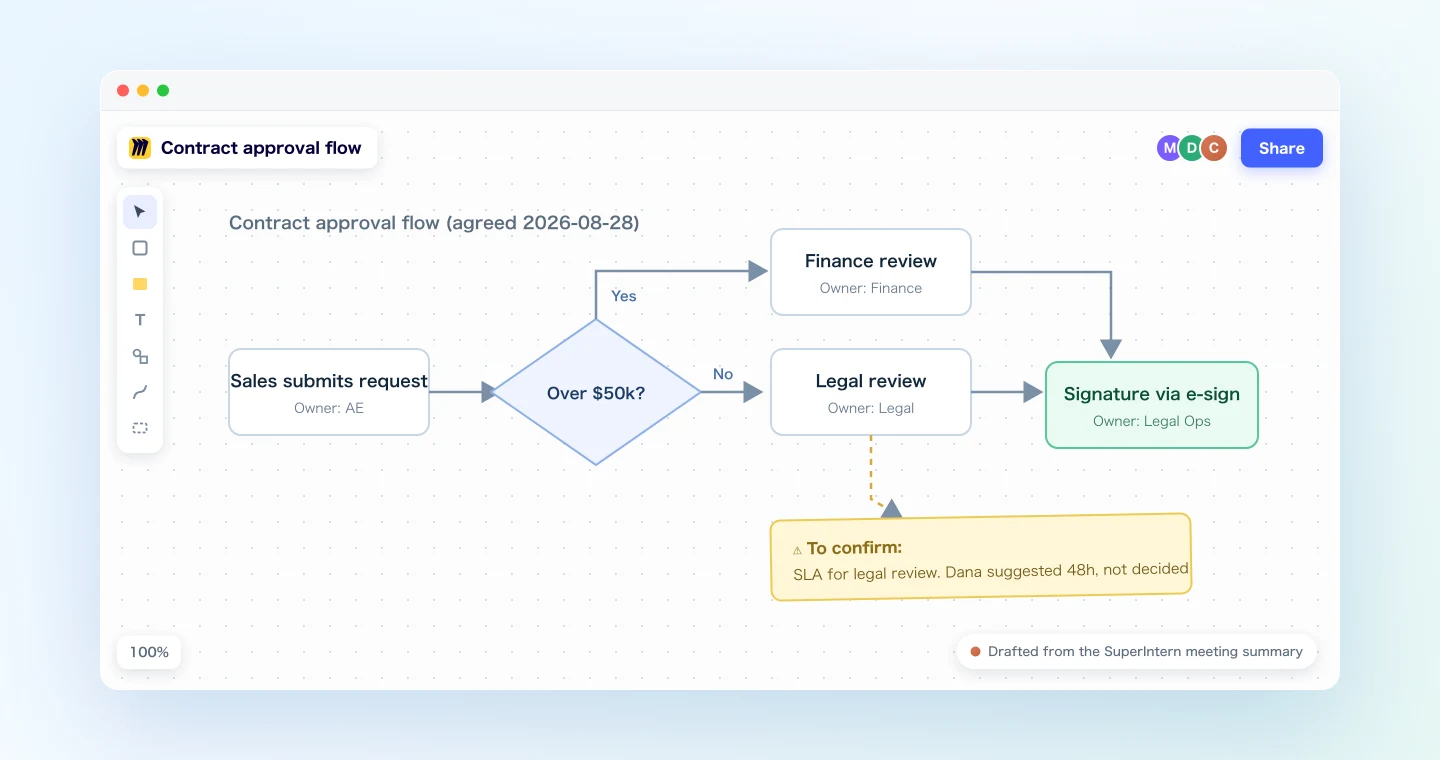
The "to confirm" node is doing real work here. A diagram that looks finished can quietly encode one person's guess. This one keeps the open question visible and names the person who raised it, so the next meeting can start from that node rather than from "what did we decide?"
Demo 2: A retro board that fills itself in
Retros generate the kind of talk that evaporates. There are dozens of observations and a handful of real decisions, and the facilitator is too busy running the session to write it all down. Because SuperIntern records the whole session, you can build the structured version in Miro afterwards.
Get the transcript of today's "Sprint 34 retro". On the board [board URL],
create a table with columns Keep / Problem / Try:
- One row per distinct point raised, in the speaker's own words, shortened
- Merge duplicates, and note how many people raised the same problem
Below the table, create a short document "Sprint 34 retro decisions" listing
only the actions we explicitly committed to, with owners.
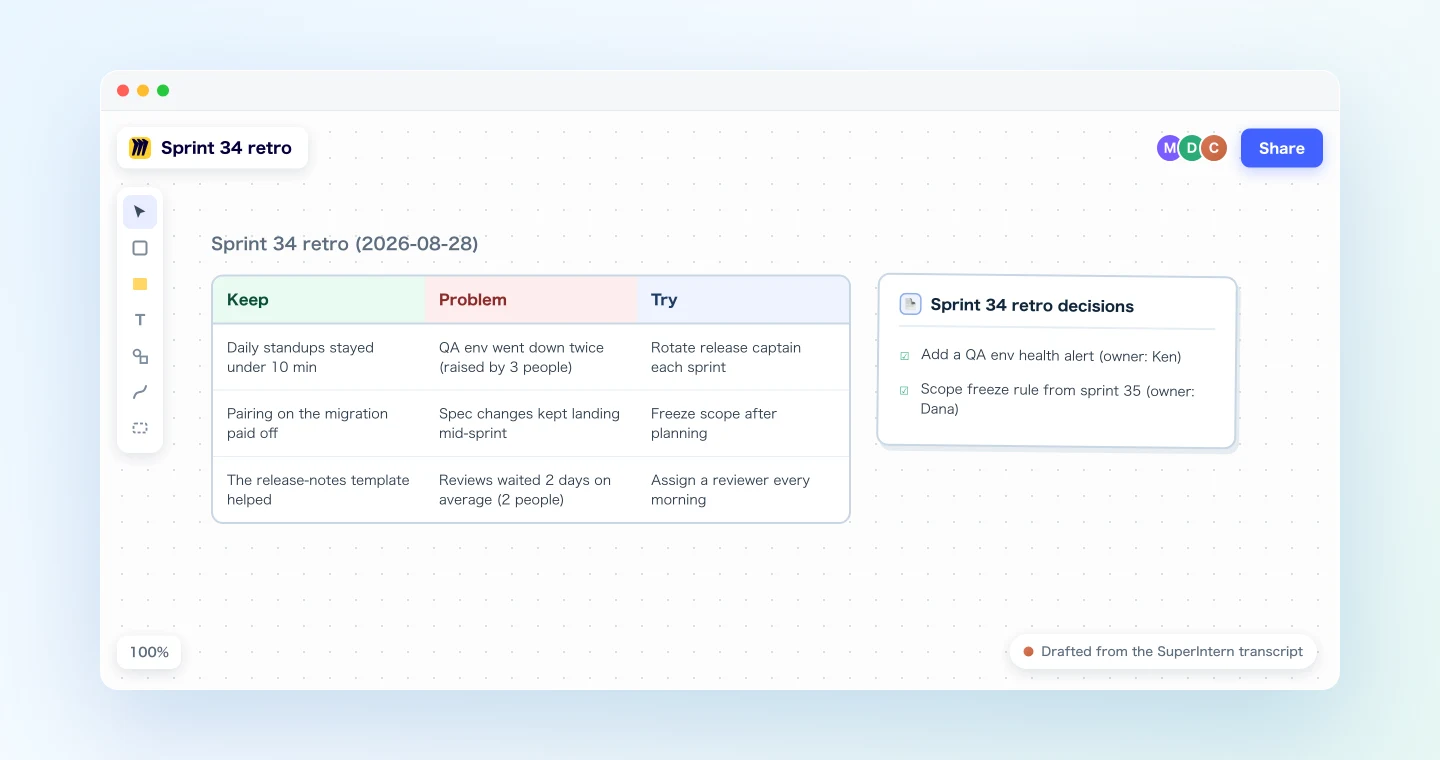
The team gets the usual retro table without anyone taking notes during the session. The separate document keeps "things we said" apart from "things we committed to", a distinction retro follow-ups tend to lose. Next sprint, point your agent at the same board and have it append the new retro's rows to the existing table. Over time the board turns into a running history of your retros rather than a stack of one-off snapshots.
Demo 3: A weekly project board from all your meetings
MCP also makes it easy to work across several meetings at once. On Friday, you can turn the week's discussions into a project status board.
List this week's meetings in the "Atlas migration" project and get each
AI summary. Create a new Miro board "Atlas: week of Aug 24":
1) A document "Decisions this week": each decision with the meeting it
   came from and the date
2) A flowchart of the current migration plan as of Friday, reflecting
   the changes agreed this week
3) A table "Open questions" with columns Question / Raised in / Owner
The agent pulls the week together into the board you wish someone had been keeping up all along, with the current plan, a decision log, and the open questions, each traced back to the meeting it came from. Keeping a board like that current used to take a PM's daily discipline. Now it takes one prompt a week.
Tips and caveats
Name the diagram type and the board. "Create a flowchart on board X" works better than "visualize this". Miro's MCP builds diagrams from Mermaid definitions, which handle flowcharts, sequence diagrams, and simple org charts well, so tell your agent which one you want.
Give ambiguity a home. The "To confirm:" node from Demo 1 does more for output quality than anything else in this guide. Without it, an AI-generated diagram looks equally certain everywhere, including the parts the discussion never settled. With it, you can see at a glance what was decided and what is still open.
Check contentious steps against the transcript. For flows that involve money or compliance, add "for each step, quote the statement in the transcript it comes from." That ties the diagram to the primary record in the places where a mistake would cost the most.
Treat the generated board as a first draft. The agent usually gets the structure right, and ten minutes of adjusting layout and grouping in Miro makes it ready to present. You're starting from a structured 80% instead of a blank board.
Everything stays in your accounts. The board is created in your Miro account, and SuperIntern MCP only reads meetings you have access to. Teammates see nothing until you share the board yourself.
Improve accuracy on the SuperIntern side. A diagram is only as accurate as the transcript behind it. Add recurring team names, system names, and internal jargon to SuperIntern's custom dictionary so they're transcribed correctly.
Going further: the same pattern, other tools
The same setup works well beyond Miro. SuperIntern MCP provides the meeting data, the AI agent decides what to do with it, and another tool receives the result.
- Linear: the same meeting's action items become tracked issues. Covered in the Linear article
- Notion: meetings accumulate into a structured database instead of a board. Covered in the Notion article
- Canva: when the audience needs slides rather than a working board, generate a recap deck. Covered in the Canva article
One combination that works well after a spec discussion is a single prompt that draws the flow in Miro (this article) and files the action items in Linear (the Linear article). The diagram and the tasks then come from the same record.
FAQ
Can I use SuperIntern MCP on the free plan?
No. Personal workspaces require the Plus plan or higher. Team plan workspaces can use it as is, and on Enterprise it works once an admin turns on "MCP access" in workspace settings.
Does SuperIntern draw on my Miro boards?
No. Your AI agent (Claude or ChatGPT) creates the diagrams and tables using Miro's MCP. SuperIntern MCP only provides meeting data read-only; SuperIntern itself never writes to external tools.
Can the AI modify my meeting notes or transcripts?
No. Every SuperIntern MCP tool is read-only; no create, edit, or delete operations exist. Writes happen only on the Miro side, in your own account.
Which Miro plan do I need?
According to Miro's docs, Miro's MCP server works on every Miro plan, including free teams. Board creation, diagrams, tables, and documents are all available through its MCP tools.
Can it draw any kind of diagram?
Miro's MCP builds diagrams from Mermaid definitions, which covers flowcharts, sequence diagrams, and similar structured diagrams. Tables and documents have their own tools. Freeform sticky-note clustering is still better done by hand on the generated board.
Which AI agents does this work with?
Claude works out of the box, since both Miro and SuperIntern are official connectors in Claude's directory. ChatGPT can use Miro's MCP server too, but Miro isn't in ChatGPT's plugin directory yet, so you need to turn on developer mode and add the server yourself. ChatGPT then asks you to confirm each write to a board. SuperIntern MCP also works with other MCP clients, including Claude Code, Codex, and Cursor, and Miro's MCP supports Claude Code and Cursor as well. See Miro's docs for per-client setup.
SuperIntern already has the whole discussion on record. Your agent can take it from there to the board.