
Keep PagerDuty Incident Notes Up to Date During the Bridge Call: A Practical Guide to SuperIntern MCP and PagerDuty
During an incident bridge call, someone has to keep the PagerDuty incident notes current while everyone else debugs. That person usually falls behind, and when the postmortem comes around, nobody can say exactly when the rollback started or who decided to page the payments team.
Connect SuperIntern MCP and PagerDuty's MCP server to your AI agent and it can keep those notes for you. Every few minutes the agent reads the new part of the call's live transcript, drafts timestamped notes for the incident, and adds only the ones you approve.
PagerDuty is in Claude's connector directory but not in ChatGPT's plugin directory, so in ChatGPT you add PagerDuty's MCP server through developer mode. Either way, a PagerDuty account admin has to approve the client once before anyone can connect.
⚠️ This article was independently compiled based on publicly available information and user feedback as of November 2026.
Table of Contents
- What this workflow does: Before / After
- How it works: three roles
- Setup
- Demo 1: During the bridge call, add timestamped notes to the incident
- Demo 2: After the incident, line up the call against the PagerDuty log for the postmortem
- Demo 3: On Friday, draft the on-call handoff from the week's incidents
- Tips and caveats
- Going further: game days, change reviews, and vendor escalations
- FAQ
What this workflow does: Before / After
Before: The incident commander runs the call while a responder, or the commander, types notes into PagerDuty between commands and log queries. Notes come in bursts, timestamps are guesses, and decisions made out loud ("roll back now," "page payments") often never reach the incident. The postmortem author then has to rebuild the timeline from Slack scrollback, memory, and the call recording.
After: You record the bridge call with SuperIntern. Every few minutes, you ask your agent to "add notes for what's new on the call." It reads the latest stretch of the live transcript, drafts notes with the clock time, what happened, and who said it, and adds them to the PagerDuty incident after you approve. After the incident is resolved, the same agent compares the full call with the incident's notes and log entries and gives you a single timeline for the postmortem.
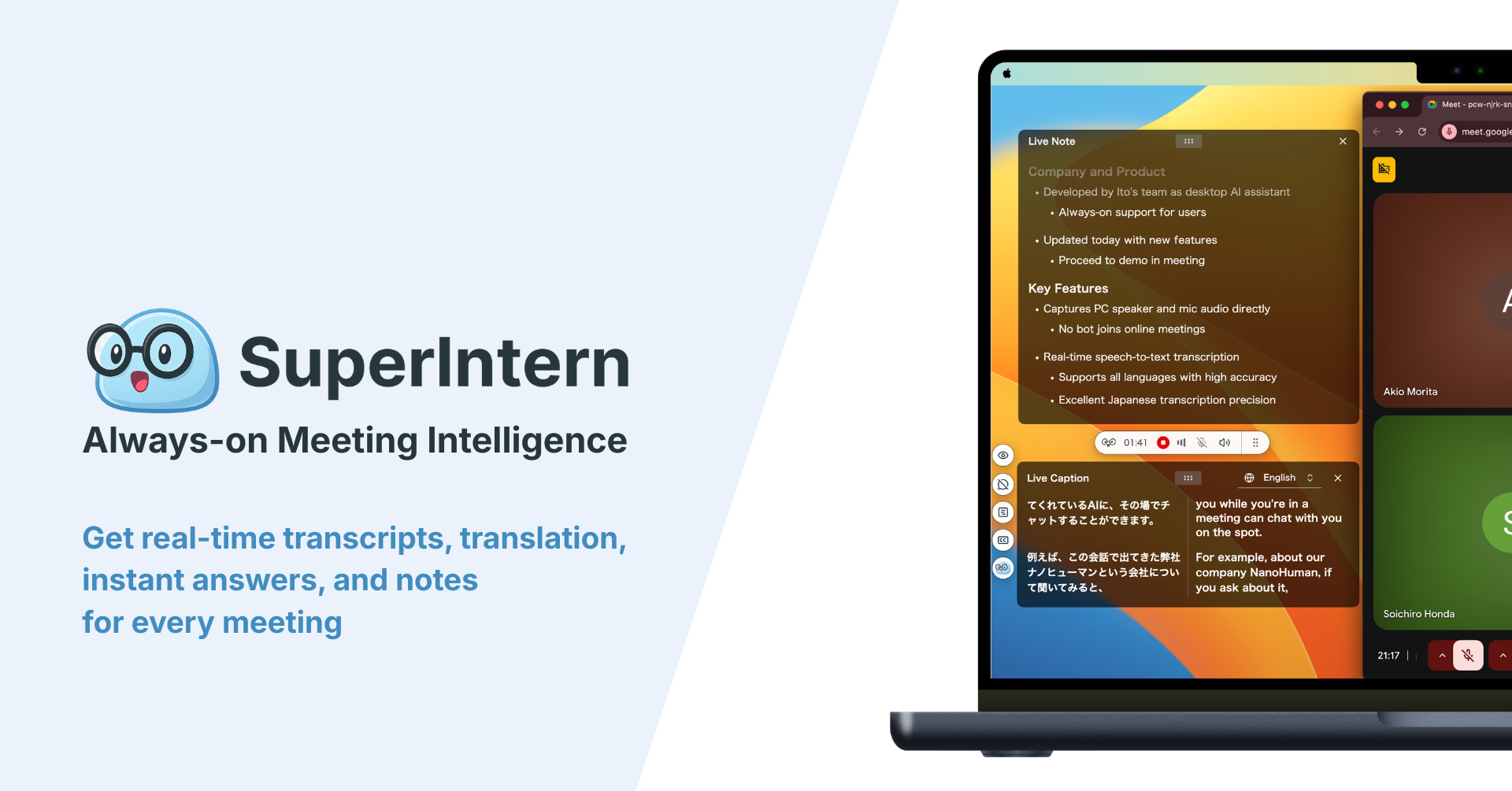
SuperIntern is a desktop meeting assistant that records and transcribes meetings without inviting a bot into the call. That matters on a bridge call: you can start recording the moment you join, whether it's on Zoom, Google Meet, or Microsoft Teams, with nothing new joining the call.
How it works: three roles
Three pieces split the work:
| Component | Role |
|---|---|
| SuperIntern MCP | Provides transcripts, live transcripts, AI meeting notes, and meeting notes, read-only |
| AI agent (Claude, ChatGPT) | Turns what was said into notes and timelines, and writes to PagerDuty after you approve |
| PagerDuty MCP server | Reads incidents, notes, alerts, log entries, and on-call schedules, and adds notes on the agent's behalf |
MCP (Model Context Protocol) is an open standard for connecting AI assistants to external tools. SuperIntern MCP is read-only, so nothing in this setup can edit or delete your meeting data, and the agent can only read meetings you can already see in SuperIntern. See the MCP setup guide for details.
The PagerDuty MCP server is hosted by PagerDuty at https://mcp.pagerduty.com/mcp (EU accounts use https://mcp.eu.pagerduty.com/mcp). It exposes PagerDuty operations as tools, including reading incidents and their notes, adding notes, browsing on-call schedules, and managing status pages. The agent acts with the permissions of the PagerDuty user who signed in. SuperIntern never writes to PagerDuty itself.
Setup
You connect two things: SuperIntern MCP and PagerDuty's MCP server. Use whichever agent your team already works in. In Claude, both are in the connector directory, so the prompts below work as written. In ChatGPT, the prompts are the same, but you first add PagerDuty through developer mode, and ChatGPT asks you to confirm each write.
1. Connect SuperIntern MCP
SuperIntern is listed in both Claude's connector directory and ChatGPT's plugin directory, so you can find it by name.
- Claude: Open Settings, go to Customize in the lower left, then Connectors, and search for "SuperIntern." You can also open SuperIntern in Claude's connector directory directly. Adding connectors requires a paid Claude plan.
- ChatGPT: In the sidebar, open Plugins, search for "superintern," open SuperIntern, and click Install plugin. The SuperIntern plugin page takes you there directly. The Codex app works the same way.
Either way, sign in on the SuperIntern login screen and allow access. Personal workspaces need the Plus plan or higher, and Enterprise workspaces need an admin to enable MCP access. For full requirements and setup in Claude Code, Cursor, and other clients, see the MCP setup guide.
2. Ask a PagerDuty admin to approve the client
PagerDuty's MCP server signs you in with OAuth, so there is no API key to manage. Before the first connection, though, a PagerDuty account admin installs PagerDuty's app for the client you use (Claude, ChatGPT, Claude Code, and others each have one). The install pages are listed in PagerDuty's docs. This is a one-time step per account.
3. Connect PagerDuty
- Claude: In Settings > Customize > Connectors, search for "PagerDuty," connect it, and sign in to PagerDuty to approve access.
- ChatGPT: There's no PagerDuty app in ChatGPT's plugin directory. Turn on developer mode (Plus, Pro, Business, Enterprise, and Edu plans, on the web), then add
https://mcp.pagerduty.com/mcpas a connector and sign in to PagerDuty. ChatGPT asks for confirmation before every write, so no note reaches an incident until you approve it. - Claude Code, Cursor, and other MCP clients: Add the same endpoint. PagerDuty's docs show the Claude Code command and the URL options for choosing tool groups.
4. Check the connection
Open a new chat and try:
Show me my 3 most recent SuperIntern meetings and the open PagerDuty incidents on the checkout-api service.
If both lists come back, you are ready. The prompts below use incident #4821, "Checkout API returning 5xx errors," on a service called checkout-api. Swap in your own incident and service.
Demo 1: During the bridge call, add timestamped notes to the incident
The first use runs while the call is still going. SuperIntern MCP can fetch the live transcript of a meeting in progress, continuing from where it last left off, so the agent only reads what is new each time you ask. Start recording when you join the bridge, then send this every 5 to 10 minutes:
Read the live transcript of the meeting I'm recording in SuperIntern, continuing from where you
last left off. Draft notes for PagerDuty incident #4821 covering only what is new:
- Format: clock time, type (Observation / Hypothesis / Decision / Action), one-sentence summary, speaker
- Work out clock times from the meeting's start time and the transcript timestamps.
- Leave out guesses that nobody acted on and small talk.
- Do not include customer names, credentials, or tokens, even if they were read out.
Show me the draft and do not add anything to PagerDuty until I approve.
After approval, add each note to incident #4821. Do not change the incident status, priority,
or responders, and do not post to any status page.
The agent replies with something like:
Here's what's new since 14:05. Draft notes for #4821:
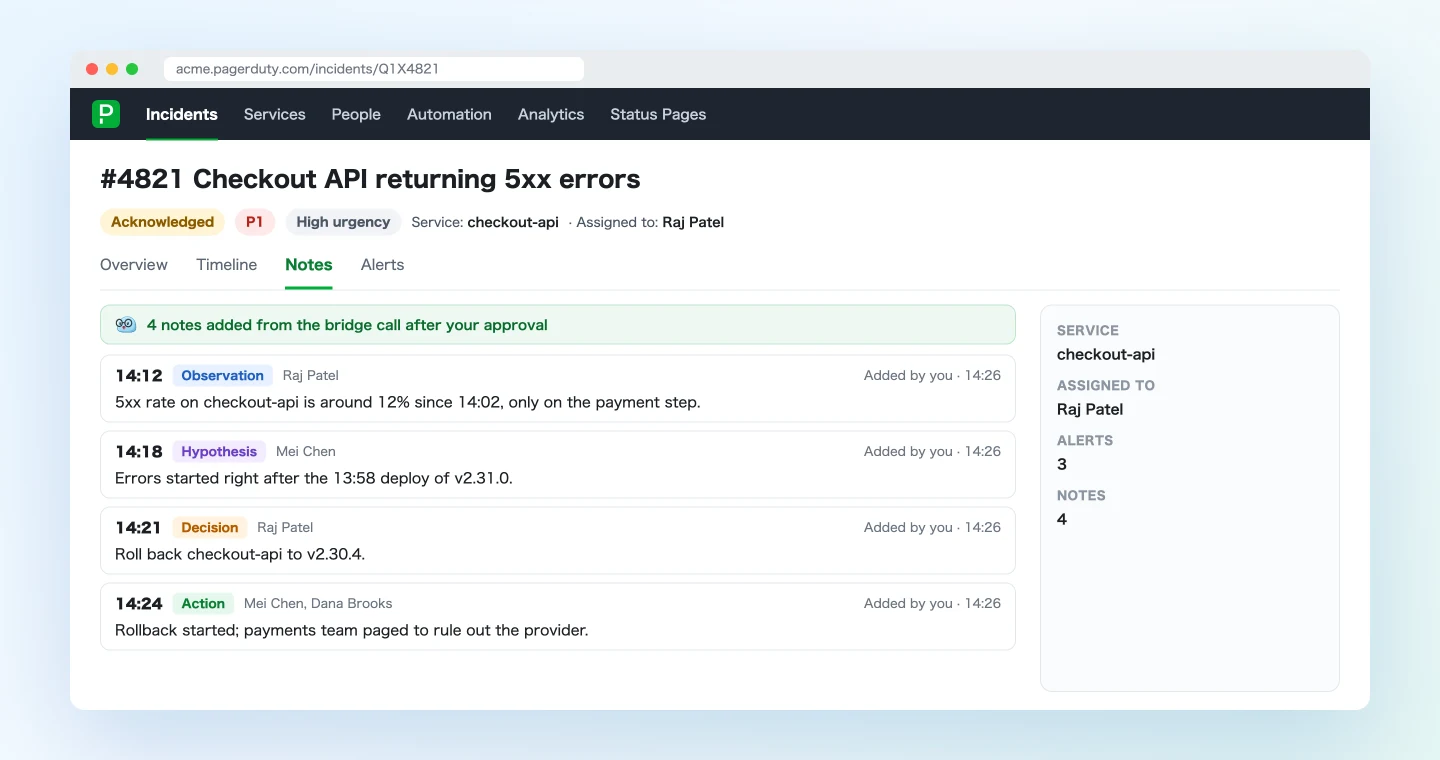
- 14:12 Observation: 5xx rate on checkout-api is around 12% since 14:02, only on the payment step. (Raj Patel)
- 14:18 Hypothesis: Errors started right after the 13:58 deploy of v2.31.0. (Mei Chen)
- 14:21 Decision: Roll back checkout-api to v2.30.4. (Raj Patel)
- 14:24 Action: Rollback started; payments team paged to rule out the provider. (Mei Chen, Dana Brooks)
I left out the discussion about the dashboard color scheme. Shall I add these 4 notes?
Reply "Go ahead," and the agent adds the 4 notes to the incident. Anyone who opens #4821 in PagerDuty, including people who just joined the response, sees the same timeline the call is following.
Writing down decisions as they happen is the part people skip under pressure. With this prompt, recording "roll back now" costs one approval instead of a context switch.
Demo 2: After the incident, line up the call against the PagerDuty log for the postmortem
Once the incident is resolved, the postmortem needs a single timeline. PagerDuty already records alerts, acknowledgments, and the notes from Demo 1, and SuperIntern has the full call. Ask the agent to merge them and point out where they disagree.
Get the AI meeting notes and full transcript for today's SuperIntern meeting "Bridge: #4821 checkout 5xx."
Also read PagerDuty incident #4821: its alerts, notes, and log entries.
1) Build one timeline table: clock time, event, source (Call / PagerDuty).
2) List gaps: decisions or actions mentioned on the call with no trace in PagerDuty,
   and PagerDuty events nobody mentioned on the call.
3) List follow-up actions. Fill in an owner only if one was named on the call; leave it blank otherwise.
Keep the postmortem draft in this chat. After I approve, add one closing summary note to #4821.
Do not change the incident or post to any status page.
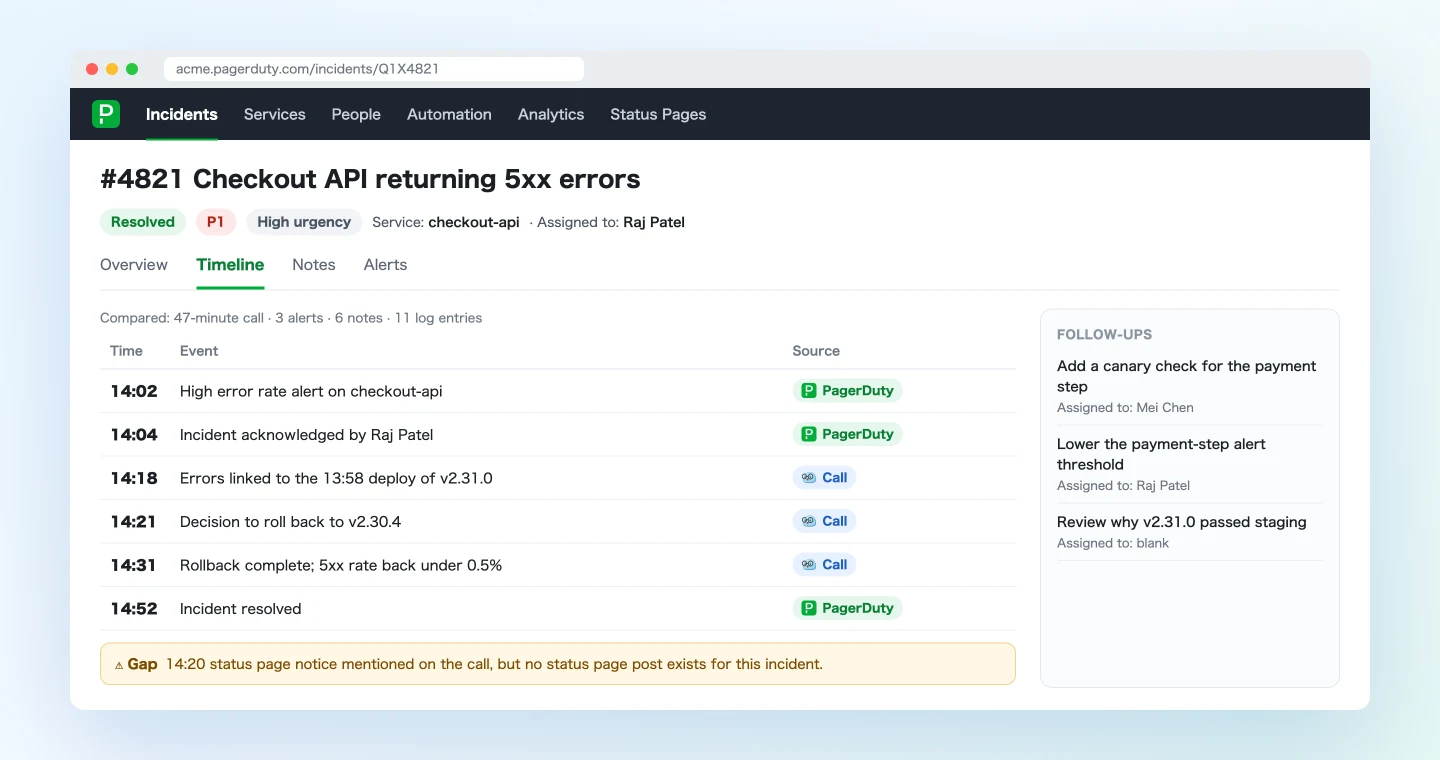
I compared the 47-minute call with 3 alerts, 6 notes, and 11 log entries on #4821.
Time Event Source 14:02 High error rate alert on checkout-api PagerDuty 14:04 Incident acknowledged by Raj Patel PagerDuty 14:18 Errors linked to the 13:58 deploy of v2.31.0 Call 14:21 Decision to roll back to v2.30.4 Call 14:31 Rollback complete; 5xx rate back under 0.5% Call 14:52 Incident resolved PagerDuty Gaps
- At 14:20, Dana said "I'll put a notice on the status page," but there is no status page post for this incident. Please confirm whether one was posted elsewhere.
- The 21 minutes between rollback and resolution were spent watching the error rate, which appears only on the call.
Follow-ups
- Add a canary check for the payment step before full rollout. Owner: Mei Chen
- Lower the alert threshold for payment-step errors. Owner: Raj Patel
- Review why v2.31.0 passed staging. Owner: blank
Shall I add a closing summary note with the root cause, the fix, and these follow-ups?
The PagerDuty MCP server has no postmortem tool, so the draft stays in the chat and you paste it into whatever your team uses for postmortems. The closing note gives anyone who opens the incident later the short version, with a pointer to the full write-up.
Demo 3: On Friday, draft the on-call handoff from the week's incidents
The third use writes nothing to PagerDuty. At the end of the on-call week, the outgoing engineer has to tell the next one what happened, what is still open, and what to watch. The agent can collect that from the week's bridge calls and incidents.
Read this week's SuperIntern meetings (Monday through today) whose titles start with "Bridge:"
plus the AI meeting notes from our incident review.
Also list this week's PagerDuty incidents on checkout-api and payments-api, and who is on call
for the "Checkout primary" schedule next week.
Draft an on-call handoff with:
- Each incident in one line: what broke, how it was fixed, whether follow-ups are still open
- Anything said on a call that the next on-call should watch for
- Open follow-ups with owners, as stated on the calls
Do not write anything to PagerDuty.
On-call handoff, week of November 23 (next on-call: Priya Nair)
- #4821 Checkout API 5xx: caused by the v2.31.0 deploy, fixed by rollback. Canary follow-up still open (Mei Chen).
- #4817 Payments API latency: the provider's EU region was slow for 18 minutes; no action on our side.
Watch for: v2.31.1 is scheduled for Tuesday. Raj said on Wednesday's call, "Watch the payment step for the first hour after that one."
You can paste the handoff into your team channel, or send it to Slack with the agent as in the Slack guide.
Tips and caveats
Keep the approval step
Every prompt in this article that writes to PagerDuty ends with "do not add anything until I approve." Keep that line. The instruction is a request to the agent, not a technical lock, so read the draft notes before you approve and check the incident afterward. ChatGPT's developer mode also asks you to confirm each write.
Spell out what the agent must not touch
The PagerDuty MCP server can do much more than add notes: it can create and update incidents, change on-call schedules, and post to status pages. A status page post reaches your customers. Keep "do not change the incident status, priority, or responders, and do not post to any status page" in your prompts. In Claude Code and other clients where you enter the URL yourself, PagerDuty's docs describe URL options for limiting tool groups and leaving out specific tools.
Assume the incident is widely visible
Incident notes are often readable by everyone with PagerDuty access, and sometimes by stakeholders outside engineering. Bridge calls can include customer names, internal blame, or a token pasted aloud while debugging. Keep the instruction to leave those out, and treat the draft as something that will be read by people who weren't on the call.
Help the transcript with names
Service names, version numbers, and teammates' names are where transcripts slip most. Register frequent proper nouns such as checkout-api or your provider's name in SuperIntern's custom dictionary. Title the meeting with the incident number (for example "Bridge: #4821 checkout 5xx") so the agent can find it later without guessing.
Going further: game days, change reviews, and vendor escalations
The same pattern of reading what was said and writing it to the right place in PagerDuty works beyond live incidents:
- During a game day or failure drill, have the agent record each injected failure and the team's response as notes on a practice incident.
- After a change review, compare the planned changes discussed on the call with recent PagerDuty incidents on the same services, so risky changes get a second look. This one only reads.
- After a call with a vendor's support team, add a note to the incident with what the vendor confirmed and when they promised an update.
For related workflows, see the GitHub guide for turning triage meetings into issues, and the Confluence guide for recording design decisions.
FAQ
Q. Can I use SuperIntern MCP on the free plan?
A. Personal workspaces need the Plus plan or higher. Team plan workspaces can use it too. On Enterprise it is off by default, and an admin needs to enable MCP access.
Q. Does SuperIntern write to PagerDuty?
A. No, the agent does. SuperIntern MCP only provides meeting data, read-only. The agent adds notes through PagerDuty's MCP server, with the PagerDuty permissions of the person who signed in.
Q. Does this work with ChatGPT?
A. Yes, with one extra step. SuperIntern is a ChatGPT plugin, but PagerDuty isn't in ChatGPT's plugin directory, so you add PagerDuty's MCP server through developer mode (Plus, Pro, Business, Enterprise, and Edu plans, on the web). ChatGPT then asks you to confirm each note before it is added.
Q. How close to real time is the live transcript?
A. The agent can read the transcript of a meeting that is still in progress and fetch only the part added since its last read. It doesn't watch the call on its own, though; it reads when you send the prompt. Sending the Demo 1 prompt every 5 to 10 minutes keeps the incident close to the call.
Q. Can the agent write the postmortem in PagerDuty?
A. PagerDuty's MCP server doesn't include a postmortem tool, so the agent drafts the postmortem in the chat and you paste it into your postmortem tool. What it can write to the incident is notes, such as the closing summary in Demo 2.
Q. What if a note is wrong?
A. Reviewing the draft catches most mistakes, but not all. If a wrong note was added, ask the agent to add a correcting note that says which note it replaces, so the incident record shows both.
Start with your next incident. Record the bridge call with SuperIntern and send the Demo 1 prompt after the first ten minutes, and the incident will start keeping up with the call. When it's time for the postmortem, the timeline will already be there.