
Turn Design Review Decisions into Confluence ADRs: A Practical Guide to SuperIntern MCP + Confluence
Design reviews end with a decision, but few teams write down in Confluence why they chose it and why the alternatives lost. Six months later the people who knew the reasons have moved on, and the team relitigates the same debate from scratch.
Connect SuperIntern MCP and Confluence to an AI agent (Claude, ChatGPT), and the agent reads the meeting transcript and drafts an architecture decision record (ADR) with the options considered and the reasoning, each backed by a quote. You review the draft, approve it, and it is saved as a Confluence page.
ChatGPT also has an official Atlassian app, but Atlassian's documentation doesn't confirm that it can create or update Confluence pages. The setup section explains what works in ChatGPT today.
⚠️ This article was independently compiled based on publicly available information and user feedback as of October 2026.
Table of Contents
- What we're building: Before / After
- How it works: three roles
- Setup
- Demo 1: Draft the ADR as soon as the design review ends
- Demo 2: Catch decisions that never became ADRs, once a week
- Demo 3: Find related past decisions during the meeting
- Tips for daily use
- Beyond Confluence: the same pattern with other tools
- FAQ
What we're building: Before / After
Before: A design review reaches a conclusion, and the meeting notes say "adopt a queue" and nothing else. Whoever was supposed to write the ADR is busy shipping, so the comparison of options and the reasons for rejecting the others live only in people's heads. When a new engineer asks why the system works this way, nobody can answer.
After: When the meeting ends, you ask the agent to write an ADR from today's design review. The agent reads the SuperIntern transcript and drafts the context, the options considered, the decision, the reasoning, and the follow-up work, each with the quote that supports it. Approve it, and the page is created under your ADR parent page. Once a week, you have the agent reread the week's meetings and look for decisions that never made it into an ADR.
The meetings you want to reference need to be recorded in SuperIntern. SuperIntern is a desktop meeting assistant that keeps a transcript and AI meeting notes without inviting a bot to the call, so it works for internal design reviews without any setup in the meeting itself.
This article uses the following team as the example:
| Item | Details |
|---|---|
| Meeting | "Notification delivery design review" (11/4) |
| Attendees | Maya (tech lead), Jordan (backend), Ken (SRE), Priya (PM) |
| Topic | Fix notification delays (currently up to 15 minutes) |
| Destination | Confluence space "Engineering", under the parent page "Architecture decisions (ADR)" |
How it works: three roles
| Role | Who | What it does |
|---|---|---|
| Meeting data | SuperIntern MCP | Provides transcripts, live transcripts, AI meeting notes, and meeting notes, read-only |
| Judgment and drafting | AI agent (Claude, ChatGPT) | Picks out the options and the reasoning from the discussion and drafts the ADR |
| Storage | Confluence (Atlassian's official MCP server) | Searches, creates, and updates pages, and adds comments |
MCP (Model Context Protocol) is an open standard for connecting AI assistants to external tools safely. SuperIntern MCP gives your agent read-only access to meeting data. See our MCP setup guide for details.
On the Confluence side, Atlassian's official MCP server (Atlassian Rovo MCP Server) does the work. It can search, read, create, and update Confluence pages and add comments, and the same connection also covers Jira.
The agent writes to Confluence; SuperIntern does not. The agent cannot change anything in SuperIntern and can only read meetings you can already see. In Confluence, it can only write to spaces you can edit.
Setup
You connect two things: SuperIntern and Confluence. Pick the agent you already use. In Claude, both come from the connector directory and every prompt in this article works as written. In ChatGPT, searching and reading pages (Demo 3) works as is; for creating and updating pages (Demos 1 and 2), check first whether your setup allows it.
1. Connect SuperIntern
- Claude: Open Settings, go to Connectors under Customize, search for "SuperIntern", and select it. You can also open SuperIntern in Claude's connector directory directly. Adding connectors is available on Claude's paid plans.
- ChatGPT: Open Plugins in the sidebar, search for "superintern", open SuperIntern, and click Install plugin. The SuperIntern plugin page takes you there directly. The Codex app connects the same way.
In both cases a SuperIntern sign-in page opens; log in and grant access. SuperIntern-side requirements (personal workspaces need the Plus plan or above; Enterprise workspaces need an admin to enable MCP access) and setup steps for Claude Code, Cursor, and other clients are covered in our MCP setup guide.
2. Connect Confluence
- Claude: In the same Connectors search, type "Atlassian", add Atlassian's official "Atlassian MCP" connector, and sign in with your Atlassian account. It can search, read, create, and update Jira issues and Confluence pages.
- ChatGPT: Search for "Atlassian" in Plugins, connect Atlassian's official "Atlassian Rovo" app, and sign in with your Atlassian account. Atlassian's announcement covers summarizing and reading Confluence pages and creating and updating Jira issues. If your agent can't create the Confluence page, ask it for the draft and paste it into Confluence yourself.
- Claude Code: Run
claude mcp add --transport http atlassian https://mcp.atlassian.com/v2/mcp, then sign in to Atlassian from/mcpinside Claude Code.
During sign-in you pick which Atlassian site to connect. Your Atlassian permissions carry over, so creating a page needs create permission in that space. Connections from Claude and ChatGPT are allowed by default, but an Atlassian organization admin can restrict the MCP server, in which case the connection fails. On Claude Team and Enterprise plans, an organization owner has to add the connector before members can use it.
Once both are connected, check that the agent can see both sides:
List this week's SuperIntern meetings in the "Engineering" project,
and list the child pages under "Architecture decisions (ADR)" in the Confluence space "Engineering".
If both lists come back, you are ready.
Demo 1: Draft the ADR as soon as the design review ends
This pays off most right after a design review. Two things matter in the prompt: spell out the ADR sections, and ask for the reasons behind the rejected options too.
Read the transcript and AI notes from today's "Notification delivery design review"
and draft an ADR to go under the parent page "Architecture decisions (ADR)"
in the Confluence space "Engineering".
- Use the next number after the existing ADRs
- Sections: Context / Options considered (table: pros, concerns, raised by) / Decision /
  Rationale / Follow-up work / Open questions
- For each rejected option, include why it was rejected, with the quote
- Mark anything the meeting didn't settle as "Open"
Show me the draft first. Once I approve, create the page.
The agent checks the existing ADR numbers first, then returns the draft:
Here is the draft for "ADR-014 Use a queue for notification delivery":
Context: Notifications go out in a batch job every 5 minutes, and delivery takes up to 15 minutes. Priya: "We're getting about 20 tickets a week saying booking confirmations are slow."
Options considered
Option Pros Concerns Raised by A. Run the batch every minute Small change Runs start overlapping as volume grows Jordan B. Deliver through a queue (Amazon SQS) and workers Delivered within a minute; failures retried one by one More to monitor Maya C. Use an external notification service Almost no code Sends personal data to a vendor, so it needs a security review Priya Decision: Adopt option B.
Rationale: Option A will overlap at next year's projected volume (Jordan: "By January a single run will take over a minute"). Option C's security review takes about two months, which misses this year's fix (Priya: "Budget two months for the review alone").
Follow-up work: Build the worker (Jordan, 11/18) / Set up queue and failed-message alerts (Ken, 11/20) / Plan the batch job shutdown (Maya, December)
Open questions: Whether to prioritize notifications by type (to be decided at the next sync)
Create the page with this content?
Reply OK and a new page appears under "Architecture decisions (ADR)". Ask the agent to put the source meeting and date at the top of the page, and anyone can trace the decision back to the transcript.
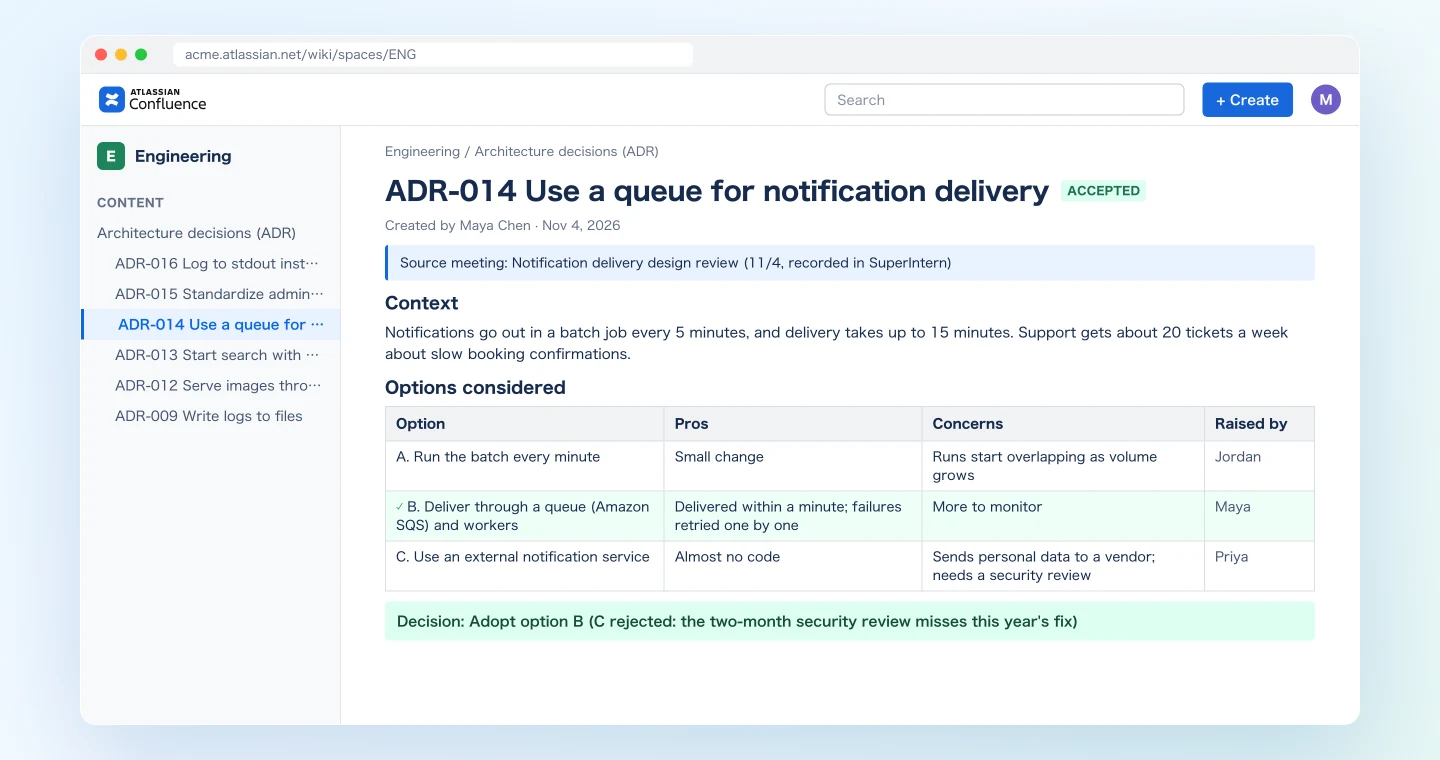
Because the reasons for rejecting each option are on the page, the next time someone asks "wouldn't a vendor be easier?", the answer is already there: the security review timeline.
Demo 2: Catch decisions that never became ADRs, once a week
Decisions that shape the architecture also come out of regular syncs, not just design reviews. Once a week, have the agent read the week's meetings and compare them with your ADR list.
Read every SuperIntern meeting in the "Engineering" project from this week (11/2 to 11/6)
and compare them with the child pages under "Architecture decisions (ADR)" in Confluence.
- Decisions made in a meeting that have no ADR
- Decisions that change or replace an existing ADR
Show them as a table: decision / meeting / related ADR / proposed action / source quote.
Only for the rows I approve, create ADR drafts and update the existing pages.
The agent lines up each meeting's decisions against the ADR list:
I found 3 decisions this week that affect ADRs:
Decision Meeting Related ADR Proposed action Source quote Standardize admin APIs on REST 11/5 API sync None Create ADR-015 Maya: "Let's build every new screen on REST." Retry notifications up to 3 times, doubling the wait each time 11/6 Eng sync ADR-014 Add to "Decision" Jordan: "After 3 failures it goes to the dead-letter queue." Log to stdout instead of files 11/6 Eng sync ADR-009 Create ADR-016 and mark ADR-009 "Superseded" Ken: "We're on containers now, so file logging goes away." Apply all 3?
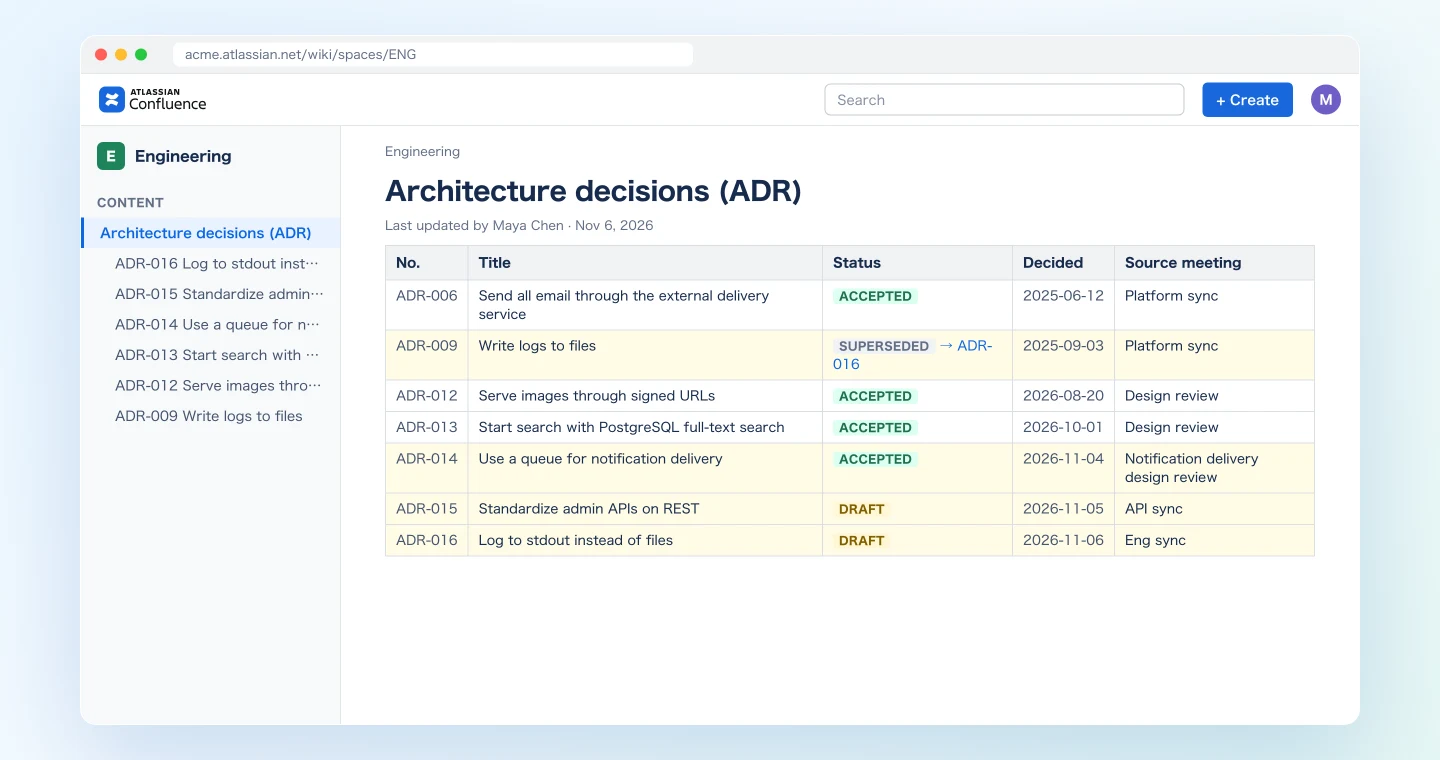
After you approve, drafts for ADR-015 and ADR-016 are created and the retry policy is added to ADR-014. ADR-009's status changes to "Superseded" with a link to ADR-016. Have the owners read the drafts before marking them final.
Demo 3: Find related past decisions during the meeting
SuperIntern MCP can also read the live transcript of a meeting in progress. It only pulls what is new since the last request, so asking several times during the meeting stays fast.
When a discussion seems to be running into an earlier decision, ask:
Read the live transcript of the ongoing "Notification follow-up"
(only what's new since last time), then search "Architecture decisions (ADR)" in Confluence
for past ADRs related to what we're discussing.
If any decision conflicts with today's discussion, tell me, along with its reasoning.
Don't write anything to Confluence.
The agent combines the latest conversation with the Confluence search results:
The current discussion is about sending email notifications straight from the worker. Two ADRs are related:
- ADR-006 Send all email through the external delivery service (June 2025): To protect the sending domain's reputation, email goes only through the delivery service. Today's proposal conflicts with this decision.
- ADR-014 Use a queue for notification delivery (11/4): The worker pulls notifications from the queue, but this ADR doesn't decide how email is sent.
A question to settle it: "Are we revisiting ADR-006, or should the worker call the delivery service instead?"
Nothing is written to Confluence in this demo. Because it only searches and reads pages, it works in ChatGPT as well.
Tips for daily use
Keep an ADR template in Confluence. If there's a template page with your sections, the agent reads it and drafts in the same structure. Name it in the prompt, for example "use the same structure as the 'ADR template' page."
Say the conclusion out loud at the end. "So we're going with option B, because of the review timeline" leaves a clear decision and reason in the transcript. A silent nod is not something the agent can pick up as a decision.
Group meetings in a SuperIntern project. Put engineering meetings in one project so you can filter by date range and project, as in Demo 2.
Always review the plan before anything is written. Every prompt in this article shows a draft first and writes only after approval. ADRs get read for years, so have the owner check the decision and rationale wording before you approve.
Permissions match your own. SuperIntern MCP can only read meetings you can see, and in Confluence the agent can only write to spaces you can edit. Nothing in SuperIntern ever changes.
Add service names to the dictionary. The more accurately service names and internal acronyms appear in the transcript, the more precise the ADR. Register terms that come up often in SuperIntern's custom dictionary.
Beyond Confluence: the same pattern with other tools
SuperIntern MCP supplies the meeting data, the agent decides, and another tool executes. The pattern stays the same when the destination changes.
- Linear: to turn an ADR's follow-up work into engineering tasks, see the Linear guide
- Claude Code: to go straight from the decision to implementation, see the Claude Code guide
- Notion: to keep meeting records in a database, see the Notion guide
- Miro: to turn an architecture explained in a meeting into a diagram, see the Miro guide
FAQ
Can I use SuperIntern MCP on the Free plan?
No. Personal workspaces need the Plus plan or above. Team plans work as is. On Enterprise plans, an admin needs to enable "MCP access" in the workspace settings.
Does SuperIntern write to Confluence?
No. The agent creates and updates pages through Atlassian's official MCP server. SuperIntern MCP only provides meeting data, read-only.
Can I do this in ChatGPT?
Partly. ChatGPT's plugins include Atlassian's official "Atlassian Rovo" app, which can search and read past pages as in Demo 3. Atlassian's documentation doesn't confirm Confluence page creation or updates, so for Demos 1 and 2 you may need to paste the agent's draft into Confluence yourself.
Do I need a fixed ADR format?
No. Without one, the agent uses the sections from the Demo 1 prompt. If your team has a format, give the template page's name in the prompt.
Can it create Jira issues too?
Yes. Atlassian's official MCP server also covers Jira, so on the same connection you can ask the agent to file an ADR's follow-up work as Jira issues. Name the project and issue type in your prompt.
How is this different from the Notion guide?
The Notion guide covers collecting a record of every meeting in a database. This article focuses on engineering decisions and records the options considered and the reasons for rejecting them as ADRs.
Pick your next design review, and before you stop recording in SuperIntern, say the decision and the reason out loud. A few minutes after the meeting, an ADR draft, including why the other options lost, is ready in Confluence.