
SuperIntern Workspace Admin Guide: Member Management, External App Restrictions, and Enterprise Plan Settings
This is a guide for SuperIntern workspace admins. It covers the settings you need to run a workspace, for both the Team plan and the Enterprise plan.
All admin settings are in the workspace settings of the SuperIntern web app.
⚠️ This article reflects SuperIntern's behavior as of October 2026. Screens and specifications may change.
Table of Contents
- Invite members
- Manage meetings in the Team space
- Restrict external app connections
- Restrict external sharing by URL
- Enterprise plan settings
- If you need help
1. Invite members
Invite from the "Members" tab in the workspace settings.
- You can invite people one at a time, or use "Bulk invite" to invite several email addresses at once. You can paste email addresses, and also paste from CSV, TSV, or TXT files or from a spreadsheet.
- When you invite someone, you can also set their role (Admin / Member).
The steps for an invited member to join are covered in How to Get Started with the SuperIntern Team Plan: From Workspace Creation to Inviting and Joining Members. Use it when you guide your members.
2. Manage meetings in the Team space
Admins have permissions for managing meetings in the Team space.
- Only admins can delete meetings in the Team space.
- You can return a shared meeting to the Private space of the person who recorded it.
- Even as an admin, you cannot see meetings in other members' Private spaces.
For the full list of permissions, see the permissions cheat sheet in How to Use the SuperIntern Team Plan.
3. Restrict external app connections
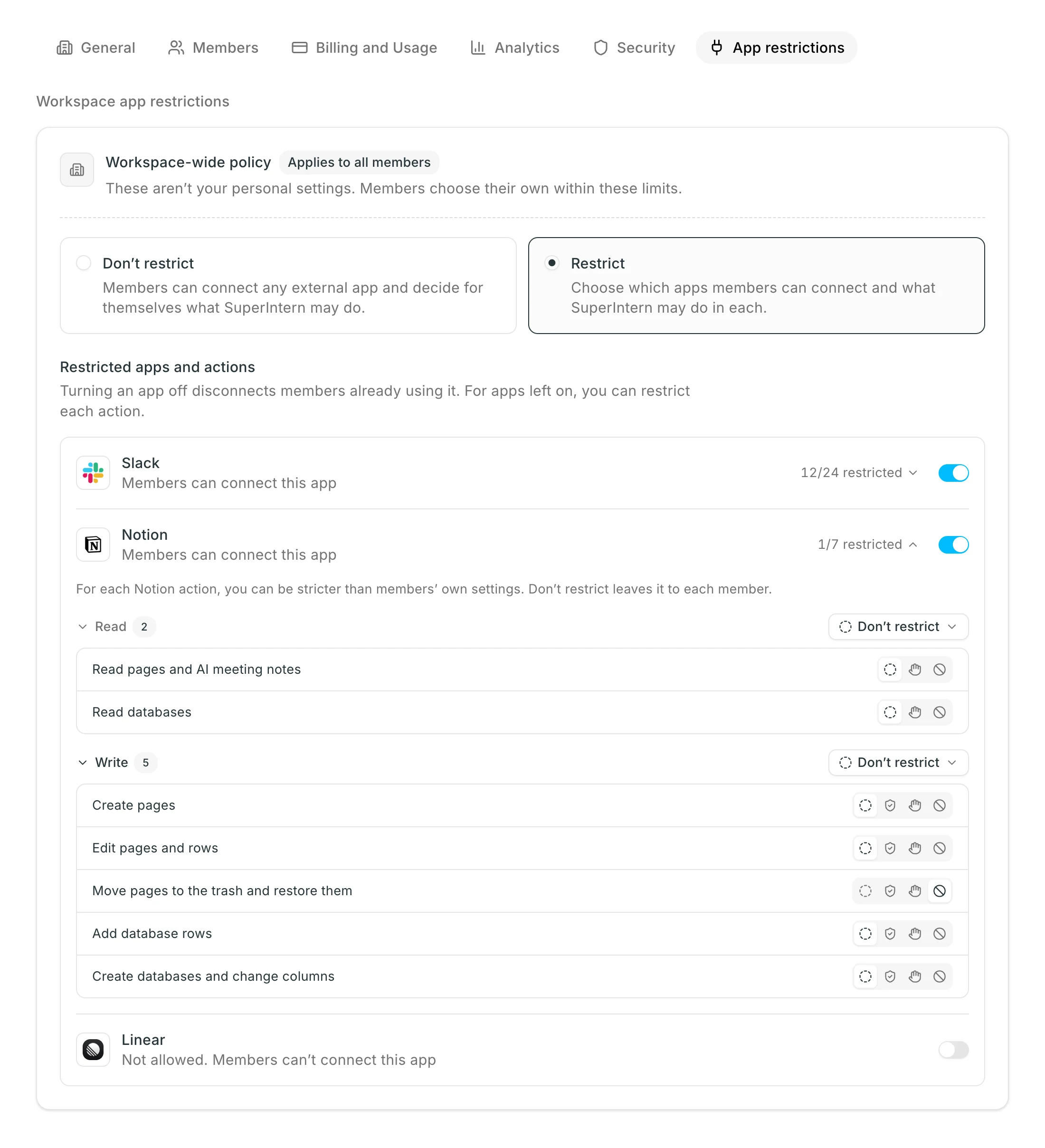
Members can connect external apps such as Slack, Notion, and Linear to their own accounts and use them from SuperIntern chat. On the "App restrictions" tab in the workspace settings, you set the upper limit for the whole workspace.
| Mode | Behavior |
|---|---|
| Don’t restrict (default) | Members can connect any external app, and each member decides what to allow SuperIntern to do |
| Restrict | Admins decide which apps can be connected, and what SuperIntern is allowed to do in each app |
When you choose "Restrict", you can configure the following:
- For each app, you can switch whether connections are allowed. If you turn it off, members who are connected are disconnected immediately. Turning it back on later does not reconnect them automatically.
- For each action, or for each type, "Read" or "Write", you can set an upper limit stricter than the member's setting.
| Limit | Behavior |
|---|---|
| Don’t restrict | Works as the member has set it |
| Auto-review | Even members who chose "Always allow" go through SuperIntern's review |
| Needs approval | Asks for confirmation every time, regardless of the member's setting |
| Don’t allow | Members cannot use this action |
How members set this up is covered in How to Automate Work with Slack, Notion, Linear, and MCP.
4. Restrict external sharing by URL
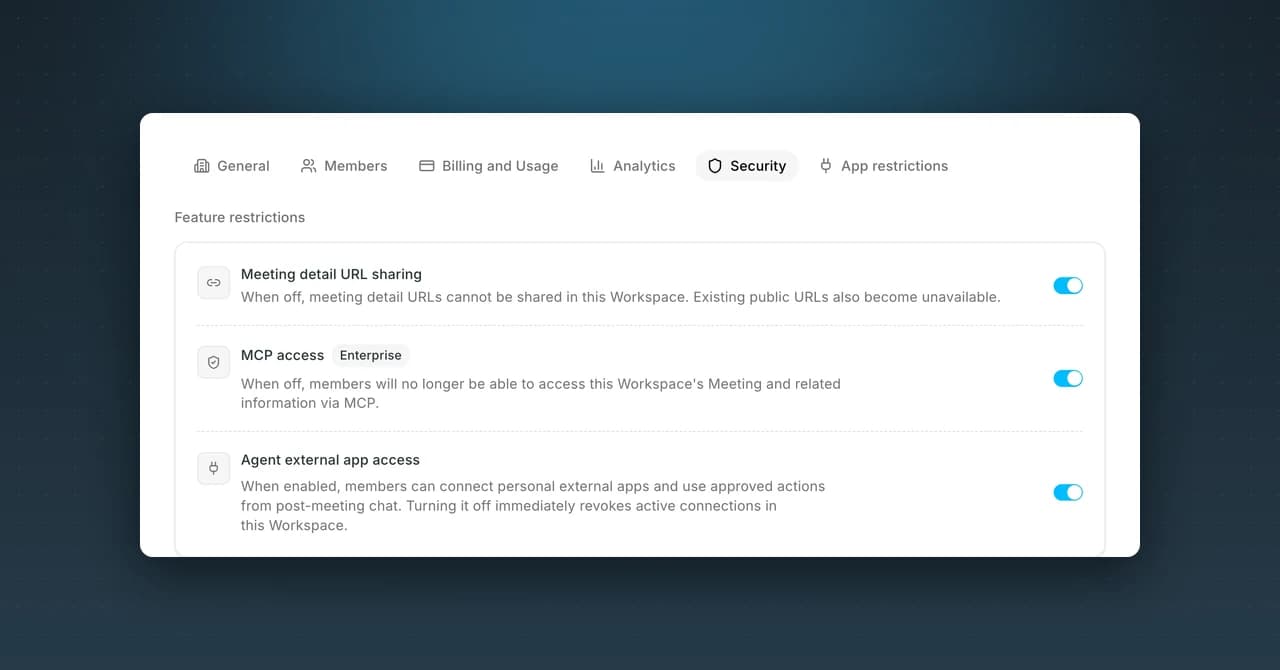
Under "Feature restrictions" on the "Security" tab in the workspace settings, you can turn off "Meeting detail URL sharing". When it is off, meetings in this workspace can no longer be shared externally by URL, and share URLs that were already issued can no longer be opened.
5. Enterprise plan settings
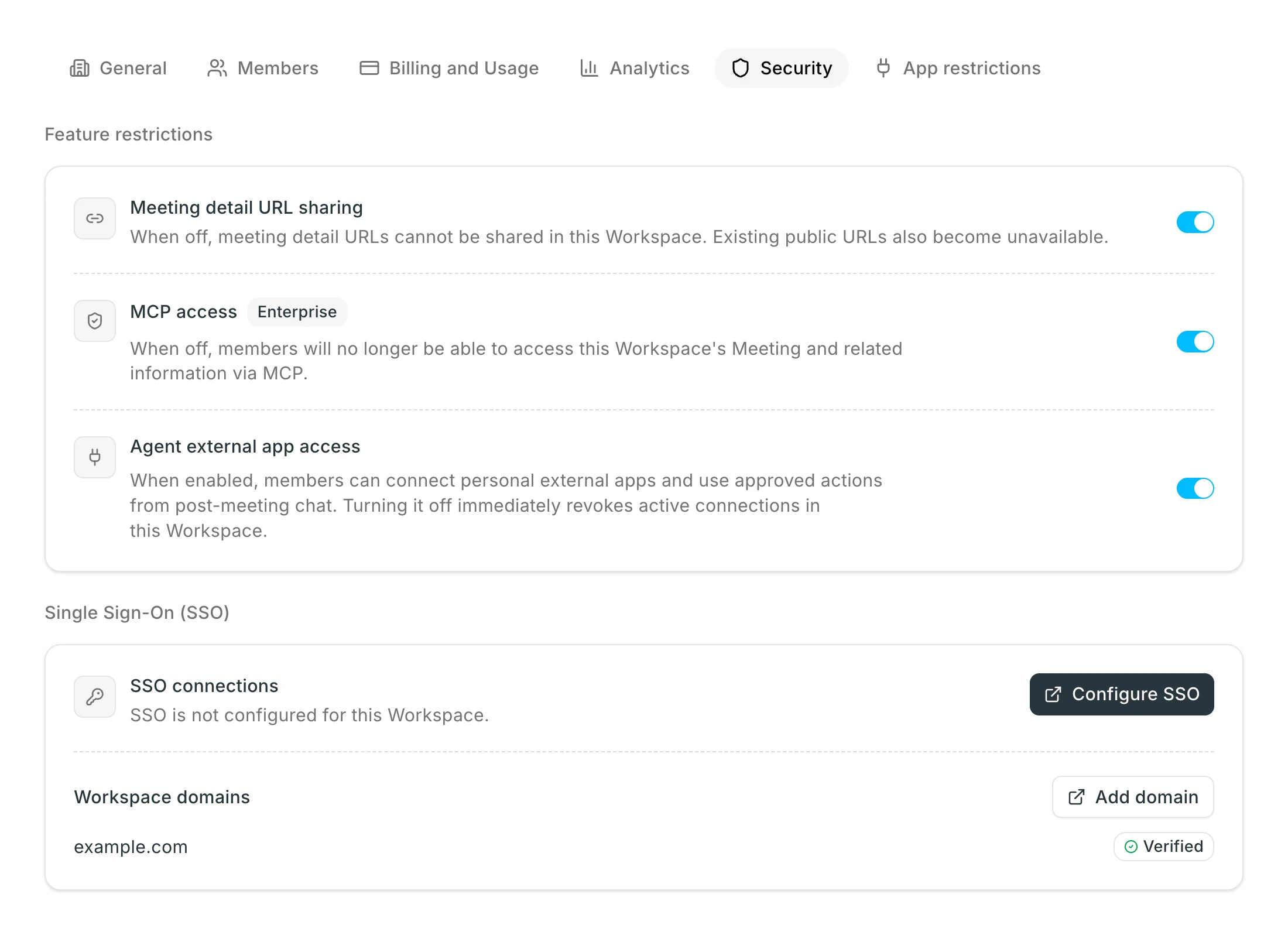
On the Enterprise plan, in addition to the Team plan settings, you configure the following on the "Security" tab. The screens members use every day do not change. These are items that admins set.
Single Sign-On (SSO)
You can set up SSO with Google Workspace, Microsoft Entra ID, and other SAML-compatible identity providers.
- Under "Single Sign-On (SSO)", add your company domain and verify it in DNS.
- Open the admin console and set up the connection with your identity provider.
When SSO is turned on, the workspace can be accessed only through SSO. When you are ready to start using SSO, contact us. We can also support you during setup.
MCP access
This setting lets members read meeting data from AI tools such as Claude and ChatGPT through MCP.
- It is off by default. Until you turn it on, MCP does not appear in members' settings screens.
- If you turn it off again, access from AI tools that members had already connected is disabled immediately.
Agent external app access
This setting lets members connect external apps such as Slack, Notion, and Linear to SuperIntern chat.
- It is off by default. When you turn it on, members can connect their own apps and run operations with approval from chat.
- If you turn it off again, all active connections in the workspace are disabled immediately.
- After you turn it on, you can narrow the apps and actions available with the settings in "3. Restrict external app connections".
6. If you need help
For step-by-step instructions, start with the SuperIntern guides. If a guide does not answer your question, or for security inquiries, contact contact@nanohuman.co.jp.
We publish outages and service status on the status page and also notify you by email.
For tips on how members use SuperIntern, see Getting Started with SuperIntern as a Team. Use it when you roll out SuperIntern in your company.