
Your Onboarding Calls, Already in Airtable: A Practical Guide to SuperIntern MCP + Airtable

If you run customer onboarding, every call ends with the same chore: copying new deadlines and the customer's homework into your Airtable tracker by hand. Put it off for a few days and the tracker drifts from reality, and a slipping go-live date only surfaces at the weekly pipeline review.
Connect SuperIntern MCP and Airtable to an AI agent (Claude, ChatGPT), and the agent reads the call record and proposes new tasks and account updates. Only the changes you approve are written to Airtable as records.
⚠️ This article was independently compiled based on publicly available information and user feedback as of October 2026.
Table of Contents
- What we're building: Before / After
- How it works: three roles
- Setup
- Demo 1: Log tasks and the go-live date right after the kickoff
- Demo 2: Check account health against the week's calls
- Demo 3: Find open tasks nobody has mentioned yet, during the call
- Tips for daily use
- Beyond Airtable: the same pattern with other tools
- FAQ
What we're building: Before / After
Before: After each kickoff or check-in, you reread your notes and add tasks, enter due dates, and move the account to the next phase, one field at a time. Once you own more than five accounts, that copying takes one or two hours a week. Whatever you skip goes stale, and the weekly review is where you learn an account has been stuck since last Tuesday.
After: When the call ends, you ask the agent to update Airtable from today's call. The agent reads the SuperIntern transcript and AI meeting notes and returns a table of tasks to add, fields to change, and the quote behind each one. Approve it, and the Tasks and Accounts tables are updated. Once a week, you run the same check across every account to catch places where the health field no longer matches how the calls actually went.
The calls you want to reference need to be recorded in SuperIntern. SuperIntern is a desktop meeting assistant that works without inviting a bot to the call, and it automatically keeps a transcript and AI meeting notes for video calls and in-person meetings alike. With no bot in the customer's meeting, there is nothing extra to explain.

This article uses an Airtable base called "Customer Onboarding" with two tables:
| Table | Key fields |
|---|---|
| Accounts | Account name, Phase (Kickoff, Configuration, Training, Live), Go-live date, Health (On track, At risk, Off track), CSM, Last call, Notes |
| Tasks | Task, Account (linked to Accounts), Owner side (Us, Customer), Owner, Due date, Status, Source quote |
If you already have a similar base, swap your field names into the prompts below.
How it works: three roles
| Role | Who | What it does |
|---|---|---|
| Meeting data | SuperIntern MCP | Provides transcripts, live transcripts, AI meeting notes, and meeting notes, read-only |
| Judgment and drafting | AI agent (Claude, ChatGPT) | Picks out tasks and changes from the call and drafts the update |
| Writing | Airtable (official Airtable MCP server) | Creates and updates records under your Airtable account |
MCP (Model Context Protocol) is an open standard for connecting AI assistants to external tools safely. SuperIntern MCP gives your agent read-only access to meeting data. See our MCP setup guide for details.
On the Airtable side, Airtable's official MCP server does the work. It can read the structure of your bases and tables, and search, create, and update records. It is included in every Airtable plan at no extra cost, though calls count against the standard API rate limits.
The agent writes to Airtable; SuperIntern does not. The agent cannot change anything in SuperIntern and can only read meetings you can already see. In Airtable, it has exactly the permissions you have.
Setup
You connect two things: SuperIntern and Airtable. Both have official listings in Claude's connector directory and in ChatGPT's plugins, so pick the agent you already use. There is no server URL or API key to paste, and the prompts below work the same in either agent.
1. Connect SuperIntern
- Claude: Open Settings, go to Connectors under Customize, search for "SuperIntern", and select it. You can also open SuperIntern in Claude's connector directory directly. Adding connectors is available on Claude's paid plans.
- ChatGPT: Open Plugins in the sidebar, search for "superintern", open SuperIntern, and click Install plugin. The SuperIntern plugin page takes you there directly. The Codex app connects the same way.
In both cases a SuperIntern sign-in page opens; log in and grant access. SuperIntern-side requirements (personal workspaces need the Plus plan or above; Enterprise workspaces need an admin to enable MCP access) and setup steps for Claude Code, Cursor, and other clients are covered in our MCP setup guide.
2. Connect Airtable
- Claude: In the same Connectors search, type "Airtable", add the official Airtable connector, and sign in with your Airtable account.
- ChatGPT: Search for "Airtable" in Plugins, open the official Airtable app, connect it, and sign in with your Airtable account. You can read, create, and update records from the conversation.
- Claude Code: Run
claude mcp add --transport http airtable https://mcp.airtable.com/mcp, then sign in to Airtable from/mcpinside Claude Code.
During sign-in, Airtable asks which bases the agent may access. Granting only the "Customer Onboarding" base is a good default. Your Airtable permissions carry over: updating records needs Editor access or higher on the base, and adding tables or fields needs Creator access. If your company is on Airtable Enterprise, an admin may need to add the integration to the third-party allowlist before you can connect.
Once both are connected, check that the agent can see both sides:
List this week's SuperIntern meetings in the "Onboarding" project,
and list the tables and fields in the Airtable base "Customer Onboarding".
If both lists come back, you are ready.
Demo 1: Log tasks and the go-live date right after the kickoff
This pays off most right after a customer kickoff. Two things matter in the prompt: say which field gets what, and keep the customer's homework separate from your team's work.
Read the transcript and AI notes from today's "Harborline Logistics onboarding kickoff"
and draft an update for the Airtable base "Customer Onboarding".
- Accounts table: update Phase, Go-live date, and Health for Harborline Logistics
- Tasks table: add one record per agreed task, with Owner side (Us / Customer), Owner, Due date, and Source quote
- If no due date was agreed, leave it empty and write "Confirm"
Show me the plan as a table first. Once I approve, write it.
The agent checks the current Accounts record first, then compares it with the conversation:
Here is the update for the Harborline Logistics account:
Field Current New Source quote Phase Kickoff Configuration "Let's start configuration next week." Go-live date Empty 2026-12-01 "We want the whole company on it by December 1." Health Empty On track Owners and dates are set; no concerns raised I'll add 6 tasks:
Task Side Owner Due Source quote Send SSO (SAML) metadata Customer Dana 11/4 "I'll send the metadata by next Tuesday." Send user list CSV Customer Dana 11/6 "We'll get you the list by department this week." Create and configure workspace Us Alex 11/5 "We'll set up the accounts on our side first." Admin training (60 min) Us Alex 11/12 "Let's book the admin session for the 12th." Draft internal rollout email Customer Priya 11/14 "We'll write the company-wide announcement." Pre-launch review Us Alex Confirm No date agreed yet Write these?
Reply OK and the account record is updated and six records appear in the Tasks table. Airtable's official MCP server creates up to 10 records per request, so when there are more tasks the agent splits them into batches.
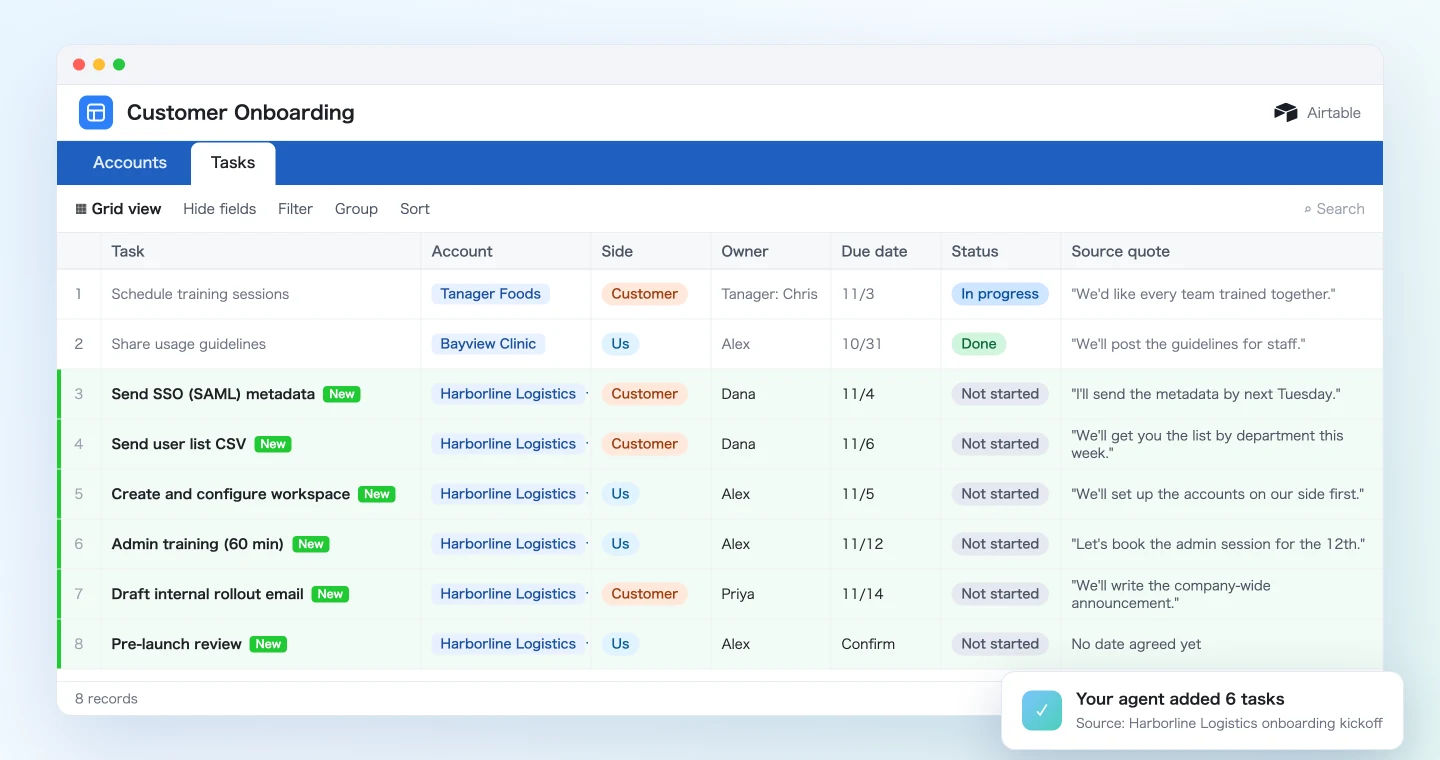
Because every task carries its source quote, nobody has to argue later about who promised which date. If the account changes hands, the next CSM can read the history straight from the table.
Demo 2: Check account health against the week's calls
Health tends to stay "On track" from the day someone set it. Once a week, have the agent read the week's calls and compare them with the tracker.
Read every SuperIntern meeting in the "Onboarding" project from this week (11/2 to 11/6)
and compare them with the Airtable Accounts table.
- Phase, Go-live date, or Health values that no longer match what was said
- Tasks that can be marked Done
Show them as a table: account / field / current / proposed / source quote.
Update only the rows I approve, and add the reason to the account's Notes field.
The agent lines up what was said with the current values:
You had calls with 4 accounts this week. I found 4 mismatches:
Account Field Current Proposed Source quote Harborline Logistics Health On track At risk "Our SSO approval is probably slipping to next week." Tanager Foods Go-live date 11/10 11/17 "We'd like to push training back a week." Bayview Clinic Phase Training Live "Everyone has been using it since yesterday." Harborline Logistics Task "Send user list CSV" Not started Done "I sent the CSV over yesterday." Summit Industrial matches the calls. Apply all 4?
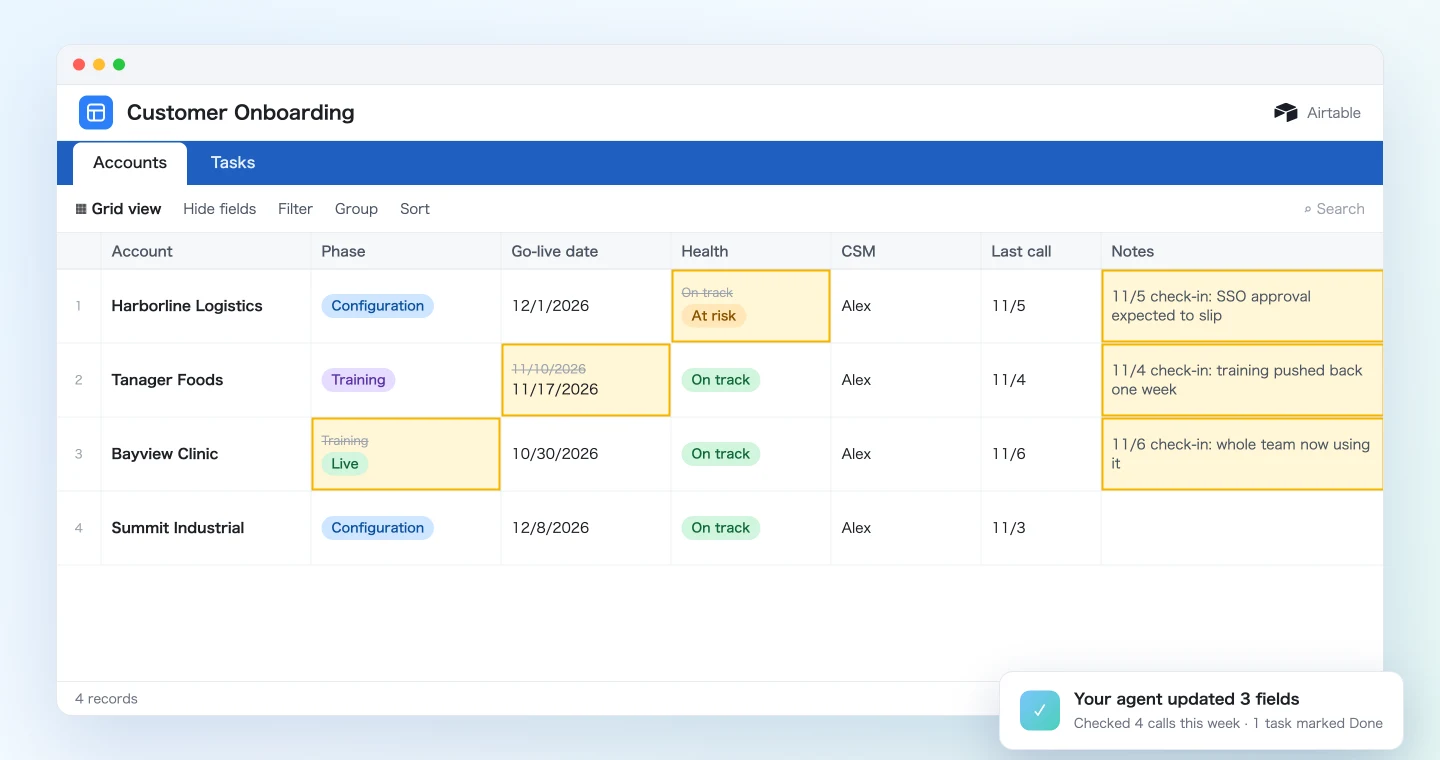
After you approve, the fields change and Notes gets a line such as "11/5 check-in: SSO approval expected to slip." At the weekly review, you start with the accounts whose health dropped.
Health is ultimately the CSM's call. If a proposed change feels wrong, leave that row out of the approval.
Demo 3: Find open tasks nobody has mentioned yet, during the call
SuperIntern MCP can also read the live transcript of a meeting in progress. It only pulls what is new since the last request, so asking several times during the call stays fast.
About ten minutes before a customer check-in ends, try:
Read the live transcript of the ongoing "Harborline Logistics weekly check-in"
(only what's new since last time).
From the open tasks for Harborline Logistics in the Airtable Tasks table,
list the ones that haven't come up today, with one question per task to ask in the remaining time.
Don't write anything to Airtable.
The agent compares the open tasks with today's conversation and replies briefly:
There are 4 open tasks; 2 haven't come up yet:
- Draft internal rollout email (Priya, 11/14): "Is the rollout email still on track for the 14th?"
- Pre-launch review (Alex, date to confirm): "Can we hold a slot in the last week of November for the pre-launch review?"
The other 2 were covered in today's conversation.
Nothing is written to Airtable in this demo. Once the call ends, run the Demo 1 prompt and the dates you just agreed go straight into the tracker.
Tips for daily use
Group customer calls in a SuperIntern project. Put onboarding calls in a project such as "Onboarding" so you can filter by date range and project, as in Demo 2.
Put the account name in the meeting title. The agent matches meeting titles to account names in Airtable to decide which record to update. A title like "Weekly sync" makes it easy to update the wrong account.
Say due dates as dates. "Sometime next week" can't go into a date field. Ending the call with "So Dana, November 4 for the metadata" gives the agent a clean due date.
Always review the plan before anything is written. Every prompt in this article shows a table first and writes only after approval. Fields that involve judgment, such as Health, deserve a careful look.
Limit which bases the agent can touch. When you connect Airtable, you choose the bases the agent may access. Allow only the onboarding base and there is no risk of changing data elsewhere.
Permissions match your own. SuperIntern MCP can only read meetings you can see, and in Airtable the agent can only write to bases you can edit. The agent never writes to SuperIntern.
Add customer and product names to the dictionary. The more accurately company and contact names appear in the transcript, the better the matching. Register names that come up often in SuperIntern's custom dictionary.
Beyond Airtable: the same pattern with other tools
SuperIntern MCP supplies the meeting data, the agent decides, and another tool executes. The pattern stays the same when the destination changes.
- HubSpot: to keep pre-sale deal notes in your CRM, see the HubSpot guide
- Gmail: to send the customer a recap of their tasks and dates after the call, see the Gmail guide
- Google Calendar: to put the pre-launch review straight on the calendar, see the Google Calendar guide
- Asana: to post project status updates after internal syncs, see the Asana guide
FAQ
Can I use SuperIntern MCP on the Free plan?
No. Personal workspaces need the Plus plan or above. Team plans work as is. On Enterprise plans, an admin needs to enable "MCP access" in the workspace settings.
Does SuperIntern write to Airtable?
No. The agent creates and updates records through Airtable's official MCP server. SuperIntern MCP only provides meeting data, read-only, and SuperIntern itself never writes to external tools.
Which Airtable plan do I need?
Airtable's official MCP server is available on every plan at no extra cost, but calls count against the standard API rate limits. Updating records needs Editor access or higher on the base, and adding tables or fields needs Creator access.
Can I do this in ChatGPT?
Yes. ChatGPT's plugins include Airtable's official app, which can read, create, and update records from the conversation. SuperIntern also connects from plugins, so the prompts in this article work in ChatGPT as they are.
Is it OK to record customer calls?
Recording and transcription rules depend on your company and your contracts. The baseline is to say at the start of the call that you are recording and get agreement first. SuperIntern doesn't add a bot to the meeting, so no unfamiliar participant shows up on the customer's screen.
How is this different from the HubSpot guide?
The HubSpot guide covers recording deals before the sale closes. This article covers the period after the sale: tracking each customer's tasks and progress toward go-live during onboarding.
Pick your next onboarding kickoff, record it with SuperIntern, and confirm each due date out loud. A few minutes after the call, the tasks and the go-live date are in Airtable.