
Meeting Feedback, Left Right on the File in Box: A Practical Guide to SuperIntern MCP + Box

When proposals and quotes live in Box, every review meeting ends the same way: you dig the feedback out of your notes and retype it into email or chat, explaining which file and which page each point is about. The feedback and the documents end up in different places, and whoever builds the next version misses something.
Connect SuperIntern MCP and Box to an AI agent (Claude, ChatGPT), and the agent reads the meeting record, sorts the feedback by document, and drafts the comments. Only the comments you approve are written to the files in Box.
The Box app in ChatGPT can also add comments and upload files back to Box, so every demo in this article works in Claude and ChatGPT alike.
⚠️ This article was independently compiled based on publicly available information and user feedback as of November 2026.
Table of Contents
- What we're building: Before / After
- How it works: three roles
- Setup
- Demo 1: Turn review feedback into comments on the right files
- Demo 2: Check every week whether promised revisions landed in Box
- Demo 3: Find the document someone just asked about, during the call
- Tips for daily use
- Beyond Box: the same pattern with other tools
- FAQ
What we're building: Before / After
Before: After a proposal review, you go back through your notes, list the feedback per document, and message the owners. Every point needs context: "the scope slide, page 5," "how we show maintenance on the quote." The person building the next version flips between chat and the files. Things that were decided and things still waiting on the customer often arrive mixed together.
After: When the meeting ends, you ask the agent to put today's feedback on the documents in Box. The agent reads the SuperIntern transcript and AI meeting notes, finds the matching files in the project folder, and returns a table of file, page, feedback, and the quote behind it. Approve it, and each file gets its comments. The next person opens the document in Box and sees what to change.
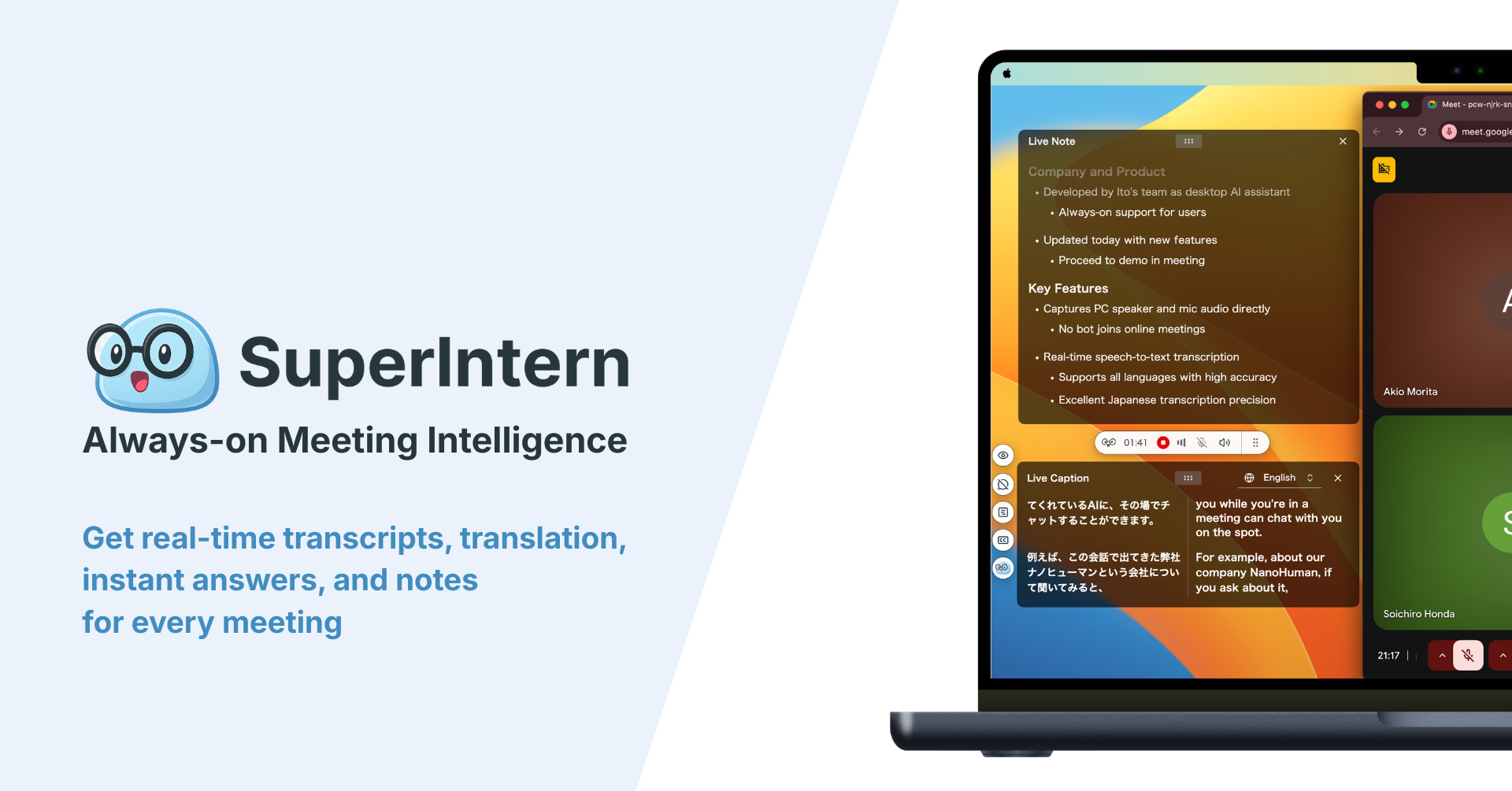
The meetings you want to reference need to be recorded in SuperIntern. SuperIntern is a desktop meeting assistant that works without inviting a bot to the call, and it automatically keeps a transcript and AI meeting notes for video calls and in-person meetings alike. With no bot in the customer's meeting, there is nothing extra to explain.
This article follows an intranet redesign project for a customer called Lakeside Foods. The Box folders look like this:
| Folder | Key files |
|---|---|
| Lakeside Foods/Proposal | Proposal_v3.pptx, Quote_v2.xlsx, Schedule_draft.pdf |
| Lakeside Foods/Meeting notes | Notes for each meeting, weekly check memos |
If your Box has a similar structure, swap your folder and file names into the prompts below.
How it works: three roles
| Role | Who | What it does |
|---|---|---|
| Meeting data | SuperIntern MCP | Provides transcripts, live transcripts, AI meeting notes, and meeting notes, read-only |
| Judgment and drafting | AI agent (Claude, ChatGPT) | Sorts the feedback by document and drafts comments and memos |
| Writing | Box (official Box MCP server) | Searches and reads files, adds comments, uploads files |
MCP (Model Context Protocol) is an open standard for connecting AI assistants to external tools safely. SuperIntern MCP gives your agent read-only access to meeting data. See our MCP setup guide for details.
On the Box side, Box's official MCP server does the work. Beyond searching and reading files and folders, it can add comments (create_file_comment), upload files (upload_file), and create folders (create_folder), and all three are on by default. Some tools, such as moving files or creating shared links, are off by default and need a Box admin to turn them on.
The agent writes to Box; SuperIntern does not. The agent cannot change anything in SuperIntern and can only read meetings you can already see. In Box, it can only touch the files and folders your own account can open.
Setup
You connect two things: SuperIntern and Box. Both are listed in Claude's connector directory and in ChatGPT's app directory, so pick the agent you already use. There is no server URL or API key to paste. All three demos work in either agent.
1. Connect SuperIntern
- Claude: Open Settings, go to Connectors under Customize, search for "SuperIntern", and select it. You can also open SuperIntern in Claude's connector directory directly. Adding connectors is available on Claude's paid plans.
- ChatGPT: Open Plugins in the sidebar, search for "superintern", open SuperIntern, and click Install plugin. The SuperIntern plugin page takes you there directly. The Codex app connects the same way.
In both cases a SuperIntern sign-in page opens; log in and grant access. SuperIntern-side requirements (personal workspaces need the Plus plan or above; Enterprise workspaces need an admin to enable MCP access) and setup steps for Claude Code, Cursor, and other clients are covered in our MCP setup guide.
2. Connect Box
- Claude: In the same Connectors search, type "Box", enable the Box connector, and sign in with your Box account.
- ChatGPT: Search for "Box" in the app directory, click Connect, and sign in with your Box account. You can search and read files, add comments, and upload files.
Before anyone connects, your company's Box admin needs to open Integrations in the Box Admin Console and set Claude (or "ChatGPT MCP Server" for ChatGPT) to "Available to all users". If the connection fails, ask your admin to check that setting first.
Once both are connected, check that the agent can see both sides:
List this week's SuperIntern meetings in the "Lakeside Foods" project,
and list the files in the Box folder "Lakeside Foods/Proposal".
If both lists come back, you are ready.
Demo 1: Turn review feedback into comments on the right files
This pays off most right after a document review with the customer. Two things matter in the prompt: show which file each comment goes on before writing, and keep decisions separate from open questions.
Read the transcript and AI notes from today's "Lakeside Foods proposal review"
and sort the feedback by file in the Box folder "Lakeside Foods/Proposal".
- One row per point: file, page, feedback, type (Decided / To confirm), owner, source quote
- Put anything you can't tie to a file at the end as "No file"
- Once I approve, add each point as a comment on its file, starting with "[11/4 Proposal review]"
Show me the table first.
The agent checks the files in the folder first, then compares them with the conversation:
I'll add these 4 comments to 3 files in "Lakeside Foods/Proposal":
File Page Feedback Type Owner Source quote Proposal_v3.pptx 5 Move multilingual support to phase 2 Decided Alex Sarah: "Multilingual can wait until next fiscal year." Proposal_v3.pptx 8 Add the support lead's name to the team slide Decided Alex Sarah: "We'd like to know who our support contact is." Quote_v2.xlsx Maintenance Show maintenance as an annual fee, not monthly Decided Priya Sarah: "An annual figure makes internal approval much easier." Schedule_draft.pdf 2 Can go-live move from 3/2 to 3/16? To confirm Customer Sarah: "Early March is our year-end close. I'll check if we can push two weeks." Nothing fell under "No file." Add these?
Reply OK and the comments appear on the three files. Proposal_v3.pptx gets comments like this one:
[11/4 Proposal review] p.5 Move multilingual support to phase 2 (Decided). Owner: Alex. Source: Sarah, "Multilingual can wait until next fiscal year."
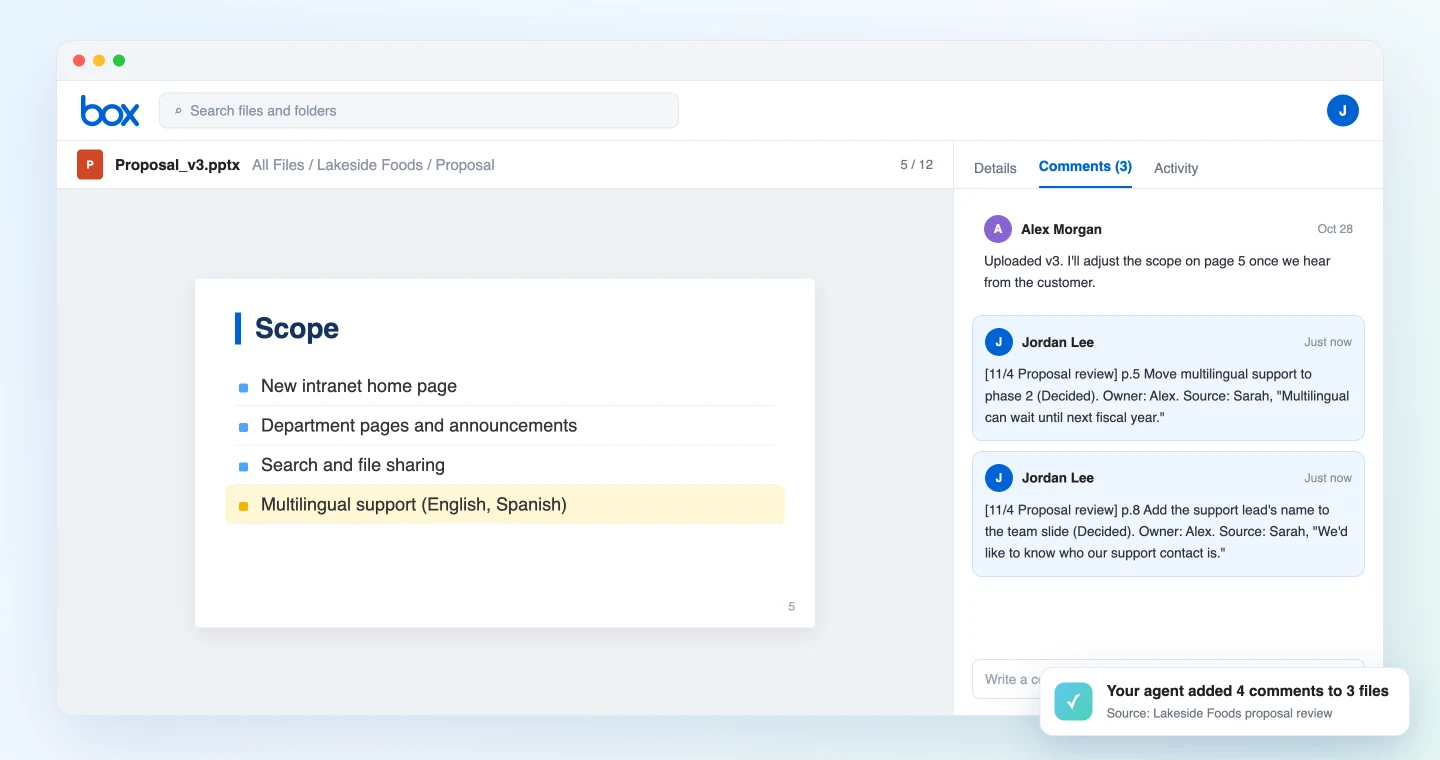
Box comments attach to the whole file, so the agent writes the page number into the comment text. Comments are posted from your own Box account, and collaborators on the file are notified the same way as for any other comment.
Comment on the open questions too. Anyone who opens the schedule sees that it is waiting on the customer, and when the answer comes in, you ask the agent to add "Confirmed for 3/16" to the same file.
Demo 2: Check every week whether promised revisions landed in Box
"I'll send the updated version by Friday" is easy to say in a review and easy to forget. Nobody checks whether the new file actually reached Box. Once a week, compare the week's meetings with the files.
Read every SuperIntern meeting in the "Lakeside Foods" project from this week (11/2 to 11/6)
and list every promise to update or share a document.
Compare them with the modified dates of the files in the Box folder "Lakeside Foods/Proposal",
and show a table: promise / owner / due / status in Box (Done / Not done / Waiting on customer) / source quote.
Once I approve, save the table as "Weekly check 2026-11-06.md" in the folder "Lakeside Foods/Meeting notes".
The agent lines up each promise with the state of the files:
There were 2 meetings this week with 4 promises about documents:
Promise Owner Due Status in Box Source quote Update the proposal to v4 and share it Alex 11/6 Not done (Proposal_v3.pptx last modified 10/28) Alex: "I'll get v4 over to you by Friday." Reissue the quote with annual pricing Priya 11/6 Done (Quote_v3.xlsx uploaded 11/5) Priya: "I'll put the annual version in the folder." Redo the schedule around 3/16 Alex After customer reply Waiting on customer Sarah: "I'll check internally." Put the 11/4 notes in the folder Priya 11/5 Done Priya: "I'll drop the notes in Meeting notes." Save this memo?
After you approve, the table is saved to the Meeting notes folder as a Markdown file. If the folder doesn't exist yet, the agent asks before creating it.
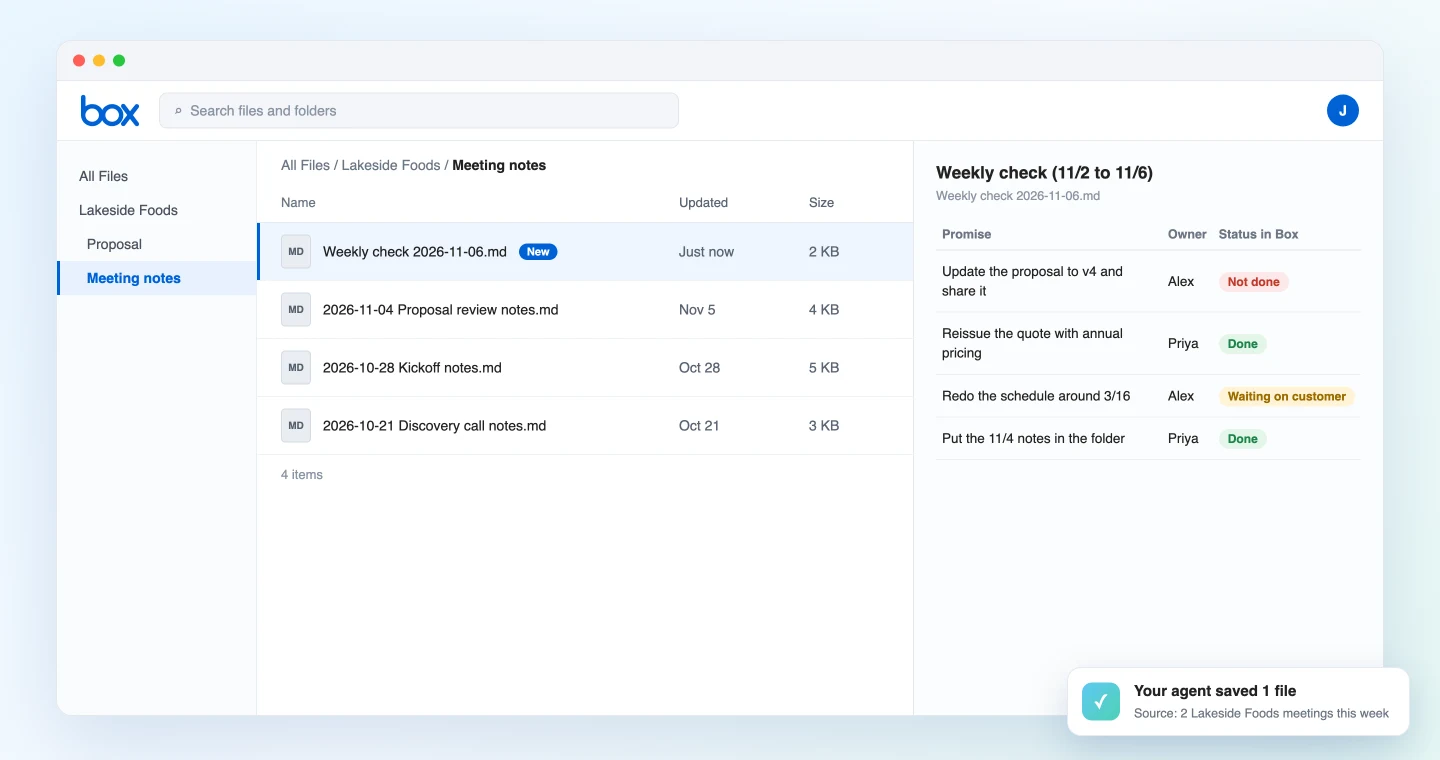
With the memo in Box, anyone who joins the project midway can see which documents are out of date just by opening the folder. The "Not done" rows are your cue to nudge the owner directly.
A file's modified date in Box doesn't change when someone merely opens it. For promises like "move to v4," tell the agent to check file names and version history as well.
Demo 3: Find the document someone just asked about, during the call
SuperIntern MCP can also read the live transcript of a meeting in progress. It only pulls what is new since the last request, so asking several times during the call stays fast.
When the customer asks, "What was the setup fee on the last quote?", try:
Read the live transcript of the ongoing "Lakeside Foods weekly sync" (only what's new since last time).
Find the file in the Box folder "Lakeside Foods" that answers the most recent question,
and give me the file name and the answer in two or three lines.
Don't write anything to Box.
The agent picks up the question, opens the matching file, and replies briefly:
The latest question is about the setup fee on the last quote.
- Quote_v3.xlsx (updated 11/5): setup fee $18,000 before tax, made up of $15,000 for build and $3,000 for initial training.
- The amounts are unchanged from Quote_v2.xlsx. Only the maintenance line changed, now shown as $4,800 per year.
Nothing is written to Box in this demo, and the Box app in ChatGPT can do the same search and reading. Once the call ends, run the Demo 1 prompt and the feedback from this call lands on the documents too.
Tips for daily use
Use the same name for the project and the folder. If the SuperIntern project and the Box folder are both called "Lakeside Foods," the agent never has to guess which folder to look in.
Name the file or page out loud. "Page 5 of the proposal" beats "that slide we looked at." Even when you share your screen, saying the file name once at the start makes matching much more reliable.
Always review the table before anything is written. Every prompt in this article shows a table first and writes only after approval. Comments notify collaborators, so check the wording once before they go out.
Start every comment with the meeting and date. A tag like "[11/4 Proposal review]" shows in Box which meeting a point came from and makes comments easy to search later.
Permissions match your own. SuperIntern MCP can only read meetings you can see, and in Box the agent can only write to files and folders you can edit. The agent never writes to SuperIntern.
Add customer and product names to the dictionary. The more accurately company and contact names appear in the transcript, the better the matching. Register names that come up often in SuperIntern's custom dictionary.
Beyond Box: the same pattern with other tools
SuperIntern MCP supplies the meeting data, the agent decides, and another tool executes. The pattern stays the same when the destination changes.
- Google Docs: to rewrite the document itself based on what was decided, see the Google Docs guide
- Gmail: to draft the email that sends the revised documents back to the customer, see the Gmail guide
- Slack: to post the key points to an internal channel during or after the meeting, see the Slack guide
- Figma: to leave design feedback screen by screen, see the Figma guide
FAQ
Can I use SuperIntern MCP on the Free plan?
No. Personal workspaces need the Plus plan or above. Team plans work as is. On Enterprise plans, an admin needs to enable "MCP access" in the workspace settings.
Does SuperIntern write to Box?
No. The agent adds comments and saves files through Box's official MCP server. SuperIntern MCP only provides meeting data, read-only, and SuperIntern itself never writes to external tools.
Is there anything to set up on the Box side?
A Box admin needs to make the Claude or ChatGPT integration available under Integrations in the Admin Console. Adding comments, uploading files, and creating folders, which this article uses, are on by default. Tools that are off by default, such as moving files or creating shared links, need to be turned on individually by the admin.
Can I do this in ChatGPT?
Yes. Box is in ChatGPT's app directory, and according to Box, its ChatGPT app can search and read files, add comments, and upload files back to Box, so all three demos work in ChatGPT. Which tools are available still depends on your Box admin's settings.
Can a comment point at a specific page?
Box comments attach to the whole file. The prompts in this article put the page number at the start of each comment so readers know where the point applies.
How is this different from the Google Docs guide?
In the Google Docs guide, the agent edits the document text directly. This article is for files that are hard to edit that way, such as PowerPoint, Excel, and PDF: the agent leaves the meeting's feedback as comments, and the owner makes the changes.
Pick your next document review, record it with SuperIntern, and say file names and page numbers as you go. A few minutes after the meeting, the feedback is sitting on the documents in Box.