
Keep Your Google Docs Current from Every Meeting: Client-Ready Minutes and Living Requirements with SuperIntern MCP
The client call ends at 10:45, and the minutes are due by 11:30. You rebuild the meeting in a blank Google Doc, strip out the internal asides, and only then remember that the requirements document still shows the old launch date.
The material already exists. Decisions, owners, and the exact words behind them are in SuperIntern's transcript and AI summary. And since October 6, 2026, Claude's new Google Docs connector (in beta) lets an AI agent create and edit Google Docs straight from the chat; ChatGPT's Google Drive app covers the same ground. What was missing was the bridge between the two.
This guide connects SuperIntern MCP and Google Docs to an AI agent such as Claude or ChatGPT, so that client-ready minutes and a current requirements document each take a single prompt, with you approving every draft before it is written.
⚠️ This article was independently compiled based on publicly available information and user feedback as of October 2026.
Table of Contents
- What we're building: Before / After
- How it works: three roles
- Setup
- Demo 1: Client-ready minutes as a new Google Doc, right after the call
- Demo 2: Update the requirements document in place with today's decisions
- Demo 3: Finish the minutes during the meeting with the live transcript
- Tips for daily use
- Beyond Google Docs: the same pattern with other tools
- FAQ
What we're building: Before / After
Before: After every client meeting, you rebuild the minutes by hand in a Google Doc, filter out what the client should not see, and send it. Separately, you open the requirements document and patch the sections the meeting changed, if you remember. Thirty to forty minutes per meeting, and the requirements doc drifts out of date anyway.
After: When the call ends, you ask your agent for the minutes. It reads the SuperIntern summary and transcript, shows you an outline with decisions, action items, open questions, and the quotes behind them, and on your OK creates the Google Doc. Then you ask it to check the requirements document against today's decisions. It proposes each edit with the sentence from the meeting that justifies it, applies only the ones you approve, and logs the change. Your job shrinks to reading and saying yes.
Meetings you want to reference need to be recorded with SuperIntern beforehand. SuperIntern is a desktop meeting assistant that works without inviting a bot to your meetings. Whether you meet on an online platform or in person, it automatically creates transcripts and AI summaries from the meetings you record, so the material for your documents builds up through your daily meetings.

How it works: three roles
Three parties split the work, and each does only its part.
| Role | Player | What it does |
|---|---|---|
| Provide meeting data | SuperIntern MCP | Serves transcripts, live transcripts, AI summaries, and meeting notes, strictly read-only |
| Judge and write | AI agent (Claude, ChatGPT) | Reads the meeting, decides what belongs in the document, drafts the text |
| Execute the action | Google Docs (Claude's Google Docs connector / ChatGPT's Google Drive app) | Creates new Docs and edits existing ones, inside your own Google account |
MCP (Model Context Protocol) is an open standard for connecting AI assistants to external tools safely. SuperIntern's MCP hands meeting data to the AI agent read-only. On the Google side, Claude's Google Docs connector (public beta since October 6, 2026) lets the agent create new Google Docs and edit existing ones live in a pane beside the chat. In ChatGPT, the same capabilities live in the Google Drive app, which can create and edit Docs, Sheets, and Slides and, since August 2026, open them side by side with the conversation.
So the thing writing to Google Docs is not SuperIntern: it is your AI agent. The AI cannot modify anything on the SuperIntern side, it can only read meetings you yourself can access, and every Docs action follows your existing Google sharing permissions. It cannot open a file you cannot open.
Setup
You connect two services to your AI agent: SuperIntern and Google Docs. SuperIntern is listed in the official directories of Claude and ChatGPT, and both agents ship their own Google integration, so there is no connection URL or API key to enter. Pick whichever agent you already use. The prompts in this guide work the same in both, with one practical difference: Claude's Google Docs connector is a beta launched this month, and ChatGPT's Google Drive app does not yet cover Shared Drives and lacks some editing features. Both are covered below. This guide is about Claude on the web or desktop and ChatGPT on the web; Claude Code and other MCP clients are out of scope here.
1. Connect SuperIntern
- Claude: Open Settings, go to Connectors under Customize, search for "SuperIntern", and select it. You can also open SuperIntern in Claude's connector directory directly. Adding connectors is available on Claude's paid plans.
- ChatGPT: Open Plugins in the sidebar, search for "superintern", open SuperIntern, and click Install plugin. The SuperIntern plugin page takes you there directly. The Codex app connects the same way.
In both cases a SuperIntern sign-in page opens; log in and grant access. SuperIntern-side requirements (personal workspaces need the Plus plan or above; Enterprise workspaces need an admin to enable MCP access) and setup steps for Claude Code, Cursor, and other clients are covered in our MCP setup guide.
2. Connect Google Docs
- Claude: Click the + button in the chat box, hover over Connectors, and switch on Google Docs (the same screen lists Google Sheets and Google Slides). The first time, sign in with your Google account and grant access. You can also manage it under Settings > Customize > Connectors. On Team and Enterprise plans, an owner or primary owner has to enable the Google Docs, Sheets, and Slides connectors before members can connect. Editing a Doc live in the pane beside the chat works on Claude on the web in Chrome and in Claude Desktop with the built-in browser turned on; elsewhere, use Open in Google on the file card. Details and current limitations are in the official help article.
- ChatGPT: In Plugins, search for "Google Drive", open the app, and connect your Google account. Google Docs, Sheets, and Slides actions live inside this single Google Drive app, which can create and edit those files. It is available to Plus, Pro, Business, and Enterprise users on the web (plus Edu and Healthcare, per the release notes); on Enterprise and Edu, a workspace admin has to enable it. Shared Drives are not included yet, and some editing features are still missing, so for a file that lives in a Shared Drive, use Claude or move the file.
To confirm both sides are live, ask your agent:
List my 3 most recent SuperIntern meetings and the Google Docs I edited this week.
If both answers come back, you are ready.
Demo 1: Client-ready minutes as a new Google Doc, right after the call
The clearest win is the external minutes. Two things matter here: say "Google Doc" explicitly (a generic "doc" gets you a local file in Claude), and describe what must not reach the client.
Get the AI summary and transcript of the "Northwind weekly sync"
that just ended. Create a new Google Doc titled
"Northwind weekly sync: Minutes (Oct 9)" with these sections:
- Attendees
- Decisions, each with the quote it is based on
- Action items as a table: item / owner / due date
- Open questions
- Next meeting (date and agenda)
This goes to the client. Leave out our internal remarks,
pricing discussion, and anything said after they dropped off.
Show me the outline first. Create the Doc only after I say OK.
The agent reads the summary and transcript, then comes back with an outline.
Here is the outline for the minutes.
Decisions
- Pilot launch for the customer portal moves from Nov 2 to Nov 16, adding two weeks of UAT ("we need the two extra weeks to run it past the regional teams")
- Pilot ships with SAML single sign-on only; OAuth is deferred to phase 2
- Shipment tracking page shows ETA from the carrier API only, no manual entry
Action items
- Provide UAT test accounts for the regional teams: Dana Whitfield (Northwind), Oct 16
- Send the revised project timeline: Priya Raman (Atlas), Oct 13
- Confirm retention period for tracking logs: Northwind legal, Oct 16
Open questions: retention period for shipment tracking logs
Next meeting: Thursday, Oct 16, 10:00. Agenda: UAT plan review, revised timeline sign-off
I left out the internal discussion about the change-order fee and the 5 minutes after Dana left. Create the Google Doc?
Say OK, and the Doc appears in the pane beside the chat. Read it once, fix a name if needed, and share it the way you always do.
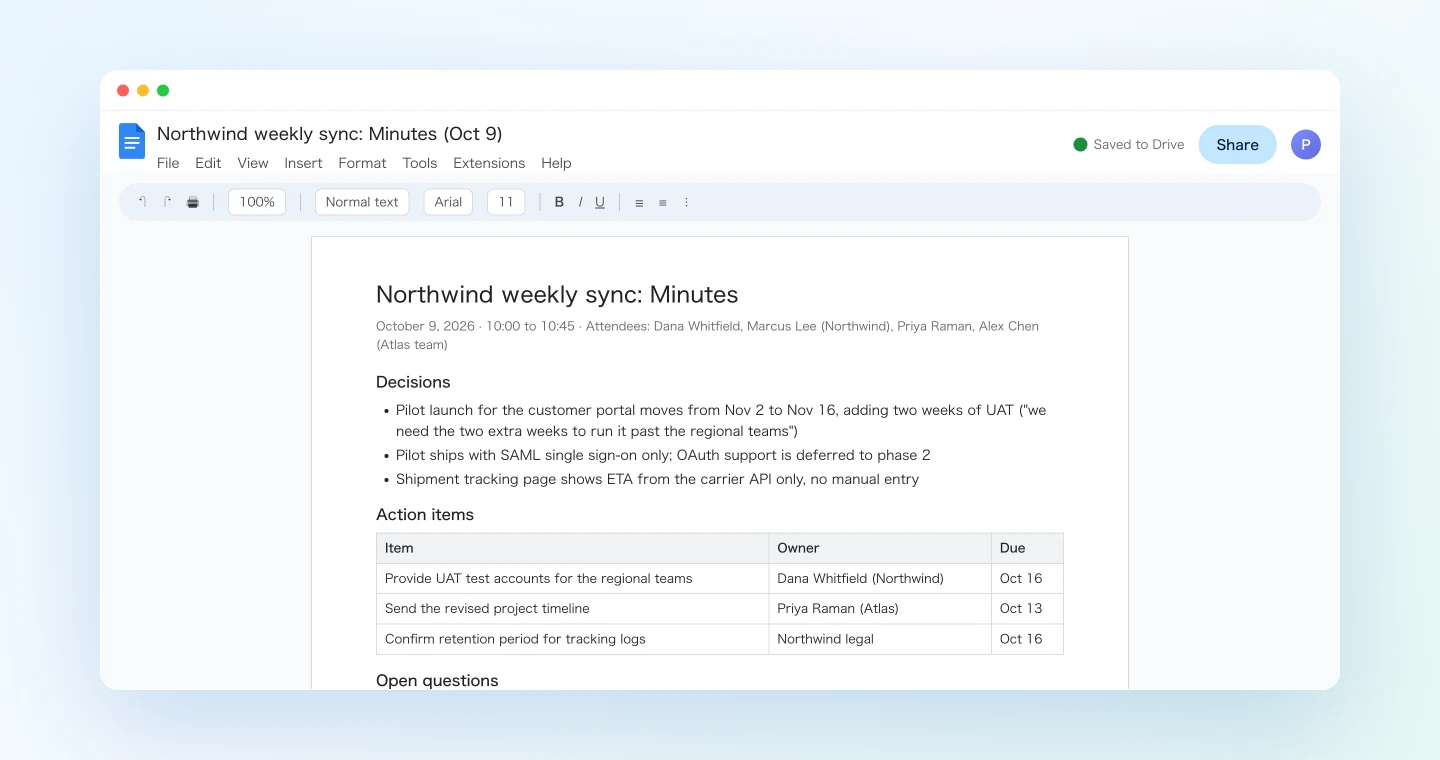
Notice that every decision carries the quote behind it. Minutes that go to a client get challenged ("that is not what we agreed"). When they are drafted from the primary record, you can walk anyone back to the exact sentence.
Demo 2: Update the requirements document in place with today's decisions
This is the part that used to fall through the cracks. The requirements document is the one file everyone treats as the truth, and it is also the one nobody updates after a meeting. With the agent reading both the Doc and the meeting, the comparison becomes a prompt.
Open the Google Doc "Atlas Customer Portal: Requirements v2".
Compare it against the decisions in today's "Northwind weekly sync".
For every section the meeting changed, show me:
section / current text / proposed text / the quote from the meeting.
Also flag any decision that is not covered by the document yet.
Apply only the edits I approve, and add a row to the
"Change history" table at the end: date / source meeting /
sections / approved by me.
The agent returns a list of proposed edits before touching the file.
I found 3 sections affected by today's meeting.
Section Current Proposed Quote 3.2 Authentication SSO supports SAML 2.0 and OAuth 2.0 SSO supports SAML 2.0 in the pilot. OAuth 2.0 is deferred to phase 2 "let's keep it SAML only for the pilot and do OAuth in phase two" 5.1 Shipment tracking Ops can enter the ETA manually when carrier data is missing ETA comes from the carrier API only; there is no manual entry "no manual ETAs, if the carrier doesn't send it we show nothing" 7. Timeline Pilot launch: November 2, 2026 November 16, 2026 (two additional weeks of UAT) "we need the two extra weeks" Not covered by the document: the retention period for tracking logs is still open, so I suggest no edit yet.
Apply all 3?
Approve, and in Claude each edit shows up as an approval card in the pane (in the default "Ask before edits" mode), while ChatGPT writes the change to the file where that is supported. The change history row is appended with today's date and the source meeting.
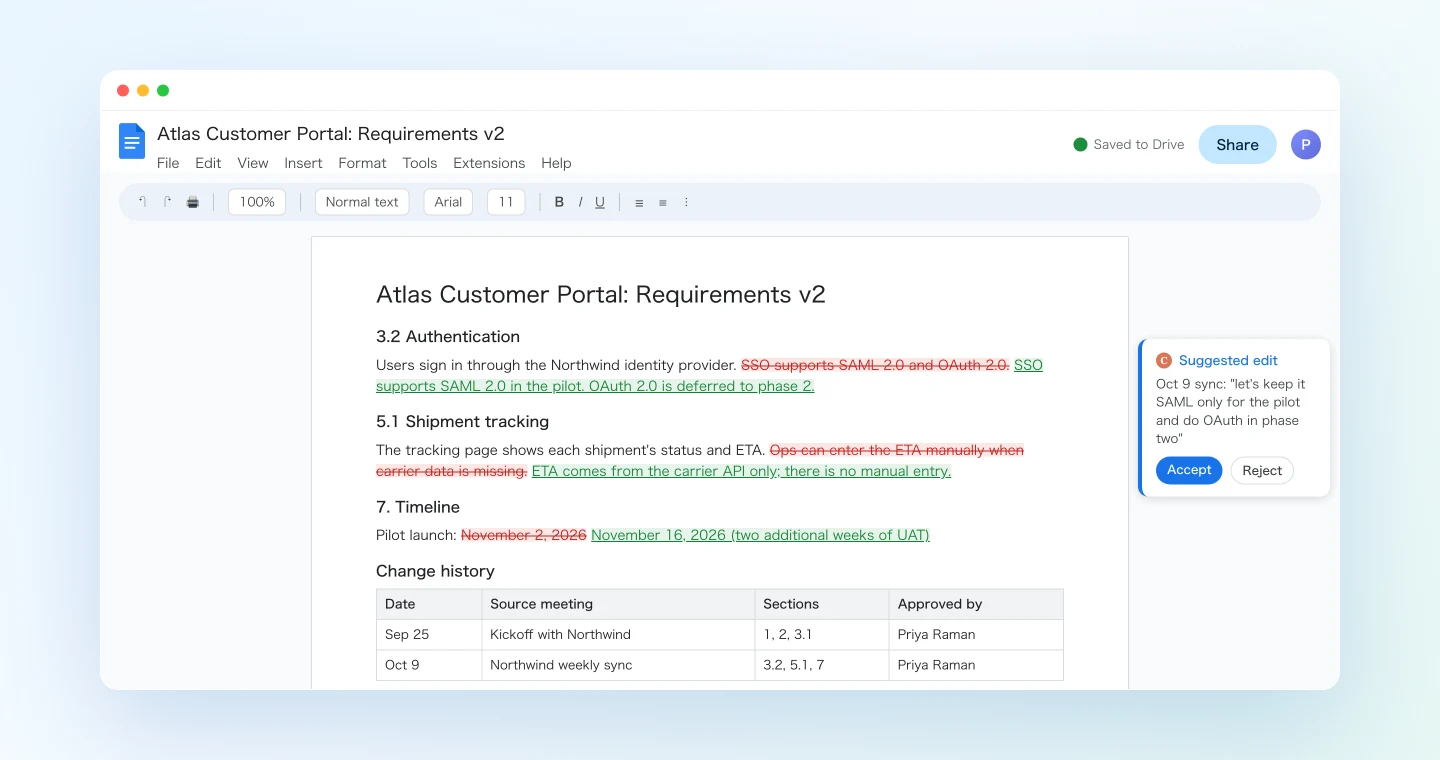
The value is not the three edits. It is that the document and the meetings stop disagreeing. Two weeks from now, when someone asks why OAuth is out of scope, the change history points to the meeting, and the transcript has the sentence.
Demo 3: Finish the minutes during the meeting with the live transcript
SuperIntern's MCP can also serve the live transcript of a meeting in progress, including only the part that is new since the last fetch. That turns the minutes from an after-the-fact task into something that is nearly done when the call ends.
Five minutes before the scheduled end, ask:
Get the live transcript of the ongoing "Northwind weekly sync"
(only the new part since my last request is fine).
Update the draft minutes you started with decisions, action items,
and open questions so far. Then give me a checklist of items that
still have no owner or no due date, so I can ask before we end.
The agent extends the draft and hands you a short list: "Retention period: no owner yet. Revised timeline: no due date." You raise those two in the last minutes of the call, and when the meeting ends, you run Demo 1 to create the final Google Doc. The gap between "call ended" and "minutes sent" becomes a few minutes of reading.
This only works because the transcript exists while the meeting is still running. No bot joins the call, and nobody has to remember to type.
Tips for daily use
Name the Google product. In Claude, asking for a "doc" or "document" without saying Google creates a local file instead. "Create a Google Doc" is the phrase that reaches your Drive.
Keep "show me first, write after my OK" in every prompt. Minutes go to clients; the requirements document is read by the whole project. Every prompt in this guide ends with an approval step for a reason: you keep the judgment, the AI keeps the labor. In Claude, the default "Ask before edits" mode adds a second safety net, since each edit shows up as a card you accept or dismiss.
Describe the audience, not just the format. "This goes to the client, leave out pricing and internal remarks" is the sentence that makes the draft usable without a second pass. Save your prompt with that line as a snippet.
Make it quote its sources. Asking for the sentence behind each decision and each edit raises the quality of the document a full grade, and it is what lets you defend the minutes later.
Share it yourself. Creating a Google Doc does not share it. Keep sharing with the client as your own click, as you do today, so nothing leaves your workspace without a human looking at it.
Everything stays inside your own permissions. SuperIntern MCP can only read meetings you can see. The agent can only open and change Google files your account can access. And the AI cannot write anything back to SuperIntern.
Feed SuperIntern your vocabulary. Project names, client names, and internal terms that appear correctly in the transcript make better documents. Register recurring terms in SuperIntern's custom dictionary.
Beyond Google Docs: the same pattern with other tools
SuperIntern MCP provides the meeting data, the AI agent judges, and a third tool executes. Swap the third tool and the pattern holds.
- Notion: If the destination is an internal meeting database with properties rather than a shareable document, see the Notion guide
- Gmail: To send the minutes as an email draft instead of a Doc, see the Gmail guide
- Canva: When the client expects a recap deck rather than minutes, see the Canva guide
- Google Calendar: To turn "next meeting" from the minutes into a real invite with the agenda, see the Google Calendar guide
A rhythm that works well: Demo 1 after every client call, Demo 2 only after meetings that change scope or dates, and Demo 3 for the calls where the minutes are due the same hour.
FAQ
Can I use SuperIntern MCP on the free plan?
No. Personal workspaces need the Plus plan or above. Team plan workspaces can use it as is. On Enterprise, an admin needs to enable "MCP access" in workspace settings first.
Does SuperIntern write to my Google Docs?
No. Creating and editing Docs is done by your AI agent, through Claude's Google Docs connector or ChatGPT's Google Drive app. SuperIntern MCP only hands over meeting data, read-only. SuperIntern itself never writes to external tools.
Can the AI modify my meeting notes or transcripts?
No. Every SuperIntern MCP tool is read-only; create, edit, and delete capabilities simply do not exist. Writes happen only on the Google Docs side, and only after you approve.
What do I need on the Claude side?
Claude's Google Docs, Sheets, and Slides connectors are in public beta as of October 2026 and are switched on from the + menu in the chat or under Connectors. On Team and Enterprise plans, an owner has to enable them first. Live editing in the pane beside the chat works on Claude on the web in Chrome and on Claude Desktop with the built-in browser on; otherwise you open the file in Google. Access follows your Google sharing permissions. See the official help article for current limits.
What do I need on the ChatGPT side?
The Google Drive app, which covers Docs, Sheets, and Slides creation and editing. It is available on the web for Plus, Pro, Business, and Enterprise (plus Edu and Healthcare per OpenAI's release notes), with Enterprise and Edu requiring an admin to enable it. Shared Drives are not supported yet, and some editing and collaboration features are still missing, so a few edits may come back as text for you to paste. Check OpenAI's release notes for the current state.
How is this different from the Notion article?
The Notion guide builds an internal meeting database: one page per meeting, with properties, for your own team. This guide is about documents other people read, external minutes and a requirements document, kept current in Google Docs. Different destination, same pattern. Many teams use both.
Start with one recurring client meeting and try the workflow from drafting the minutes to creating the Google Doc. The time you used to spend rebuilding the meeting goes to reading it once and sending it.