
Design Review Feedback, Back in Figma Before the Call Ends: A Practical Guide to SuperIntern MCP + Figma
In a design review, feedback comes fast while the screens keep changing. Afterwards, the designer copies their notes into Figma comments one by one, and by then it is often unclear which screen a comment was about, or whether it was decided or just floated.
Connect SuperIntern MCP and Figma to an AI agent (Claude, ChatGPT), and the agent reads the review record, sorts the feedback by screen, and places review notes next to each frame in Figma. Nothing is written to the file until you have checked the placement plan and approved it.
Writing to Figma files works from Claude and from the Codex app. The Figma app inside ChatGPT can only create new FigJam diagrams and Figma Slides decks, so it cannot run the workflows below, which edit an existing design file.
⚠️ This article was independently compiled based on publicly available information and user feedback as of October 2026.
Table of Contents
- What we're building: Before / After
- How it works: three roles
- Setup
- Demo 1: Turn review feedback into per-screen notes right after the meeting
- Demo 2: Apply agreed copy changes to a duplicate frame
- Demo 3: Check open items from the last review while the meeting is still running
- Tips for daily use
- Beyond Figma: the same pattern with other tools
- FAQ
What we're building: Before / After
Before: During the review you take notes while watching the shared screen, then open Figma and transcribe comments screen by screen. Even a 30-minute review costs 20 to 30 minutes of copying, and people who missed the call still can't tell which points were decided and which are still open.
After: When the review ends, you give the agent the Figma file URL and ask it to sort things out. The agent reads the SuperIntern transcript and AI meeting notes, groups the feedback by screen, and returns a placement plan with status (decided or needs discussion) and an owner for each point. Once you approve, a review note frame appears to the right of each screen. The designs themselves are left untouched.
The meetings you want to reference need to be recorded in SuperIntern. SuperIntern is a desktop meeting assistant that works without inviting a bot to the call, and it automatically keeps a transcript and AI meeting notes for both video calls and in-person reviews.

How it works: three roles
| Role | Who | What it does |
|---|---|---|
| Meeting data | SuperIntern MCP | Provides transcripts, live transcripts, AI meeting notes, and meeting notes, read-only |
| Judgment and drafting | AI agent (Claude, ChatGPT) | Sorts review comments by screen and drafts notes and edits |
| Writing | Figma (official Figma MCP server) | Creates, duplicates, and edits frames under your Figma account |
MCP (Model Context Protocol) is an open standard for connecting AI assistants to external tools safely. SuperIntern MCP gives your agent read-only access to meeting data. See our MCP setup guide for details.
On the Figma side, Figma's official MCP server does the work. Besides reading file structure and layer names, it supports writing to the canvas as a beta feature as of October 2026, so the agent can create and edit frames and text.
The agent writes to Figma; SuperIntern does not. The agent cannot change anything in SuperIntern and can only read meetings you can already see. On the Figma side, it can only edit files you have edit access to.
Setup
You connect two things: SuperIntern and Figma. Both are listed in Claude's connector directory, so there is no server URL or API key to paste. If you work in the OpenAI ecosystem, use the Codex app, which can write to Figma files. The Figma app in ChatGPT itself cannot edit design files the way Demos 1 to 3 require.
1. Connect SuperIntern
- Claude: Open Settings, go to Connectors under Customize, search for "SuperIntern", and select it. You can also open SuperIntern in Claude's connector directory directly. Adding connectors is available on Claude's paid plans.
- ChatGPT: Open Plugins in the sidebar, search for "superintern", open SuperIntern, and click Install plugin. The SuperIntern plugin page takes you there directly. The Codex app connects the same way.
In both cases a SuperIntern sign-in page opens; log in and grant access. SuperIntern-side requirements (personal workspaces need the Plus plan or above; Enterprise workspaces need an admin to enable MCP access) and setup steps for Claude Code, Cursor, and other clients are covered in our MCP setup guide.
2. Connect Figma
- Claude: In the same Connectors search, type "Figma", add the official Figma connector, and sign in with your Figma account. You can also start from Figma in Claude's connector directory. Figma's documentation lists the Claude desktop app and Claude Code among the clients that support writing to the canvas.
- Codex app: Add Figma's official plugin for Codex and sign in with your Figma account. It comes from the integration Figma and OpenAI announced in February 2026 and supports creating and updating content in Figma files.
- ChatGPT: You can connect Figma from Plugins, but it only creates new FigJam diagrams and Figma Slides decks. It cannot edit existing design files, and it is not available in the EU.
Check the Figma-side requirements too. Writing to the canvas needs a Professional, Education, Organization, or Enterprise plan, a Full seat, and edit access to the file. A Dev seat gets read-only access. As of October 2026 the write feature is a free beta, and Figma says it will eventually become a usage-based paid feature.
Once both are connected, check that the agent can see both sides:
List this week's SuperIntern meetings with "design review" in the title,
and list the pages and frames in this Figma file:
https://www.figma.com/design/xxxx/checkout-flow
If both lists come back, you are ready.
Demo 1: Turn review feedback into per-screen notes right after the meeting
This pays off most right after the review ends. Two things matter in the prompt: pass the file URL and page name, and say explicitly that the original frames must not be touched. People rarely call screens by their Figma names in a meeting, so ask to see the mapping first.
Read the transcript and AI notes from today's "Checkout flow design review"
and organize the feedback by screen.
Figma file: https://www.figma.com/design/xxxx/checkout-flow
Page: "v3 review"
- Show how the screen names used in the meeting map to Figma frame names
- For each point, give: feedback / supporting quote / decided or needs discussion / owner
- Do not edit the original frames
Show me the plan first. Once I approve, place a yellow "Review notes" frame to the right of each frame.
The agent reads the frame names on the page, matches them against the conversation, and returns a plan:
Four screens came up in the meeting. Here is the mapping:
Called in the meeting Figma frame the cart 01_Cart the address screen 02_Shipping the payment screen 03_Payment the final review step 04_Review Feedback on 03_Payment (3 points)
Feedback Quote Status Owner Pay-later fee note is too small; raise it to 14px "On a phone you basically can't read that fee line." Decided Maya Make the error message specific "'Something went wrong' doesn't tell anyone what to fix." Decided Maya Should "save card" be on by default? "If we default it on, legal needs to sign off." Needs discussion Ken There are 5 more points across 01_Cart, 02_Shipping, and 04_Review. Place the four review note frames?
Reply OK and a review note frame appears to the right of each of the four screens. Claude also asks you to confirm each tool call before it writes, so you get to check the content once more.
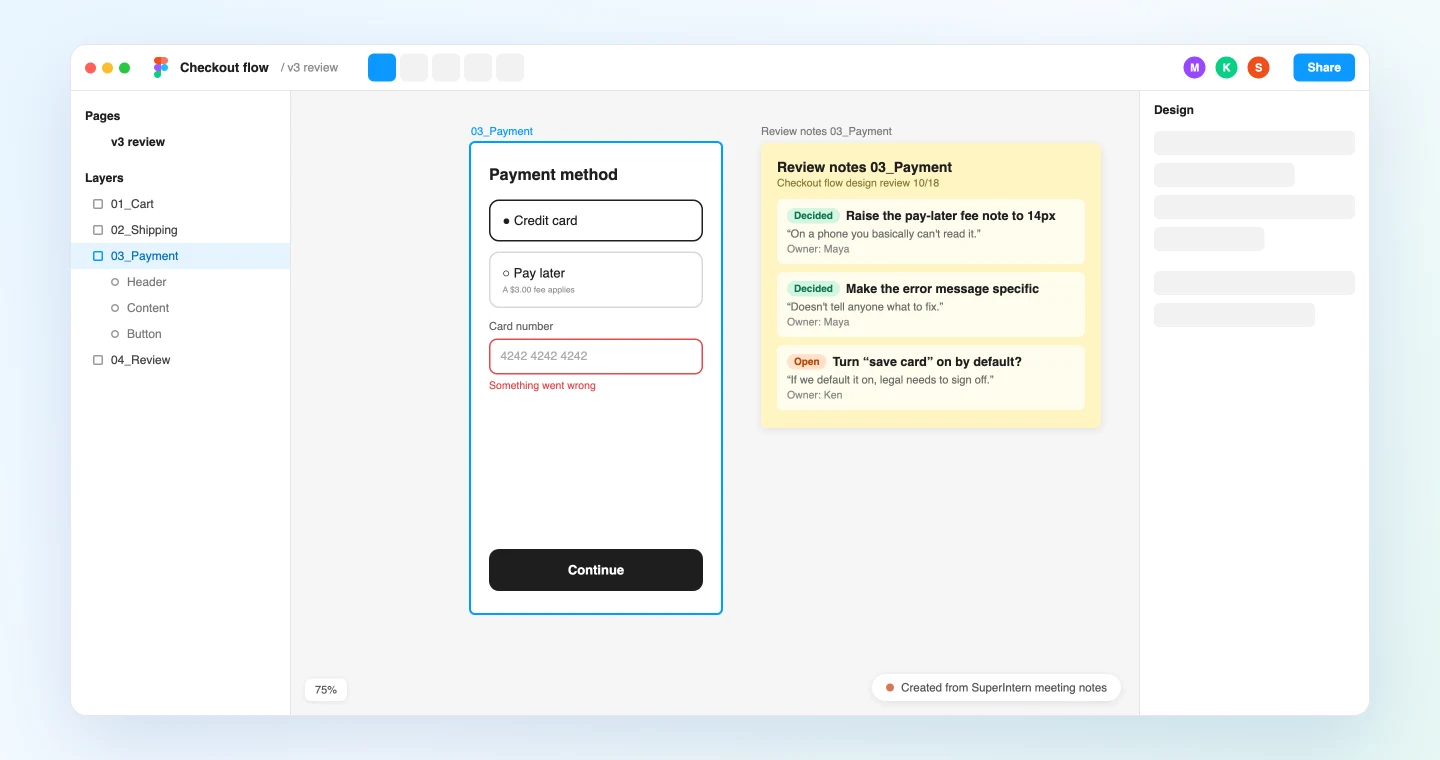
Because each note carries the supporting quote, an engineer who missed the review can see in Figma how a decision was reached. Open items stay on the canvas with an owner, so the next review knows exactly where to start.
Demo 2: Apply agreed copy changes to a duplicate frame
Some review decisions are pure text changes: button labels, error messages, helper copy. Those can go straight from the meeting into Figma. Again, the original stays as it is and the changes go into a duplicate.
From today's "Checkout flow design review", list every copy change that was agreed.
Figma file: https://www.figma.com/design/xxxx/checkout-flow (page "v3 review")
Show them as a table: frame / layer / current copy / new copy / supporting quote.
For the ones I approve, duplicate the frame, add "_review edits 10/18" to the name,
and replace the text in the duplicate only. Outline each changed text layer in purple.
The agent shows the changes before writing anything:
Three copy changes were agreed:
Frame Current New Quote 04_Review Place order Place order ($19.80) "People want to see the amount before they tap." 04_Review Shipping: extra Shipping $5.00 (free over $30) "Hiding shipping until the end is where we lose people." 03_Payment Something went wrong Enter your 16-digit card number "'Something went wrong' doesn't tell anyone what to fix." I'll duplicate 04_Review and 03_Payment and apply these. Go ahead?
After you approve, the edited copies sit next to the originals. The designer compares the two, promotes the duplicate if it looks right, and cleans up the old frame.
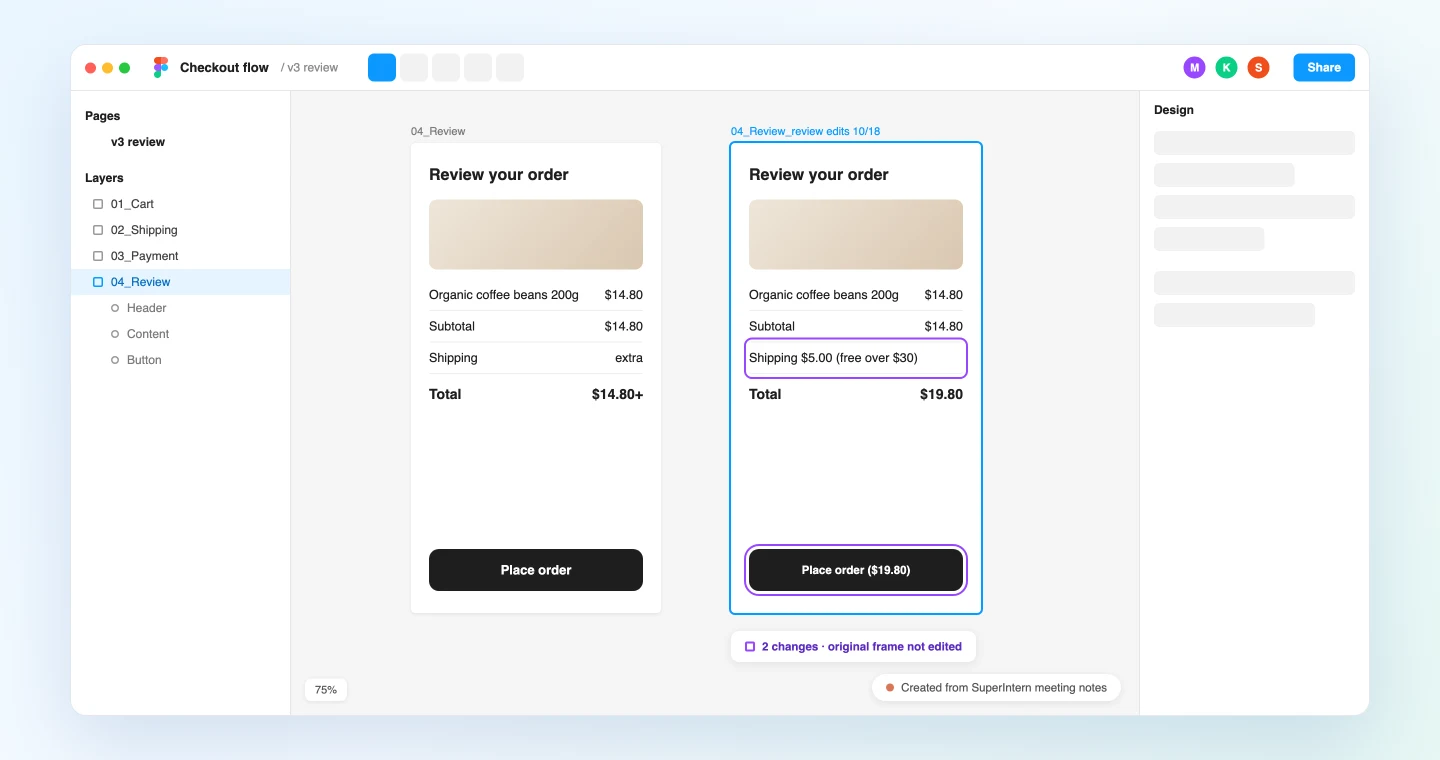
We recommend keeping this to text replacement. The agent can be asked for layout or color changes too, but Figma itself notes that write output is beta quality and may need cleanup. Leave design judgment to designers and hand the agent the work that is closer to transcription.
Demo 3: Check open items from the last review while the meeting is still running
SuperIntern MCP can also read the live transcript of a meeting in progress. It only pulls what is new since the last request, so asking several times during the review stays fast.
About ten minutes before the end, try:
Read the live transcript of the ongoing "Checkout flow design review"
(only what's new since last time).
From the "Review notes" frames in the Figma file, list the open items from the last review
that haven't come up yet today, with one question per item to ask in the remaining time.
Don't write anything to Figma.
The agent compares the earlier review notes with today's conversation and replies briefly:
Of the 5 open items from last time, 2 haven't come up yet:
- 03_Payment: "save card" on by default. "Has legal signed off yet?"
- 02_Shipping: address autocomplete from ZIP code. "Do we have an engineering estimate?"
The other 3 were settled in today's discussion.
Nothing is written to Figma in this demo. Ask those two questions before the call ends and the open items don't roll over to next week.
Tips for daily use
Give frames meaningful names. The agent maps what people said to frame names. Names like "Frame 128" make that mapping error-prone, so name frames after the screens they show.
Say the screen's name out loud. "This one here" means nothing in a transcript. Starting with "On the payment screen, the fee note..." makes the sorting far more accurate.
Don't let the agent write to original frames. Every prompt in this article either adds notes or edits a duplicate. Figma also recommends testing changes on a duplicate or draft before touching production files.
Always review the plan before anything is written. Every prompt asks for a plan first. Claude also asks you to confirm each write tool call, which gives you two chances to catch mistakes.
Permissions match your own. SuperIntern MCP can only read meetings you can see, and on the Figma side the agent can only write to files you can edit. The agent never writes to SuperIntern.
Add product and feature names to the dictionary. The more accurately screen, feature, and component names appear in the transcript, the better the mapping. Register names that come up often in SuperIntern's custom dictionary.
Beyond Figma: the same pattern with other tools
SuperIntern MCP supplies the meeting data, the agent decides, and another tool executes. The pattern stays the same when the destination changes.
- Miro: to turn a screen flow described in the review into a flowchart first, see the Miro guide
- Linear: to turn open items or implementation work into issues for the dev team, see the Linear guide
- Claude Code: to move an agreed spec straight into code, see the Claude Code guide
- Slack: to share review outcomes in a channel, see the Slack guide
FAQ
Can I use SuperIntern MCP on the Free plan?
No. Personal workspaces need the Plus plan or above. Team plans work as is. On Enterprise plans, an admin needs to enable "MCP access" in the workspace settings.
Does SuperIntern write to Figma?
No. The agent creates review notes and duplicates frames through Figma's official MCP server. SuperIntern MCP only provides meeting data, read-only, and SuperIntern itself never writes to external tools.
Which Figma plan and seat do I need?
Writing to the canvas requires a Professional, Education, Organization, or Enterprise plan, a Full seat, and edit access to the file. A Dev seat gets read-only access. As of October 2026 the write feature is free during beta and is planned to become a usage-based paid feature.
Can I do this in ChatGPT?
The Figma app inside ChatGPT can create new FigJam diagrams and Figma Slides decks, but nothing more. For Demos 1 to 3, which place notes in an existing design file or duplicate frames, use Claude or the Codex app. Both can connect SuperIntern from their official directories.
Can the agent post Figma comments?
As of October 2026, Figma's official MCP server has no tool for posting comments. That is why this article places review note frames on the canvas instead. After reading the notes, a designer can move the points that matter into comments.
How is this different from the Miro guide?
The Miro guide is about drawing new diagrams and tables on a board from what was discussed, such as a process flow or a retrospective. This article is about taking review feedback and agreed changes back into a design file that already exists.
Pick your next design review, record it with SuperIntern, and say each screen's name as you go. A few minutes after the call, the feedback is sitting next to the right screens in Figma.