
Get Meeting Decisions into Guru the Same Day: A SuperIntern MCP + Guru Guide

Your support or sales team changes a process in a Tuesday sync, and the Guru card that documents it stays the same for weeks. Until someone notices, new hires and reps on live tickets keep following the old steps, because the card is what they trust.
Connect SuperIntern MCP and Guru to an AI agent (Claude or ChatGPT), and the agent pulls the changes out of your meeting record, finds the cards they affect, and drafts the edits. Only the rows you approve reach Guru, as suggested updates or new drafts, and the card owner still reviews them in Guru before anything is published.
ChatGPT has no official Guru app, so on that side you connect Guru through developer mode.
⚠️ This article was independently compiled based on publicly available information and user feedback as of November 2026.
Table of contents
- From meeting to updated card
- How it fits together
- Setup
- Use case 1: Suggest card updates right after the meeting
- Use case 2: On Friday, check the week's decisions against your cards
- Use case 3: Check the current process in Guru during a call
- Tips for running it
- Other tools that follow the same pattern
- FAQ
From meeting to updated card
Before: The support sync agrees that P1 tickets now need a first response within 30 minutes. That lands in the meeting notes, while the Guru card still says two hours. Someone has to remember which cards the decision touches, reread the notes, and rewrite the card, and that rarely happens the same week.
After: When the meeting ends, you ask your agent to check its decisions against Guru. The agent reads the SuperIntern summary and transcript, searches Guru for related cards, and returns a table with the card, what it says now, the proposed change, and the quote that supports it. Rows you approve become suggested updates on existing cards; decisions with no card become new drafts.
Record the meetings in SuperIntern first. SuperIntern is a desktop meeting assistant that doesn't send a bot into your calls; it captures transcripts and AI summaries automatically for online meetings and in-person conversations alike. Because every decision is backed by what was actually said, the card owner can see exactly why the card changed.
The examples below follow the customer support team at a SaaS company. Their Guru looks like this:
| Collection | Card | What it covers |
|---|---|---|
| Customer Support | Escalation criteria (P1 to P3) | How to set priority and first-response targets |
| Customer Support | Handling data export requests | How to take an export request from a customer |
| Sales | Typical implementation timeline | Time from contract to go-live |
Swap in your own collection and card names.
How it fits together
| Role | Who | What it does |
|---|---|---|
| Meeting data | SuperIntern MCP | Provides meeting lists, transcripts, live transcripts, and AI summaries, read-only |
| Judgment and drafting | AI agent (Claude, ChatGPT) | Picks out decisions, finds affected cards, drafts changes and new cards |
| Destination | Guru (Guru's official MCP server) | Searches and answers from cards, creates drafts, suggests updates to existing cards |
MCP (Model Context Protocol) is an open standard for connecting AI assistants to external tools. SuperIntern MCP gives your agent read-only access to your meeting data. See our MCP setup guide for details.
On the Guru side, you use Guru's official MCP server. It can search your company knowledge and answer from it, fetch full card content, create a draft card from an AI conversation, and suggest updates to an existing card. Guru says content created or updated through MCP goes through the same review and publishing workflows your teams already use in Guru.
The agent is the one writing to Guru; SuperIntern stays read-only. Nothing in SuperIntern changes, and the agent only sees meetings you can see. In Guru, the agent acts as you and is limited to your permissions, so collections and cards you can't open in Guru are off-limits through MCP too.
Setup
You connect two things: SuperIntern and Guru. Pick the agent you already use. The prompts below are the same in Claude and ChatGPT, but ChatGPT reaches Guru through developer mode, which your workspace admin has to allow, and ChatGPT asks you to confirm each write.
1. Connect SuperIntern
- Claude: Open Settings, go to Connectors under Customize, search for "SuperIntern", and select it. You can also open SuperIntern in Claude's connector directory directly. Adding connectors is available on Claude's paid plans.
- ChatGPT: Open Plugins in the sidebar, search for "superintern", open SuperIntern, and click Install plugin. The SuperIntern plugin page takes you there directly. The Codex app connects the same way.
In both cases a SuperIntern sign-in page opens; log in and grant access. SuperIntern-side requirements (personal workspaces need the Plus plan or above; Enterprise workspaces need an admin to enable MCP access) and setup steps for Claude Code, Cursor, and other clients are covered in our MCP setup guide.
2. Connect Guru
- Claude: Go to Customize > Connectors, search for "Guru", add it, then sign in to Guru and authorize. You can set permissions for each tool. On Team and Enterprise plans, if Guru doesn't show up, ask your Claude admin to add it.
- ChatGPT: There's no official Guru app in ChatGPT's plugin directory. Following Guru's instructions, turn on developer mode under Settings > Apps, then use Create to add Guru's MCP server at
https://mcp.api.getguru.com/mcp. In Business, Enterprise, and Edu workspaces, an admin has to allow developer mode first. - Claude Code: Run
claude mcp add --transport http guru https://mcp.api.getguru.com/mcp, then authenticate from/mcp.
Each person connects with their own login and sees only what their Guru permissions allow.
Once both are connected, check that the agent can see each side:
List my meetings from this week in SuperIntern.
Also search Guru's "Customer Support" collection for cards about escalation.
If both lists come back, you're ready.
Use case 1: Suggest card updates right after the meeting
This pays off most right after a meeting that changed a rule. The prompt asks for two things: show the proposed changes with supporting quotes in a table, and write nothing to Guru until you approve.
Read the summary and transcript of today's "Support Sync" in SuperIntern
and pick out every decision that changed a process, threshold, or owner.
For each decision, search Guru for related cards and put them in a table:
- Card name, what it says now, proposed change, supporting quote (speaker and timestamp)
- Put decisions with no related card in a separate "New card" table
- Skip anything that ended with "let's think about it" or "decide next time"
For the rows I approve, suggest updates on existing cards and create drafts for new cards.
Don't delete or archive any cards. Show me the table first.
The agent compares the meeting record with the cards and replies:
Today's sync changed a process or threshold in 3 places.
Card Says now Proposed change Source Escalation criteria (P1 to P3) P1 first response within 2 hours P1 first response within 30 minutes. If it can't be resolved in 30 minutes, call the on-call engineer Priya (12:14) "P1 gets a first response in 30 minutes, and if we can't fix it, we call on-call." Handling data export requests File a ticket with engineering Support runs the export from the admin console and sends it within 2 business days. No ticket needed Marcus (12:31) "Starting next week, support owns exports." New card
Decision Draft title Source Extend hands-on SSO setup help to Business plan customers How to take SSO setup requests Priya (12:40) "Business customers get SSO setup help too." "Revisit the knowledge base article template" was pushed to the next meeting, so I left it out. Shall I go ahead with these 3?
Reply OK, and the two cards get suggested updates while a new draft card appears. The card owner reviews the suggestions in Guru before they go live.
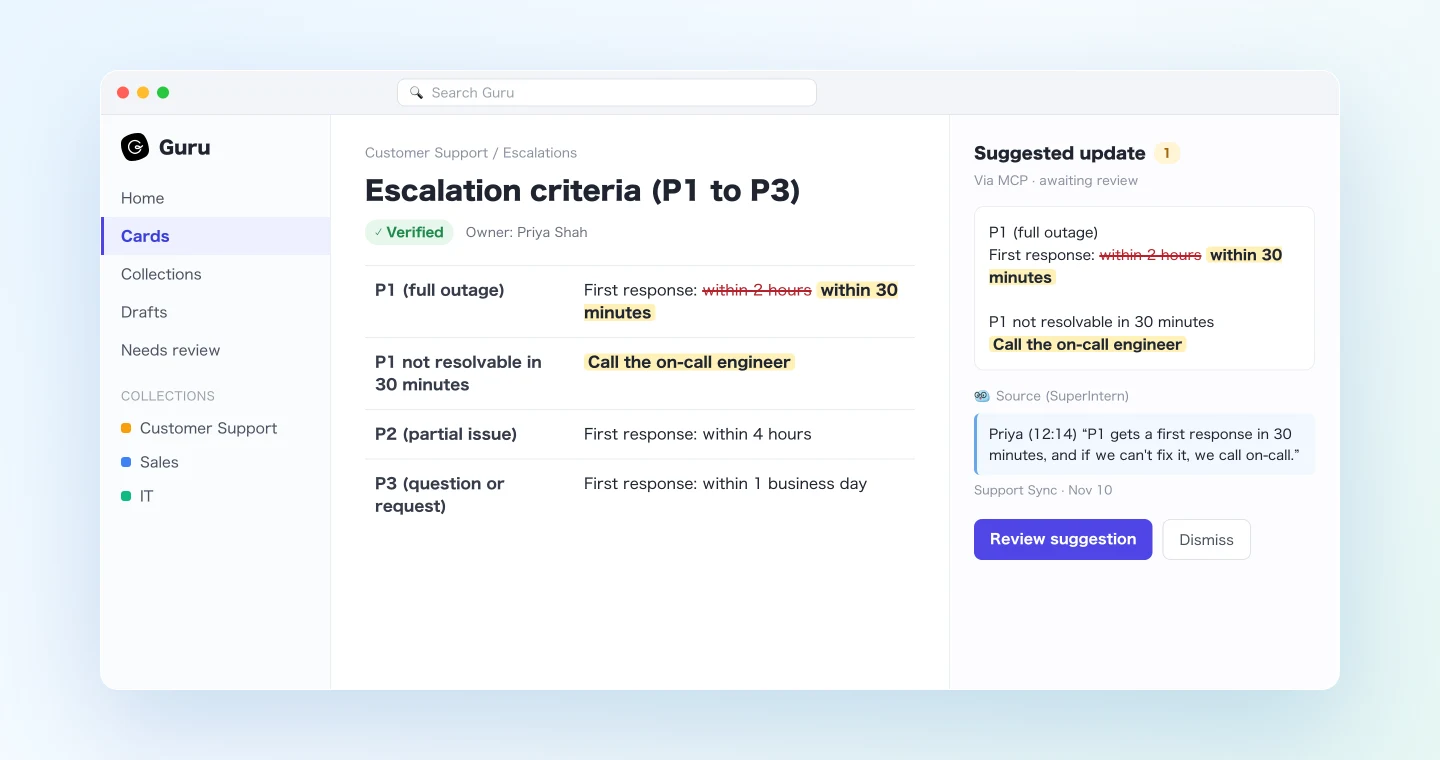
If a decision has no clear supporting quote, it's safer to add a line telling the agent to mark it "Needs review" instead of drafting a change.
Use case 2: On Friday, check the week's decisions against your cards
Rules don't only change in the support sync. A sales meeting or a customer call can settle something that affects another team's cards. A weekly sweep catches what slipped through.
List this week's (Nov 9 to Nov 13) meetings in the "Support" and "Sales" projects in SuperIntern,
and pick out decisions that changed a process, timeline, or scope.
Search Guru for related cards and list every card that disagrees with a meeting decision:
- Card, what the card says, meeting decision, meeting name and date,
  action (suggest update / new draft / no change)
- Put cards I already sent suggestions for this week under "Done"
For the rows I approve, create the suggested updates or drafts. Show me the table first.
The agent lines up a week of meetings against your cards:
You had 9 meetings this week, and 3 decisions disagree with Guru.
Card Card says Meeting decision Meeting Action Typical implementation timeline 4 weeks from contract to go-live Quote 6 weeks when there's a data migration Sales Weekly (Nov 10) Suggest update Support hours Weekdays 9 a.m. to 6 p.m. Weekdays 8 a.m. to 8 p.m. starting December Support Staffing (Nov 11) Suggest update Migrating from another tool (no card) Walk customers through CSV migration Northpeak Logistics Onboarding (Nov 12) New draft Done: Escalation criteria, Handling data export requests (suggested after the Nov 10 sync)
Shall I go ahead with these 3?
Once you approve, the owners of those cards see suggestions waiting for review. Even when a change crosses teams, the person who owns the card checks it before it's published.
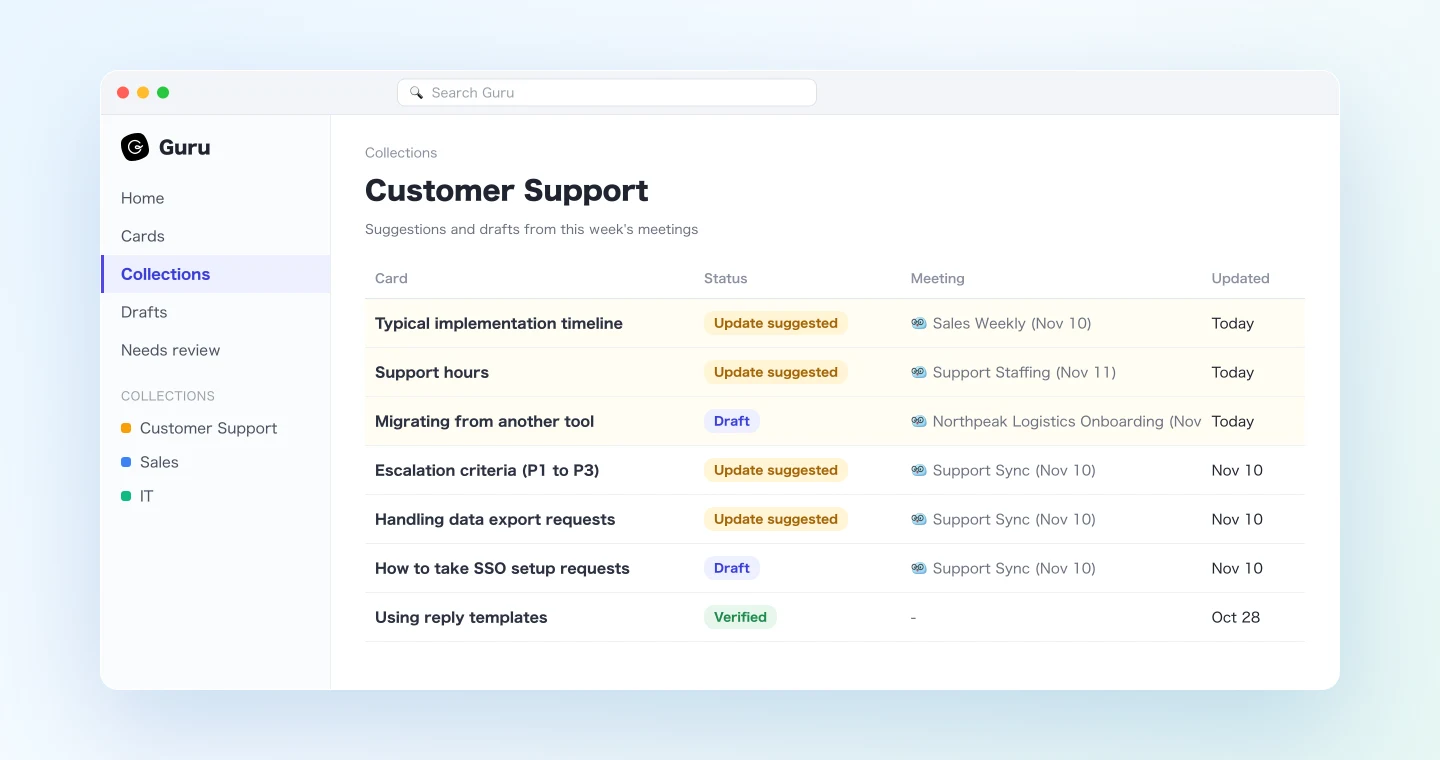
Some decisions should wait for a formal announcement before the card changes. Ask the agent to give a one-line reason whenever it picks "No change," and the call is easier to make.
Use case 3: Check the current process in Guru during a call
SuperIntern MCP can also read the live transcript of a meeting in progress. It fetches only what's new since the last request, so you can call it as often as you like during a meeting.
When a customer in an onboarding call asks how long audit logs are kept, ask:
Read the live transcript of the ongoing "Northpeak Logistics Onboarding" (only what's new since last time)
and pick out the questions the customer just asked.
For each question, look up the answer in Guru and give me the answer and the source card in 3 lines or fewer.
If Guru has no answer, say so clearly.
Don't write anything to Guru.
The agent catches the question and answers from your cards:
Question: How long are audit logs kept?
- 365 days on the Enterprise plan, 90 days on Business (source: Security FAQ).
- Only admins can export them to CSV (source: Admin settings guide).
Questions Guru couldn't answer make good candidates for new cards; run use case 1 after the call. This use case writes nothing to Guru.
Tips for running it
Keep publishing with the card owner. Let the agent stop at suggestions and drafts, and leave publishing and verification to the card owner in Guru. A wrong change then never reaches the whole team.
Separate decisions from discussion. Tell the agent every time to skip anything that ended in "let's think about it," and to mark unclear decisions "Needs review."
Always ask for the supporting quote. Card owners often weren't in the meeting. A speaker and timestamp let them check the reason on the spot.
Narrow the search to specific collections. Naming collections such as "Customer Support" or "Sales" keeps loosely related cards out of the results.
Permissions match yours. SuperIntern MCP reads only meetings you can see, and Guru search never returns cards from collections you can't open.
Other tools that follow the same pattern
SuperIntern MCP supplies the meeting data, the agent decides, and another tool carries out the action. That split stays the same whatever the destination.
- Intercom: To update customer-facing help articles, see the Intercom guide
- Confluence: To record design decisions, see the Confluence guide
- Notion: To build up a meeting database, see the Notion guide
- Slack: To tell the team what changed right away, see the Slack guide
FAQ
Can I use SuperIntern MCP on the Free plan?
No. Personal workspaces need the Plus plan or above, and Team plans work as is. On Enterprise plans, an admin needs to turn on MCP access in the workspace settings.
Does SuperIntern write to Guru?
No. Your AI agent creates the suggested updates and drafts through Guru's official MCP server. SuperIntern MCP only provides meeting data read-only; SuperIntern itself never writes to external tools.
Does this work in ChatGPT too?
Yes, but the connection is different. ChatGPT's plugin directory has no official Guru app, so you turn on developer mode and add Guru's MCP server yourself. Your workspace admin needs to allow developer mode, and ChatGPT asks you to confirm each write to Guru. The prompts for use cases 1 to 3 are the same as in Claude.
Will a published card change without anyone noticing?
Guru describes its MCP update capability as suggesting updates to an existing card, and says content created or updated through MCP goes through the same review and publishing workflows your teams use in Guru. The prompts in this guide also create suggestions or drafts only for rows you approve and never delete or archive cards.
How is this different from the Intercom guide?
The Intercom guide turns meetings into help center articles that customers read. This guide keeps the Guru cards your support and sales teams rely on internally up to date. When a decision affects both, run the two prompts back to back.
Record your next support sync in SuperIntern, then try the prompt from use case 1 when it ends. Check the table, approve it, and the decision reaches your cards the same day.