
Fill In Your Harvest Timesheet from Your Meeting Records: A SuperIntern MCP Guide

If your team tracks time in Harvest, Friday afternoon usually means opening your calendar and working out which meeting belonged to which project and how long it really ran. The longer you wait, the more you guess, and the overruns and multi-client status calls are the first numbers to drift.
Connect SuperIntern MCP and Harvest to an AI agent (Claude or ChatGPT), and the agent works out the project and hours from your meeting records, then drafts the timesheet. Only the rows you approve become time entries in Harvest.
⚠️ This article was independently compiled based on publicly available information and user feedback as of November 2026.
Table of contents
- From meetings to a filled timesheet
- How the pieces fit together
- Setup
- Demo 1: Log the whole week's meetings on Friday
- Demo 2: Split a multi-client meeting by topic
- Demo 3: Check a project's budget during the call
- Tips for running this
- Other tools you can pair this with
- FAQ
From meetings to a filled timesheet
Before: On Friday you put your calendar next to Harvest and walk through the week. A 30-minute slot might have run 50 minutes. A meeting called "Sync" means nothing until you dig up your notes. A status call that covered two clients gets split by feel.
After: On Friday you ask the agent to log the week. It reads your SuperIntern meeting list and transcripts, compares them with what is already in Harvest, and returns only the unlogged meetings as a table of date, project, task, hours, and notes. Meetings it can't place are set aside for you. You check the table, approve it, and that's it.
Record your meetings with SuperIntern first. SuperIntern is a desktop meeting assistant that joins no bot to the call and automatically produces transcripts and AI summaries for both online and in-person meetings. Every line of the transcript carries a timestamp, so your hours come from how long people actually talked, not from the calendar slot.
The examples below follow a project manager at a web agency. Harvest is set up like this:
| Client | Project | Tasks |
|---|---|---|
| Northlight Foods | Website Redesign | Project Management, Meetings |
| Greenfield Realty | Careers Site | Project Management, Meetings |
| Internal | Internal Operations | Internal Meetings |
Swap in your own project and task names.
How the pieces fit together
| Role | Who | What it does |
|---|---|---|
| Meeting data | SuperIntern MCP | Provides meeting lists, start times, projects, transcripts, and AI summaries, read-only |
| Judgment and drafting | AI agent (Claude, ChatGPT) | Matches meetings to projects, works out the hours, and drafts the timesheet |
| Where the work lands | Harvest (Harvest's official MCP server) | Reads and creates time entries, looks up projects and tasks, and reports on budgets |
MCP (Model Context Protocol) is an open standard for connecting AI assistants to external tools. SuperIntern MCP gives your agent read-only access to meeting data. See our MCP setup guide for details.
On the Harvest side, you use Harvest's official MCP connection. It can start and stop timers, log past time, edit and delete time entries, run time reports, and check project budgets.
The agent writes to Harvest; SuperIntern does not. The agent cannot change anything in SuperIntern and can only read meetings you can already see. In Harvest, the agent acts as you and can do only what your own role allows.
Setup
You connect two things: SuperIntern and Harvest. Pick the agent you already use. Harvest says its ChatGPT plugin runs on the same server as the manual connection, with the same actions, so every prompt in this article works in both Claude and ChatGPT.
1. Connect SuperIntern
- Claude: Open Settings, go to Connectors under Customize, search for "SuperIntern", and select it. You can also open SuperIntern in Claude's connector directory directly. Adding connectors is available on Claude's paid plans.
- ChatGPT: Open Plugins in the sidebar, search for "superintern", open SuperIntern, and click Install plugin. The SuperIntern plugin page takes you there directly. The Codex app connects the same way.
In both cases a SuperIntern sign-in page opens; log in and grant access. SuperIntern-side requirements (personal workspaces need the Plus plan or above; Enterprise workspaces need an admin to enable MCP access) and setup steps for Claude Code, Cursor, and other clients are covered in our MCP setup guide.
2. Connect Harvest
- Claude: Follow Harvest's instructions: go to Customize > Connectors > + > Add custom connector, enter "Harvest" as the name and
https://api.harvestapp.com/mcpas the remote MCP server URL, and click Add. - ChatGPT: Open the Harvest plugin page and add it. On a shared workspace, settings may restrict which plugins you can connect.
- Claude Code:
claude mcp add --transport http harvest --scope user https://api.harvestapp.com/mcp
In each case you sign in to Harvest, select the account, and authorize the connection. All you need is an active Harvest account. Each person connects with their own login and sees only what their Harvest role allows.
Once both are connected, check that the agent can see both sides:
List this week's meetings in SuperIntern,
and list the Harvest projects and tasks I can log time against.
If both lists come back, you are ready.
Demo 1: Log the whole week's meetings on Friday
The end-of-week catch-up is where this saves the most time. Two things matter in the prompt: skip meetings that are already logged, and don't guess at meetings the agent can't place.
List my SuperIntern meetings for this week (Nov 2 to Nov 6), compare them
with my Harvest time entries, and draft timesheet rows for anything unlogged.
- Work out each meeting's length from the first and last timestamps in the transcript
- Choose project and task from the SuperIntern project, the title, and what was discussed
- Check my Harvest account settings for how time is rounded and follow them
- Write a one-line note with the topic
- Mark a meeting "Needs review" if you can't tell the project or it covered several
Log only the rows I approve as Harvest time entries.
Do not edit or delete existing entries. Show me the table first.
The agent reads both records and comes back with this:
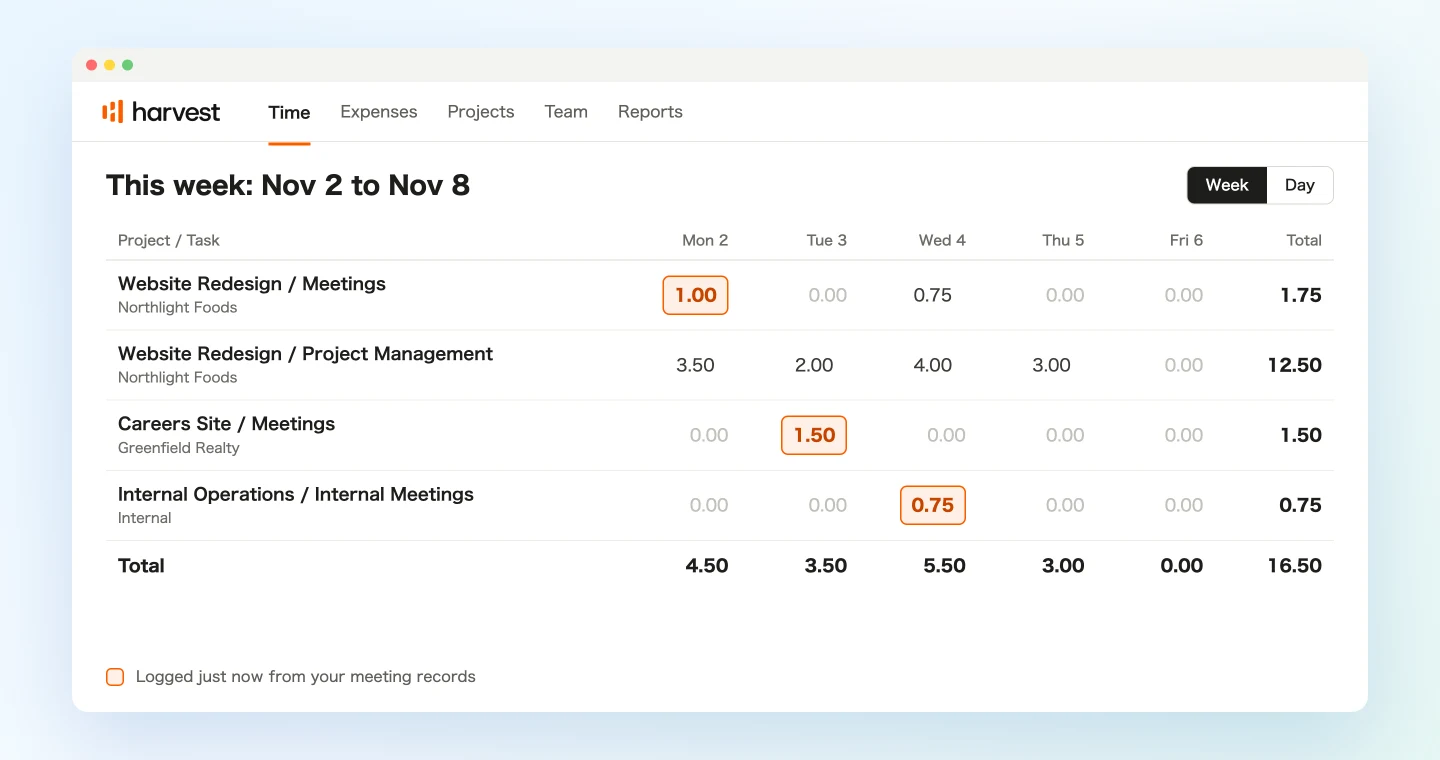
You had 6 meetings this week. 1 is already in Harvest. Of the other 5, 3 are ready to log.
Date Meeting Hours Project / Task Notes Nov 2 Northlight Foods weekly 1.00 Website Redesign / Meetings Reviewed launch schedule Nov 3 Greenfield Realty kickoff 1.50 Careers Site / Meetings Aligned on scope and team Nov 4 Design team weekly 0.75 Internal Operations / Internal Meetings Next month's capacity Needs review
Date Meeting Hours Reason Nov 5 Client status sync 1.00 Covered both Northlight Foods and Greenfield Realty Nov 6 Sync 0.50 No project set, and the conversation doesn't identify the client I left out the Northlight screen review on Nov 4 (0.75 hours) because it is already logged. Should I log these 3 rows?
Reply OK and the hours land on your Harvest timesheet. For the Nov 6 "Sync", a quick "that one was Greenfield Realty" is enough to log it the same way.
If your team uses Harvest approvals, you can finish the week from the same chat once you have looked everything over:
I've reviewed this week's entries. Submit my timesheet for Nov 2 to Nov 6 for approval.
Before you submit, make sure your non-meeting work is in there too. The agent only fills in meeting time.
Demo 2: Split a multi-client meeting by topic
Some meetings, like an internal status call, cover several projects at once. Logging all of it to one client misstates the work, and splitting by feel leaves nothing to point to. Transcript timestamps let you measure each topic to the minute.
Read the transcript of "Client status sync" (Nov 5), find where the topic
changes by timestamp, and split the time across my Harvest projects.
- Make a table of topic, time range, minutes, Harvest project, decimal hours, and notes
- Quote the line that marks each topic change
- Count small talk at the start as part of the topic that follows
- Confirm the total matches the length of the whole meeting
Once I approve, log each row as a time entry for Nov 5.
Do not edit or delete existing entries.
The agent uses the lines where the conversation moved on as its boundaries:
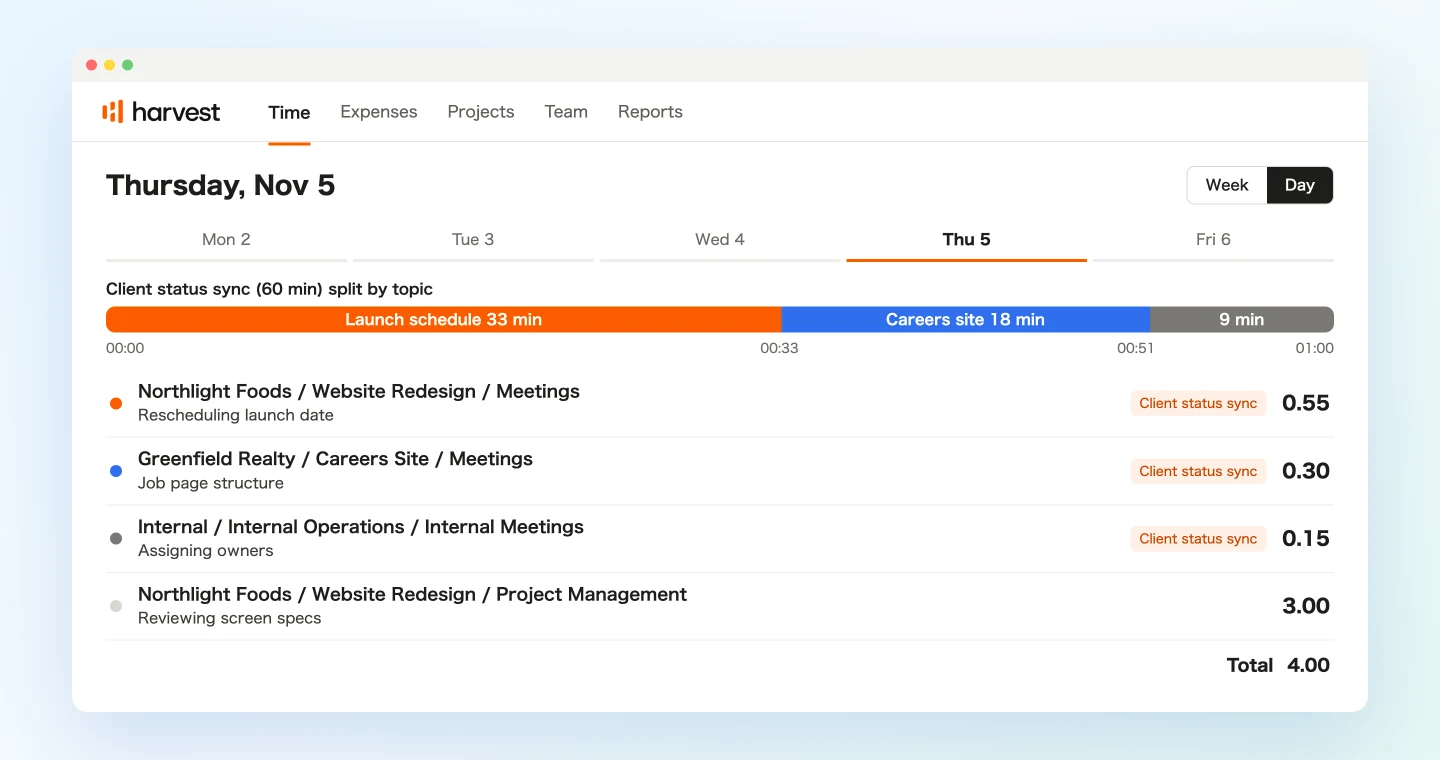
The meeting ran 60 minutes and covered 3 topics.
Topic Time range Length Project Hours Notes Launch schedule 00:00 to 00:33 33 min Northlight Foods / Website Redesign 0.55 Rescheduling launch date Careers site structure 00:33 to 00:51 18 min Greenfield Realty / Careers Site 0.30 Job page structure Next month's capacity 00:51 to 01:00 9 min Internal / Internal Operations 0.15 Assigning owners Topic changes
- 00:33 Dana: "That's it for Northlight. Next up is Greenfield Realty."
- 00:51 Dana: "Last thing, let's check next month's capacity."
The total is 60 minutes (1.00 hours), which matches the meeting. Should I log these?
Once you approve, one meeting becomes three time entries. The notes keep the topic, so the hours still make sense when someone reads the report later.
Some conversations don't change topic cleanly. In those cases, ask the agent to flag the boundaries it is unsure of, and decide the time yourself.
Demo 3: Check a project's budget during the call
SuperIntern MCP can also read the live transcript of a meeting in progress. It can fetch just what is new since the last read, so calling it repeatedly during a meeting stays light.
When a client asks, "Could we add a weekly design review starting next month?", you can check before you answer:
Read the live transcript of the current "Greenfield Realty weekly" meeting
(only what's new since the last read) and find the extra work just requested.
Check the budget usage for "Careers Site" in Harvest and tell me in three lines
or fewer whether the remaining budget covers it.
Do not write anything to Harvest.
The agent picks up the request, checks it against the Harvest budget, and keeps it short:
Request: a one-hour weekly design review from December.
- 84.5 of 120 budgeted hours are used, leaving 35.5.
- Across the 8 weeks to launch, that adds 8 hours. At the current pace, you would use nearly all of the remaining budget.
Nothing is written to Harvest in this demo. Money figures such as budget amounts and costs appear only if your Harvest role is allowed to see them.
Tips for running this
Line up your names. When SuperIntern project names match your Harvest clients, the agent places meetings more accurately. Sorting meetings into projects automatically from calendar events helps even more.
Put your team's rules in the prompt. A rule such as "client calls go to the Meetings task, internal ones to Internal Meetings" belongs in the same wording every time. Save the prompts you reuse.
Always review the table before writing. The Harvest connection isn't read-only; it can also edit and delete time entries. The prompts here show a table first, log only after approval, and leave existing entries alone.
Treat the hours as derived from speech. Transcript timestamps run from the first line spoken to the last, so waiting before the start or silent screen sharing may not be counted.
Watch the order if you also use timers. Starting a new timer stops any timer running on the same day, but a timer from a previous day keeps going. Add a line asking the agent to check for one before logging.
Permissions match yours. SuperIntern MCP reads only meetings you can see. In Harvest, you can't edit time that belongs to someone else.
Other tools you can pair this with
SuperIntern MCP provides the meeting data, the agent decides, and another tool does the work. That split stays the same when the destination changes.
- Google Calendar: block focus time next week for what you took on in meetings with the Google Calendar guide
- Asana: turn a weekly meeting into a project status update with the Asana guide
- Todoist: capture the tasks you personally agreed to with the Todoist guide
- Google Sheets: compare several meetings on the same criteria with the Google Sheets guide
FAQ
Can I use SuperIntern MCP on the Free plan?
No. Personal workspaces need the Plus plan or above. The Team plan works as is. On the Enterprise plan, an admin needs to turn on "MCP access" in workspace settings.
Does SuperIntern write to Harvest?
No. The agent creates time entries through Harvest's official MCP connection. SuperIntern MCP only provides meeting data, read-only, and SuperIntern itself never writes to outside tools.
Does this work in ChatGPT too?
Yes. According to Harvest, the ChatGPT plugin runs on the same server as the manual connection, with the same permissions and actions. All three demos work with the same prompts in either agent.
Where does the meeting length come from?
The meeting information SuperIntern MCP returns includes the start time but not an end time. The prompts in this article have the agent work out the length from the timestamps on the transcript lines. Anything that wasn't recorded isn't included, so check the table before you log it.
Does this capture work outside of meetings?
No. The agent works from your meeting records, so production and writing time stays with you to log as usual. You can also ask the agent to start and stop a timer from chat.
Can I enter time for my whole team?
Harvest admins and managers can log new time for a teammate if their role allows it, but they still can't edit time that belongs to someone else. On top of that, SuperIntern MCP only reads meetings you can see, so we recommend each person connecting their own accounts and logging their own time.
Record next week's meetings with SuperIntern and try the Demo 1 prompt on Friday. Check the table, approve it, and the meeting side of your timesheet is done.