
Turn "Let Me Check and Get Back to You" into a Ready-to-Send Form: SuperIntern MCP and Jotform

Every customer kickoff ends with a handful of "let me check internally and get back to you" items. Turning them into a questionnaire usually means rereading your notes and retyping each question, and by the time it goes out a few days have passed and one item is missing.
Connect SuperIntern MCP and Jotform to an AI agent (Claude or ChatGPT), and the agent reads the meeting record, pulls out the open items, and proposes questions with the quote each one came from. Once you approve, it builds the form in Jotform and hands you the link.
⚠️ This article was independently compiled based on publicly available information and user feedback as of October 2026.
Table of Contents
- What we're building: Before / After
- How it works: three roles
- Setup
- Demo 1: Turn kickoff follow-ups into an intake form
- Demo 2: Check incoming answers against what was said in the meeting
- Demo 3: Build a registration form while the planning meeting is still running
- Tips for daily use
- Beyond Jotform: the same pattern with other tools
- FAQ
What we're building: Before / After
Before: After the call, you go back through the notes, list what the customer still owes you, and type each question into a form or an email. Questions that were already answered in the meeting sneak back in, and the one that matters most gets left out. Each kickoff costs 30 to 60 minutes of cleanup.
After: When the call ends, you ask your agent for an intake form. It reads the SuperIntern transcript and AI summary, keeps only the items the customer took away, picks a field type for each, and shows you the draft. Approve it and the form appears in your Jotform account with a share link. When answers come in, the agent can also flag where they contradict what was said on the call.
The meetings need to be recorded with SuperIntern. SuperIntern is a desktop meeting assistant that works without inviting a bot to the call, so you get a transcript and AI summary for both video calls and in-person meetings.

How it works: three roles
| Role | Who | What it does |
|---|---|---|
| Meeting data | SuperIntern MCP | Provides transcripts, live transcripts, AI summaries, and meeting notes, read-only |
| Judgment and drafting | AI agent (Claude, ChatGPT) | Reads the meeting, drafts questions and field types, compares answers with the transcript |
| Forms and responses | Jotform (Jotform connector or plugin) | Creates the form in your Jotform account and stores the responses |
MCP (Model Context Protocol) is an open standard for connecting AI assistants to external tools. SuperIntern MCP gives your agent read-only access to your meeting data. See the MCP setup guide for details.
On the Jotform side, the work is done by Jotform's official MCP server. It can list your forms, create new ones, edit fields and settings, and read submissions, and it works from both Claude and ChatGPT.
The agent builds the form, not SuperIntern. The agent cannot change anything in SuperIntern and can only read meetings you already have access to. On the Jotform side, it is limited to what your own account can do.
Setup
Use whichever agent you already work in. SuperIntern and Jotform are both listed in Claude's connector directory and in ChatGPT's plugins, and both agents can create forms, edit them, and read responses, so the prompts in this article work the same way in either.
1. Connect SuperIntern MCP
- Claude: Open Settings, go to Connectors under Customize, search for "SuperIntern", and select it. You can also open SuperIntern in Claude's connector directory directly. Adding connectors is available on Claude's paid plans.
- ChatGPT: Open Plugins in the sidebar, search for "superintern", open SuperIntern, and click Install plugin. The SuperIntern plugin page takes you there directly. The Codex app connects the same way.
Either way, sign in to SuperIntern and allow access. Personal workspaces need the Plus plan or higher, and on Enterprise an admin has to enable MCP access first. Plan details and setup for other clients such as Claude Code and Cursor are in the MCP setup guide.
2. Connect Jotform
- Claude: On the same Connectors screen, search for "Jotform" and connect the connector made by Jotform. You can also start from Jotform in Claude's connector directory.
- ChatGPT: Search for "Jotform" in Plugins, open it, and connect.
Sign in to Jotform and approve access. A free Jotform account works, and the MCP server costs nothing extra, but your Jotform plan's limits on forms and monthly submissions still apply. For Claude Code and other MCP clients, add the official endpoint https://mcp.jotform.com and authenticate with OAuth.
Then check that the agent can see both sides:
List this week's SuperIntern meetings with "kickoff" in the title,
and the forms in my Jotform account.
If both lists come back, you're ready.
Demo 1: Turn kickoff follow-ups into an intake form
This pays off most right after a customer kickoff. Two instructions matter: leave out anything already answered in the meeting, and keep required fields to a minimum. Without them, the agent turns every topic from the call into a question and the customer has more to fill in (company names are fictional).
Read the transcript and AI summary of today's "Northline Logistics kickoff".
Find every item the customer said they'd check internally and get back to us on,
and draft a pre-onboarding intake form for them.
- Skip anything that was already answered in the meeting
- Use multiple choice wherever an answer fits a set of options
- Only mark a question required if they promised it "before the next call"
- Next to each question, show the quote it came from
Show me the draft first. When I say OK, create the form in Jotform.
The agent reads the meeting and returns a draft:
Here's the draft intake form.
Question Field type Required Source quote Number of sites and site names Text Yes "I'll confirm the number of sites and get it to you before the next call." Expected number of users Number Yes "Let me check how many dispatchers we'll have." Identity provider for single sign-on Single choice (Microsoft Entra ID / Google Workspace / Okta / Other) No "I need to ask IT which identity provider we'd use for SSO." Data to migrate from the current dispatch sheet Multiple choice (Vehicle list / Driver details / Past dispatch history / Other) No "We haven't decided how much history to bring over." Target go-live date Date Yes "We'll have a go-live date for you by next time, for sure." Pricing was answered during the call, so I left it out. Create the form?
Reply OK and the form is created in Jotform, with a share link in the reply. To reword or reorder anything, keep going ("swap questions 2 and 3") and the agent edits the form.
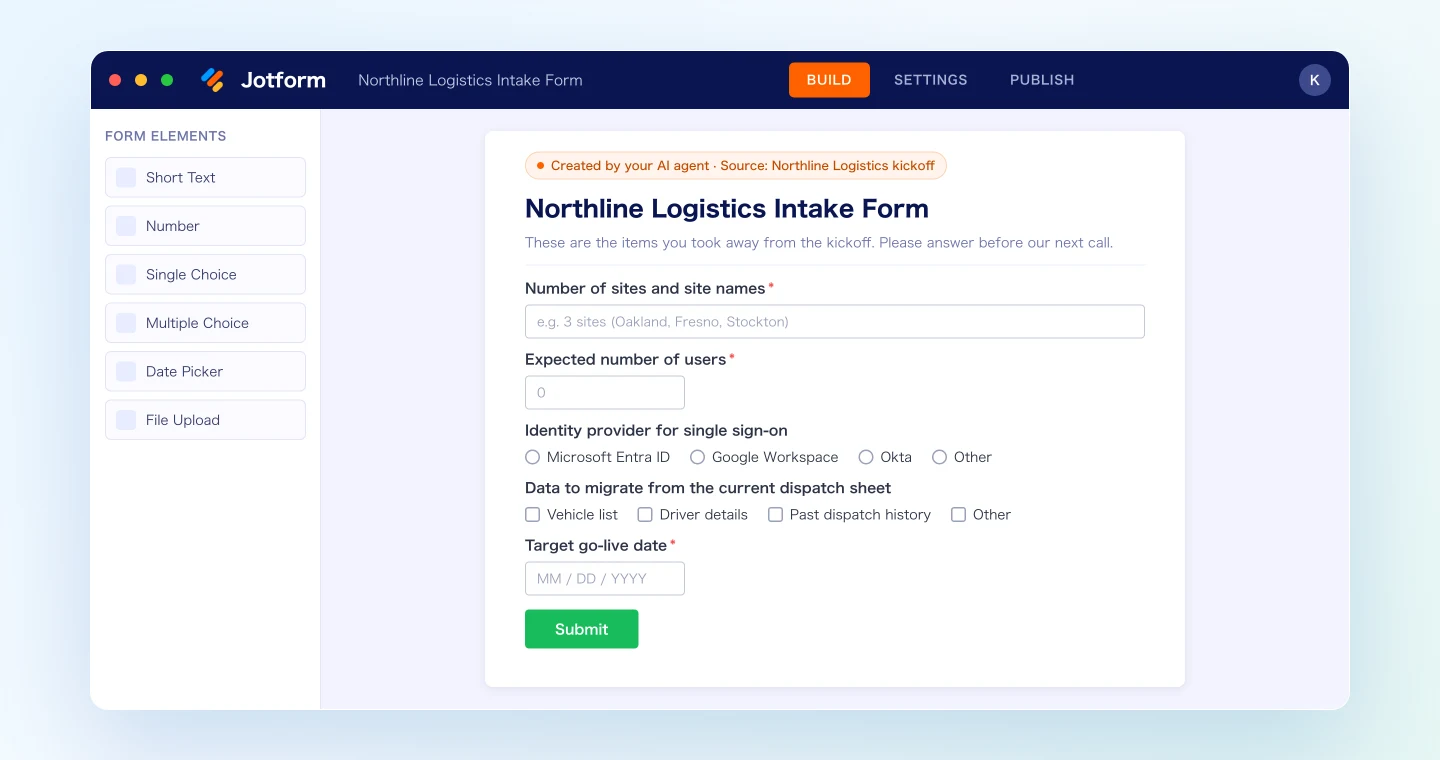
The source quotes are what make this useful. You can see which question came from which line, so you catch the one that was actually answered before it goes out. Sending the link to the customer is still your call.
Demo 2: Check incoming answers against what was said in the meeting
The Jotform tools can also read submissions. When the intake form comes back, compare it with the kickoff before your next call:
Get the responses to the Jotform form "Northline Logistics intake form"
and compare them with the transcript of "Northline Logistics kickoff".
Put these in a table:
- answers that contradict what was said in the meeting
- questions still left blank
- decisions we need to make on the next call
Don't write anything to Jotform.
The agent lines up the answers with the quotes:
I compared the responses with the kickoff.
Item Said in the meeting Form answer Follow up on Number of sites "Three sites for now." 5 sites (adds Reno and Sacramento) Are the two new sites part of the initial rollout? Identity provider "We're standardizing on Microsoft." Google Workspace Has IT changed direction? Go-live date "We'd like to be live early next year." Blank Confirm the approval timeline Two decisions for the next call: how many sites go live first, and the approval path needed to set a go-live date.
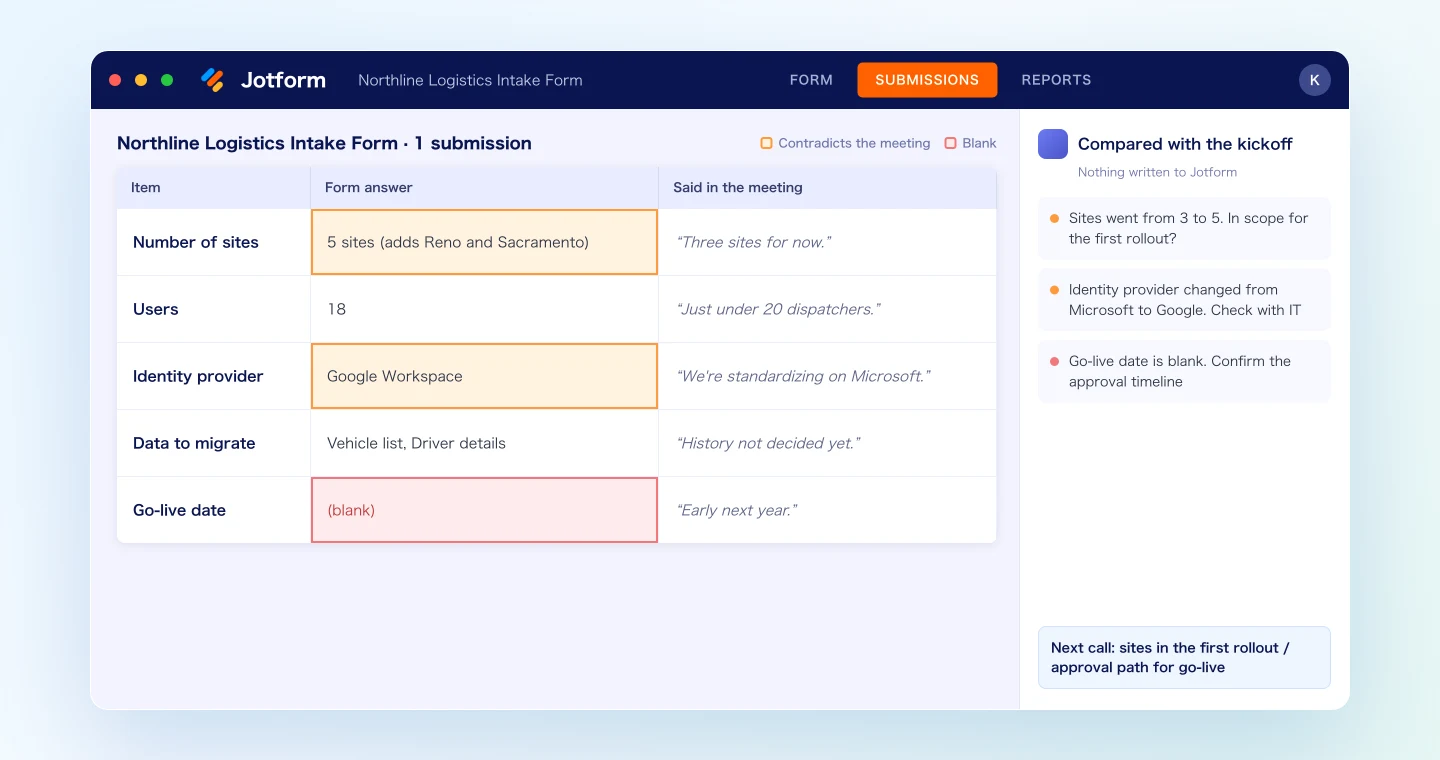
On its own, "5 sites" looks like a normal answer. Next to "three sites for now" from the kickoff, it becomes the first thing to raise on the next call. This prompt never writes to Jotform, so the responses stay exactly as submitted.
Demo 3: Build a registration form while the planning meeting is still running
SuperIntern MCP can also read the live transcript of a meeting in progress. It fetches only what was said since the last request, so you can ask several times during a call without slowing anything down.
Say your team is planning a customer meetup. Near the end of the meeting, ask:
Read the live transcript of the ongoing "November user meetup planning"
(only what's new since last time).
Draft a Jotform registration form from the event details we've agreed on
and the questions we decided to ask at sign-up.
Leave out anything still undecided and list it as open points
for the rest of the meeting. Don't create the form yet.
The agent separates what's decided from what isn't:
Draft registration form:
- Name, company, email (required)
- Attendance: in person / online (required)
- Topics you'd like covered (multiple choice: customer stories / new features / rolling it out internally)
Two points are still open:
- Venue capacity (the discussion stopped at "40 or 60")
- Whether to ask about the after-party on the form
Settle those two in the remaining minutes, then say "Capacity is 40, and ask about the after-party. Create it." The form exists before the meeting ends, and nobody sees it until you put the link in the invitation.
Tips for daily use
Say "in Jotform." If you ask for a form without naming the tool, you may just get a list of questions in the chat.
Keep required fields few. A long list of required fields is how intake forms end up at the bottom of someone's inbox. Requiring only what was promised for the next call, as in Demo 1, gets more answers back.
Ask for as little personal data as possible. If you already have contact details in your CRM or email, don't ask for them again. Check the draft so the form doesn't collect more than the meeting called for.
Always review the draft before anything is created. Every prompt in this article shows a draft first. If something needs to change after the form exists, just ask and the agent edits it.
You send the link. Creating a form doesn't notify anyone. You decide when and to whom it goes.
Your permissions are the limit. SuperIntern MCP only reads meetings you can access, and on the Jotform side the agent only works with your own forms and responses. It never writes to SuperIntern.
Add names to the dictionary. The more accurately customer names, site names, and system names land in the transcript, the better the questions. Add the ones that come up often to SuperIntern's custom dictionary.
Beyond Jotform: the same pattern with other tools
SuperIntern MCP provides the meeting data, the agent decides, and another tool carries out the action. The pattern holds when you change the destination:
- Gmail: draft the thank-you email that carries the intake form link, in the Gmail guide
- HubSpot: update the deal from the answers you received, in the HubSpot guide
- Google Calendar: schedule the next call once the answers are in, in the Google Calendar guide
- Google Sheets: line up answers from several companies against the same criteria, in the Google Sheets guide
FAQ
Can I use SuperIntern MCP on the free plan?
No. Personal workspaces need the Plus plan or higher. Team plans include it. On Enterprise, an admin has to turn on "MCP access" in the workspace settings.
Does SuperIntern create the form in Jotform?
No. The agent creates and edits the form through the Jotform connector or plugin. SuperIntern MCP only hands over meeting data, read-only, and SuperIntern itself never writes to other tools.
Can the AI modify my meeting notes or transcripts?
No. Every SuperIntern MCP tool is read-only, with no create, edit, or delete functions. The only writes happen in Jotform, and only after you approve them.
Does Jotform charge for this?
The Jotform MCP server costs nothing extra and works with a free account. Your Jotform plan's limits on forms and monthly submissions still apply, so check your plan before using it for something like an event with many registrations.
Is there any difference between Claude and ChatGPT?
Both can create and edit forms and read responses. Claude needs a paid plan to add connectors. In company-managed workspaces, an admin may need to allow the Jotform connector or plugin first.
How do I disconnect?
In Jotform, open Connected Apps in your account settings, select Jotform MCP, and remove the connected client. Your forms and responses are not deleted. For SuperIntern, remove it from Claude's connectors or ChatGPT's plugins.
Pick your next customer kickoff and record it with SuperIntern. A few minutes after the call ends, you'll have an intake form draft ready to send.