
Draft Performance Reviews from Six Months of 1:1s: A SuperIntern MCP + Lattice Guide

Review season usually means a manager sitting in front of Lattice, trying to remember what each report said and shipped across six months of 1:1s. Memory favors the last few weeks, so the summer crunch someone carried and the concerns they raised in August quietly drop out of the review.
Connect SuperIntern MCP and Lattice to an AI agent (Claude or ChatGPT), and the agent reads your 1:1 records and the report's Lattice goals, then drafts review comments with dated quotes as evidence. Only the comments you approve are saved to Lattice, and they stay drafts until you submit.
⚠️ This article was independently compiled based on publicly available information and user feedback as of November 2026.
Table of contents
- From 1:1 records to a review draft
- How the pieces fit together
- Setup
- Demo 1: Draft a review from six months of 1:1s
- Demo 2: Draft your weekly Update from this week's meetings
- Demo 3: Check last time's action items during a 1:1
- Tips for running this
- Other tools you can pair this with
- FAQ
From 1:1 records to a review draft
Before: The weekend before reviews are due, you switch between Lattice and your notes and write each report's comments one by one. Your notes have the headlines but not who said what in which 1:1. The review ends up reflecting the last month.
After: You ask the agent to draft a review. It reads six months of 1:1s with that report, checks their Lattice goals and the feedback they've received, and returns a draft comment for each review question with the evidence behind it: the date of the 1:1 and the line that was said. You check the table, approve it, and the comments are saved to Lattice as a draft. Picking the rating and submitting stay with you.
Record your 1:1s with SuperIntern first. SuperIntern is a desktop meeting assistant that joins no bot to the call and automatically produces transcripts and AI summaries for both online and in-person meetings. Keeping each report's 1:1s in their own project makes it easy to hand the agent six months at once.
The examples below follow a customer success team lead writing the second-half review for Maya Chen, one of their reports. Lattice is set up like this:
| Item | Details |
|---|---|
| Review cycle | 2026 H2 Review (July to December) |
| Maya's goals | Raise onboarding completion to 85%, build a renewal proposal playbook |
| 1:1s | 30 minutes every two weeks, recorded in a SuperIntern project called "1:1 Maya" |
Swap in your own cycle and goal names.
How the pieces fit together
| Role | Who | What it does |
|---|---|---|
| Meeting data | SuperIntern MCP | Provides meeting lists, projects, transcripts, AI summaries, and live transcripts, read-only |
| Judgment and drafting | AI agent (Claude, ChatGPT) | Matches what was said in 1:1s against goals and drafts review comments and Updates |
| Where the work lands | Lattice (Lattice's official MCP server) | Reads goals, feedback, and 1:1s, and saves review and Update drafts |
MCP (Model Context Protocol) is an open standard for connecting AI assistants to external tools. SuperIntern MCP gives your agent read-only access to meeting data. See our MCP setup guide for details.
On the Lattice side, you use Lattice's official MCP server. It reads goals, feedback, 1:1s, reviews, and Updates, and it can also save and submit review and Update drafts, create and update goals, and give feedback.
The agent writes to Lattice; SuperIntern does not. The agent cannot change anything in SuperIntern and can only read meetings you can already see. In Lattice, it uses the same login and permissions as the Lattice app, so it can only read and write reviews you could open yourself.
Setup
You connect two things: SuperIntern and Lattice. Pick the agent you already use. A Lattice admin needs to allow the integration first.
1. Connect SuperIntern
- Claude: Open Settings, go to Connectors under Customize, search for "SuperIntern", and select it. You can also open SuperIntern in Claude's connector directory directly. Adding connectors is available on Claude's paid plans.
- ChatGPT: Open Plugins in the sidebar, search for "superintern", open SuperIntern, and click Install plugin. The SuperIntern plugin page takes you there directly. The Codex app connects the same way.
In both cases a SuperIntern sign-in page opens; log in and grant access. SuperIntern-side requirements (personal workspaces need the Plus plan or above; Enterprise workspaces need an admin to enable MCP access) and setup steps for Claude Code, Cursor, and other clients are covered in our MCP setup guide.
2. Connect Lattice
First, a Lattice admin opens Admin > Platform > MCP Integrations and sets Claude or ChatGPT to Allowed.
- Claude: On Team and Enterprise plans, an owner of your Claude organization adds Lattice from Organization settings > Connectors. Each person then opens Lattice in the connector list, clicks Connect, enters your Lattice subdomain, signs in, and clicks Authorize. Owners can also set Lattice to read-only to block writes.
- ChatGPT: A workspace owner or admin enables Lattice under Workspace settings > Apps, chooses which roles can use it, and publishes it. Apps start out disabled in a workspace. Each person then opens Lattice from the app directory, connects, enters the subdomain, and signs in.
Lattice MCP is available to Lattice customers with US or EMEA data residency. Lattice's help doesn't say whether saving drafts works from ChatGPT. If it doesn't in your workspace, have the agent put the draft text in the chat and paste it into Lattice; Demos 1 to 3 work the same way.
Once both are connected, check that the agent can see both sides:
Show the five most recent meetings in my SuperIntern project "1:1 Maya".
Then check Maya Chen's goals and the current review cycle in Lattice.
If both come back, you are ready.
Demo 1: Draft a review from six months of 1:1s
Review season is where this pays off. Two things matter in the prompt: nothing goes in without evidence, and the agent doesn't touch the rating.
Draft Maya Chen's review for the 2026 H2 Review cycle.
- Read every 1:1 since July 1 in my SuperIntern project "1:1 Maya"
- Check Maya's goals and progress in Lattice, plus feedback she has received
- For each review question, make a table of draft comment and evidence
  (date of the 1:1 and the line that was said)
- If you can't find evidence for something, don't write it; mark it "Not enough material"
- Leave rating questions blank
Save only the comments I approve to Lattice as a draft. Do not submit.
The agent reads the 1:1s against the goals and comes back with this:
There were 9 1:1s since July. The review has 3 questions.
Question Draft comment Evidence Key accomplishments this cycle Rebuilt the first-week guide and raised onboarding completion from 68% to 82%. Still short of the 85% goal, but up every month since September Sep 16: "A lot of customers drop off in week one, so I'm cutting the guide to three steps." Nov 10: "We hit 82% last month." Strengths Puts customer pain into words quickly and shares it with the team Aug 19: "I collected the churn reasons, and half of them were initial setup." Areas to grow The renewal playbook exists, but each rep still runs renewals their own way Oct 14: "The playbook is done, but I'm the only one using it." I left the rating question blank. I found nothing in the 1:1s for "Impact on the team." Should I save this?
Reply "save it" and the comments land in Lattice as a draft. If you ask, "Under areas to grow, mention that she's been working on this since H1," the agent looks for evidence again and revises.
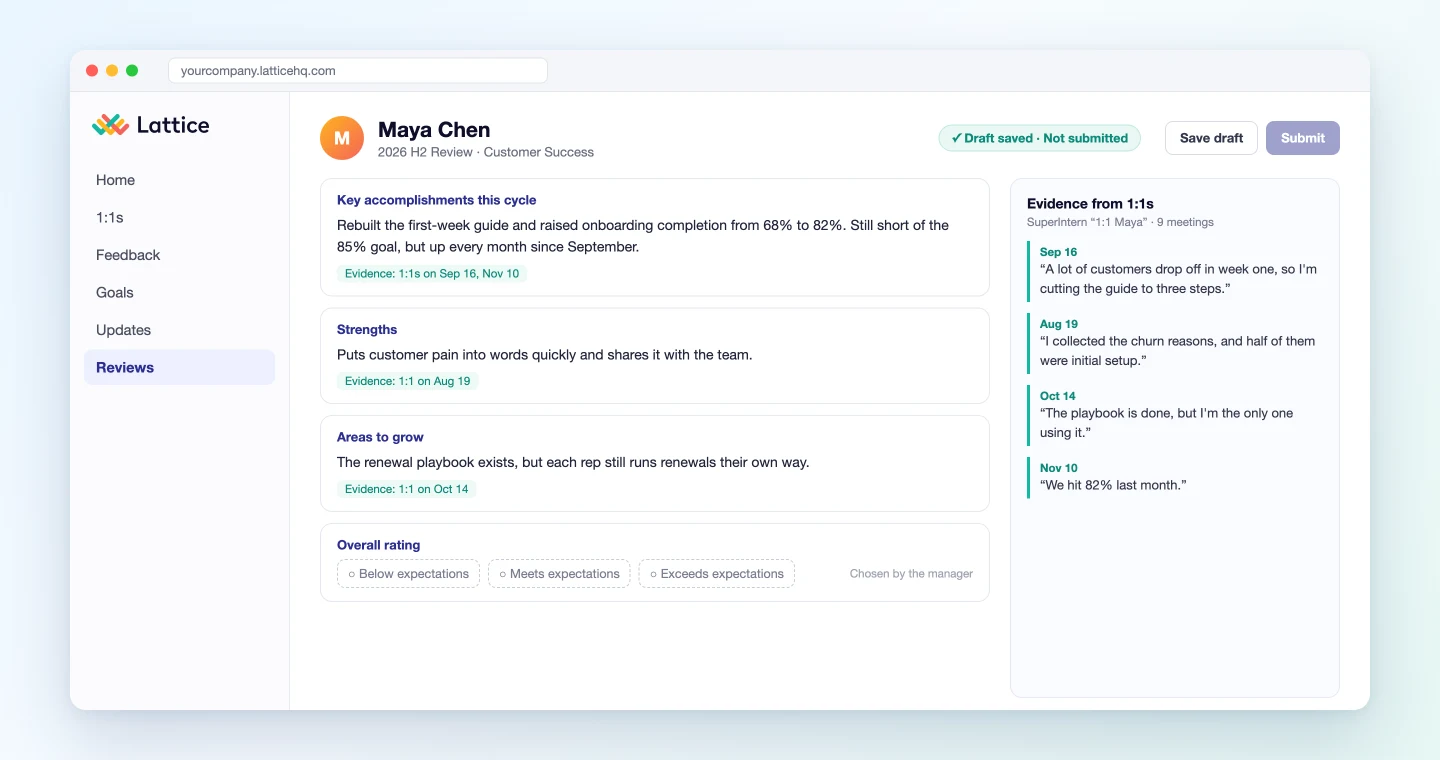
You can keep editing the draft in Lattice. Picking the rating, putting it in your own words, and pressing submit are yours.
Demo 2: Draft your weekly Update from this week's meetings
If you write weekly check-ins with Lattice Updates, you can draft those from your meeting records too. It's your own Update, so it uses meetings you attended.
Read my SuperIntern meetings for this week (Nov 9 to Nov 13) and draft this week's
Lattice Update.
- First check this week's Update questions and my goals in Lattice
- For each question, write short bullets on progress, next week's priorities, and blockers
- Add the meeting name next to anything that was decided in a meeting
- Leave out small talk unrelated to my goals and anything about other people's performance
Once I've checked it, save it to Lattice as a draft. Do not submit.
The agent follows your Lattice Update questions and fills them from the week's meetings:
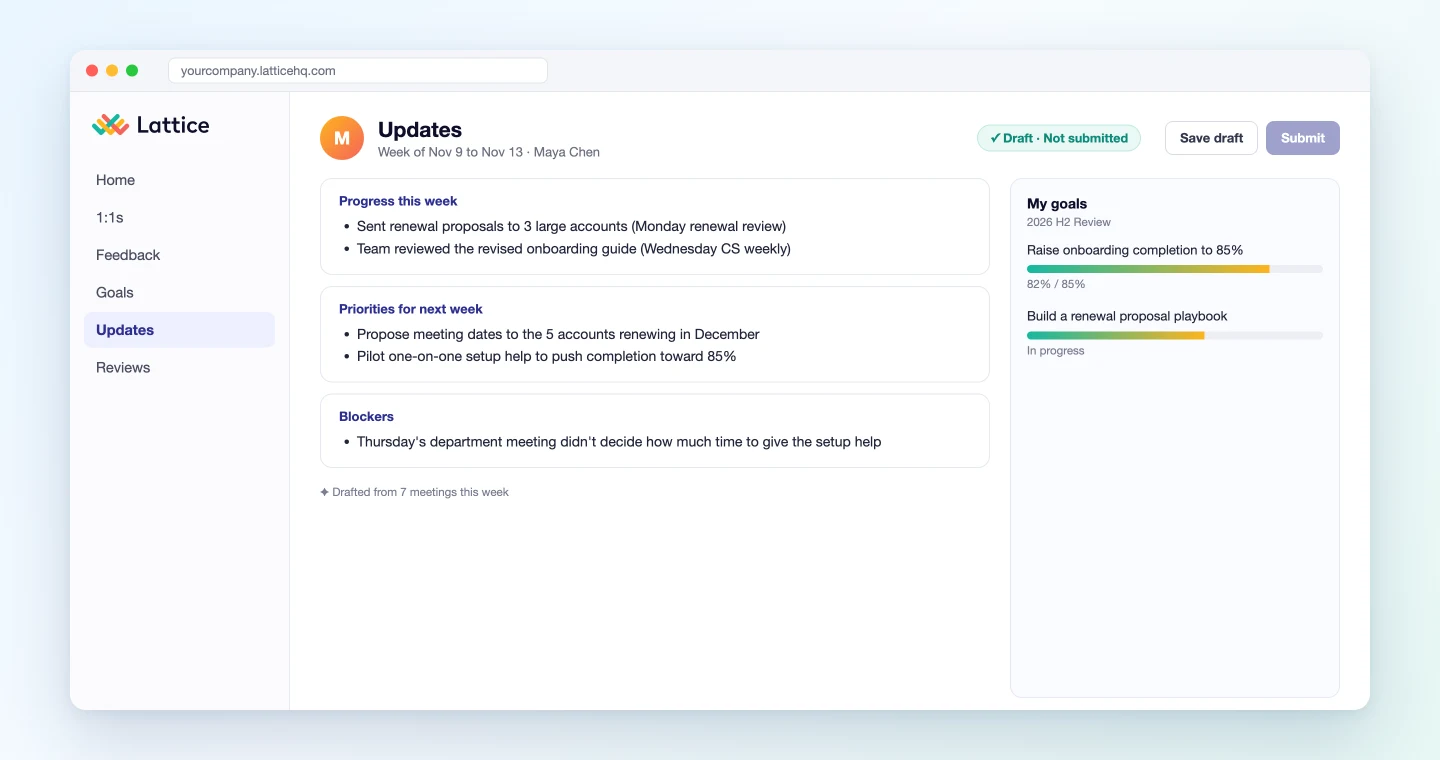
You had 7 meetings this week. Your Update has 3 questions.
Progress this week
- Sent renewal proposals to 3 large accounts (Monday renewal review)
- Team reviewed the revised onboarding guide (Wednesday CS weekly)
Priorities for next week
- Propose meeting dates to the 5 accounts renewing in December
- Pilot one-on-one setup help to push completion toward 85%
Blockers
- Thursday's department meeting didn't decide how much time to give the setup help
Should I save this?
Once saved, it sits in Lattice as an unsubmitted Update. A submitted Update can't go back to a draft, so check it yourself before you submit.
Demo 3: Check last time's action items during a 1:1
SuperIntern MCP can also read the live transcript of a meeting in progress. It can fetch just what is new since the last read, so calling it repeatedly during a meeting stays light.
Halfway through a 1:1, check whether last time's commitments have come up:
Read the live transcript of the current "1:1 Maya" meeting (only what's new since
the last read) and compare it with the action items from our last 1:1 in Lattice.
In three lines or fewer, list any item that hasn't come up yet, with a way to ask about it.
Do not write anything to Lattice.
The agent lines up the last 1:1 against the conversation so far:
Of the 3 action items from last time, 2 have come up.
- Not yet discussed: "Share the renewal playbook at the team study session"
- Way to ask: "Did the study session get a date?"
Nothing is written to Lattice in this demo. Whether to raise it in the time left is your call.
Tips for running this
Tell your reports you record 1:1s. SuperIntern doesn't add a bot to the meeting, so the other person can't see that it's being recorded. Say so in your first 1:1, including that it may inform their review.
People set the rating. Keep "leave rating questions blank" in every prompt and the agent never decides the review itself. The draft comments organize the material; the judgment is the manager's.
Keep drafting and submitting apart. The Lattice connection isn't read-only; it can submit reviews and Updates too. Every prompt in this article stops at saving a draft. If your organization wants no writes at all, a Claude owner can set Lattice to read-only.
Open the evidence yourself. For each 1:1 cited, check the surrounding conversation in SuperIntern. A half-joking remark can end up as the basis of a review comment.
Permissions match yours. SuperIntern MCP reads only meetings you can see. In Lattice, you see only your own reviews and your reports'.
Other tools you can pair this with
SuperIntern MCP provides the meeting data, the agent decides, and another tool does the work. That split stays the same when the destination changes.
- Ashby: keep interview notes that quote the candidate with the Ashby guide
- Asana: turn a weekly meeting into a project status update with the Asana guide
- Todoist: capture what you took on in a 1:1 with the Todoist guide
- Notion: keep 1:1 records in a database per report with the Notion guide
FAQ
Can I use SuperIntern MCP on the Free plan?
No. Personal workspaces need the Plus plan or above. The Team plan works as is. On the Enterprise plan, an admin needs to turn on "MCP access" in workspace settings.
Does SuperIntern write to Lattice?
No. The agent saves review and Update drafts through Lattice's official MCP server. SuperIntern MCP only provides meeting data, read-only, and SuperIntern itself never writes to outside tools.
Could the agent submit a review on its own?
The prompts in this article stop once your approved comments are saved as a draft. In Lattice, saving a draft and submitting are separate actions. If you want more certainty, set the Lattice connection to read-only for your organization and take the draft comments from the chat.
Does this work in ChatGPT too?
If the Lattice app is enabled in your ChatGPT workspace, the same prompts read your 1:1 records and goals and draft review comments. Lattice's help doesn't say whether saving drafts works from ChatGPT, so if it doesn't, paste the text into Lattice.
Can I use meetings other than 1:1s?
Yes. If your report presented in a project meeting or review that you can see, it can count as evidence. Name those meetings in the prompt alongside the "1:1 Maya" project.
What about 1:1s I don't want recorded?
If you don't record a session, it never reaches the agent. Some conversations, like career worries or health, may be better left unrecorded. Agree with your report on what gets recorded.
Start recording your next 1:1s with SuperIntern, and try the Demo 1 prompt when review season comes around. You'll start each review from a draft built on six months of what was actually said.