
Turn Discovery Calls into PandaDoc Proposal Drafts: A SuperIntern MCP + PandaDoc Guide
After a discovery call, most reps fill in the proposal template from scribbled notes and memory. If the draft waits a few days, the prospect's own words about their pain and deadlines fade, and the proposal starts to read like one you could send to anyone.
Connect SuperIntern MCP and PandaDoc to an AI agent (Claude, ChatGPT), and the agent pulls the pains and requirements from the call record and drafts the proposal section by section in your PandaDoc template. You review everything in a table first, only the approved content lands in PandaDoc as a draft, and the rep still sends it from PandaDoc.
⚠️ This article was independently compiled based on publicly available information and user feedback as of November 2026.
Table of contents
- From call to proposal draft
- How it fits together
- Setup
- Use case 1: Draft the proposal right after discovery
- Use case 2: After the follow-up call, apply only what was agreed
- Use case 3: During the pitch, check the draft against what you hear
- Tips for running it
- Other tools that follow the same pattern
- FAQ
From call to proposal draft
Before: On discovery, the ops director tells you cycle counts eat two full days every month-end and that one warehouse has to be live before the February peak. By the time you write the proposal, your notes just say "2 days" and "Feb." The pain section ends up generic, the timeline gets copied from the last deal, and when your manager asks what the prospect actually said, you are digging through recordings.
After: When the call ends, you ask the agent for a proposal draft. It reads the SuperIntern summary and transcript, then returns a table with the text it plans to put under each heading of your PandaDoc template and the quote that backs it up. Once you approve, a new document is created from the template with the challenges, proposed solution, and timeline already filled in. The rep finishes the pricing table and sends it from PandaDoc.
Record the call in SuperIntern first. SuperIntern is a desktop meeting assistant that never adds a bot to your calls, and it automatically produces transcripts and AI summaries for online and in-person meetings alike. Because no bot shows up on the prospect's screen, recording a first call doesn't make anyone guarded.
In this guide, the example is an account executive selling inventory management software. PandaDoc has a proposal template with these sections:
| Template | Section | What goes in it |
|---|---|---|
| Standard Proposal | Current challenges | The pains the prospect described and their impact |
| Standard Proposal | Proposed solution | How each pain is solved, and what is in scope |
| Standard Proposal | Implementation timeline | Phases and dates through go-live |
| Standard Proposal | Pricing | A pricing table built from the product catalog |
Swap in the sections from your own template.
How it fits together
| Role | Tool | What it does |
|---|---|---|
| Meeting data | SuperIntern MCP | Provides meeting lists, transcripts, live transcripts, and AI summaries, read-only |
| Judgment and drafting | AI agent (Claude, ChatGPT) | Picks out pains, requirements, and deadlines, and writes text for each template section |
| Destination | PandaDoc (official PandaDoc MCP server and ChatGPT app) | Creates documents from templates and updates draft text and variables |
MCP (Model Context Protocol) is an open standard for connecting AI assistants to external tools. SuperIntern MCP gives the agent read-only access to your meeting data. See the MCP setup guide for details.
On the PandaDoc side, you use PandaDoc's official MCP server and its official ChatGPT app. They cover listing and inspecting templates, creating documents from a template, editing content, variables, and pricing tables, and adding recipients and sending.
The agent is what writes to PandaDoc. SuperIntern stays read-only: nothing changes on the SuperIntern side, and the agent can only read meetings you already have access to. Because PandaDoc's tools include sending, every prompt in this guide tells the agent not to add recipients and not to send.
Setup
You connect two things: SuperIntern and PandaDoc. Use whichever agent you already work in. PandaDoc is officially listed in both Claude's connector directory and ChatGPT's apps, and both can create and edit documents, so every prompt in this guide works the same in Claude and ChatGPT.
1. Connect SuperIntern MCP
- Claude: Open Settings, go to Customize in the lower left, then Connectors, and search for "SuperIntern." You can also open SuperIntern in Claude's connector directory directly. Adding connectors requires a paid Claude plan.
- ChatGPT: In the sidebar, open Plugins, search for "superintern," open SuperIntern, and click Install plugin. The SuperIntern plugin page takes you there directly. The Codex app works the same way.
Either way, sign in on the SuperIntern login screen and allow access. Personal workspaces need the Plus plan or higher, and Enterprise workspaces need an admin to enable MCP access. For full requirements and setup in Claude Code, Cursor, and other clients, see the MCP setup guide.
2. Connect PandaDoc
- Claude: Go to Customize > Connectors, search for "PandaDoc," connect it, then sign in to PandaDoc and allow access.
- ChatGPT: In Plugins, search for "PandaDoc," connect it, and sign in with Sign in with PandaDoc. According to PandaDoc, the ChatGPT app currently works on every PandaDoc plan, including Free.
- Claude Code: Run
claude mcp add pandadoc --transport http https://mcp.pandadoc.com/v1/mcp, then authenticate from/mcp.
EU-region accounts that sign in at app.pandadoc.eu can't connect from either directory. Follow PandaDoc's official instructions and add the EU server, https://mcp.pandadoc.eu/v1/mcp, manually.
Once both are connected, check that the agent can see each one:
List this week's sales calls in SuperIntern.
Also list the proposal templates I can use in PandaDoc.
If both lists come back, you're ready.
Use case 1: Draft the proposal right after discovery
This pays off most on the same day you hear the prospect out. The prompt asks the agent to show the text for each section with the supporting quote in a table, not write to PandaDoc until you approve, and not send anything.
Read the summary and transcript of today's "Bluepine Logistics Discovery" call in SuperIntern
and pull out the prospect's pains, requirements, deadlines, and how they make decisions.
Check the sections of the PandaDoc template "Standard Proposal" and put the text
for "Current challenges," "Proposed solution," and "Implementation timeline" in this table:
- Section, text to insert, supporting quote (speaker and timestamp)
- Don't write numbers or commitments the prospect didn't state. Mark anything unclear as "To confirm"
- Leave the pricing section alone
Once I approve, create "Proposal for Bluepine Logistics" from that template.
Don't add recipients and don't send it. Show me the table first.
The agent compares the call record with the template and replies:
Here's the text for the three sections of "Standard Proposal."
Section Text to insert Supporting quote Current challenges Inventory across the Reno, Sparks, and Stockton warehouses lives in spreadsheets, and every month-end cycle count takes two full days Dana Ruiz (10:12) "All three sites count in spreadsheets, and month-end is two days gone." Current challenges About 20 mis-shipments a month, and arranging reshipments is wearing out the floor team Dana Ruiz (10:18) "We mis-ship about 20 orders a month. Setting up the reships is the worst part." Proposed solution Barcode scanning on handheld devices plus a CSV sync with the ERP, bringing count and ship confirmation into one screen Kevin Cho (10:31) "A CSV sync with the ERP is plenty to start." Implementation timeline Go live at the Reno warehouse ahead of the February peak Dana Ruiz (10:40) "I want Reno running before the February peak, at minimum." To confirm
- Decision timing: she mentioned "taking it to the January leadership meeting," but no submission deadline came up
Should I create the document with this content?
Reply OK, and a new document is created in PandaDoc from the template. It stays in Draft with no recipients.
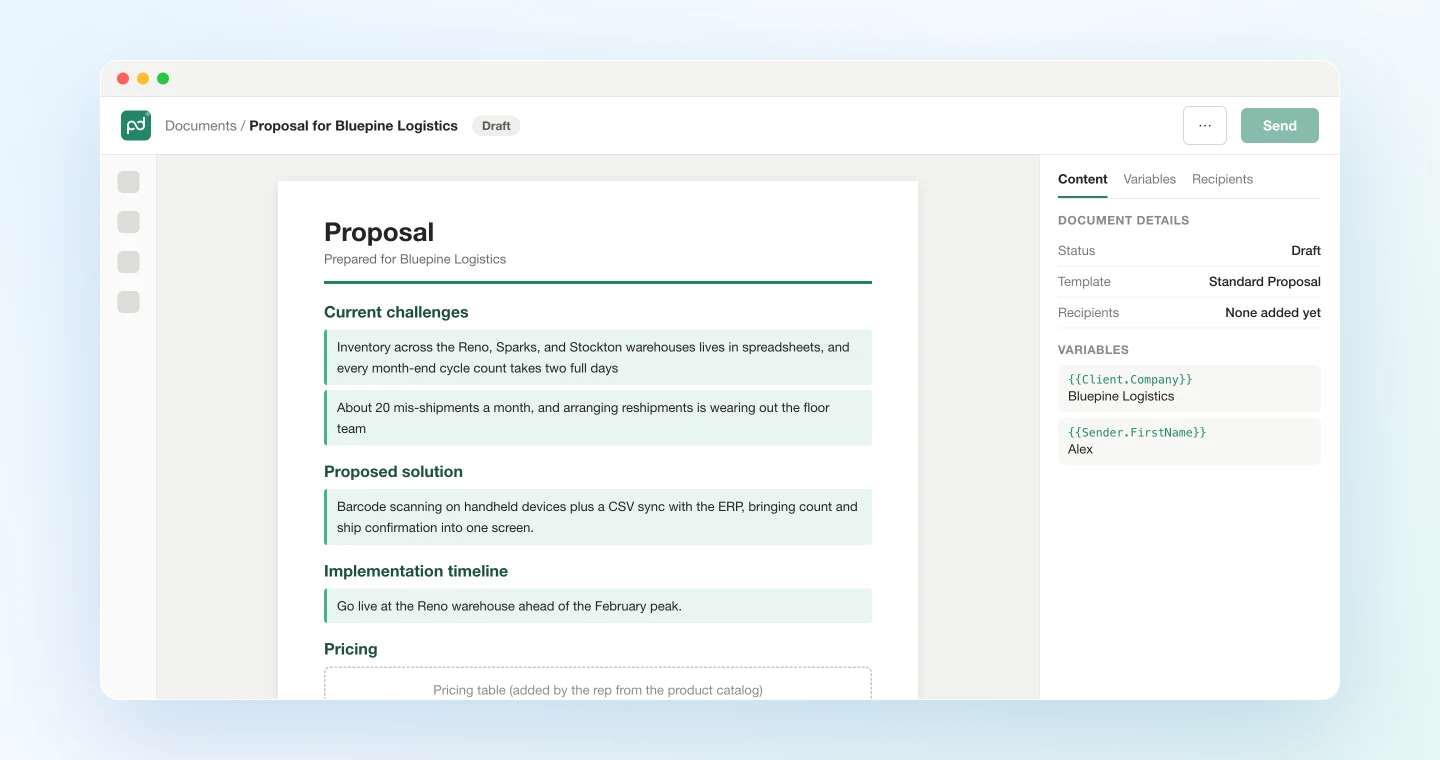
The rep finishes the pricing table in PandaDoc by picking items from the product catalog. Discounts and quote terms usually go through internal approval, so it is safer not to hand them to the agent.
Use case 2: After the follow-up call, apply only what was agreed
Scope and start dates tend to move on the second call. The trick is to update the draft only with what was decided and leave open questions alone.
Read the summary and transcript of today's "Bluepine Logistics Requirements Review" call in SuperIntern
and find decisions that conflict with the PandaDoc draft "Proposal for Bluepine Logistics."
Put them in this table:
- Section, current text, what was decided, proposed update, supporting quote (speaker and timestamp)
- Anything that ended with "we'll look into it" or "let me check internally" goes under "On hold"
Rewrite the draft text only for the rows I approve.
Don't add recipients, don't send, and don't change the pricing table. Show me the table first.
The agent compares the draft with the second call:
I found three decisions that conflict with the draft.
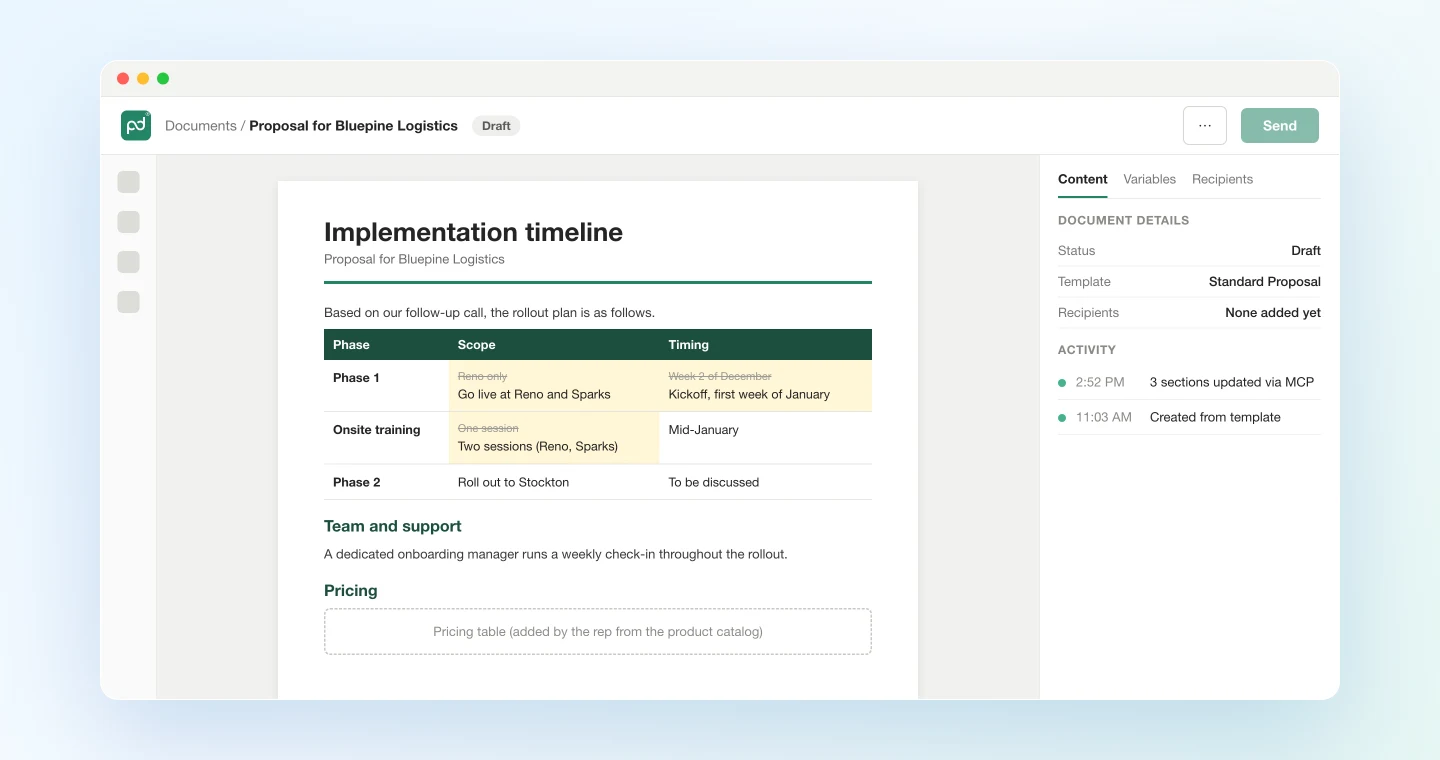
Section Current text What was decided Proposed update Supporting quote Implementation timeline Go live at Reno first Start Reno and Sparks together Make Phase 1 cover Reno and Sparks Dana Ruiz (14:08) "Let's do Sparks at the same time." Implementation timeline Kick off week 2 of December Start after the new year Move kickoff to the first week of January Dana Ruiz (14:15) "December is all hands on the year-end count. Let's start in January." Team and support One onsite training session Train each site separately Two onsite sessions (Reno and Sparks) Kevin Cho (14:26) "We'd like a session at each site." On hold
- ERP API integration: ended with "let me check internally"
Should I go ahead with these three?
Approve them, and only those sections change. You can also paste the table straight into an update for your manager or a deal desk request.
Note the on-hold items as questions for the next call so they don't slip.
Use case 3: During the pitch, check the draft against what you hear
SuperIntern MCP can also read the live transcript of a meeting in progress. It fetches only what's new since the last call, so you can run it several times during a meeting without slowing anything down.
If the prospect raises something new while you walk through the proposal, ask:
Read the live transcript (only what's new since last time) of the "Bluepine Logistics Proposal Walkthrough" in progress
and pick out the latest requests or conditions from the prospect.
Compare them with the PandaDoc draft "Proposal for Bluepine Logistics"
and tell me, in three lines or fewer, what's missing from the draft or contradicts it.
Don't write anything to PandaDoc.
The agent reads the new segment and returns only the differences:
- Returns receiving inspection (Dana Ruiz): "Proposed solution" only covers shipping and cycle counts.
- Stockton timing (Dana Ruiz): she said "Stockton after April," and the draft doesn't mention Stockton at all.
You know what to confirm before the call ends. Apply the changes afterward with the Use case 2 prompt.
Tips for running it
Let the rep do the sending. PandaDoc's tools include sending. Put "don't add recipients" and "don't send" in every prompt, and have the rep review the document in PandaDoc before sending it.
Don't let the agent invent anything. Including "don't write numbers or commitments the prospect didn't state" and "mark anything unclear as To confirm" keeps plausible-sounding filler out of the draft.
Ask for the supporting quote. When your manager asks whether the prospect really said that, the speaker and timestamp answer it on the spot.
Keep pricing with people. Amounts and discounts have internal approval rules, so let the agent handle the text only and have the rep build the pricing table from PandaDoc's product catalog.
Other tools that follow the same pattern
SuperIntern MCP provides the meeting data, the agent makes the call, and another tool does the work. That split stays the same whatever the destination.
- HubSpot: To log the call on the deal record, see the HubSpot guide
- Gmail: To prepare follow-up emails around the proposal, see the Gmail guide
- Apollo.io: To reach decision-makers who came up on the call, see the Apollo.io guide
- Google Docs: To keep meeting notes and requirements docs you share with the customer up to date, see the Google Docs guide
FAQ
Can I use SuperIntern MCP on the Free plan?
No. Personal workspaces need the Plus plan or higher. Team plans work as is. On Enterprise plans, an admin needs to turn on "MCP access" in workspace settings.
Does SuperIntern write to PandaDoc?
No. The agent creates documents and updates text through PandaDoc's official MCP server or ChatGPT app. SuperIntern MCP only provides meeting data, read-only, and SuperIntern itself never writes to outside tools.
Does this work in ChatGPT too?
Yes. In ChatGPT, search for PandaDoc's official app in Plugins and connect it. It can create documents from templates and edit content and variables, so the prompts in Use cases 1 through 3 are the same as in Claude. EU-region PandaDoc accounts can't connect from the directory and need to add the EU server manually.
Could a proposal get sent to the prospect by accident?
PandaDoc's tools include sending, so how you phrase the prompt matters. Every prompt in this guide tells the agent not to add recipients or send, and stops at the draft. The rep should review the document in PandaDoc before sending it.
Can the agent build the pricing table too?
PandaDoc's tools do support editing pricing tables. But amounts and discounts often need internal approval, so this guide leaves only the text to the agent and has the rep pick pricing from the product catalog.
How is this different from the HubSpot guide?
The HubSpot guide records the call in your CRM for internal use. This guide uses the same call record to build the proposal you hand to the prospect. Running both prompts after a call keeps your CRM notes and your proposal in sync.
Record your next discovery call in SuperIntern and try the Use case 1 prompt when it ends. Check the table, approve it, and a proposal draft written in the prospect's own words is in PandaDoc the same day.